

What Is a Dataset?
Datasets are a way to upload and manage content components in bulk. Once a dataset is created, the components can be referenced in any message where the dataset is selected. Content in a dataset changes infrequently. For real-time message-content, consider integrating your CMS.When Should I Use Datasets?
Datasets in Aampe are a way of managing messages with a large number of specific inputs. They are also helpful when managing combinations of message components- Your message directs users to one of many blog articles. Each variant includes the article title and the corresponding url.
- You want to refer to, say, a city and state together in a message. Obviously these inputs can’t be combined arbitrarily. Datasets will ensure separate column values only appear together.
How To Create a Dataset
Within the composer, Message Settings > Datasets- Click Create Dataset
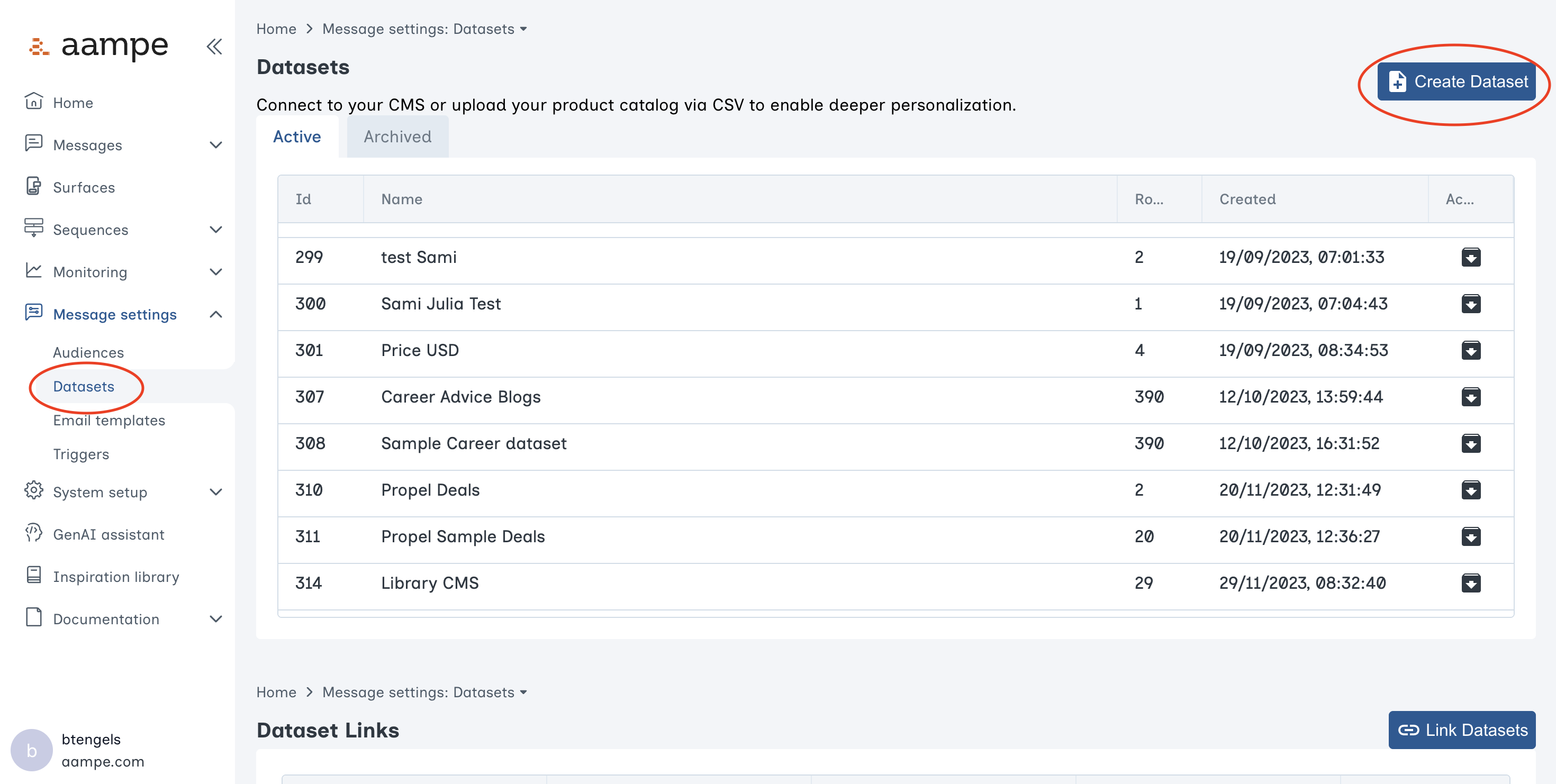
- Create a dataset in Aampe
- Upload a CSV
Create a Dataset in Aampe
This option is ok for smaller datasets.- Specify the columns, add values, and insert each new row
- Save
Upload a CSV
This option is ideal for larger datasets- Upload the csv
- Inspect the results and save
How To Use Datasets In a Message
Once a dataset has been created you can add any subset of that dataset to a message.- When creating a new message, click the Dataset icon near the bottom of the content panel
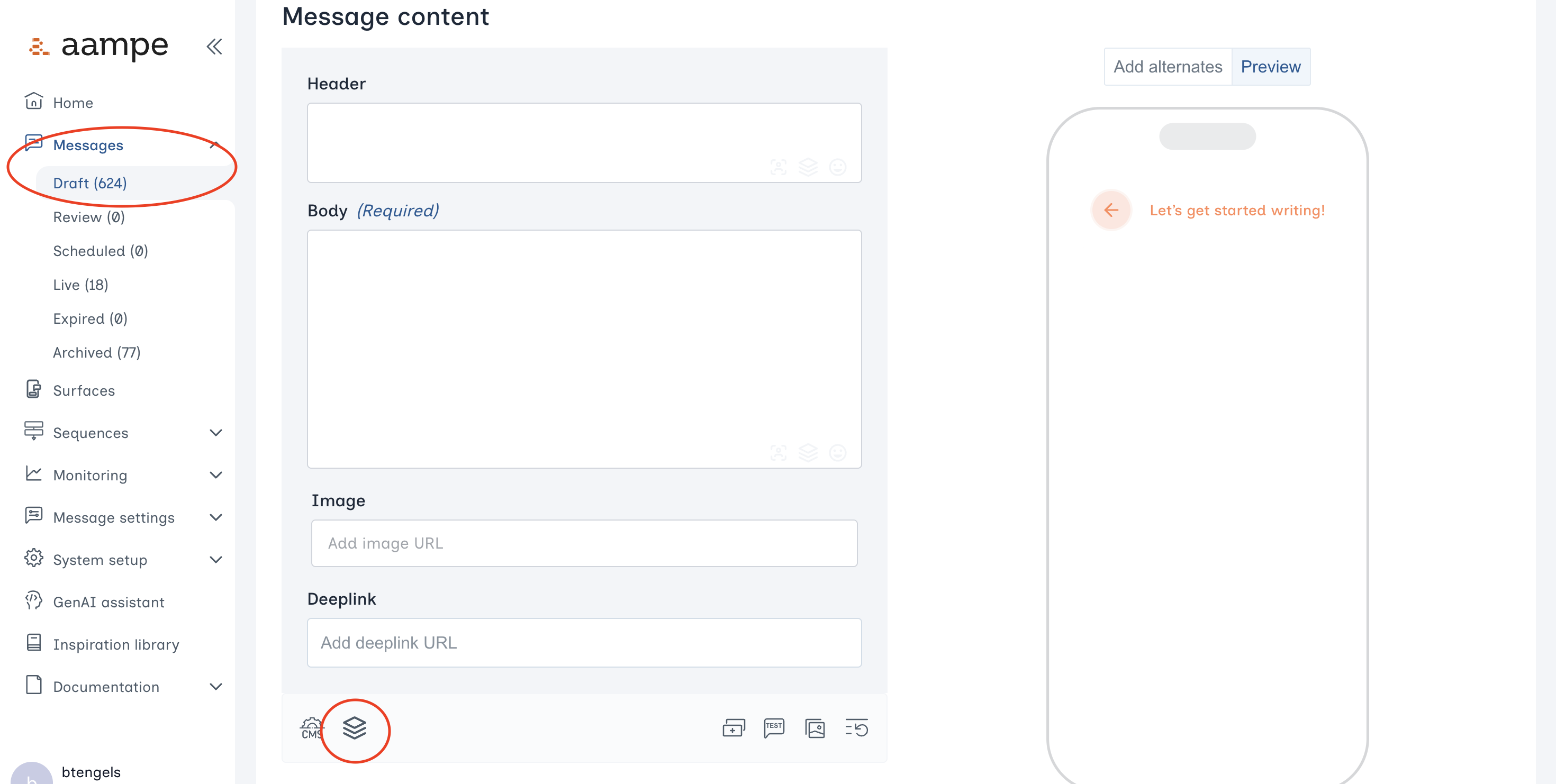
- Choose the dataset you wish to add
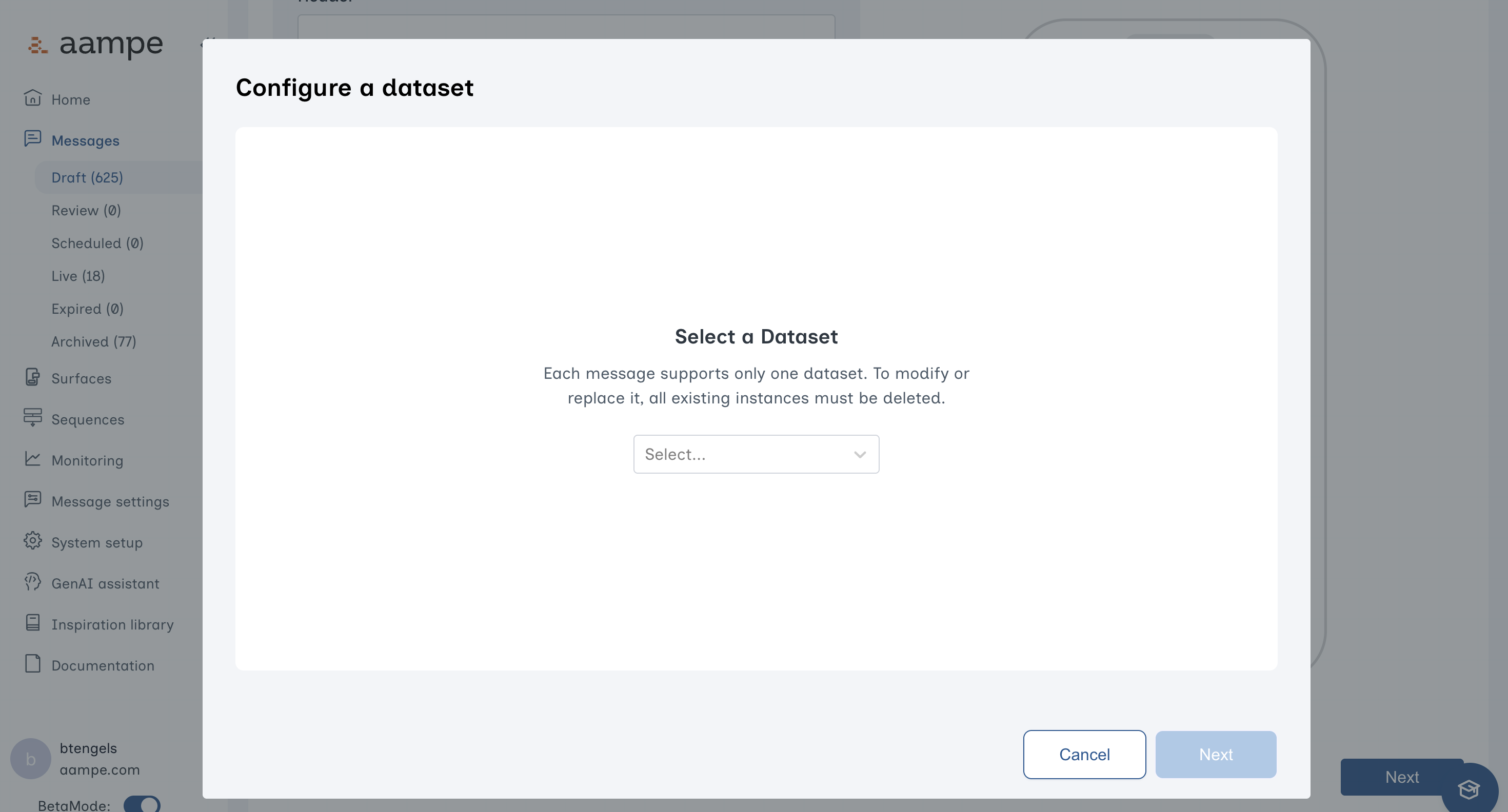
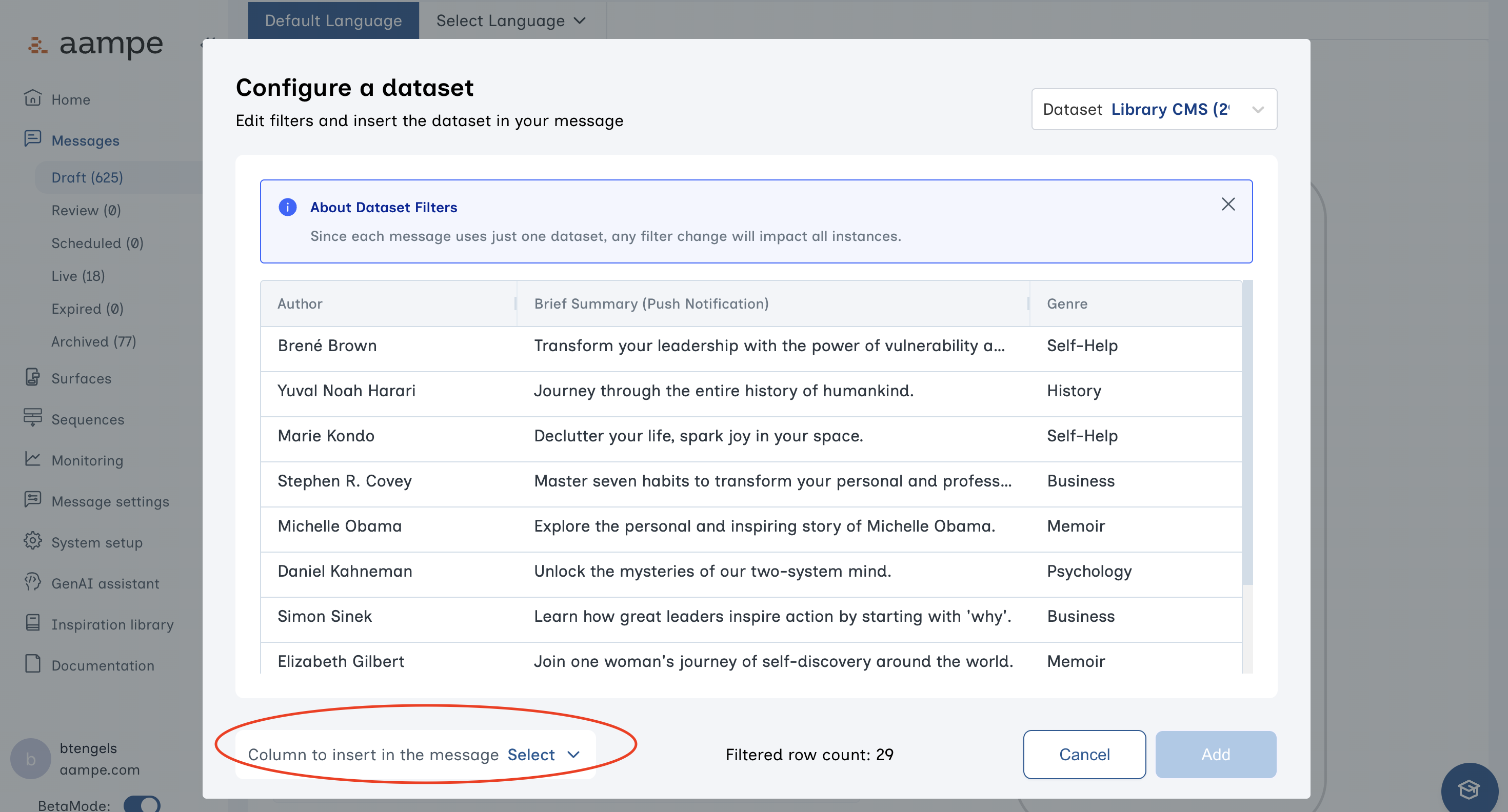
- Filter down to the specific rows you want to include. Click Add.
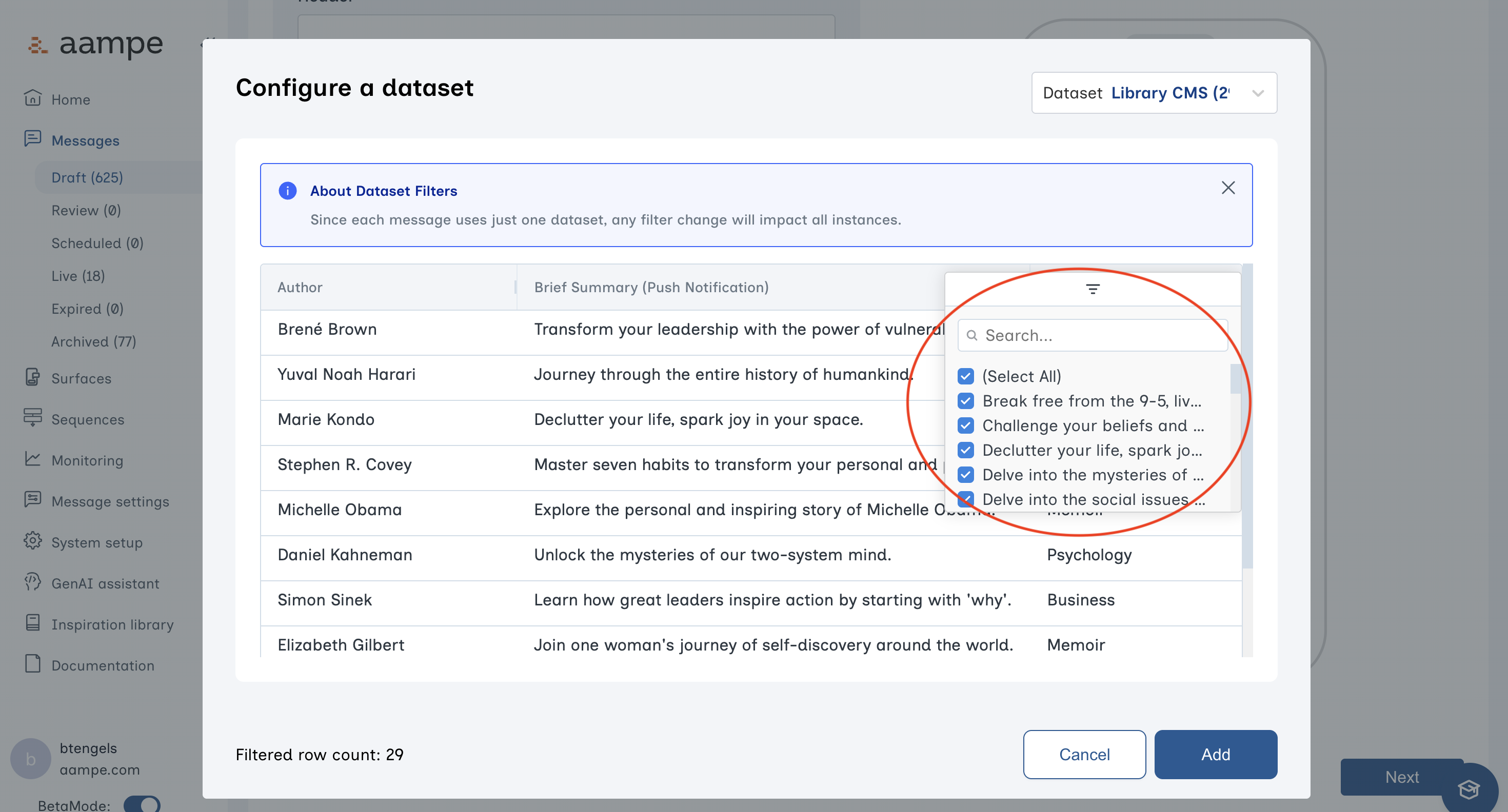
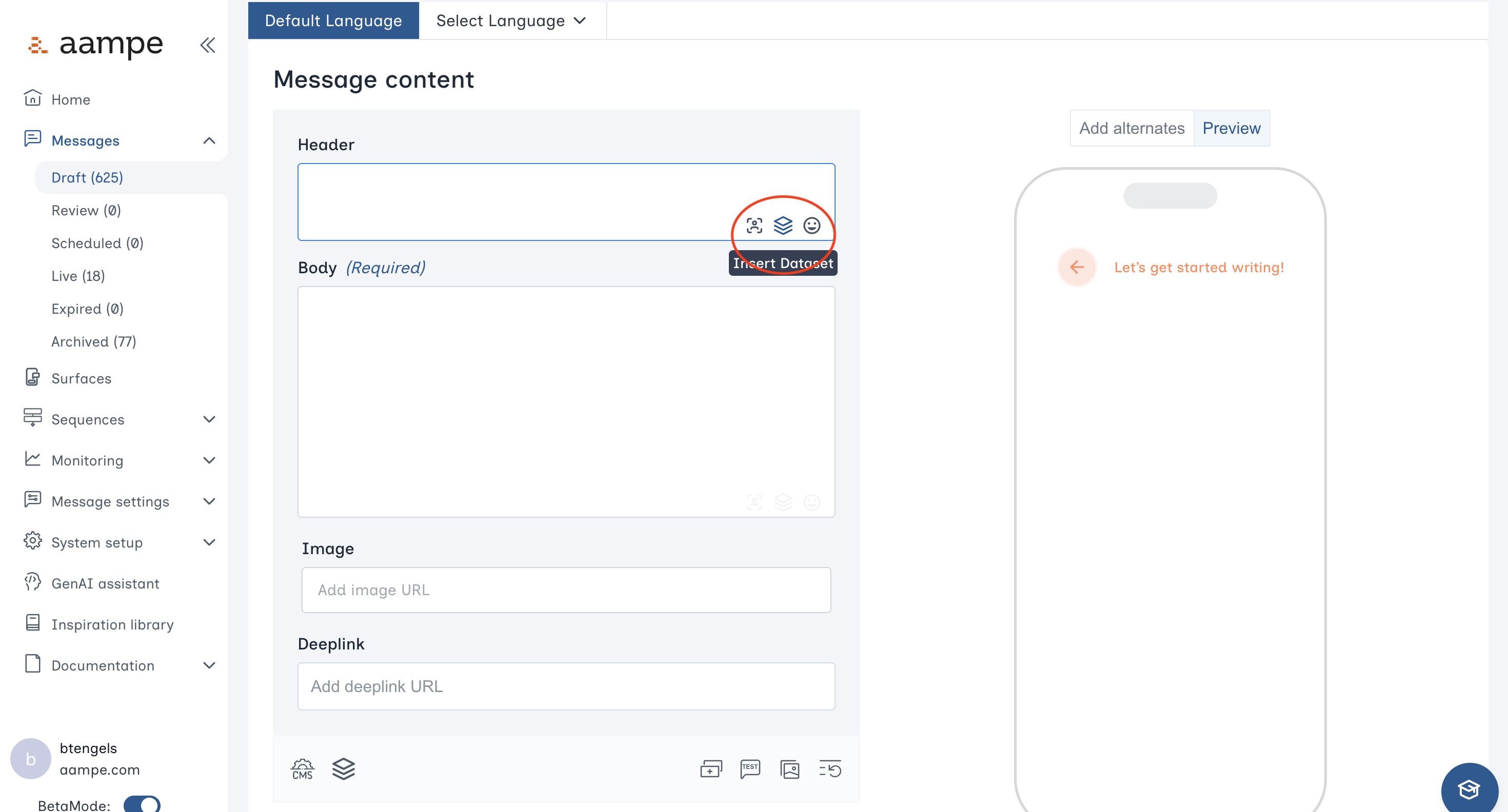
- To insert elements from the chosen dataset rows into the message, click the dataset icon
- Select a column to include in the message
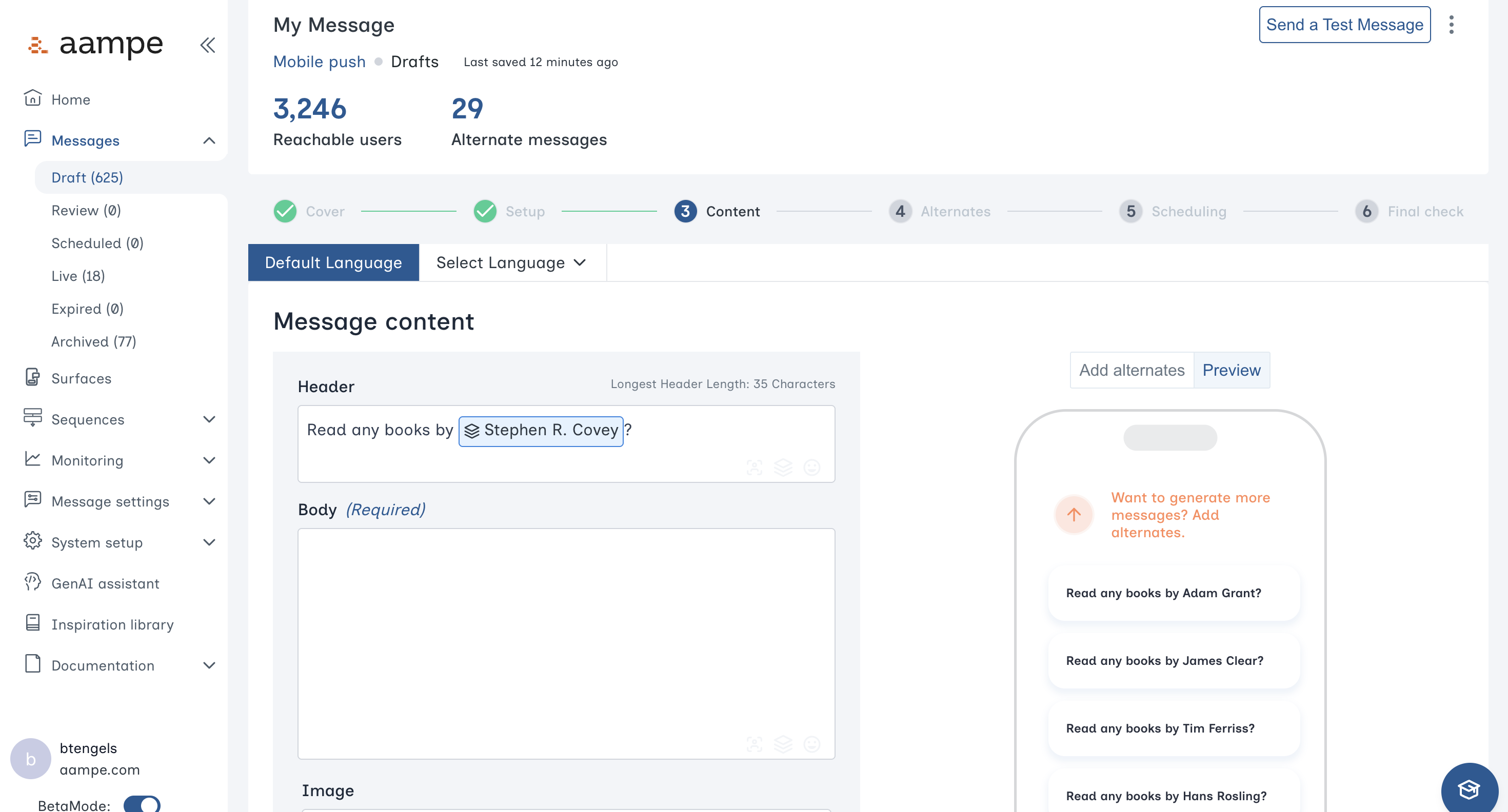
- The message will now have a variant for every row in the dataset. You can create additional variants by adding message components. You can also add other columns in the dataset.
Advanced Dataset Features
Alternates and Labels
Dataset Labels let you designate columns within a dataset as Alternates and apply corresponding Labels, so they can be included in agent learning. This unlocks insights from dataset-driven content, bringing it into learning and analytics.How to create a Dataset with labels
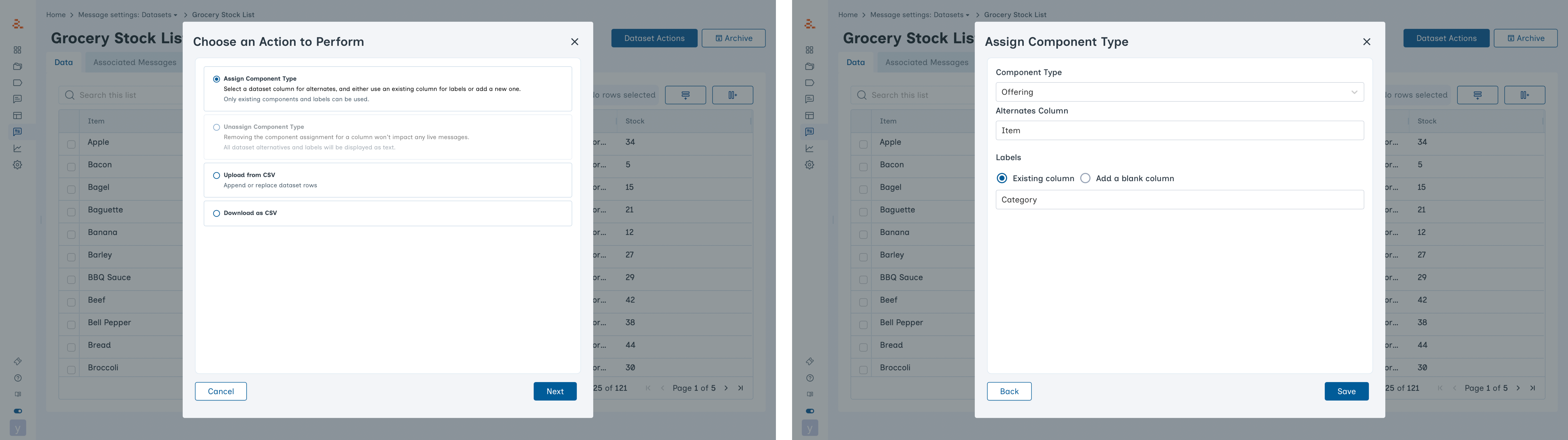
- Within a dataset, open the Dataset Actions menu and select Assign Component Type.
- Choose a Component type and select the column you want to use as Alternates.
- If you already have a column containing Labels for those Alternates, select it here.
- Otherwise, you have the option to add a blank column.
- Note: Only existing Component Types and Labels can be used.
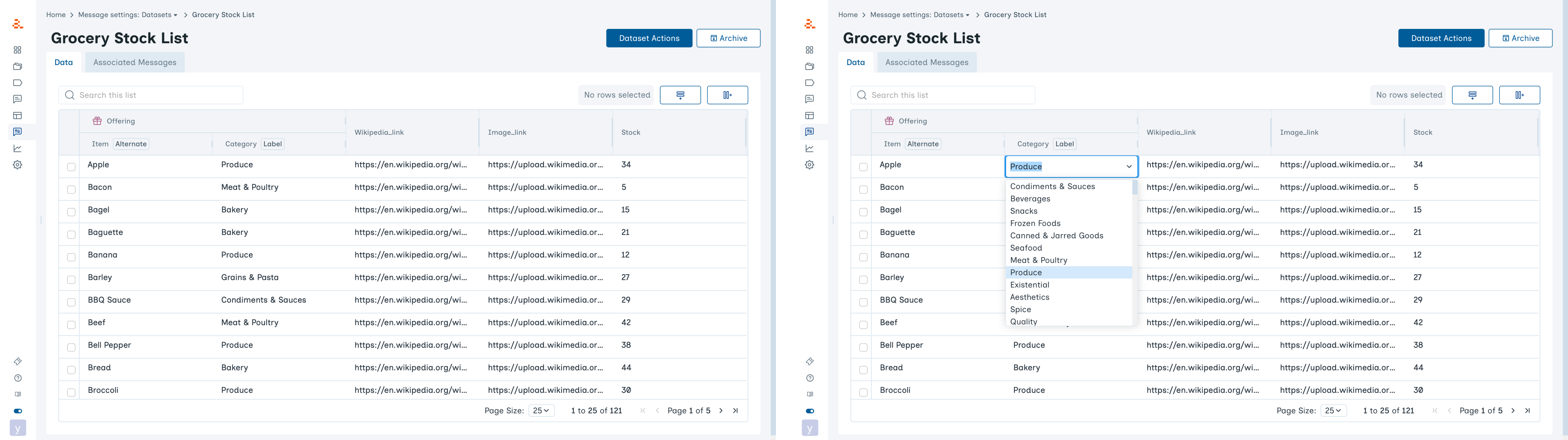
Using Dataset Labels in Messages
Including dataset content in a message continues as usual.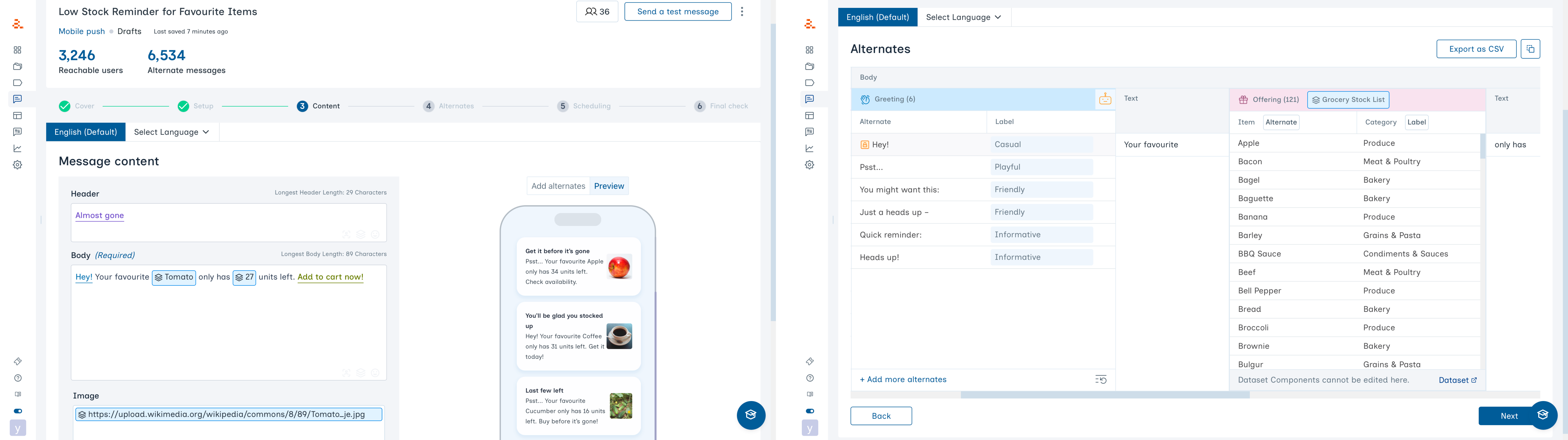
- If a dataset is updated, any Messages using that dataset are updated automatically.
- Labels applied to dataset Alternates are visible wherever those Alternates appear in Messages.
Start and End Dates
If a dataset contains columns namedstart_date and end_date, the message will only send within that date window.
Suppose you want to start sending messages one or two days ahead of a holiday. Your dataset would look like the following.
Connect your message to the dataset as shown above and bring elements into the message text.