

Note: When you repeat components in a message, labels are always synced by default.
Why Label Sync Matters
Using the same component twice can introduce ambiguity for agents if not managed correctly. Imagine you have a message with two Greetings. Without syncing, an agent may send a message in which:-
Greeting 1 uses label
Friendly -
Greeting 2 uses label
ProfessionalThe agent would then struggle to understand whether the Greeting LabelFriendlyorProfessionaldrove user behavior
Casual alternates always appear together; Professional alternates always appear together.
When should I Sync Labels?
Here are some examples of when syncing labels makes sense:- When using the same discount throughout the message — e.g., when “10% off” appears in two places (subject line + body) and must always match.
- When you’re talking about the same Offering — e.g., if your email is about “Hotels” you don’t want to mention “Flights” out of the blue
- To keep Tone consistent — e.g., you don’t want to sound Casual in the header but Professional in the body
Why am I seeing this error?
When you add the same component twice in a message, you may end up seeing an error like this (below) in your editor. Don’t panic — here’s why it happened, and how you can fix it.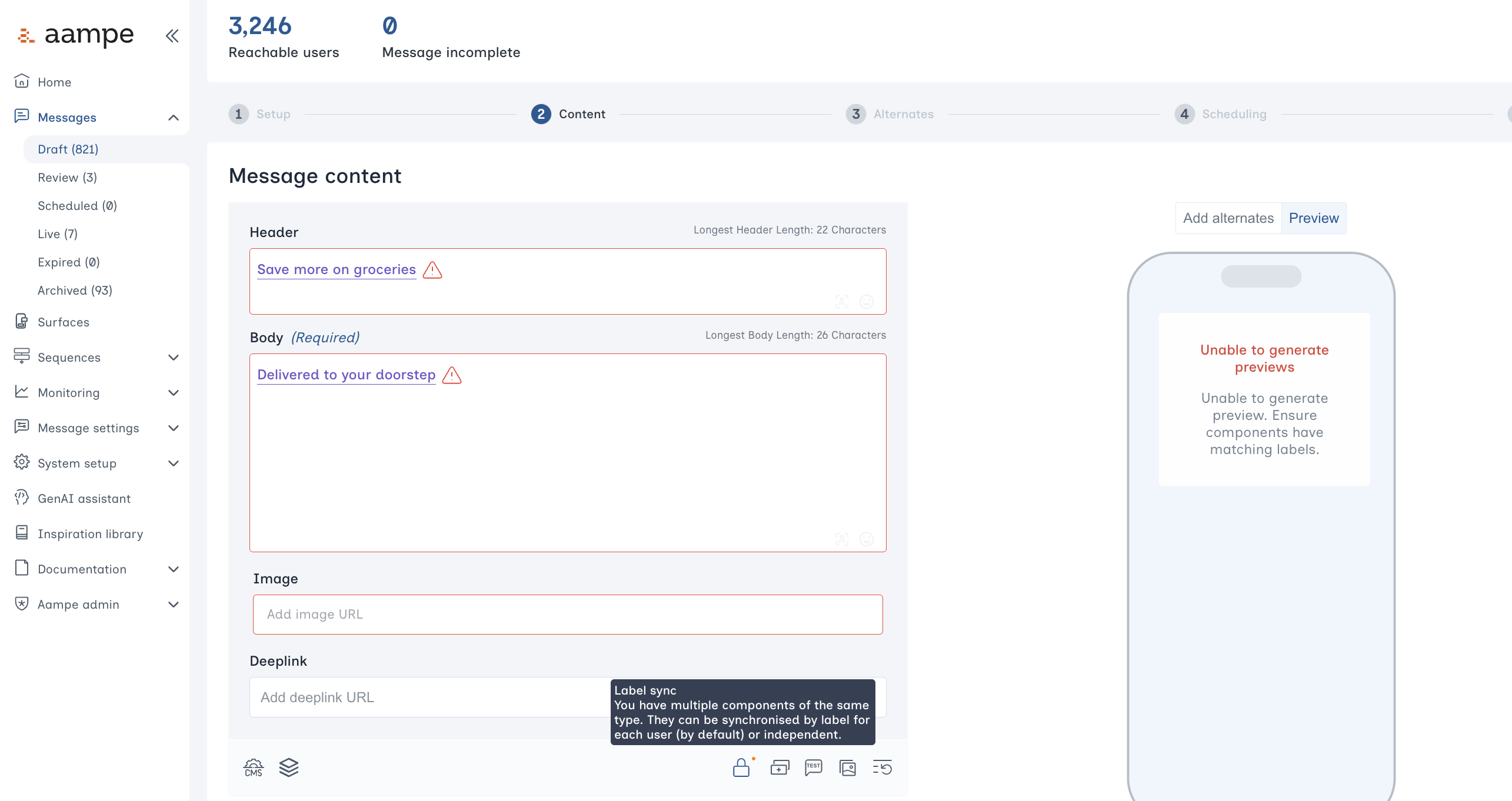
How you can fix this
- Turn off label sync
Click on the lock icon on the bottom right. This will mean agents are now free to mix and match all alternates within both components, across all labels. The components may or may not share the same labels. - Ensure both components have the same labels
If you want to keep label sync on and remove the error, make sure both components are using the same set of labels. For example:
Greeting 1 has labels Friendly and Professional
Greeting 2 has labels Quirky and Professional
You can either 👉
(A) Remove Friendly and Quirky from both Greetings
(B) Add Friendly to Greeting 2 and add Quirky to Greeting 1
(C) Replace Quirky in Greeting 2 with Friendly