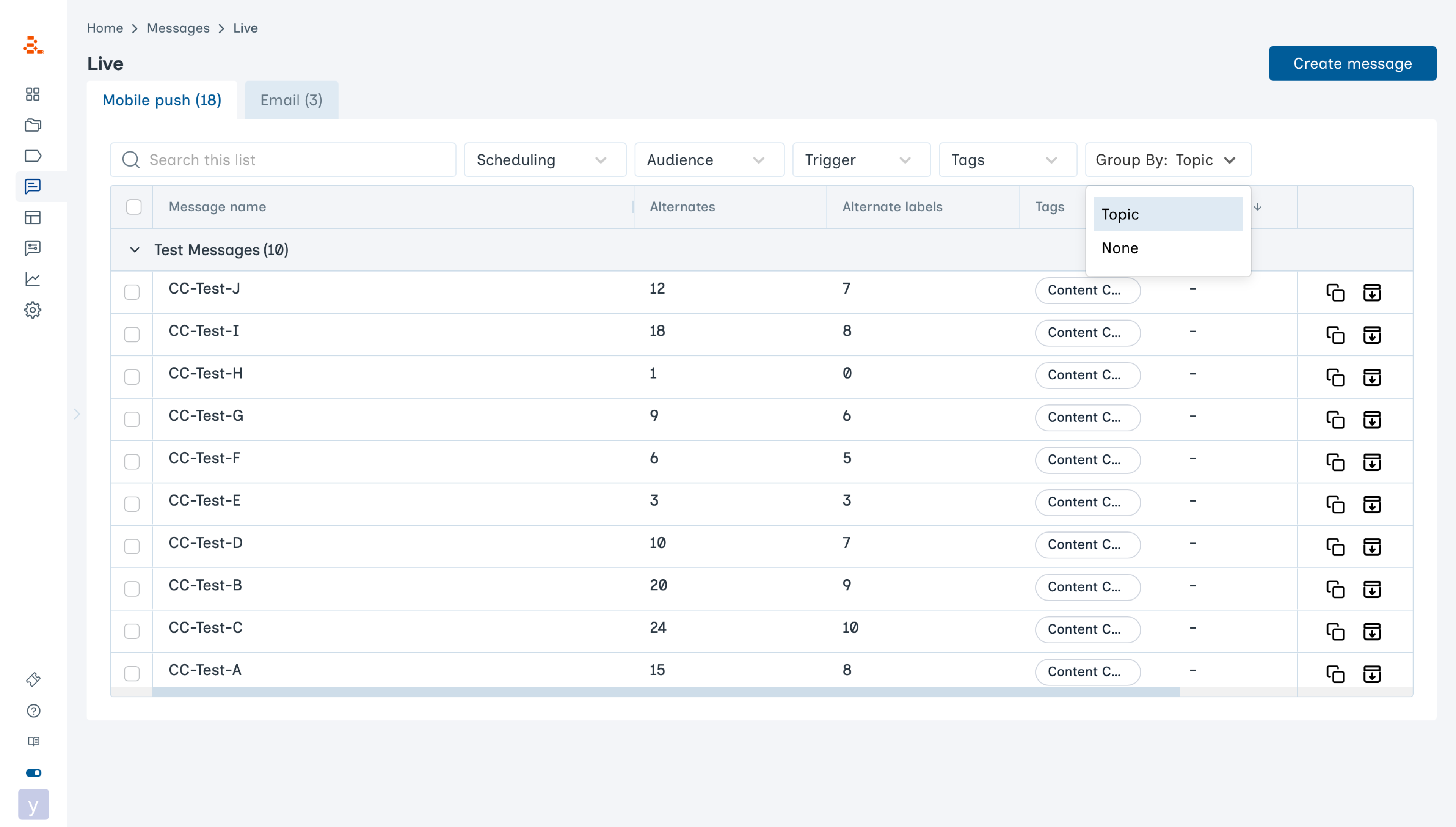
- Organise related Message Groups
- View how many Message Groups are allocated to a Topic
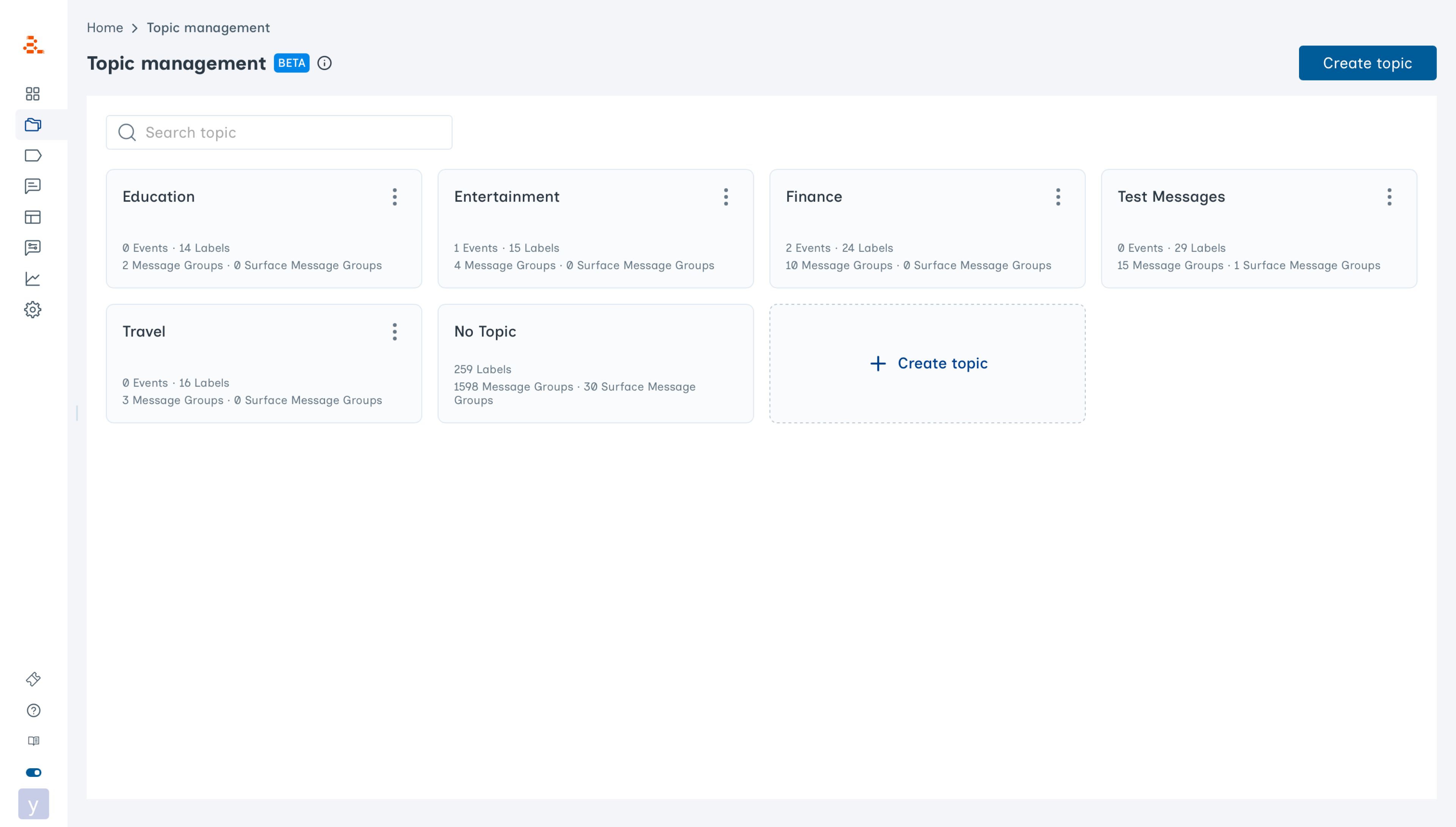
Topics are not the same as Labels. Agents do not learn on Topics. Topics are only meant for internal organization of content.
Why Use Topics?
Imagine you have several Message Groups about your product’s Premium Plan feature — and these Message Groups are spread across 5 languages, 3 channels, and various contexts (new-user nudges, abandon flows, awareness messages, etc.). All of these can be organized under a single Topic: Music Premium.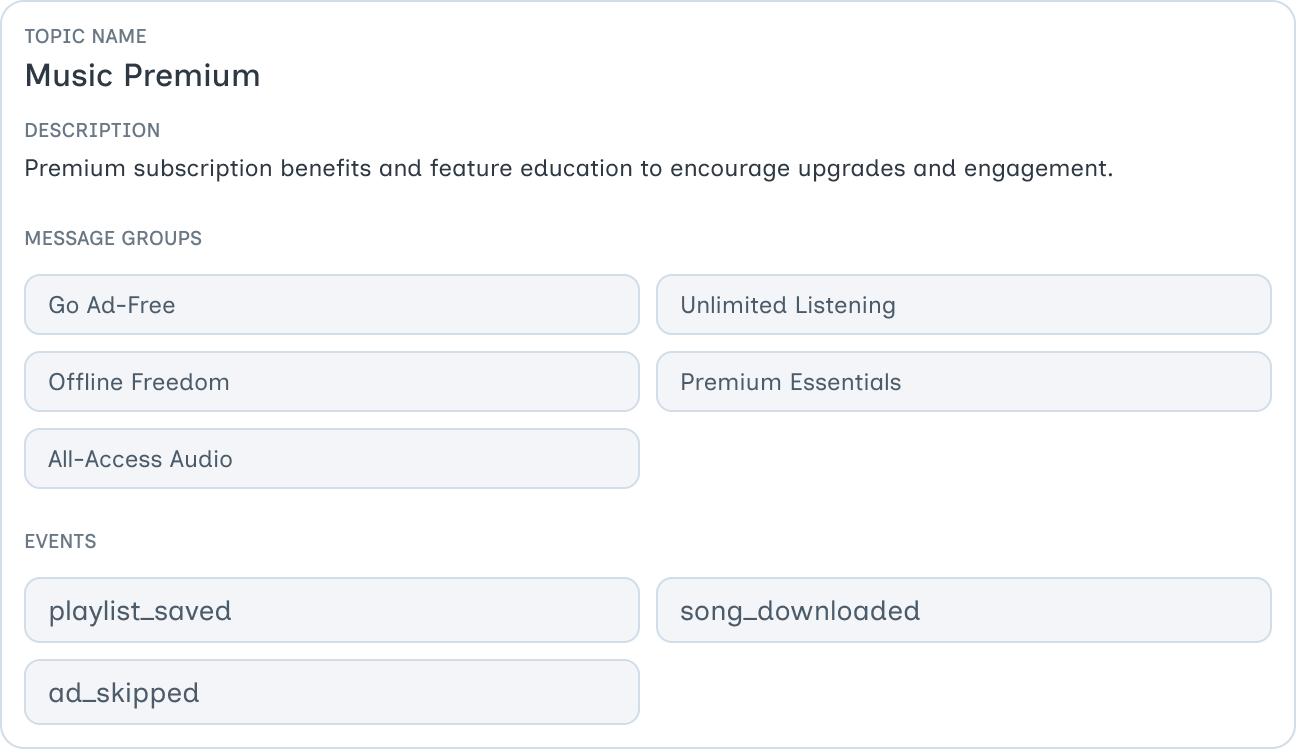
- New User Onboarding
- Educational Content
- Promos & Deals
- Abandon Cart
Create a New Topic
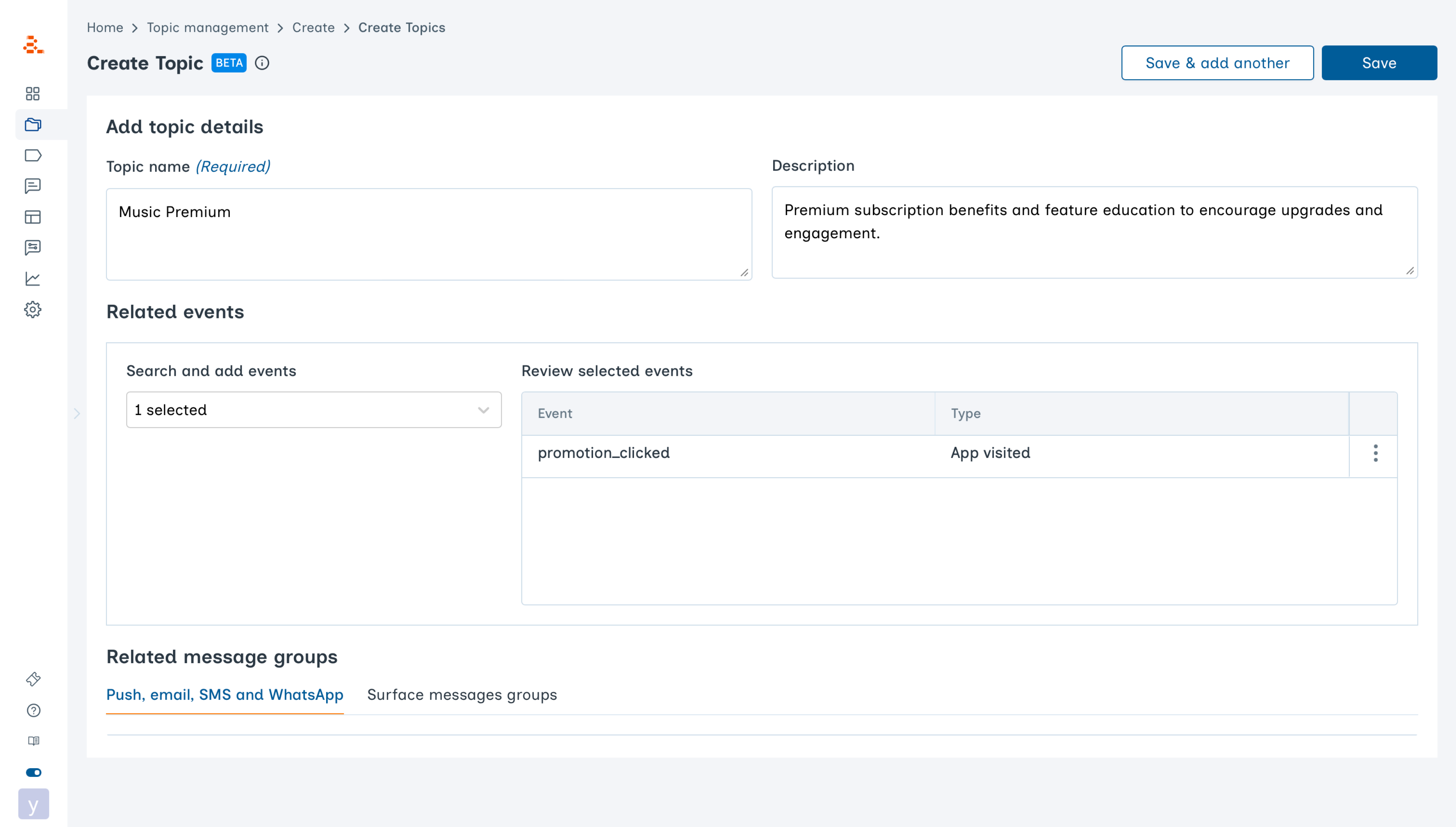
- Go to Monitoring → Topic Management.
- Click Create Topic.
- Enter a Topic name and, optionally, a description.
- Select any related Message Groups and Events (these can be edited later).
- Click Save to create the Topic.
Add Message Groups to Topics
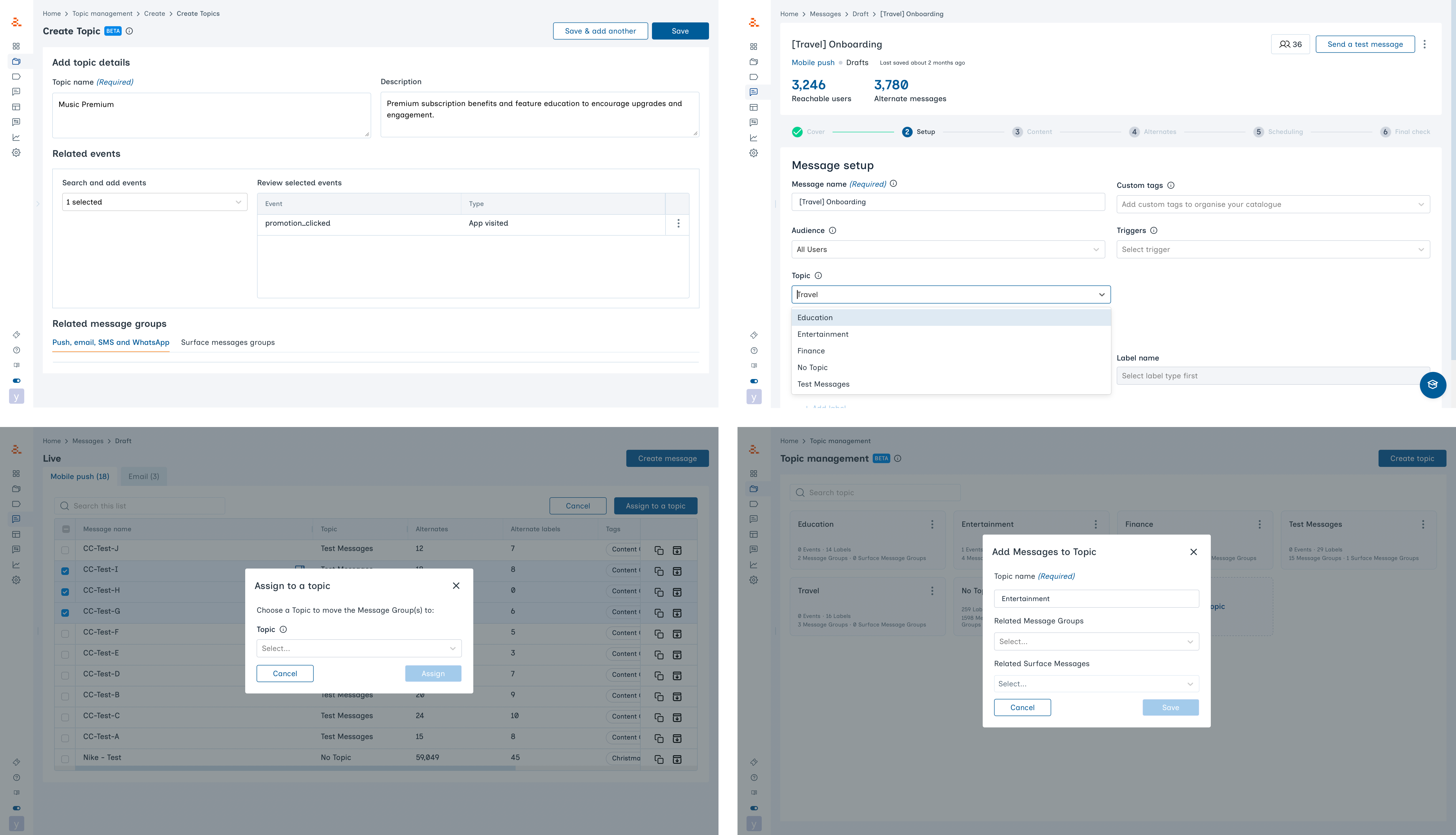
- During Message Group creation: Select a Topic while setting up the new Message Group
- When editing a Message Group: Update the Topic selection from the Message Group setup view
- Messages tables: Select one or more Messages and the Assign to a topic option will appear
- From Topic Management: Add Message Groups directly from the Topic Management list or the Topic details page
You can change Topic assignments for a message at any time.
View Topic Details
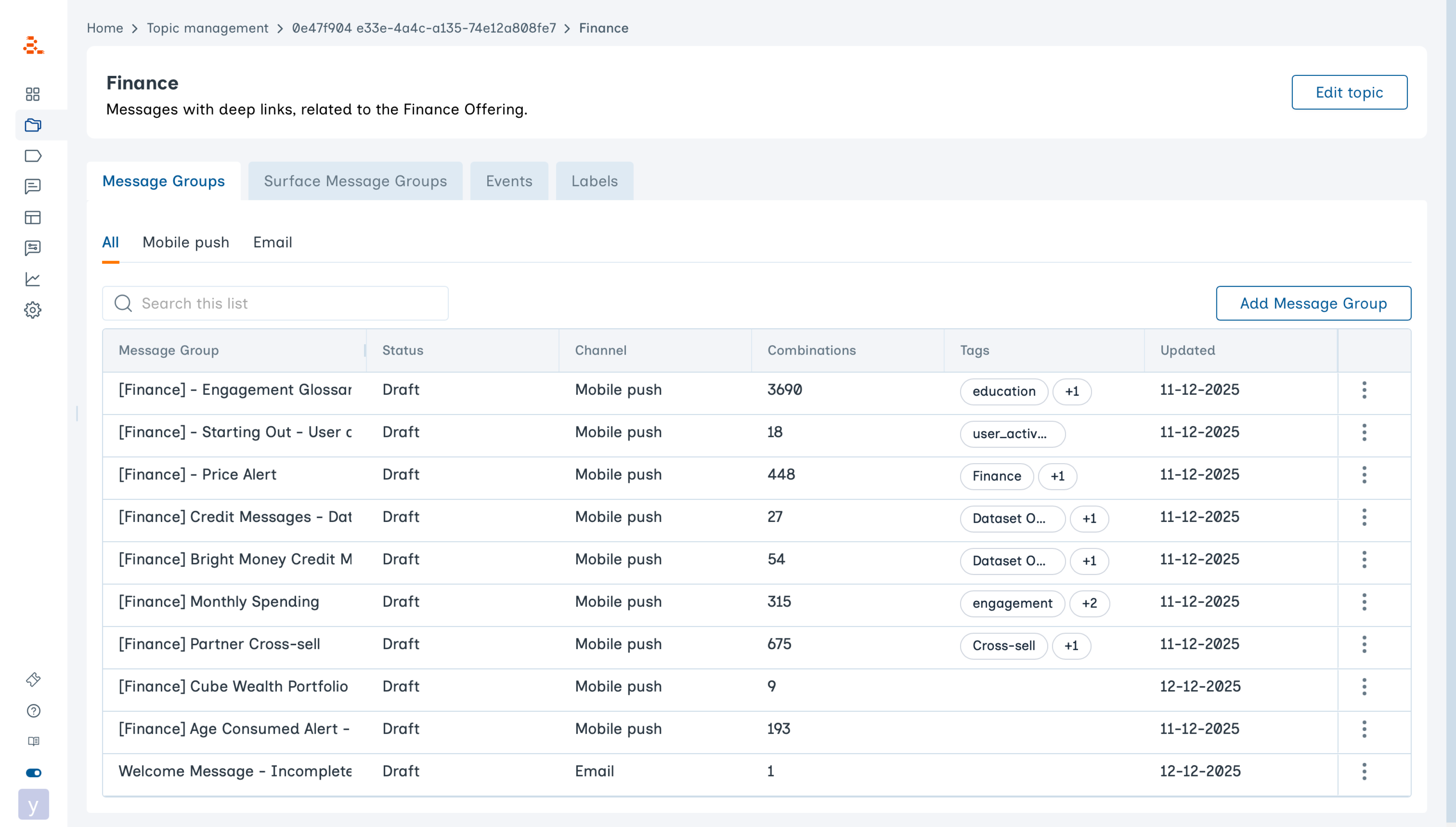
- Go to Monitoring → Topic Management.
- Click on any Topic.
- Related Message Groups
- Related Events
- Labels that are being used in the related Message Groups
- Add or remove Message Groups
- Move Message Groups to another Topic
- Edit the Topic name or description
Grouping by Topic in Messages