If you’re using Google Sheets to create, edit and maintain your content catalog, it’s very easy to copy from your sheet into the Aampe composer. Here’s how to do it:
-
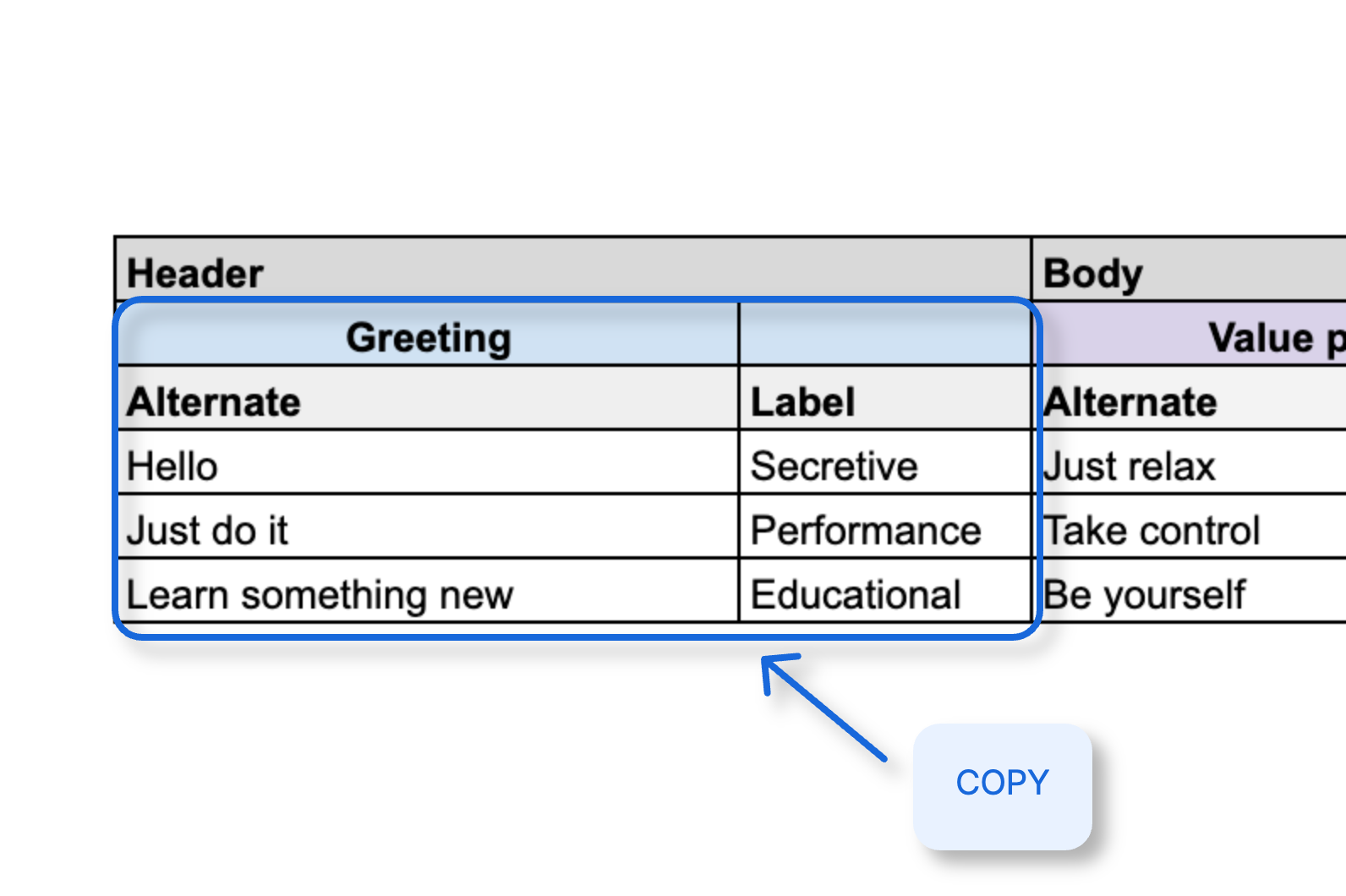
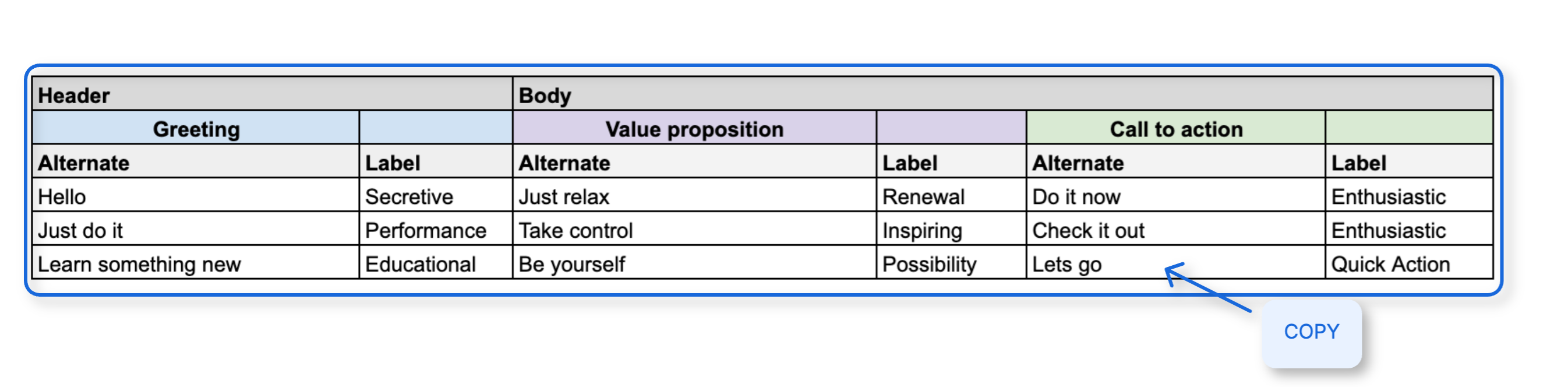
Make sure your content in sheets is set up in the right format. For a push notification with a Header and a Body, it should look something like this:

-
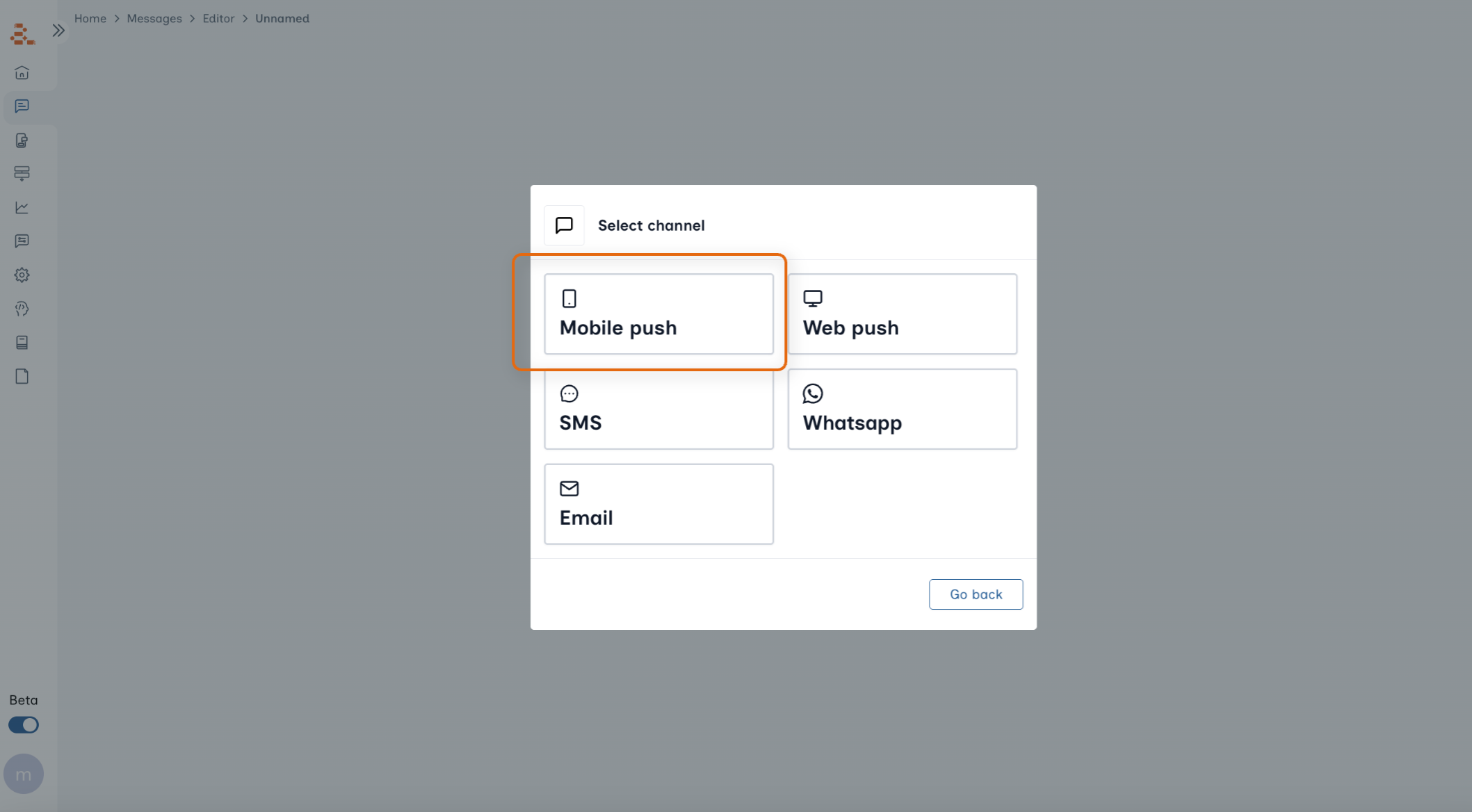
Create a new message in Aampe
-
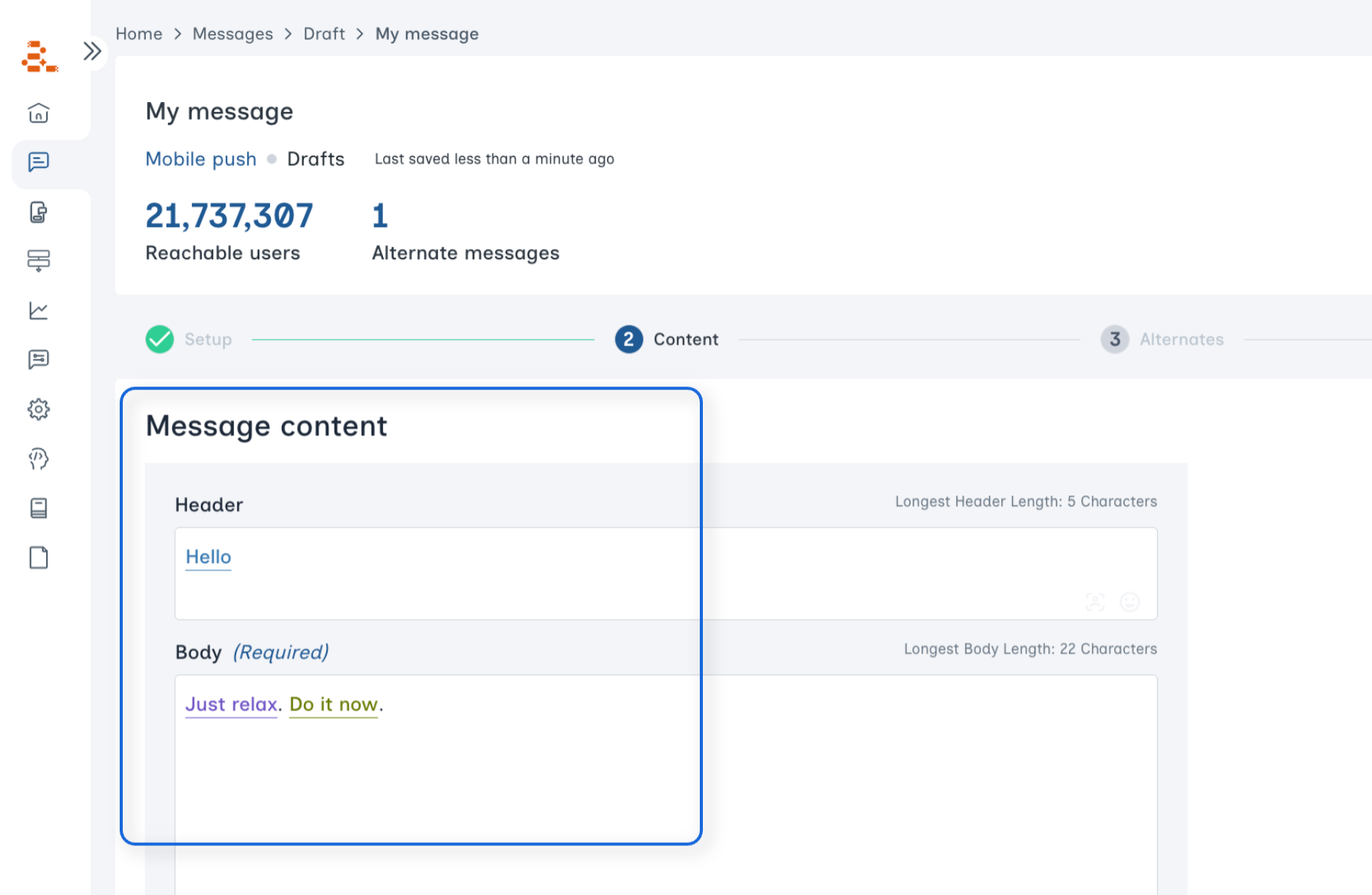
Add the base alternates (the first alternate for each component) and set up all your components in the right order
- Make sure the labels you’re about to use already exist in the Aampe Composer. Double check for spelling and capitalization mismatches (if the labels don’t match, only your alternates will get copied and you will need to relabel them manually)
-
If you choose to copy each component one by one, select the component table in the sheet, hit “Copy”
Then go to your Aampe message editor, click on the component you want to paste in, then click “Paste”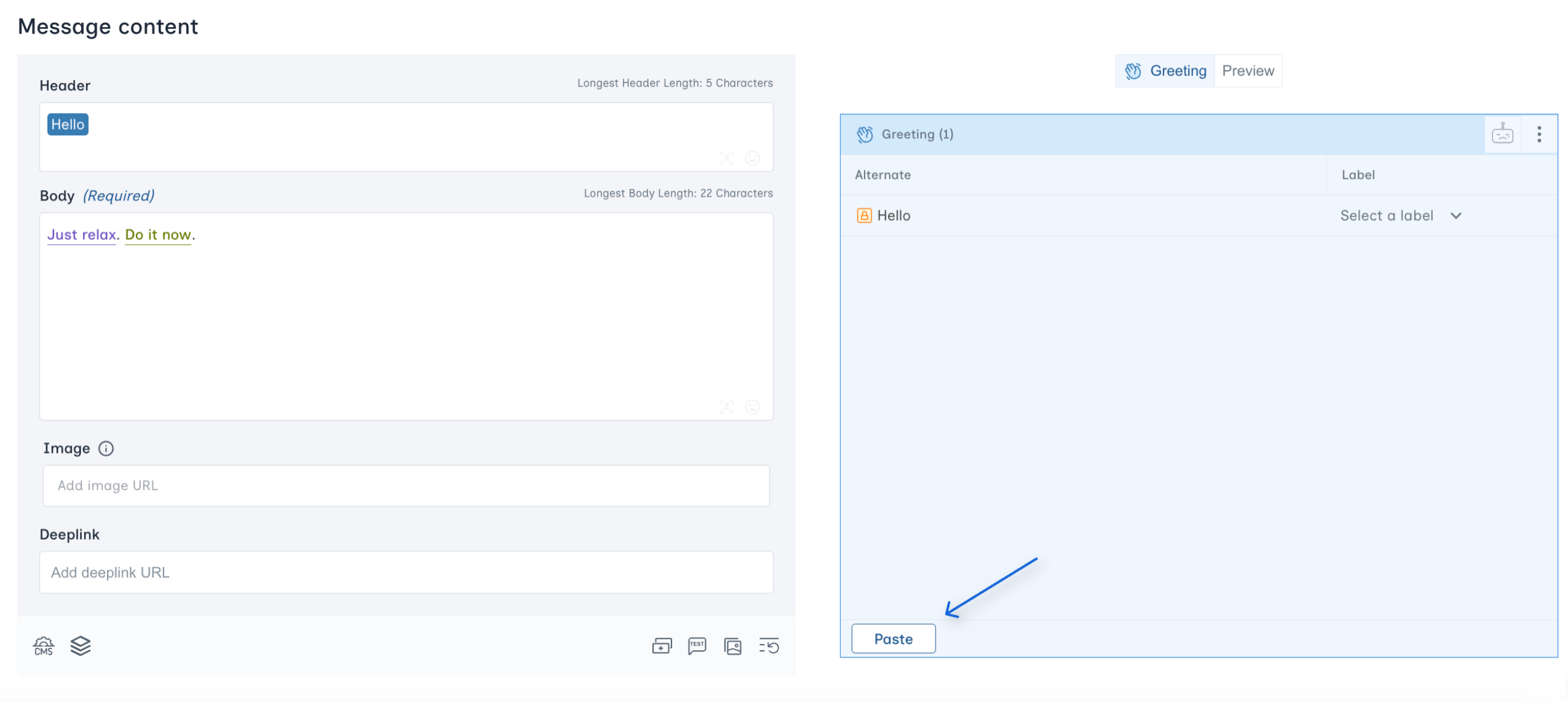
-
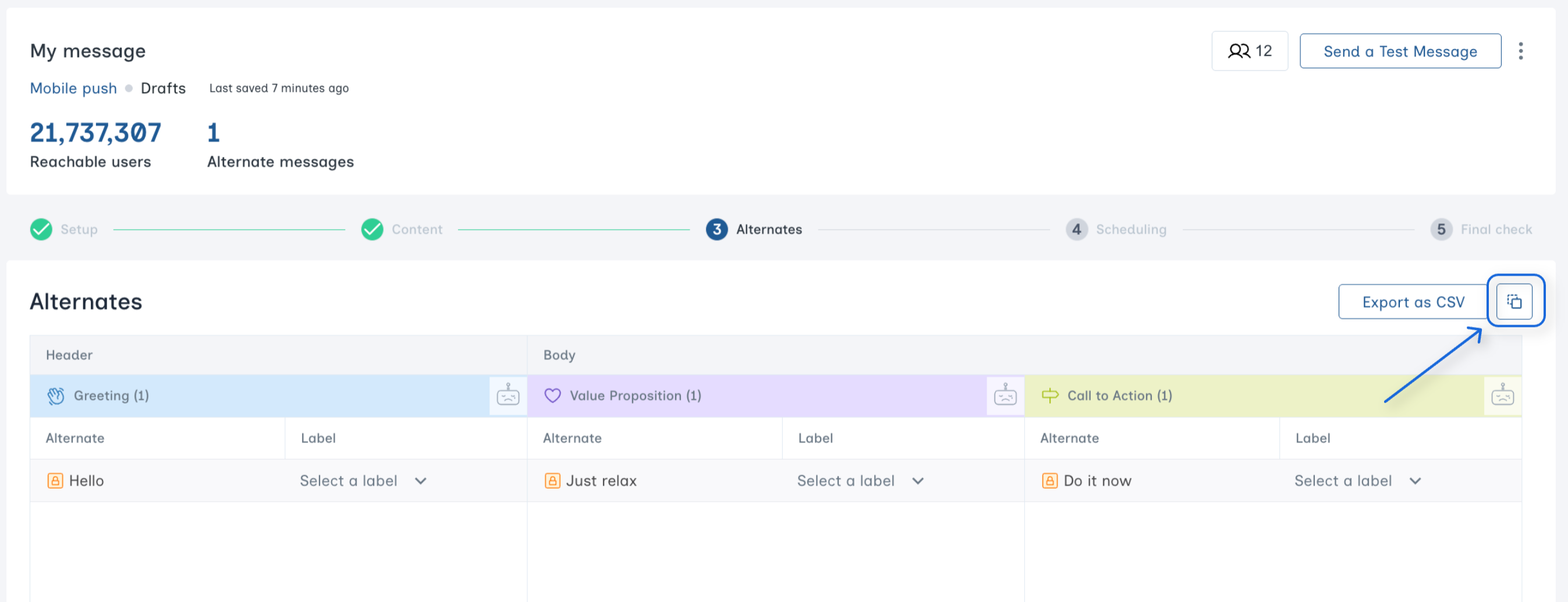
If you want to copy the full message in one go, copy the entire message in the sheet
Then go to the Alternates tab in your message, and click the “Paste” icon on the top right corner