> ## Documentation Index
> Fetch the complete documentation index at: https://kb.aampe.com/llms.txt
> Use this file to discover all available pages before exploring further.
# Message Creation
> It's go time!
Creating a message in Aampe is a little different than other tools. A "message" is closer to a template in other tools in the way that it groups many distinct messages under a common pattern.
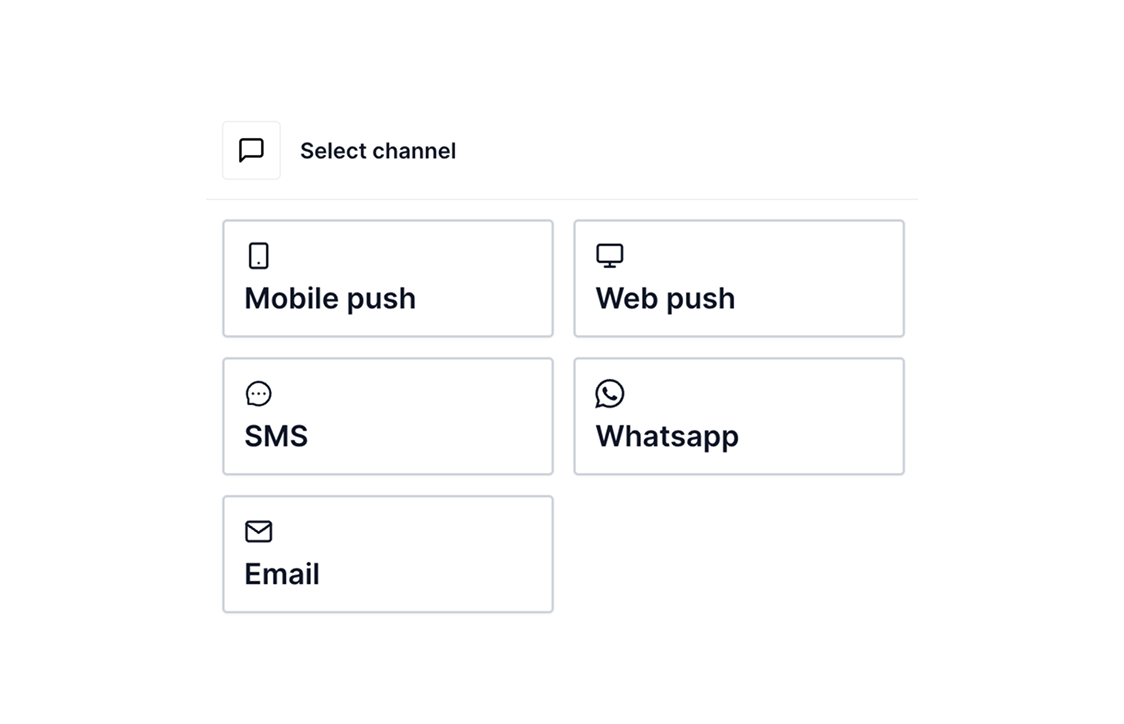
## Step 1: Choose Your Message Channel
Decide which communication channel you'll be using. Aampe supports multiple channels including:
* [**Push Notifications**](/user-guide/using-aampe/messages-by-channel/push/create-push) — Short, attention-grabbing updates
* [**Email**](/user-guide/using-aampe/messages-by-channel/email/create-email) — Rich content with lots of space to work with
* [**SMS**](/user-guide/using-aampe/messages-by-channel/sms/create-sms) — Short-form communication
* [Product Surfaces](/user-guide/using-aampe/quickstart/quickstart-surfaces) — Contextual content embedded in the product experience
Your channel will inform your message structure and tone.
 ## Step 2: Message Setup
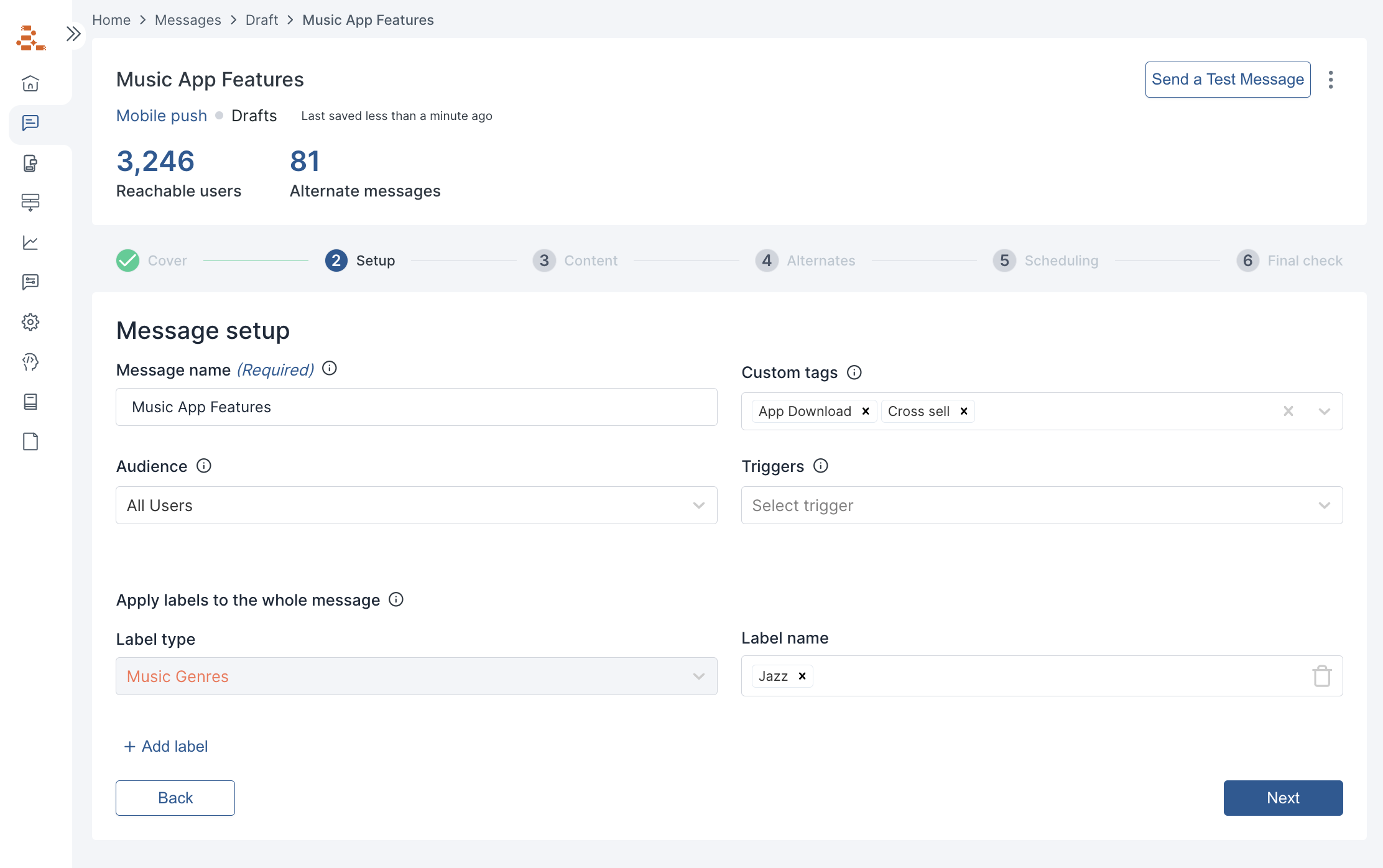
To create your message, complete the Message Setup form.
Required fields include:
* Message name - ideally something that's easy to understand
Optional fields include:
* [Audiences](/user-guide/using-aampe/audiences/audiences) - specify which users are eligible for the message
* Triggers
* Custom tags
* Message-level labels
## Step 2: Message Setup
To create your message, complete the Message Setup form.
Required fields include:
* Message name - ideally something that's easy to understand
Optional fields include:
* [Audiences](/user-guide/using-aampe/audiences/audiences) - specify which users are eligible for the message
* Triggers
* Custom tags
* Message-level labels
 ## Step 3: Define a Message Structure
The next step is to decide **how** your message will be assembled. This means defining a **message structure**—the layout of components that make up your message.
Think of this as creating a flexible template. You’re not writing a fixed message; you’re designing the *slots* your agent will use to dynamically assemble personalized messages.
### **What do we mean by structure?**
A structure is the **sequence of components** used in a message, such as:
* Greeting
* Value Proposition
* Offering
* Incentive
* Call to Action
* (Optional) Custom Components like Sub-feature, Music Genre, Cuisine Type etc
You can mix and match components in different orders depending on the message type or channel.
### **Structure Examples**
**Push**
* **Header**: \[Value Proposition]
* **Body**: \[Greeting] + \[CTA]
**Email**
* **Subject Line:** \[Value Proposition]
* **Pre-header**: \[Greeting]
* **Title**: \[Value Proposition]
* **Body**: \[Offering]
* **Button**: \[CTA]
**SMS**
* **Body**: \[Greeting] + \[Value Proposition] + \[CTA]
### **Tips for Defining a Good Structure**
* **Start simple.** Use 2–3 components per message to keep it modular and testable.
* **Always include an Offering and Value Proposition** in your early structures—they’re essential for agent learning.
* **Choose components that make sense for the channel.** For example, Push notifications often use:
* Header → \[Value Proposition]
* Body → \[Greeting] + \[CTA]
* **Skip what you don’t need.** Not every message needs an Incentive or Greeting. You can leave them out entirely, or test structures with and without them.
* **No repeats.** Don’t use the same component type twice in one message (e.g., two Value Propositions). It makes it harder for agents to learn what worked.
## Step 4: Create Alternates & Labels
Now it’s time to write content for each component in your message structure. Instead of writing full messages, you’ll create **alternates**—modular versions of each component—and tag them with **labels**. This is what enables your agent to learn, test, and personalize at scale.
### How to Write Alternates
* Write at least **3 alternates per label** for each component
* Make each alternate **single-focused**—it should express **one clear idea** only
* *For example:* Instead of writing “Fast, easy, and cheap” (which spans 3 ideas), write separate alternates like “Fast delivery,” “Easy to use,” or “Best value”
* Keep the tone and sentence structure simple and natural
* Make sure each alternate can **stand alone** and combine cleanly with others
### How to Apply Labels
* Labels describe the **meaning or value** behind an alternate (e.g., *Convenience*, *Trust*)
* Use **distinct, non-overlapping labels**
* Assign **only one label per alternate**
* Reuse labels across different messages and offerings to help your agent learn faster
Start with 2–3 labels per component, and build from there. The more high-quality alternates and clear labels you create, the better your personalization will perform.
## Step 5: Preview and Test
Before sending your message to all users, it's important to preview and test it:
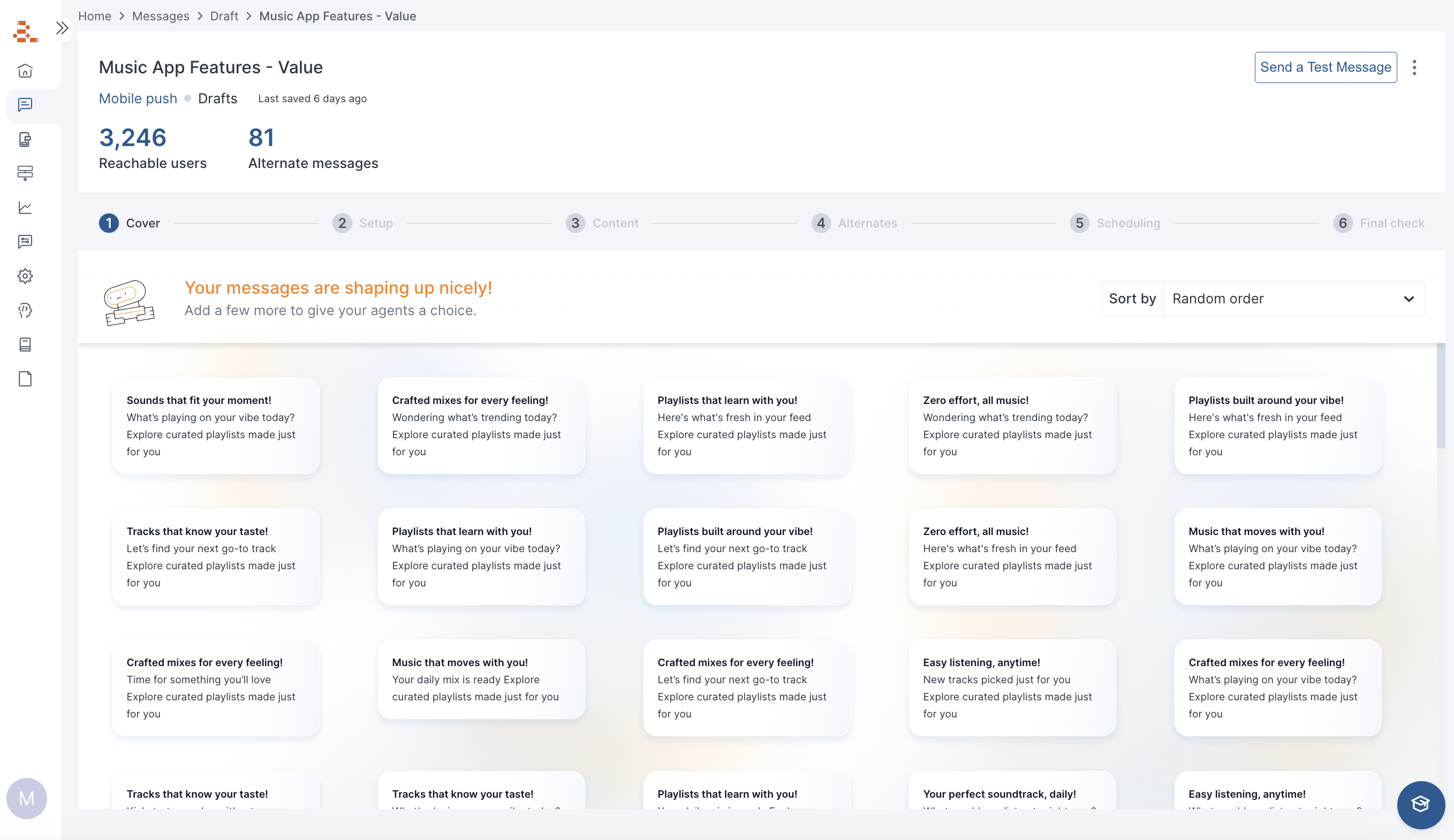
* Preview your message to ensure it looks good. You can use the **Cover** page to see all combinations and variants.
## Step 3: Define a Message Structure
The next step is to decide **how** your message will be assembled. This means defining a **message structure**—the layout of components that make up your message.
Think of this as creating a flexible template. You’re not writing a fixed message; you’re designing the *slots* your agent will use to dynamically assemble personalized messages.
### **What do we mean by structure?**
A structure is the **sequence of components** used in a message, such as:
* Greeting
* Value Proposition
* Offering
* Incentive
* Call to Action
* (Optional) Custom Components like Sub-feature, Music Genre, Cuisine Type etc
You can mix and match components in different orders depending on the message type or channel.
### **Structure Examples**
**Push**
* **Header**: \[Value Proposition]
* **Body**: \[Greeting] + \[CTA]
**Email**
* **Subject Line:** \[Value Proposition]
* **Pre-header**: \[Greeting]
* **Title**: \[Value Proposition]
* **Body**: \[Offering]
* **Button**: \[CTA]
**SMS**
* **Body**: \[Greeting] + \[Value Proposition] + \[CTA]
### **Tips for Defining a Good Structure**
* **Start simple.** Use 2–3 components per message to keep it modular and testable.
* **Always include an Offering and Value Proposition** in your early structures—they’re essential for agent learning.
* **Choose components that make sense for the channel.** For example, Push notifications often use:
* Header → \[Value Proposition]
* Body → \[Greeting] + \[CTA]
* **Skip what you don’t need.** Not every message needs an Incentive or Greeting. You can leave them out entirely, or test structures with and without them.
* **No repeats.** Don’t use the same component type twice in one message (e.g., two Value Propositions). It makes it harder for agents to learn what worked.
## Step 4: Create Alternates & Labels
Now it’s time to write content for each component in your message structure. Instead of writing full messages, you’ll create **alternates**—modular versions of each component—and tag them with **labels**. This is what enables your agent to learn, test, and personalize at scale.
### How to Write Alternates
* Write at least **3 alternates per label** for each component
* Make each alternate **single-focused**—it should express **one clear idea** only
* *For example:* Instead of writing “Fast, easy, and cheap” (which spans 3 ideas), write separate alternates like “Fast delivery,” “Easy to use,” or “Best value”
* Keep the tone and sentence structure simple and natural
* Make sure each alternate can **stand alone** and combine cleanly with others
### How to Apply Labels
* Labels describe the **meaning or value** behind an alternate (e.g., *Convenience*, *Trust*)
* Use **distinct, non-overlapping labels**
* Assign **only one label per alternate**
* Reuse labels across different messages and offerings to help your agent learn faster
Start with 2–3 labels per component, and build from there. The more high-quality alternates and clear labels you create, the better your personalization will perform.
## Step 5: Preview and Test
Before sending your message to all users, it's important to preview and test it:
* Preview your message to ensure it looks good. You can use the **Cover** page to see all combinations and variants.
 * Send a [test message](/user-guide/using-aampe/messages-by-channel/send-test-message) to yourself or a group.
* Check all links and interactive elements to make sure they work correctly
* Review the message for any typos or errors
## Message FAQs
Yes, Aampe has features that make it easy to manage content in multiple languages. Read more about [how Aampe manages multiple languages](/user-guide/using-aampe/admin/languages).
Aampe, however, does not offer a feature to translate content from one language into another. Our customer success team has experience in this area, however, and can offer guidance on any language translation projects.
You can set daily and weekly caps on the number of messages
* globally
* by channel
* by trigger
This gives you the flexibility to enforce, say, one SMS message per week but still allow for outreach through other channels (push, email). \
\
Read more about [Aampe's frequency settings.](/user-guide/using-aampe/admin/frequency-limits)
Agents do their best work when they have many message groups to choose from, and many message variants within each message group. It's easy to wear out a customer relationship when you only talk about one thing. \
\
How much is enough? It depends on how often agents interact with your users. To make this easier, we designed our [content coverage](/user-guide/managing-agents-strategically/content-coverage) map which highlights the messages in need of additional variants.
It doesn't always make sense to mix-and-match message components. You may have an image that accompanies a specific offering, or components for city and state that need to appear together. \
\
There are two ways to link components together.
* [Syncing labels](user-guide/using-aampe/tips-and-tricks/label-locking.mdx) - specifically for labels and message components
* [ Datasets](user-guide/using-aampe/tips-and-tricks/datasets.mdx) - can link labels, deeplinks, and any other message element
* Send a [test message](/user-guide/using-aampe/messages-by-channel/send-test-message) to yourself or a group.
* Check all links and interactive elements to make sure they work correctly
* Review the message for any typos or errors
## Message FAQs
Yes, Aampe has features that make it easy to manage content in multiple languages. Read more about [how Aampe manages multiple languages](/user-guide/using-aampe/admin/languages).
Aampe, however, does not offer a feature to translate content from one language into another. Our customer success team has experience in this area, however, and can offer guidance on any language translation projects.
You can set daily and weekly caps on the number of messages
* globally
* by channel
* by trigger
This gives you the flexibility to enforce, say, one SMS message per week but still allow for outreach through other channels (push, email). \
\
Read more about [Aampe's frequency settings.](/user-guide/using-aampe/admin/frequency-limits)
Agents do their best work when they have many message groups to choose from, and many message variants within each message group. It's easy to wear out a customer relationship when you only talk about one thing. \
\
How much is enough? It depends on how often agents interact with your users. To make this easier, we designed our [content coverage](/user-guide/managing-agents-strategically/content-coverage) map which highlights the messages in need of additional variants.
It doesn't always make sense to mix-and-match message components. You may have an image that accompanies a specific offering, or components for city and state that need to appear together. \
\
There are two ways to link components together.
* [Syncing labels](user-guide/using-aampe/tips-and-tricks/label-locking.mdx) - specifically for labels and message components
* [ Datasets](user-guide/using-aampe/tips-and-tricks/datasets.mdx) - can link labels, deeplinks, and any other message element