> ## Documentation Index
> Fetch the complete documentation index at: https://kb.aampe.com/llms.txt
> Use this file to discover all available pages before exploring further.
# Create an SMS Message
> Highly personalized content and timing via SMS
## How to Create an SMS Message in Aampe
## Step 1: Create the Message
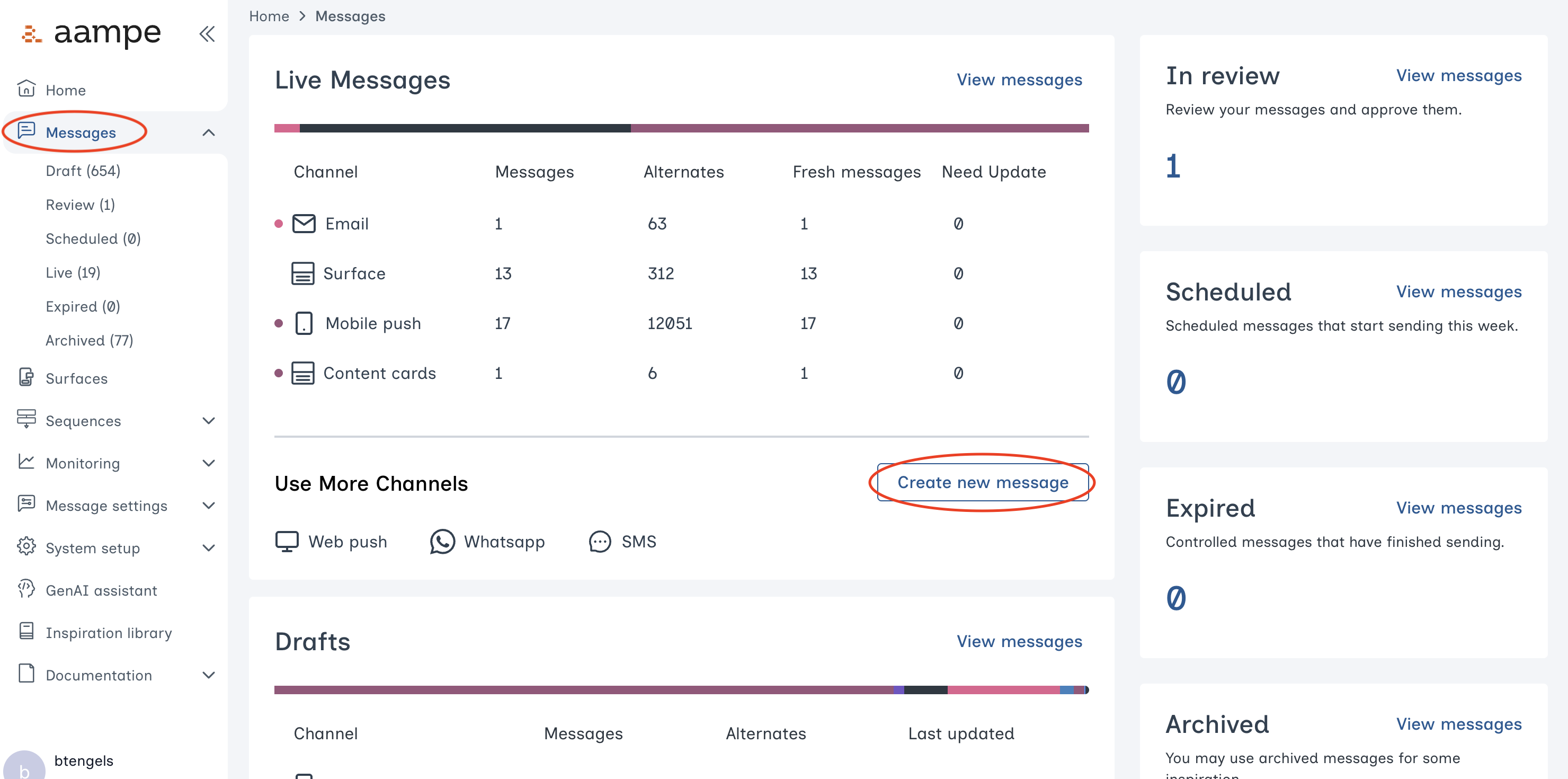
Navigate to the **Messages** tab. Click **Create new message**.
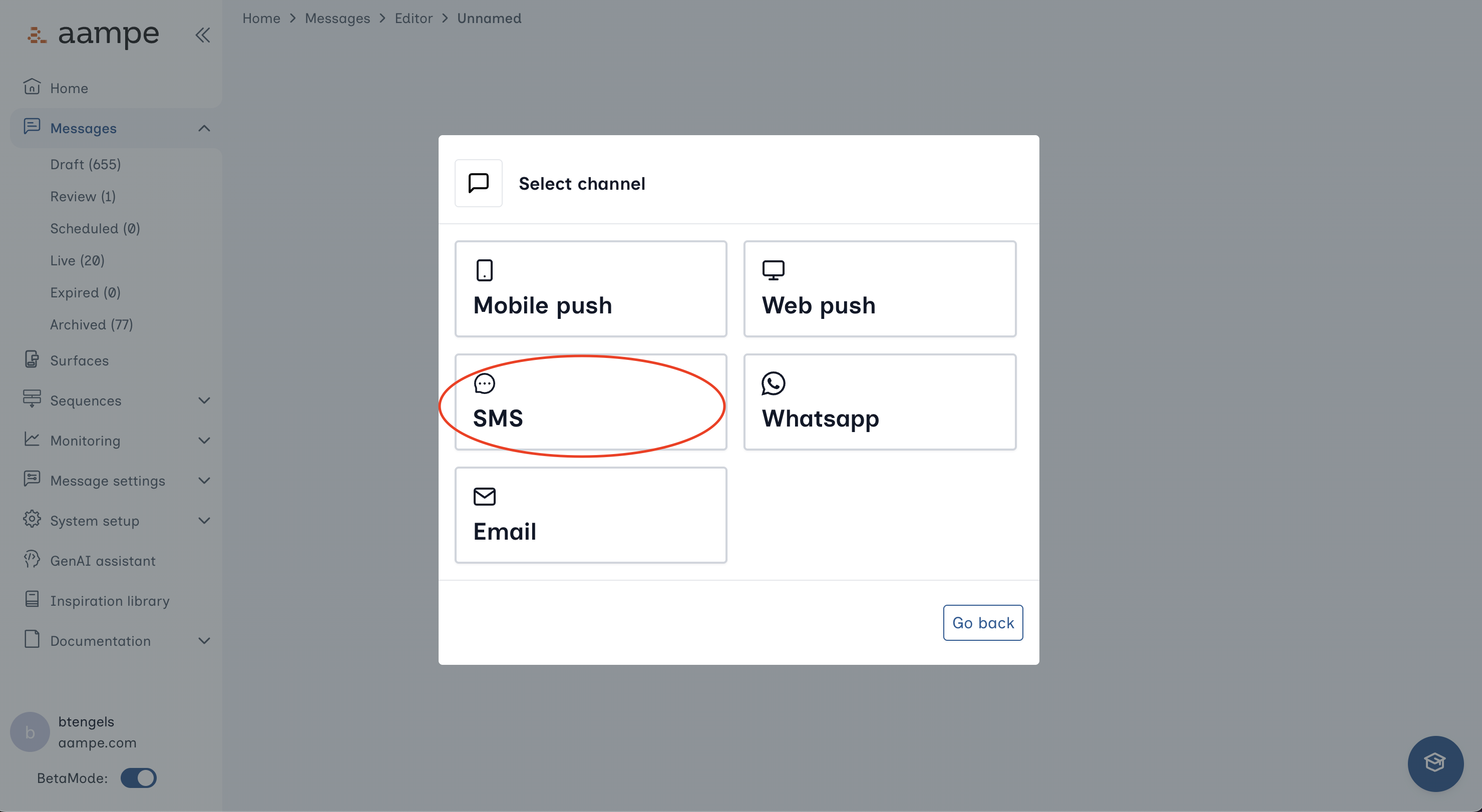
 Choose **SMS** for your channel.
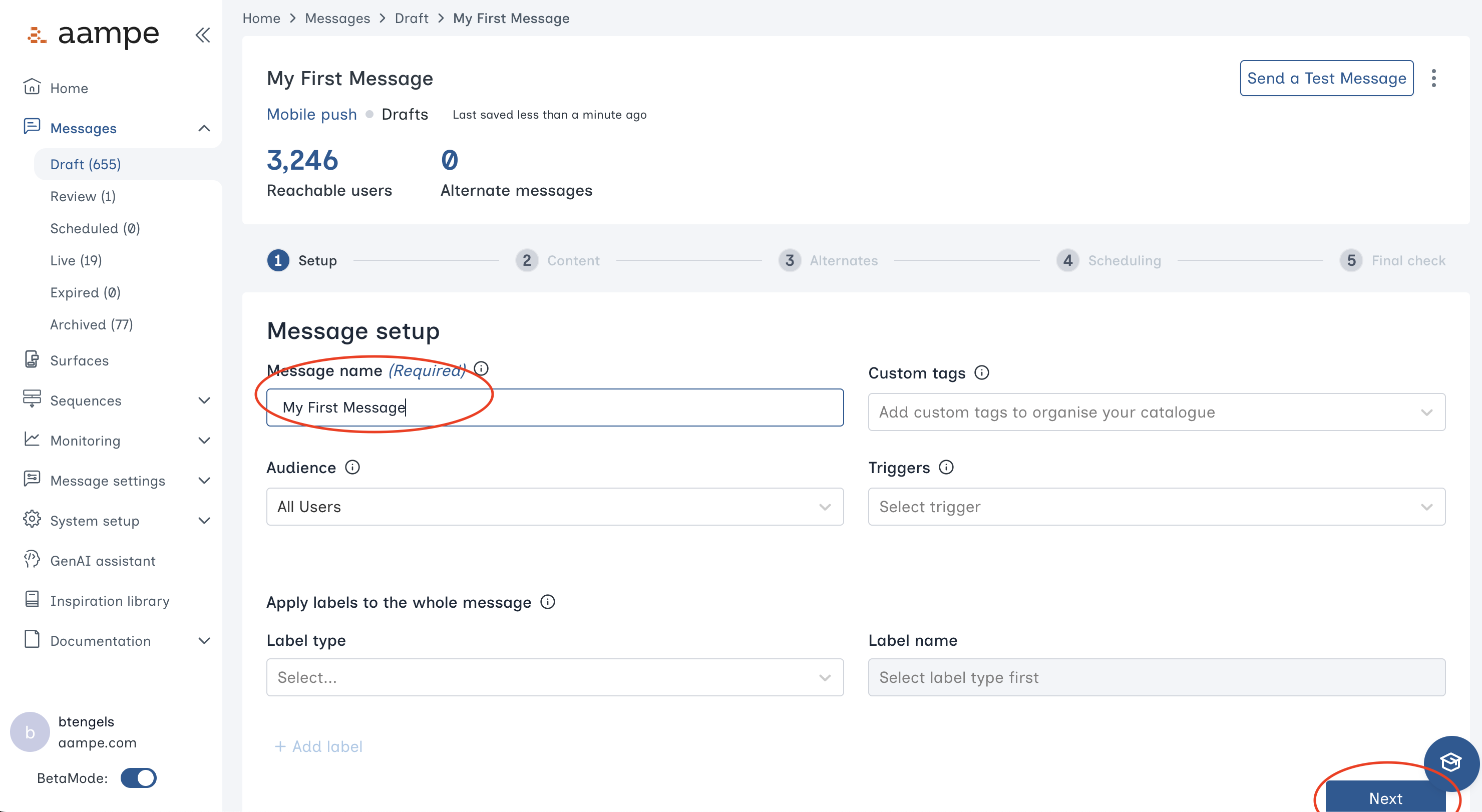
 In the **Message setup** menu, give your message a name. You can also configure
* [audiences](/user-guide/using-aampe/audiences/audiences)
* [triggers](/user-guide/using-aampe/audiences/triggers)
* tags
* labels that apply to the entire message
In the **Message setup** menu, give your message a name. You can also configure
* [audiences](/user-guide/using-aampe/audiences/audiences)
* [triggers](/user-guide/using-aampe/audiences/triggers)
* tags
* labels that apply to the entire message
 ## **Step 2: Create the Message Content**
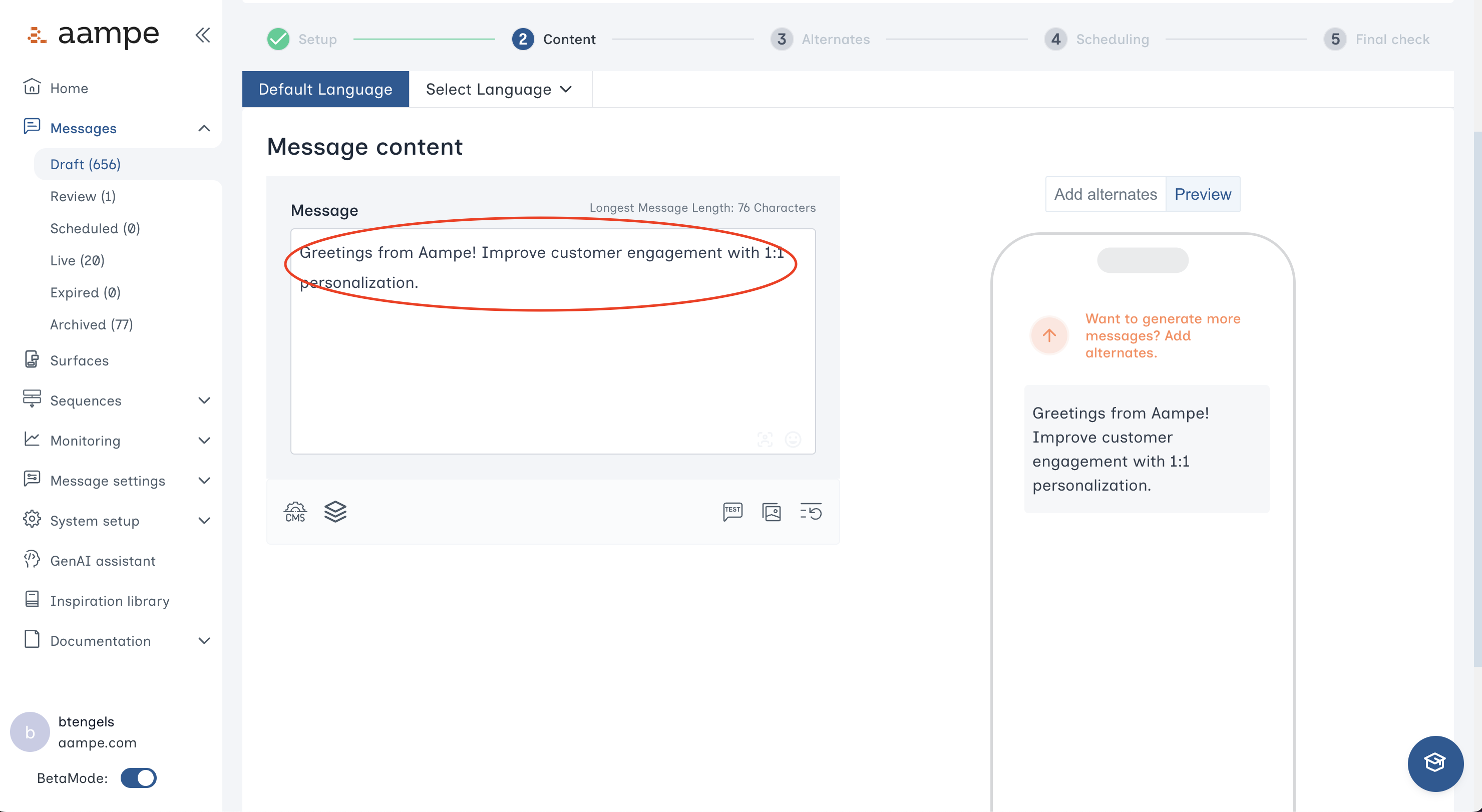
Write an initial message to get started. Think about the components of your message and how you might rewrite the message with different value propositions, offerings, etc.
The icons beneath the Message field allow you to
* [connect a CMS feed](https://kb.aampe.com/user-guide/using-aampe/quickstart/quickstart-cms)
* [connect a dataset](https://kb.aampe.com/user-guide/using-aampe/tools/datasets)
* send a test message
* add image alternates
## **Step 2: Create the Message Content**
Write an initial message to get started. Think about the components of your message and how you might rewrite the message with different value propositions, offerings, etc.
The icons beneath the Message field allow you to
* [connect a CMS feed](https://kb.aampe.com/user-guide/using-aampe/quickstart/quickstart-cms)
* [connect a dataset](https://kb.aampe.com/user-guide/using-aampe/tools/datasets)
* send a test message
* add image alternates
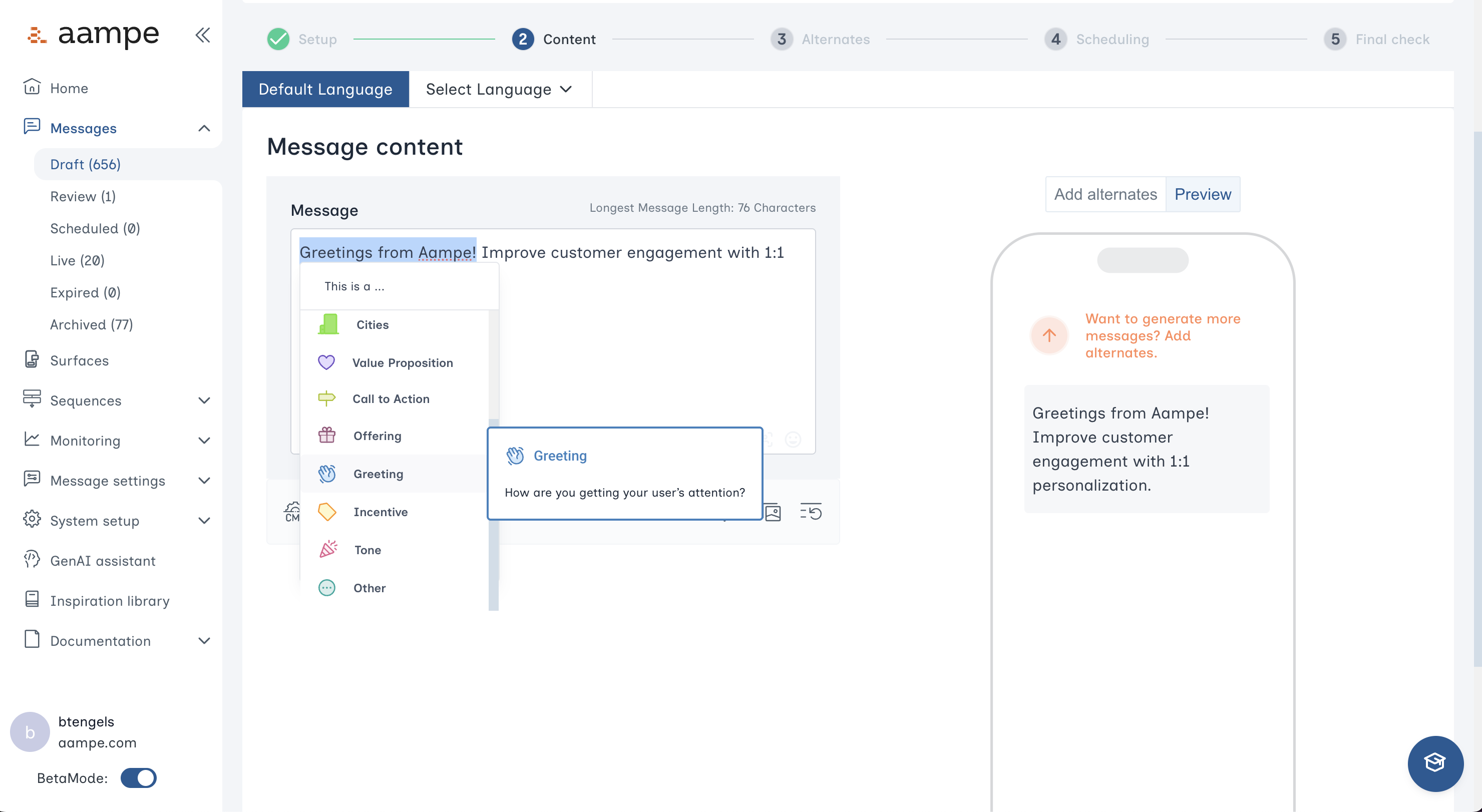
 To create a message component, simply highlight the text. Choose the kind of message component from the dropdown
* See [here](/user-guide/using-aampe/messages-by-channel/component_and_labels) for a deep dive on message components
* See [here](/user-guide/using-aampe/messages-by-channel/custom-components) for a guide on creating custom message components
To create a message component, simply highlight the text. Choose the kind of message component from the dropdown
* See [here](/user-guide/using-aampe/messages-by-channel/component_and_labels) for a deep dive on message components
* See [here](/user-guide/using-aampe/messages-by-channel/custom-components) for a guide on creating custom message components
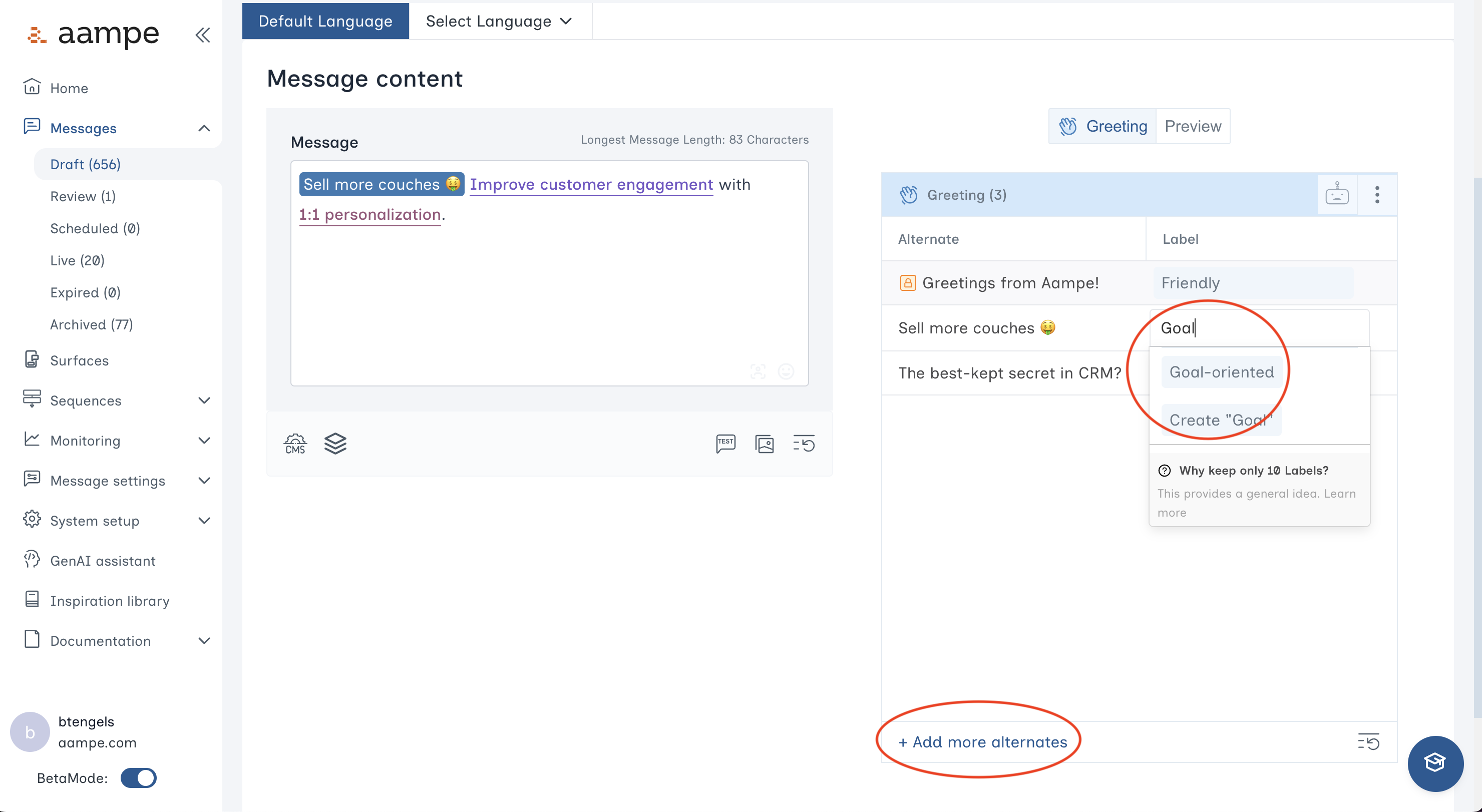
 Create alternates for each component. Give each alternate a label.
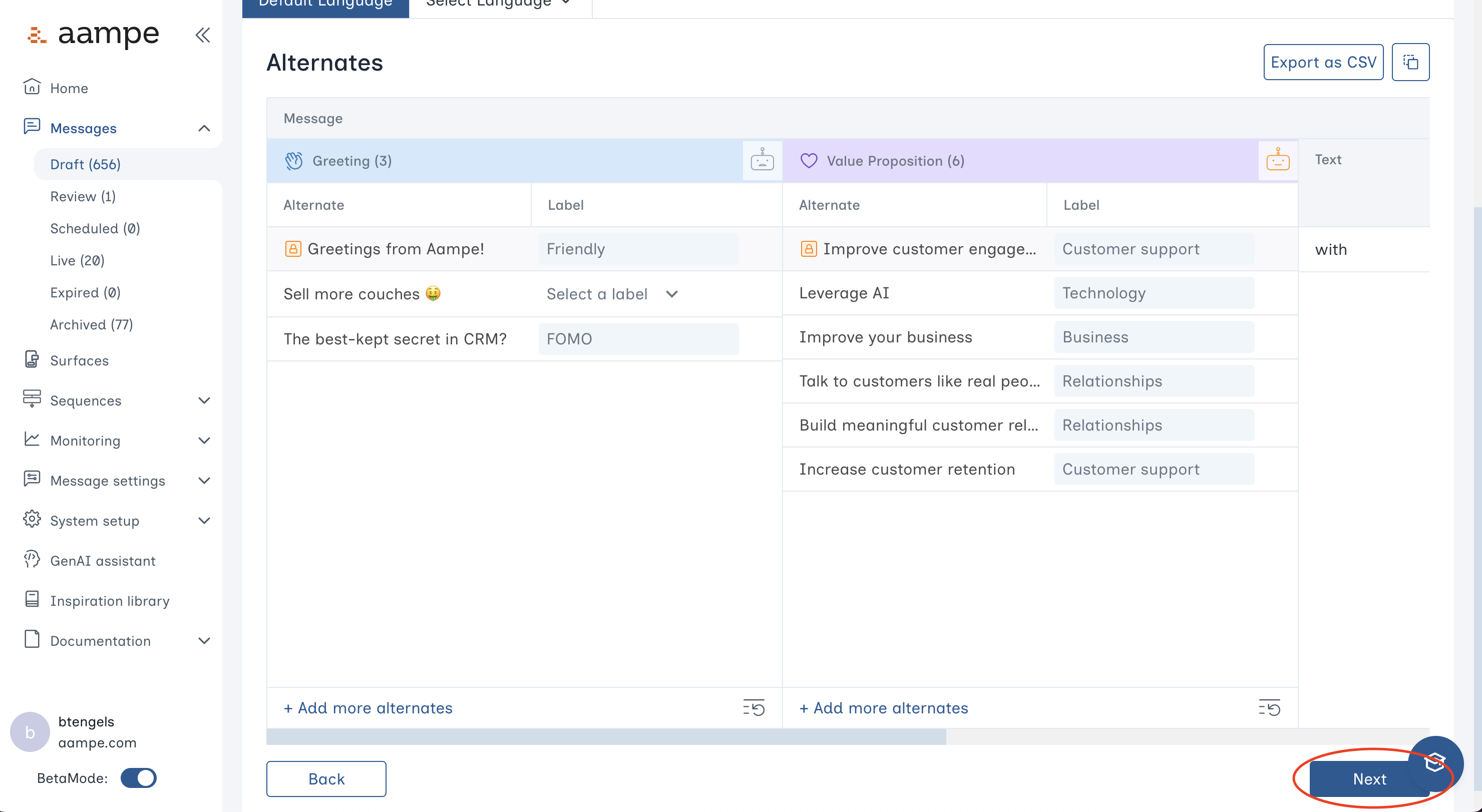 Review your work and make changes if needed. Click **Next** once you are ready.
## Step 3: Schedule and Review
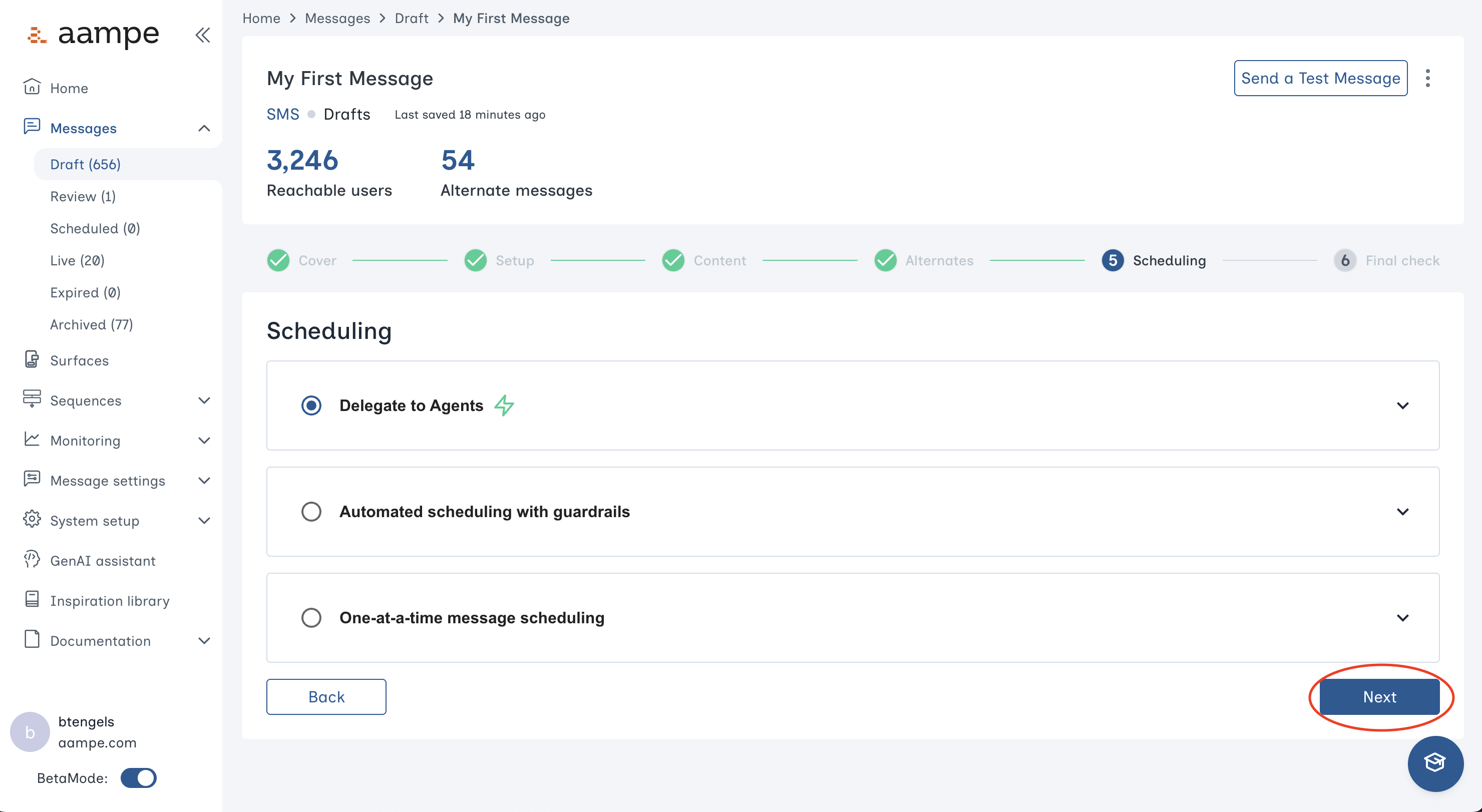
Choose your preferred scheduling heuristic.
* **Delegate to agents:** Your agents determine the ideal variant and time for each user.
* **Automated scheduling with guardrails:** Specify certain days of the week, specific calendar days, or hours of the day that agents can operate within.
* **One-at-a-time message scheduling:** Send to everyone at once, bypassing the agent.
Review your work and make changes if needed. Click **Next** once you are ready.
## Step 3: Schedule and Review
Choose your preferred scheduling heuristic.
* **Delegate to agents:** Your agents determine the ideal variant and time for each user.
* **Automated scheduling with guardrails:** Specify certain days of the week, specific calendar days, or hours of the day that agents can operate within.
* **One-at-a-time message scheduling:** Send to everyone at once, bypassing the agent.
 One last check. Some things to look for:
* Is the audience correct?
* Should the message operate within a specific time range?
* Do the alternates read correctly?
One last check. Some things to look for:
* Is the audience correct?
* Should the message operate within a specific time range?
* Do the alternates read correctly?
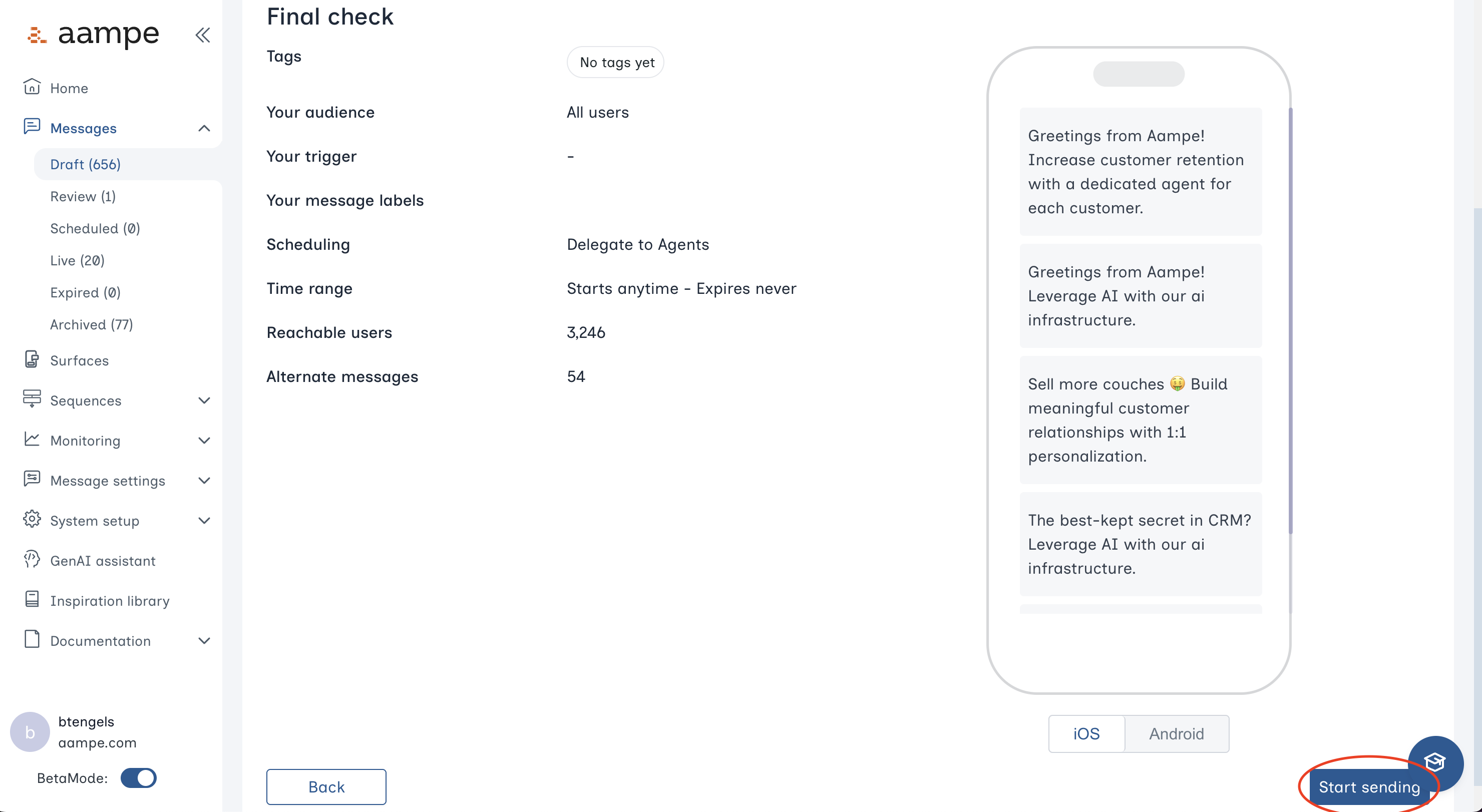 Click **Start sending** to add your SMS message to your content catalog. Agents will start sending messages within 24 hours.