> ## Documentation Index
> Fetch the complete documentation index at: https://kb.aampe.com/llms.txt
> Use this file to discover all available pages before exploring further.
# Send a Test Message
> Because we'd rather not send a million messages with typos
## How to Send a Test Message
### Step 1: Add Test-Message Recipients
Test-message recipients only need to be added once. If you have your preferred test users from a previous message, feel free to skip this step.
1. Go to **Account members > Test message settings** and click the **+ Add user** button.
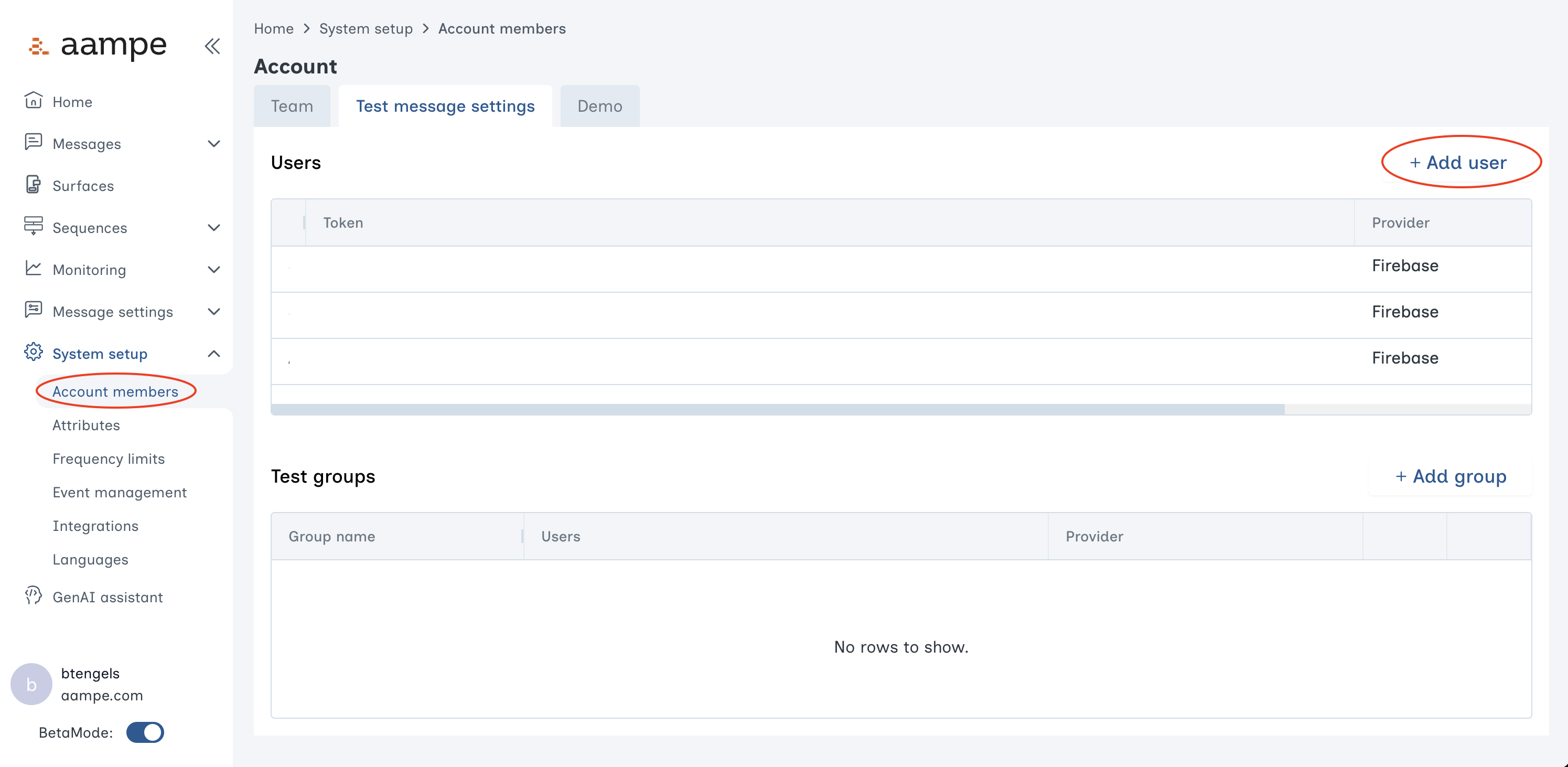 2. This will open a menu for adding a test user.
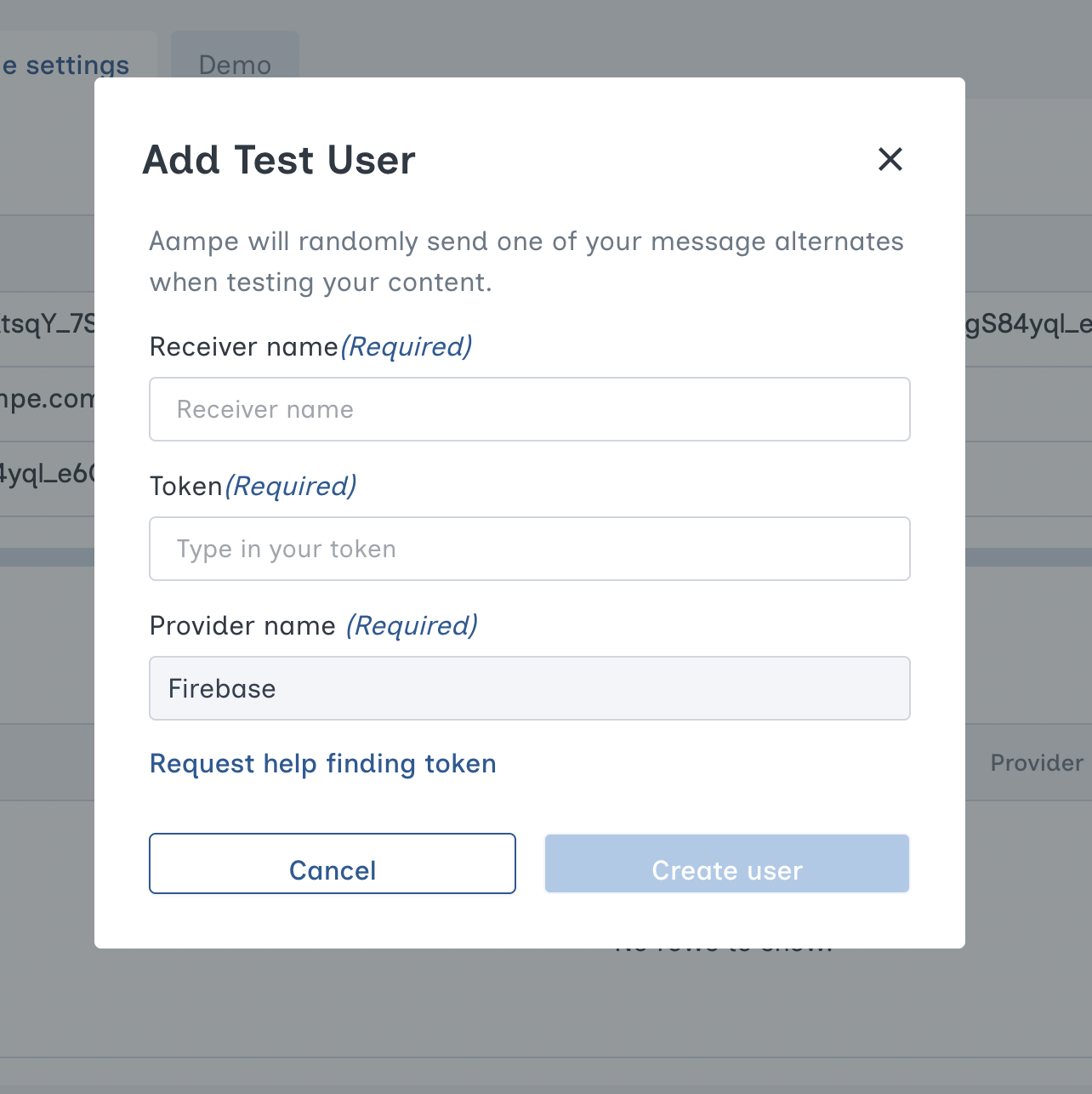 3. Fill in the three required fields:
* Receiver name: name of the recipient
* Token:
* Push notifications - this is the device token
* Emails - this is the recipient's email address
* Provider name: the message delivery partner
4. Click **Create user** to finish adding your test-message recipient.
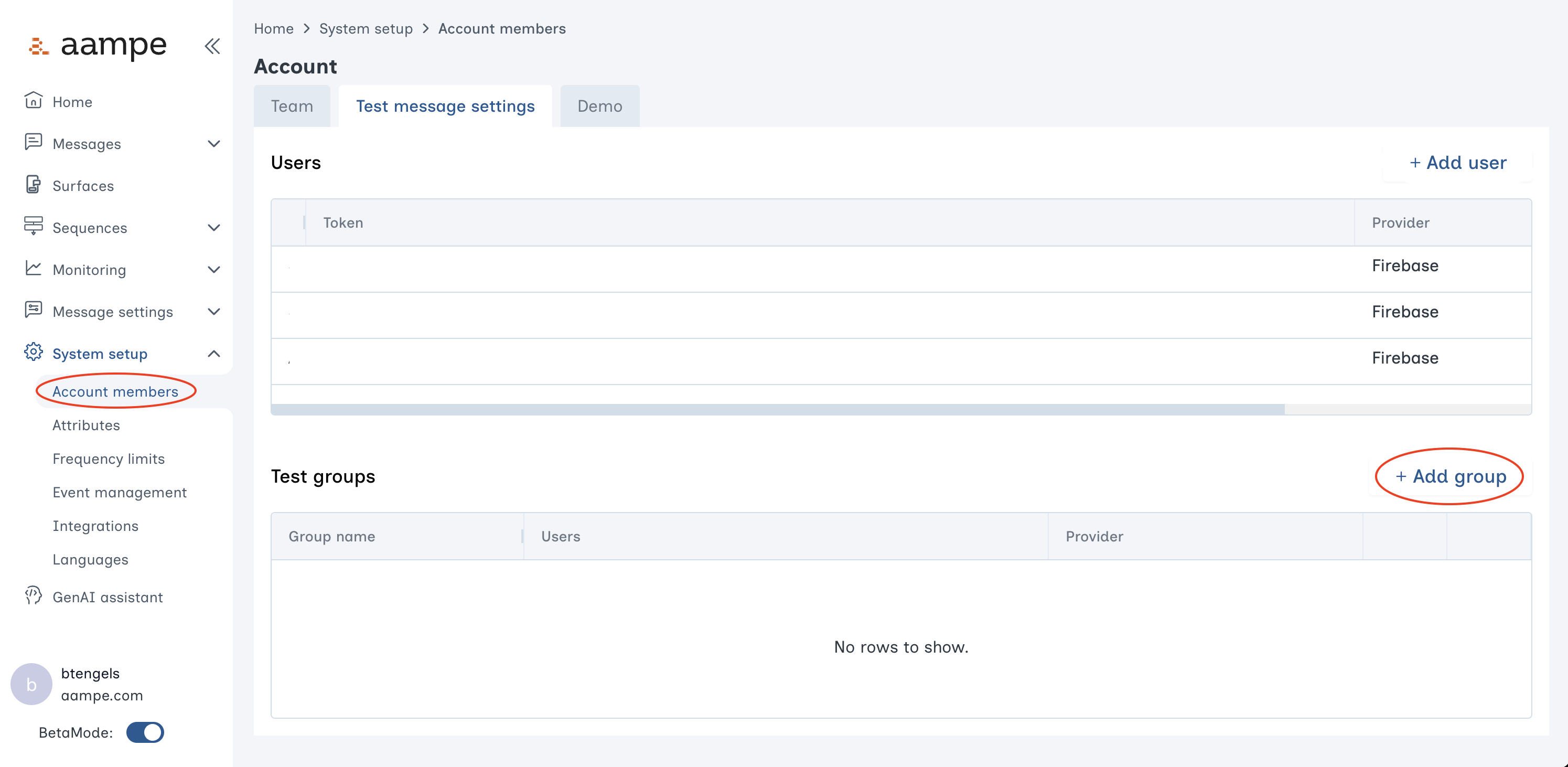
5. (Optional) If you want to send a test message to several recipients all at once, click the **+ Add group** button.
3. Fill in the three required fields:
* Receiver name: name of the recipient
* Token:
* Push notifications - this is the device token
* Emails - this is the recipient's email address
* Provider name: the message delivery partner
4. Click **Create user** to finish adding your test-message recipient.
5. (Optional) If you want to send a test message to several recipients all at once, click the **+ Add group** button.
 Give your group a name and add any of your existing users to the group. You can also create new users and immediately add them to this group by adding their names and tokens in the appropriate fields.
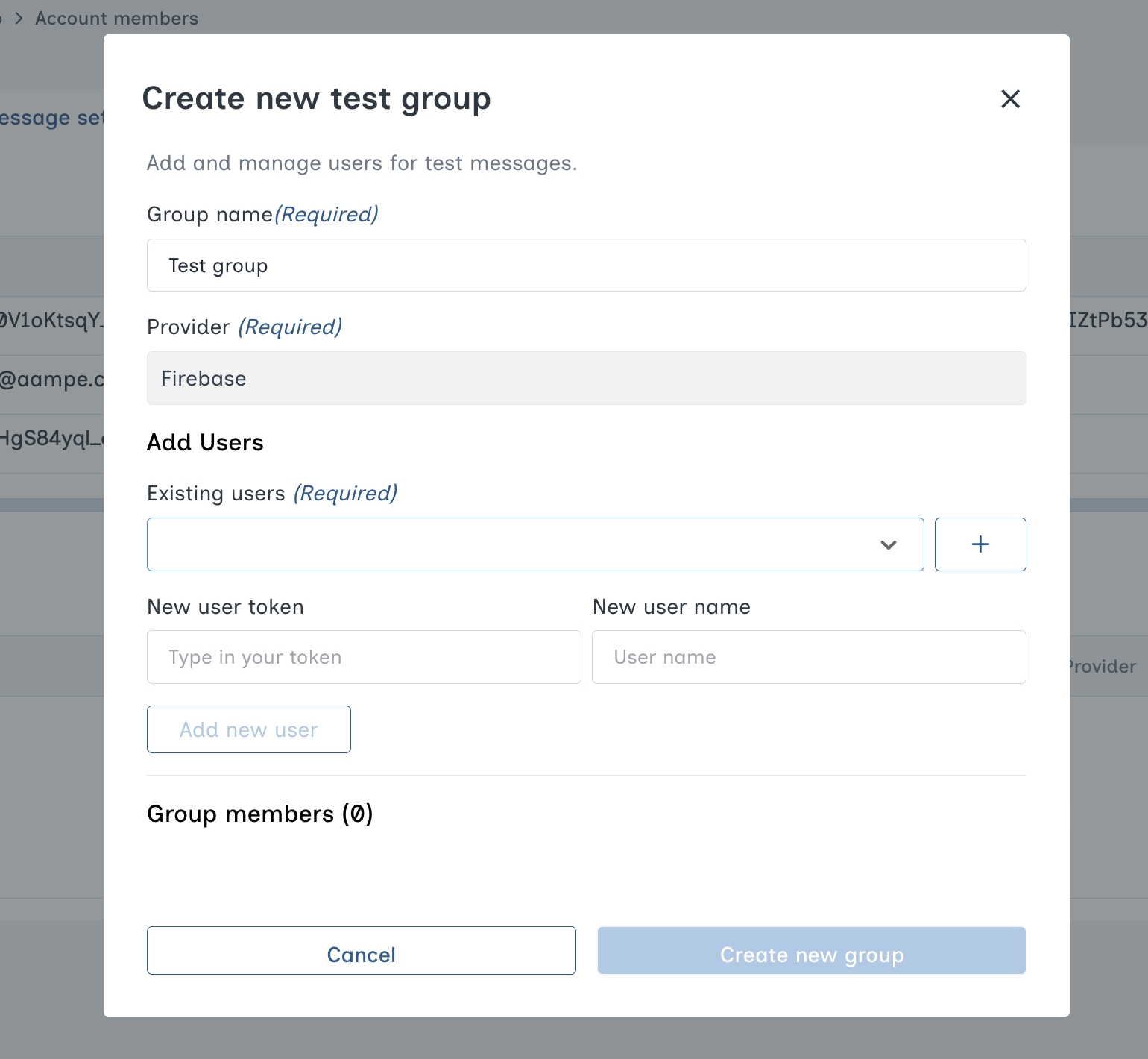 Click the **Create new group** button to finish creating your group.
### Step 2: Send a Test Message
1. Open your message
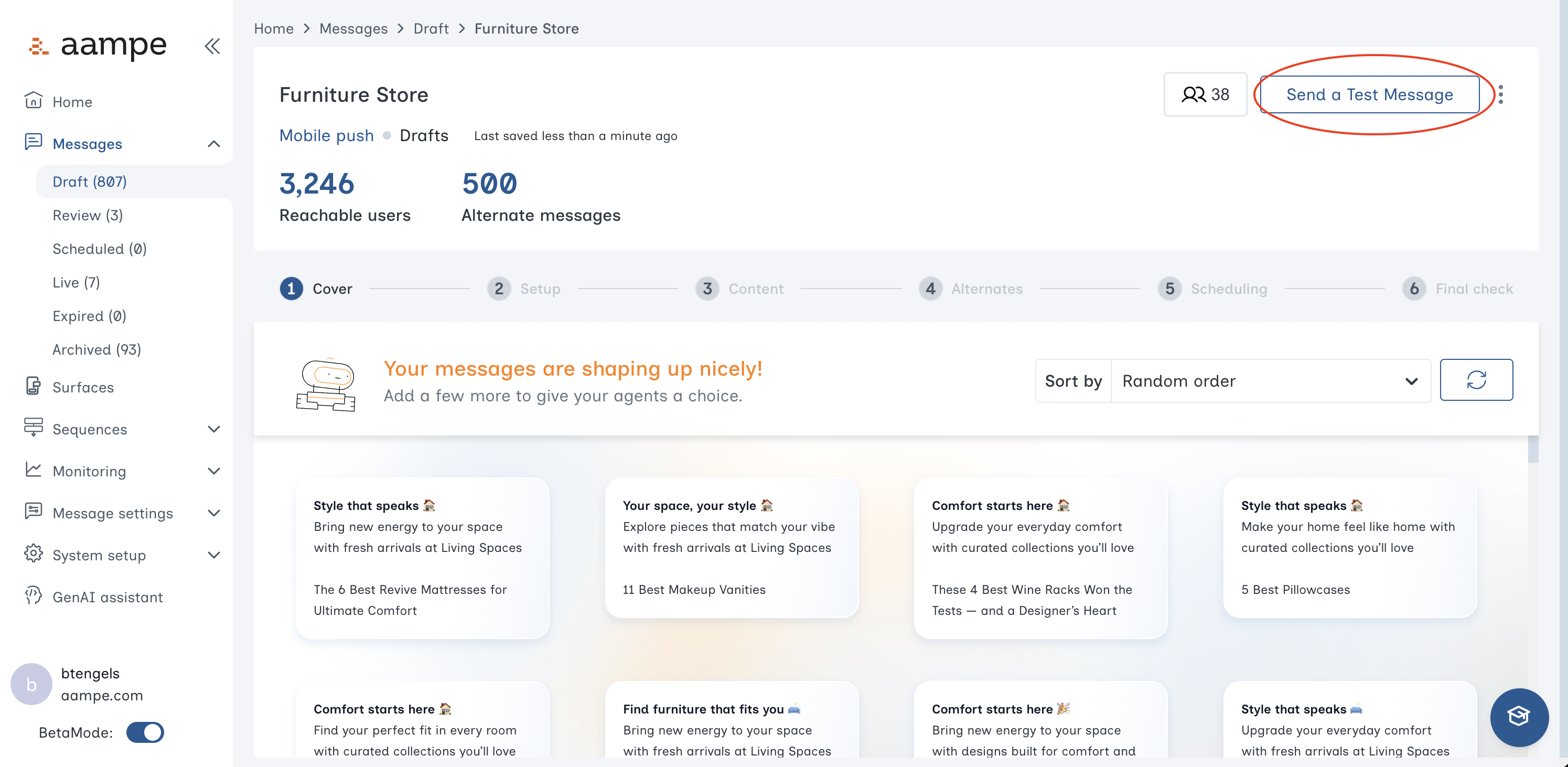
2. Click the **Send a Test Message** button at the top of the page
Click the **Create new group** button to finish creating your group.
### Step 2: Send a Test Message
1. Open your message
2. Click the **Send a Test Message** button at the top of the page
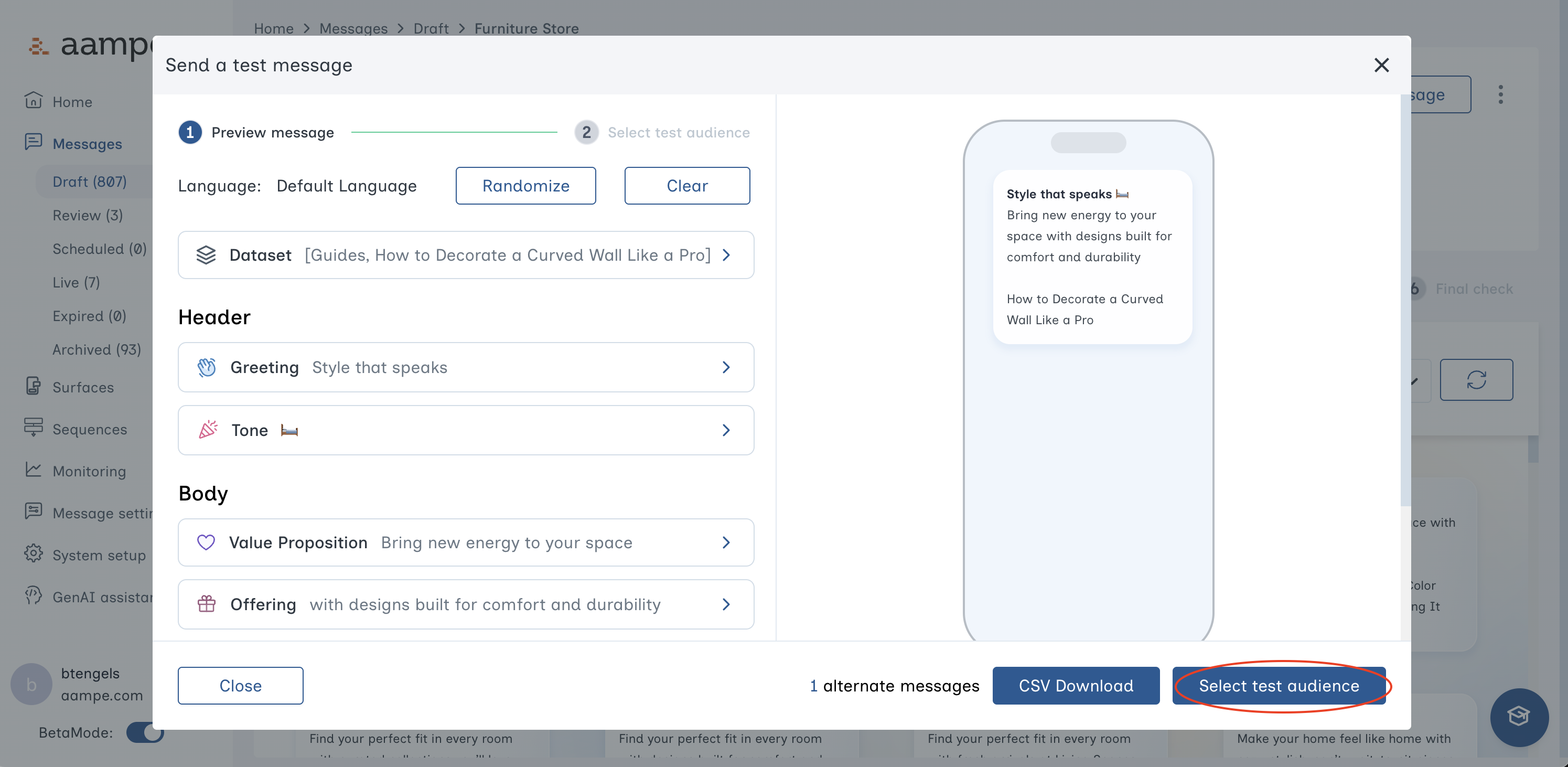
 3. Select the language and message elements for your test message. This can include a [dataset](/user-guide/using-aampe/tools/datasets) row, images, or specific labels. You can also click the **Randomize** button to select a random message variant for your test message.\
\
When the message is ready, click the **Select test audience** button to advance.
3. Select the language and message elements for your test message. This can include a [dataset](/user-guide/using-aampe/tools/datasets) row, images, or specific labels. You can also click the **Randomize** button to select a random message variant for your test message.\
\
When the message is ready, click the **Select test audience** button to advance.
 4. Select your message recipients, either an individual user or a group. See [Step 1](/user-guide/using-aampe/messages-by-channel/send-test-message#step-1:-add-test-message-recipients) if you need to add a new user or group.
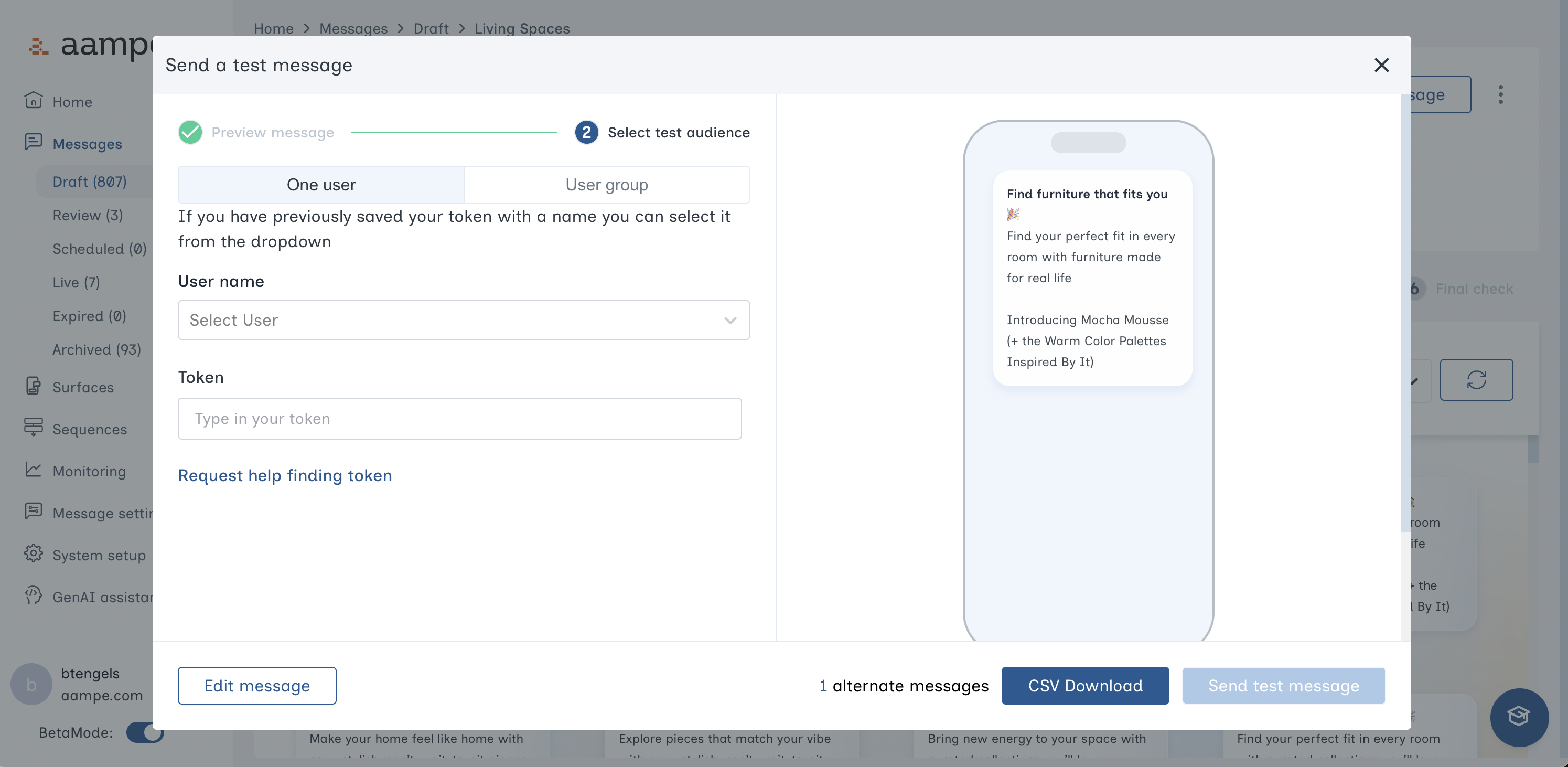 5. Click the **Send test message** button to deliver your message.
### What is My Device Token?
If you're unsure how to get your device token (often the case for push notifications)...
* Click the **"Need help getting this?"** link in the test message window
* This will automatically send a request to our team at [developer@aampe.com](mailto:developer@aampe.com), and we'll assist you directly
5. Click the **Send test message** button to deliver your message.
### What is My Device Token?
If you're unsure how to get your device token (often the case for push notifications)...
* Click the **"Need help getting this?"** link in the test message window
* This will automatically send a request to our team at [developer@aampe.com](mailto:developer@aampe.com), and we'll assist you directly