> ## Documentation Index
> Fetch the complete documentation index at: https://kb.aampe.com/llms.txt
> Use this file to discover all available pages before exploring further.
# Create a Push Notification
> Thousands of live messages in as little as 15 minutes
## How To Create Push Notifications in Aampe
## Step 1: Create a Message
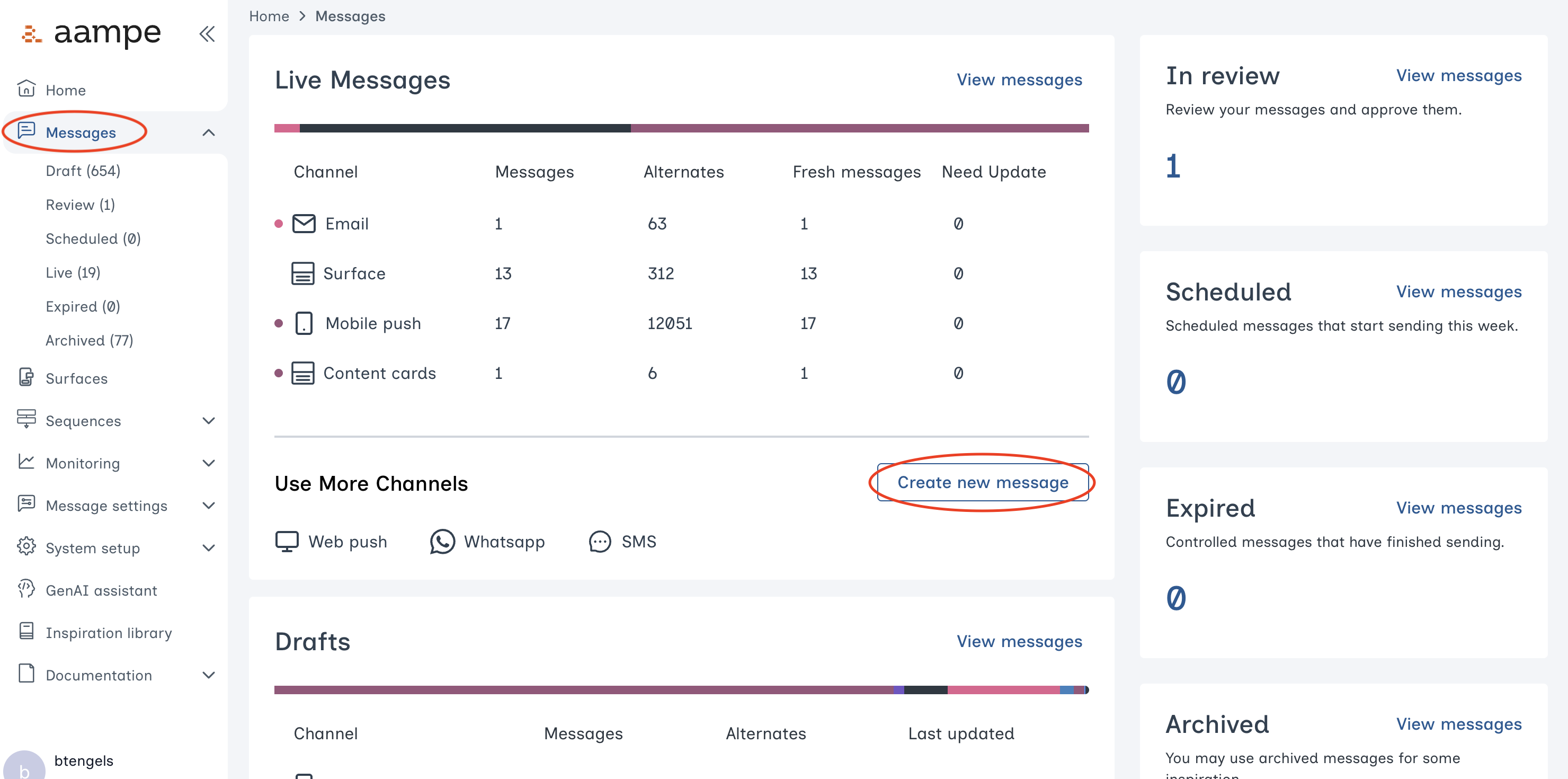
Navigate to the **Messages** tab. Click **Create new message**.
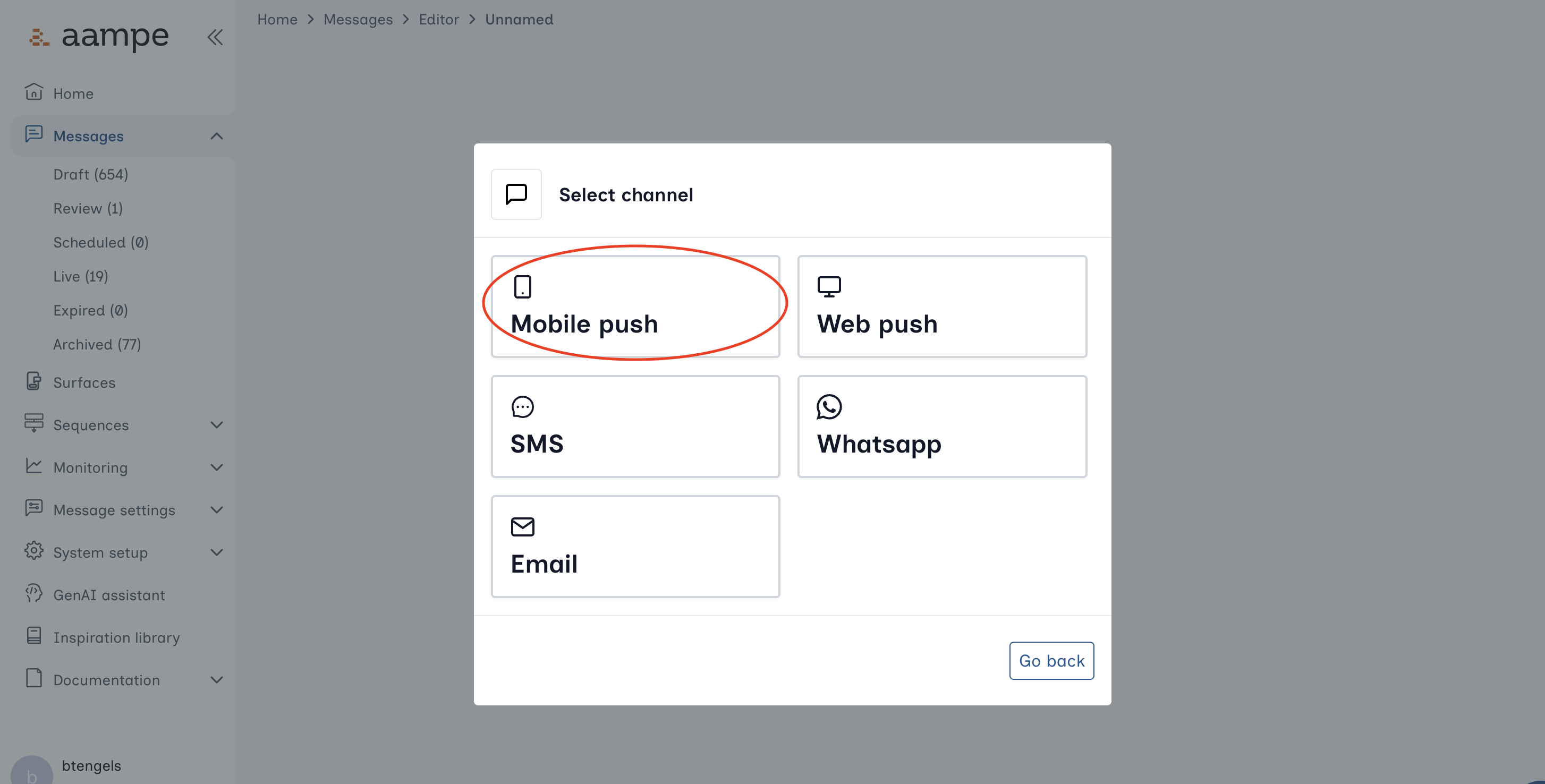
 Choose **Mobile push** for your channel.
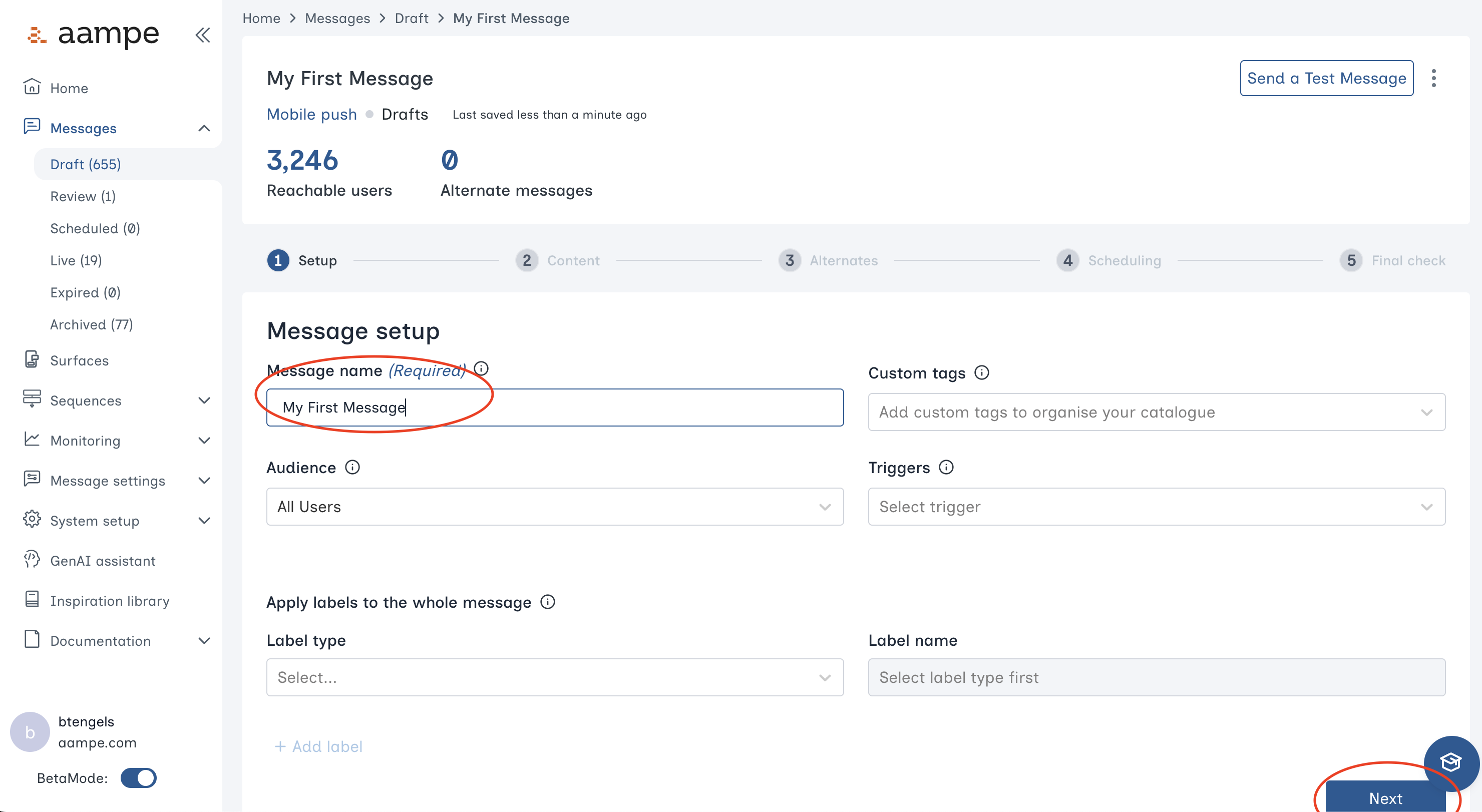
 In the **Message setup** panel, give your message a name. You can also configure
* [audiences](/user-guide/using-aampe/audiences/audiences)
* [triggers](/user-guide/using-aampe/audiences/triggers)
* tags
* labels that apply to the entire message
In the **Message setup** panel, give your message a name. You can also configure
* [audiences](/user-guide/using-aampe/audiences/audiences)
* [triggers](/user-guide/using-aampe/audiences/triggers)
* tags
* labels that apply to the entire message
 ## Step 2: Create the Message Content
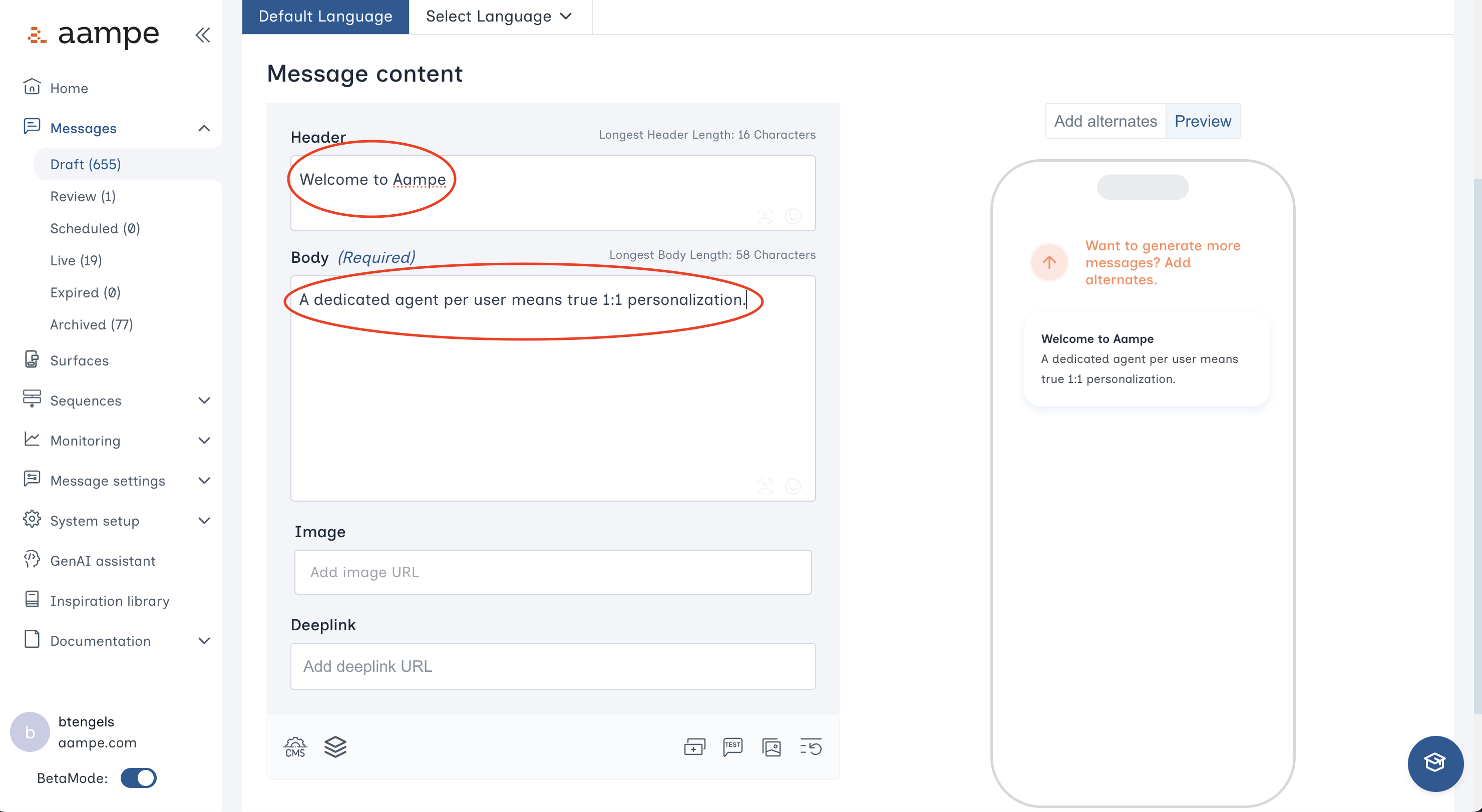
You have fields for the message header, message body, an image, and a deeplink URL. The icons beneath the Deeplink field allow you to
* [connect a CMS feed](/user-guide/using-aampe/quickstart/quickstart-cms)
* [connect a dataset](/user-guide/using-aampe/tools/datasets)
* add a button
* send a test message
* add image alternates
Write a message to start things off. Think about the components of your message and how you might rewrite the message with different value propositions, offerings, etc.
## Step 2: Create the Message Content
You have fields for the message header, message body, an image, and a deeplink URL. The icons beneath the Deeplink field allow you to
* [connect a CMS feed](/user-guide/using-aampe/quickstart/quickstart-cms)
* [connect a dataset](/user-guide/using-aampe/tools/datasets)
* add a button
* send a test message
* add image alternates
Write a message to start things off. Think about the components of your message and how you might rewrite the message with different value propositions, offerings, etc.
 To create a message component, simply highlight the text. Choose the kind of message component from the dropdown.
* See [here](/user-guide/using-aampe/messages-by-channel/component_and_labels) for a deep dive on message components
* See [here](/user-guide/using-aampe/messages-by-channel/custom-components) for a guide on creating custom message components
To create a message component, simply highlight the text. Choose the kind of message component from the dropdown.
* See [here](/user-guide/using-aampe/messages-by-channel/component_and_labels) for a deep dive on message components
* See [here](/user-guide/using-aampe/messages-by-channel/custom-components) for a guide on creating custom message components
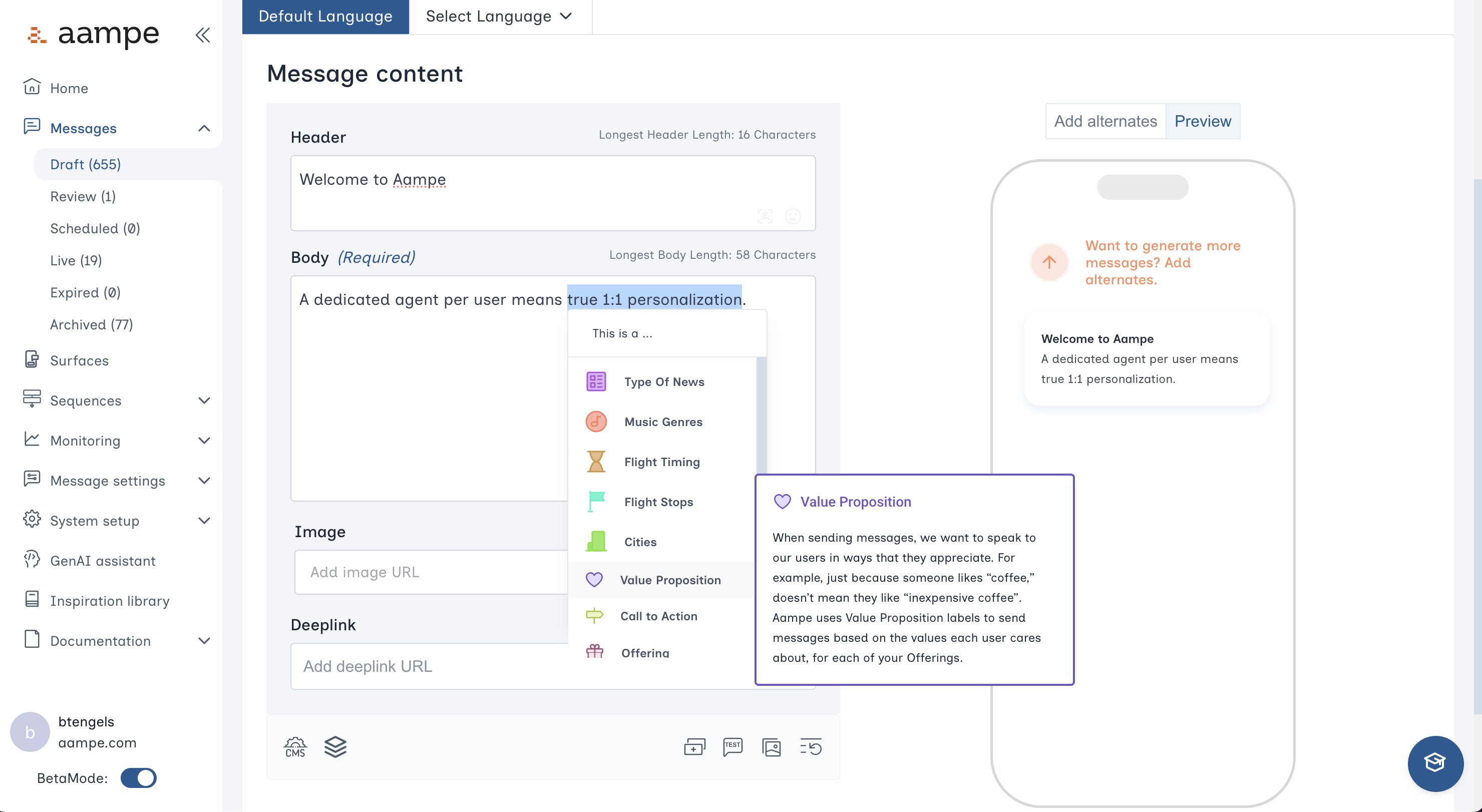 For each component, create alternates. Give each alternate a label.
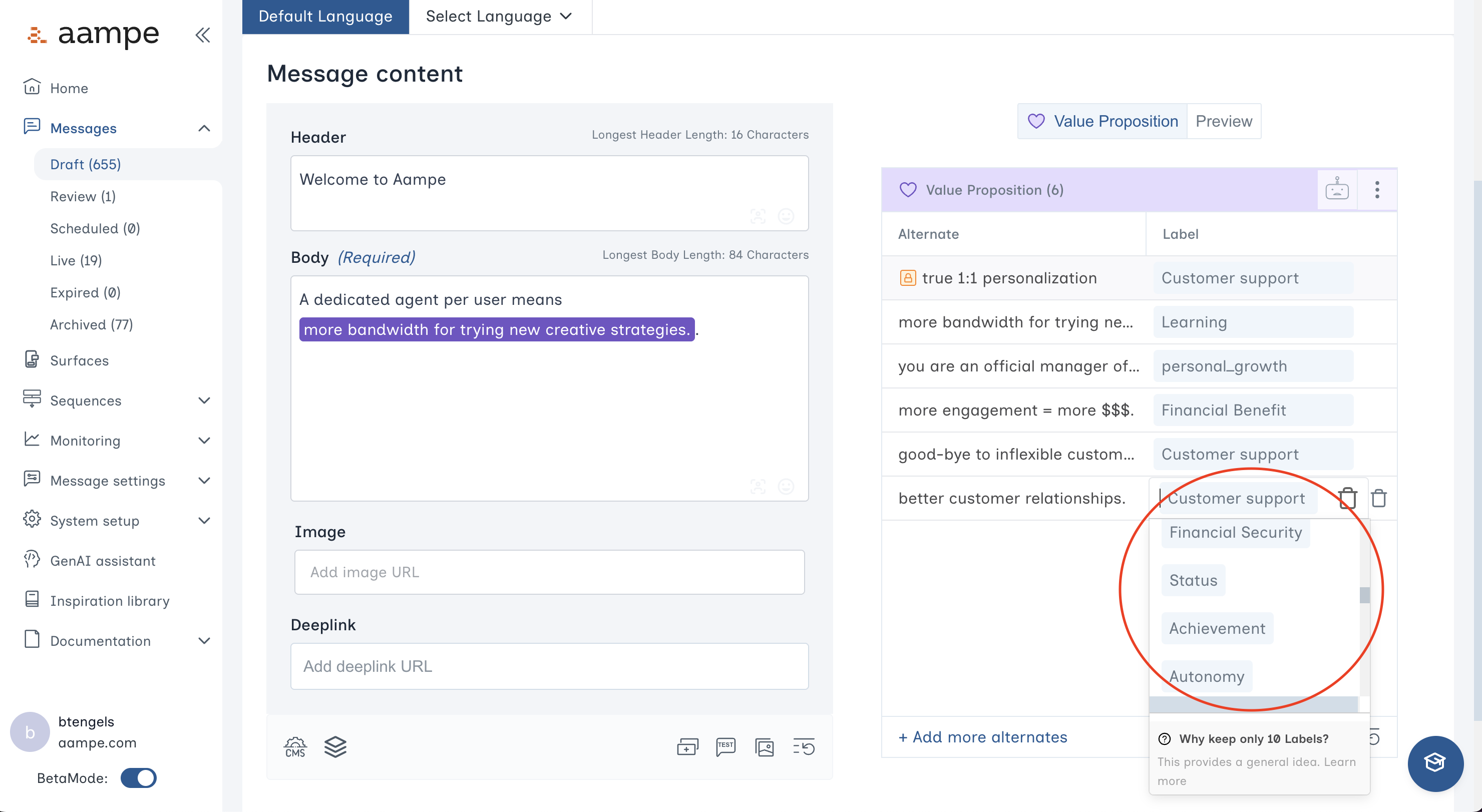 Take a minute to review all the possible alternates. Make changes if needed and click **Next** once you are ready.
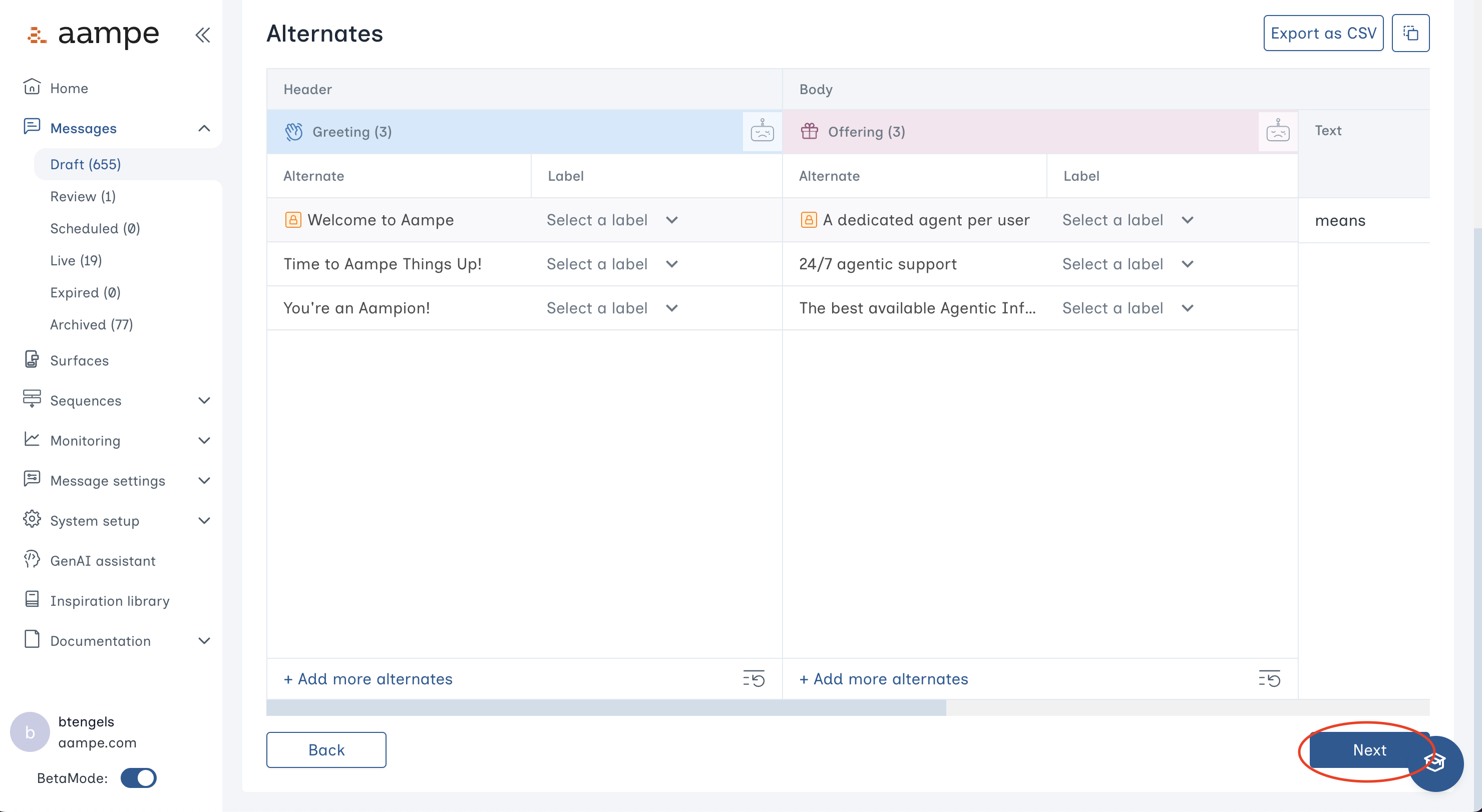 ## Step 3: Schedule and Review
Choose your preferred scheduling heuristic.
* **Delegate to agents:** Your agents determine the ideal variant and time for each user.
* **Automated scheduling with guardrails:** Specify certain days of the week, specific calendar days, or hours of the day that agents can operate within.
* **One-at-a-time message scheduling:** Send to everyone at once, bypassing the agent.
## Step 3: Schedule and Review
Choose your preferred scheduling heuristic.
* **Delegate to agents:** Your agents determine the ideal variant and time for each user.
* **Automated scheduling with guardrails:** Specify certain days of the week, specific calendar days, or hours of the day that agents can operate within.
* **One-at-a-time message scheduling:** Send to everyone at once, bypassing the agent.
 One last check. Some things to look for:
* Is the audience correct?
* Should the message operate within a specific time range?
* Do the alternates read correctly?
One last check. Some things to look for:
* Is the audience correct?
* Should the message operate within a specific time range?
* Do the alternates read correctly?
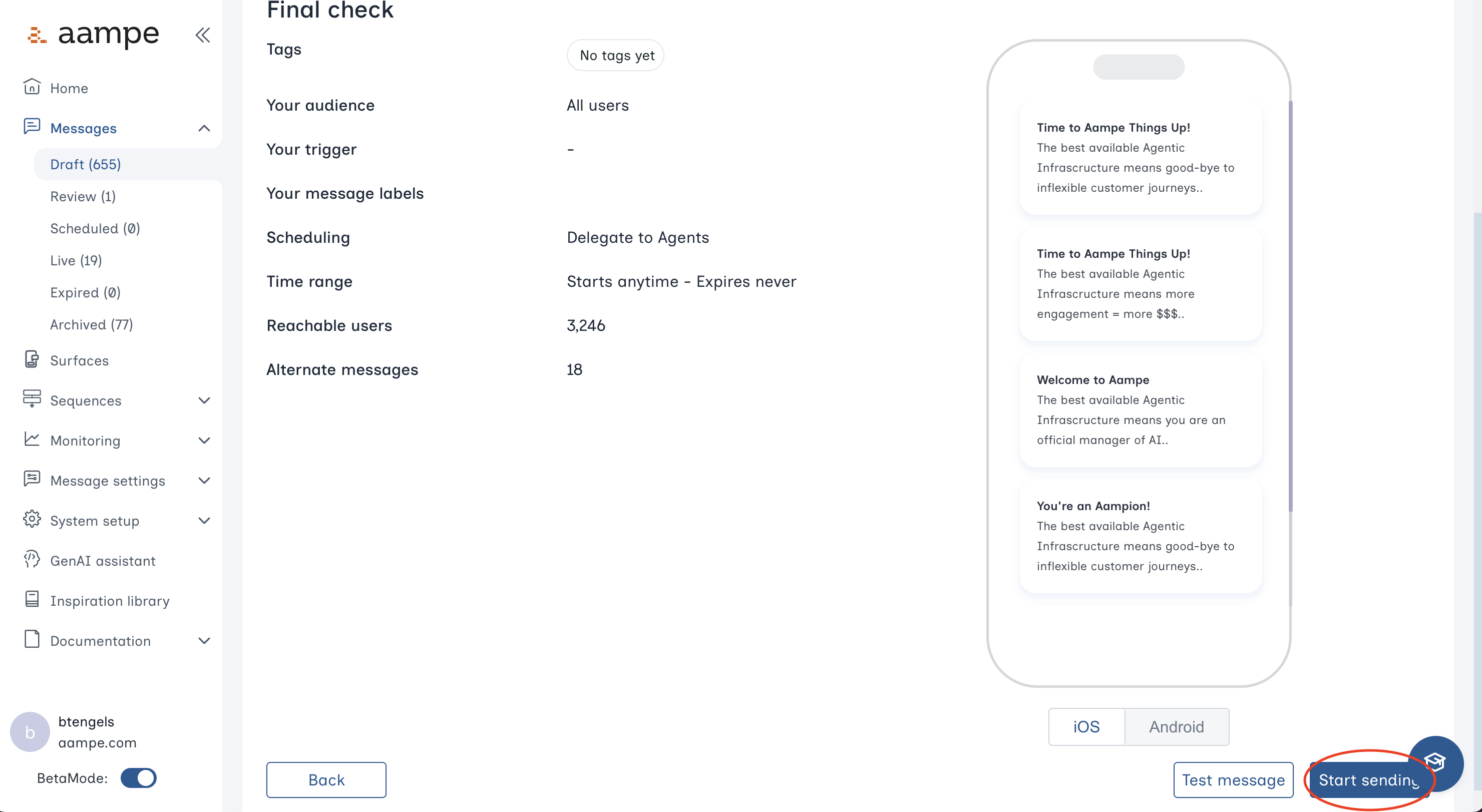 See [here](/user-guide/using-aampe/messages-by-channel/push/send-test-message) for instructions on how to send a test message of your choosing to an approved test device.
Click **Start sending** and your message is live!
See [here](/user-guide/using-aampe/messages-by-channel/push/send-test-message) for instructions on how to send a test message of your choosing to an approved test device.
Click **Start sending** and your message is live!