> ## Documentation Index
> Fetch the complete documentation index at: https://kb.aampe.com/llms.txt
> Use this file to discover all available pages before exploring further.
# Personalizing Messages with User Attributes
> Use dynamic placeholders to personalize message content with real user data
Aampe lets you insert per-user attribute values directly into your message copy using a simple placeholder syntax. When a message is sent, Aampe resolves each placeholder with that user's actual data and falls back to a default value if the attribute is missing.
## Syntax
```
{{aampe.user_property.ATTRIBUTE_NAME|FALLBACK_VALUE}}
```
| Part | Description |
| :--------------------- | :----------------------------------------------------------------- |
| `aampe.user_property.` | Required namespace prefix |
| `ATTRIBUTE_NAME` | The name of the user attribute (e.g. `first_name`, `tier`, `city`) |
| `\|` | Separator between the attribute name and the fallback value |
| `FALLBACK_VALUE` | The value to use if the attribute is null or missing for this user |
## Fallbacks Are Required
Every placeholder **must** include a fallback value. If a placeholder is written without one (e.g. `{{aampe.user_property.first_name}}`), it cannot be resolved and the message will not be delivered to that user.
Messages containing unresolved placeholders are dropped at send time. Always include a fallback to ensure delivery.
## Examples
**Greeting with first name:**
```
Hello {{aampe.user_property.first_name|there}}!
```
Renders as `Hello Sarah!` if `first_name` is set, or `Hello there!` if it isn't.
**Subscription tier:**
```
You're on the {{aampe.user_property.plan|free}} plan.
```
**Numeric attribute:**
```
You have {{aampe.user_property.points|0}} reward points.
```
**City-based copy:**
```
Check out what's trending in {{aampe.user_property.city|your area}} right now.
```
## How Resolution Works
* Placeholders are resolved **before** the message is sent to your delivery provider.
* If the attribute exists and has a value (even `0`, `false`, or an empty string) that value is used. The fallback is only triggered when the attribute is `null` or absent entirely.
* All resolved values are treated as strings in the final message content.
## Using Your Delivery Provider's Personalization Syntax
Your delivery provider may have its own syntax for personalizing messages. For example, Braze supports dynamically adding user attributes via [Liquid](https://www.braze.com/docs/user_guide/messaging/design_and_edit/personalize/liquid/using_liquid#liquid-syntax). If your messaging provider supports referencing user attributes via the send API, you can include the syntax directly in the Aampe message builder.
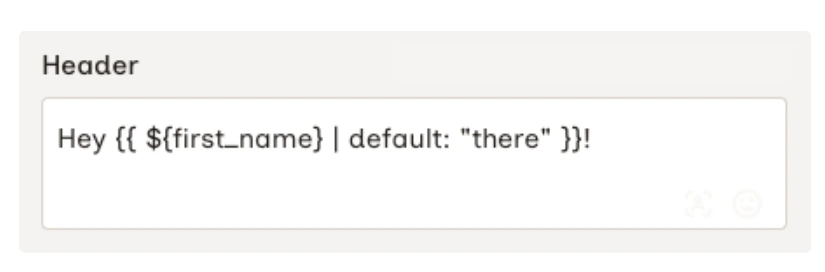 When using provider-native syntax alongside Aampe placeholders, Aampe resolves its own `{{aampe.user_property.*}}` placeholders first. Your provider then processes its own templating when the message is delivered.
## Where to Find Your Attribute Names
The attribute names available to you are the user properties you send to Aampe via your data integration. You can find a reference list of common properties in the [User Attributes](/developer-guide/data-ingest/user-properties) guide, or check with your data or engineering team for the exact keys in your dataset.
## Using Personalization in a Message
There are two ways to insert a placeholder into your message:
**Option 1: Insert User Attribute button (recommended)**
Click the **Insert user attribute placeholder** button in the bottom right of any message text field.
When using provider-native syntax alongside Aampe placeholders, Aampe resolves its own `{{aampe.user_property.*}}` placeholders first. Your provider then processes its own templating when the message is delivered.
## Where to Find Your Attribute Names
The attribute names available to you are the user properties you send to Aampe via your data integration. You can find a reference list of common properties in the [User Attributes](/developer-guide/data-ingest/user-properties) guide, or check with your data or engineering team for the exact keys in your dataset.
## Using Personalization in a Message
There are two ways to insert a placeholder into your message:
**Option 1: Insert User Attribute button (recommended)**
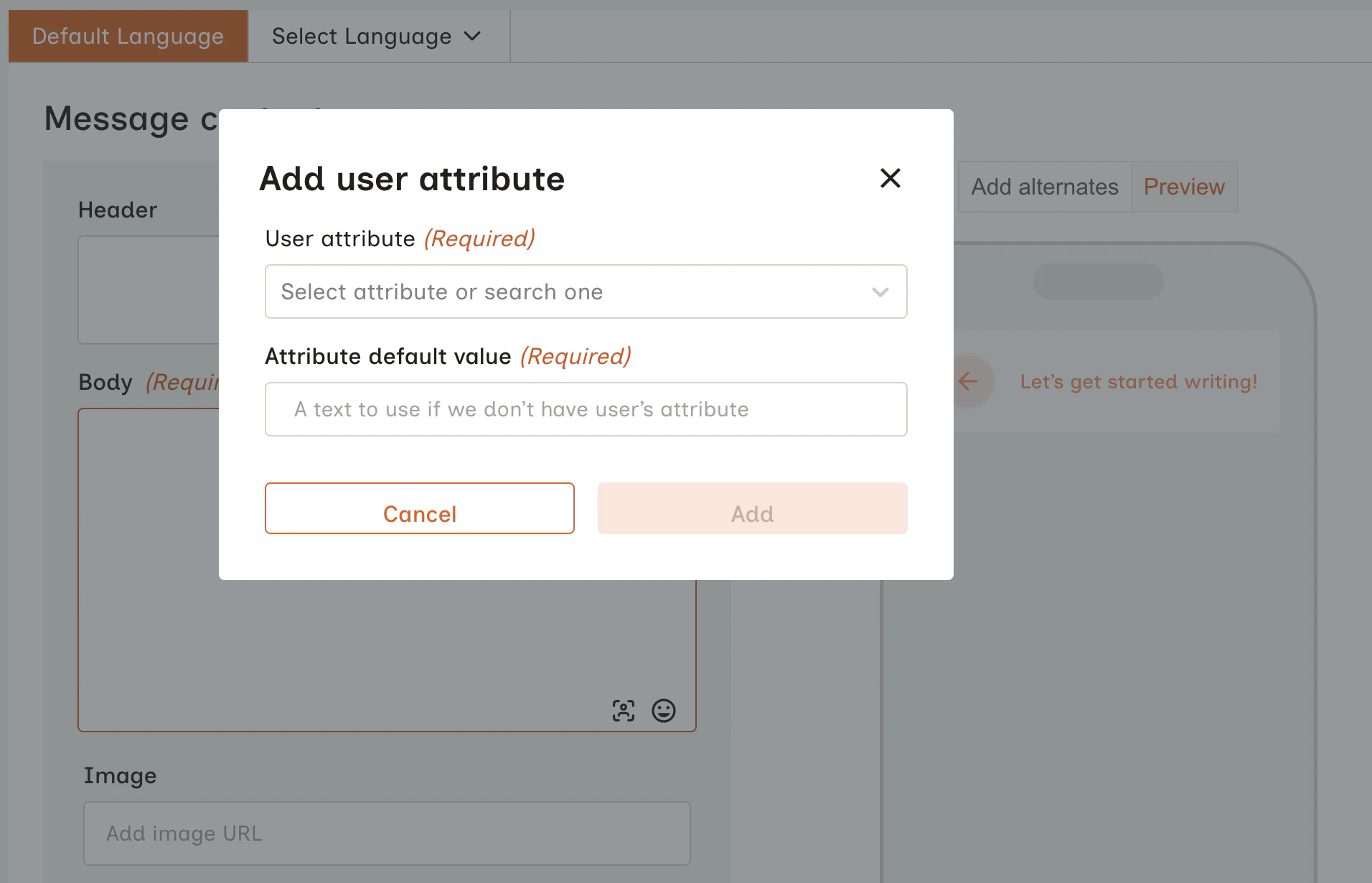
Click the **Insert user attribute placeholder** button in the bottom right of any message text field.
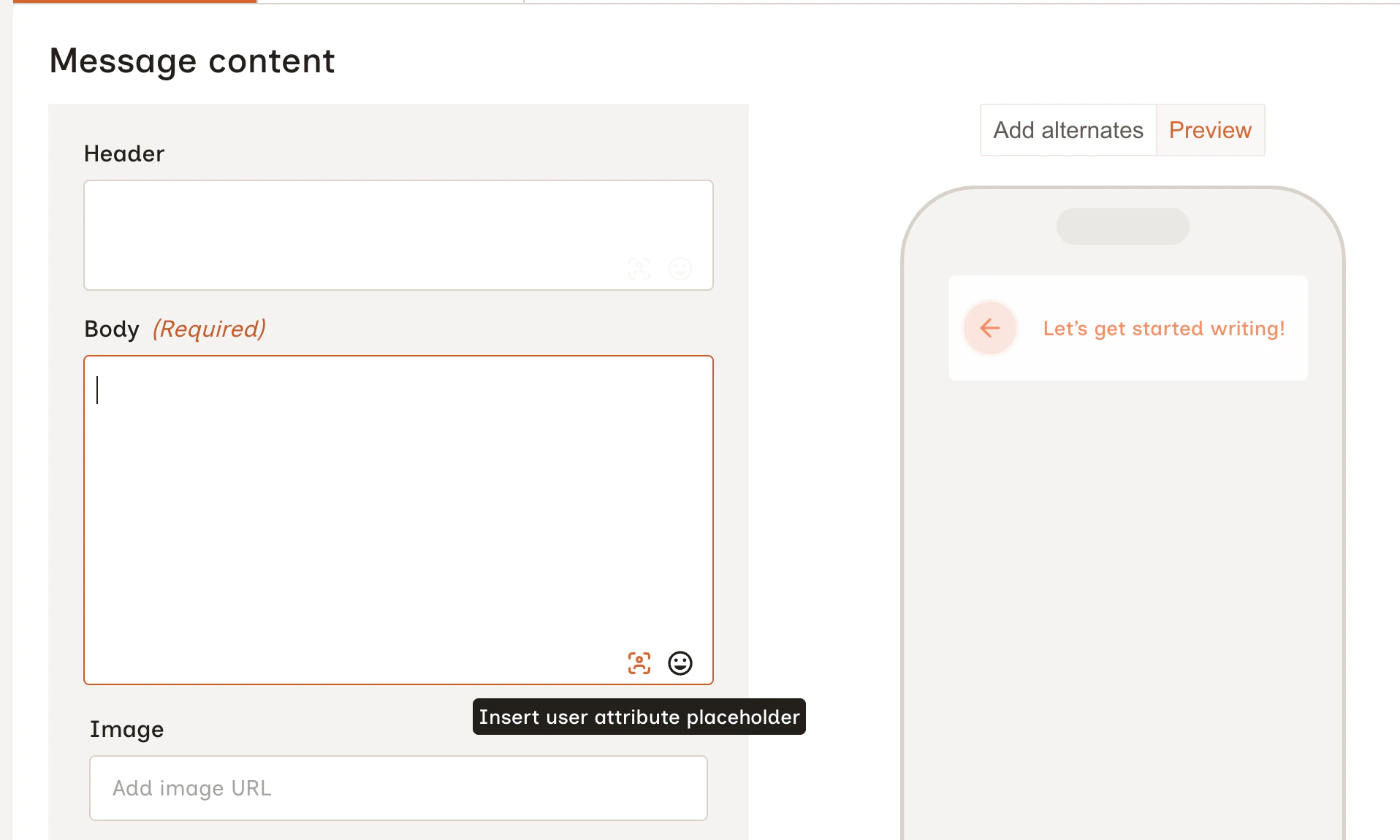 The **Add user attribute** modal will open. Select an attribute from the dropdown and enter a fallback value. Both fields are required before the placeholder can be inserted.
 **Option 2: Type it manually**
You can type the placeholder syntax directly into any text field:
```
{{aampe.user_property.first_name|there}}
```
**Option 2: Type it manually**
You can type the placeholder syntax directly into any text field:
```
{{aampe.user_property.first_name|there}}
```
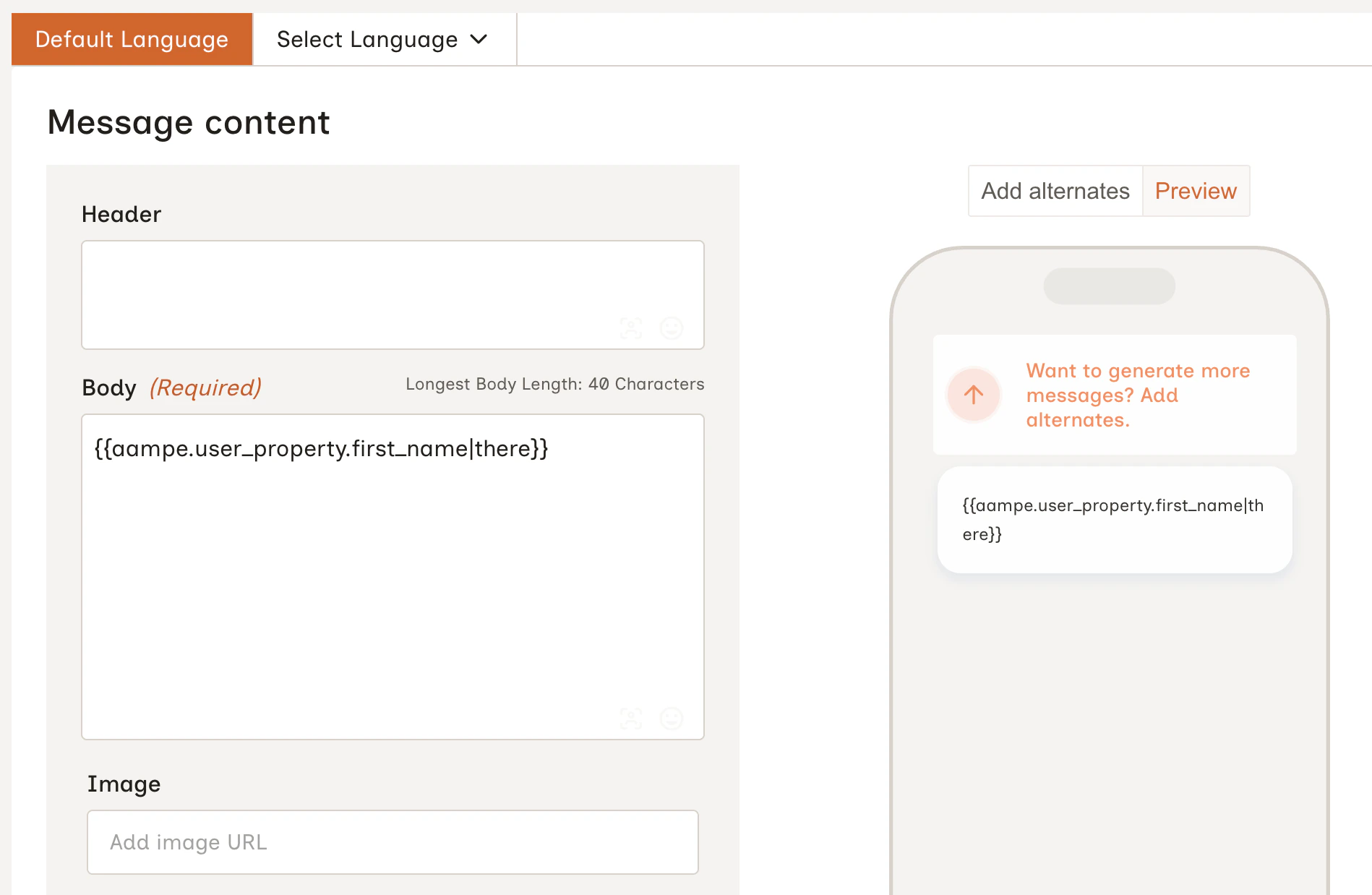 Both methods produce identical output when the message is sent. The UI button has the advantage of validating that both the attribute name and fallback value are present before insertion. Manual typing has no such check, so a malformed placeholder won't be caught until send time.
To verify your placeholders are working correctly before going live, use the [send test message](/user-guide/using-aampe/messages-by-channel/push/send-test-message) feature to preview how a message renders for a specific test user.
Both methods produce identical output when the message is sent. The UI button has the advantage of validating that both the attribute name and fallback value are present before insertion. Manual typing has no such check, so a malformed placeholder won't be caught until send time.
To verify your placeholders are working correctly before going live, use the [send test message](/user-guide/using-aampe/messages-by-channel/push/send-test-message) feature to preview how a message renders for a specific test user.