> ## Documentation Index
> Fetch the complete documentation index at: https://kb.aampe.com/llms.txt
> Use this file to discover all available pages before exploring further.
# Create an Email Message
> Personalization is so much more than 'hello {first-name}'
## How to Create Emails in Aampe
## Step 1: Create a Template
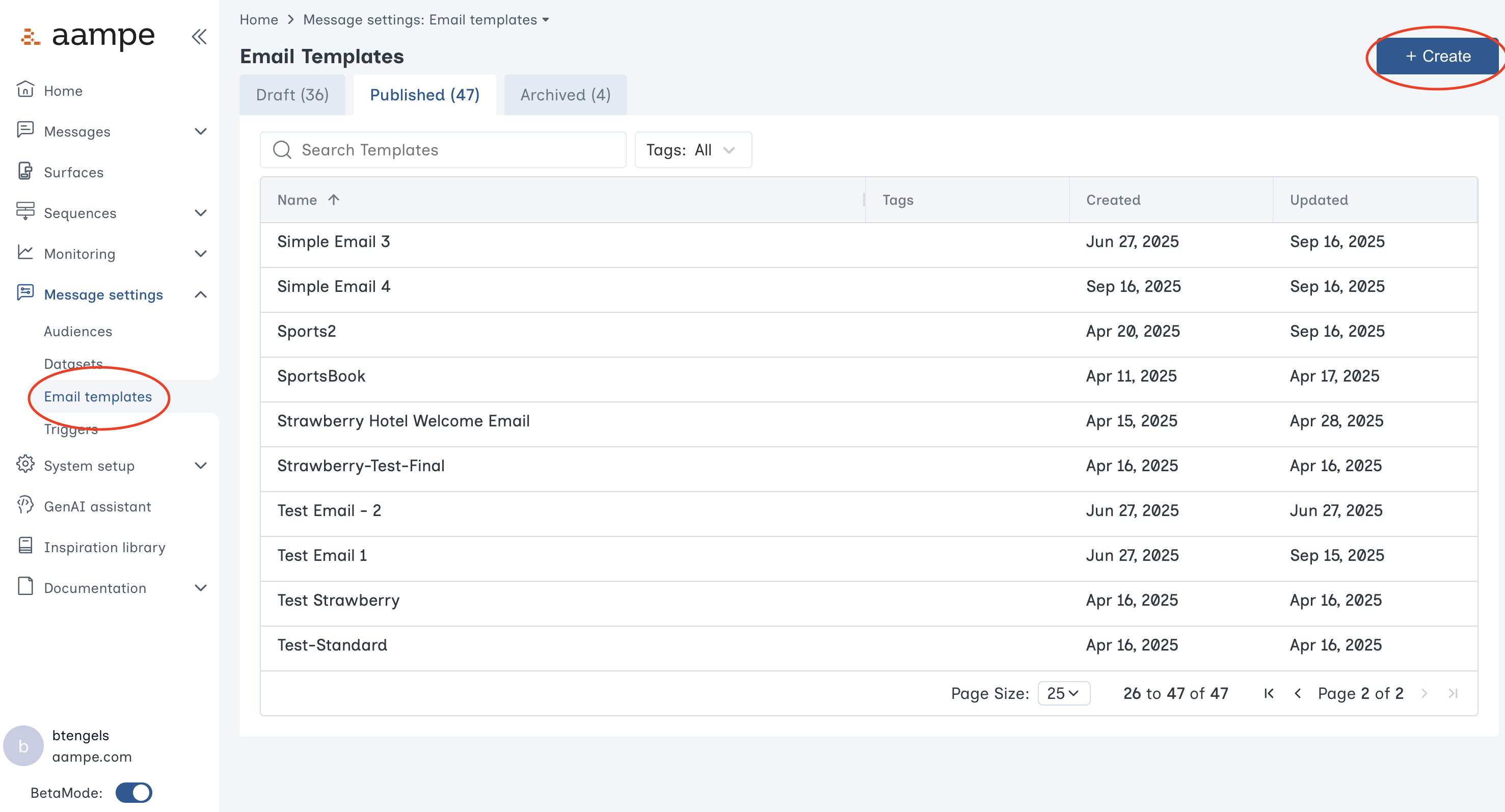
Under **Message Settings > Email templates**, click **Create**.
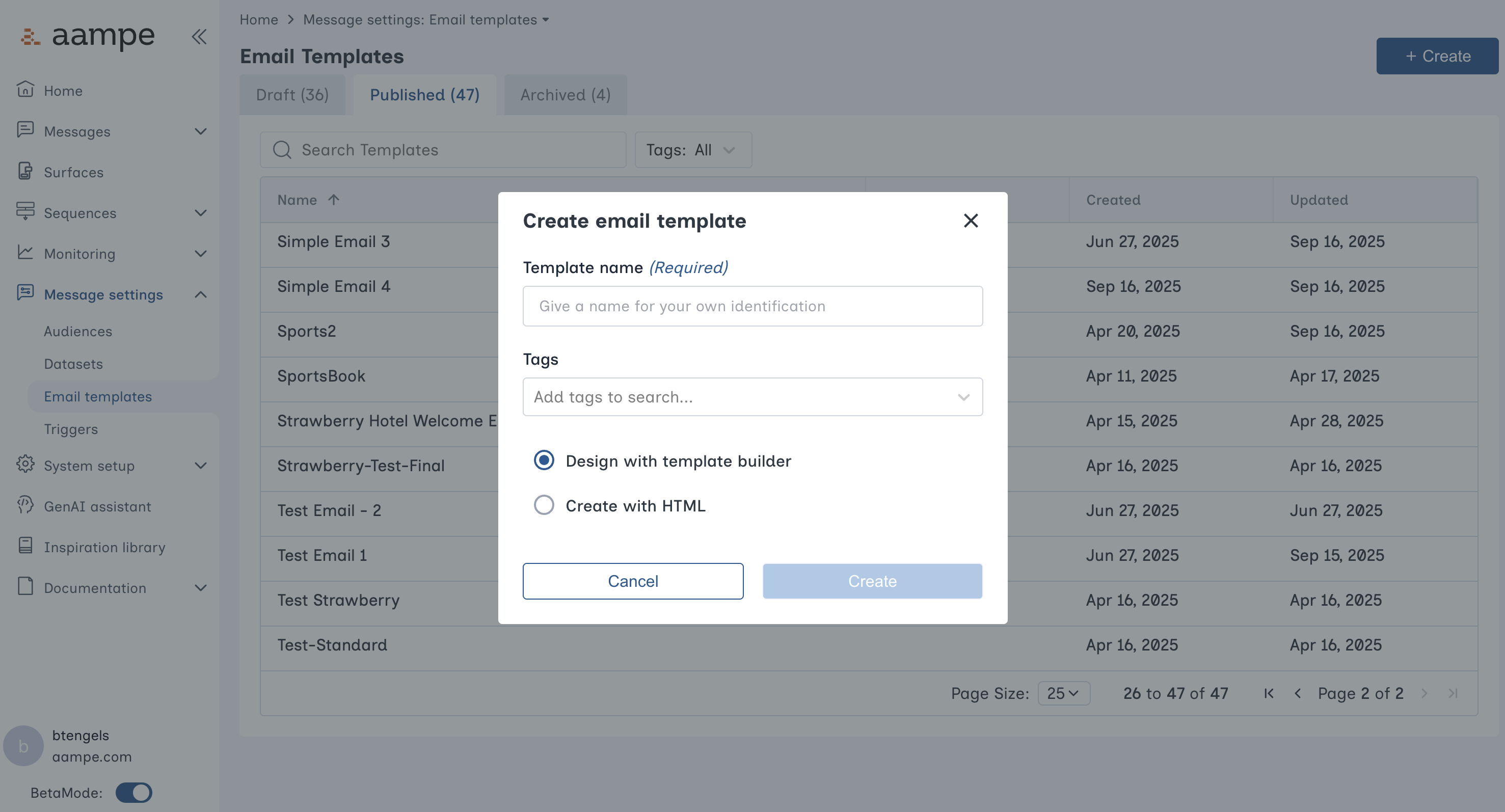
 Give your new template a name. You will also choose if you want to design with Aampe's template builder or create the email via HTML.
 ### Aampe Email Template Builder
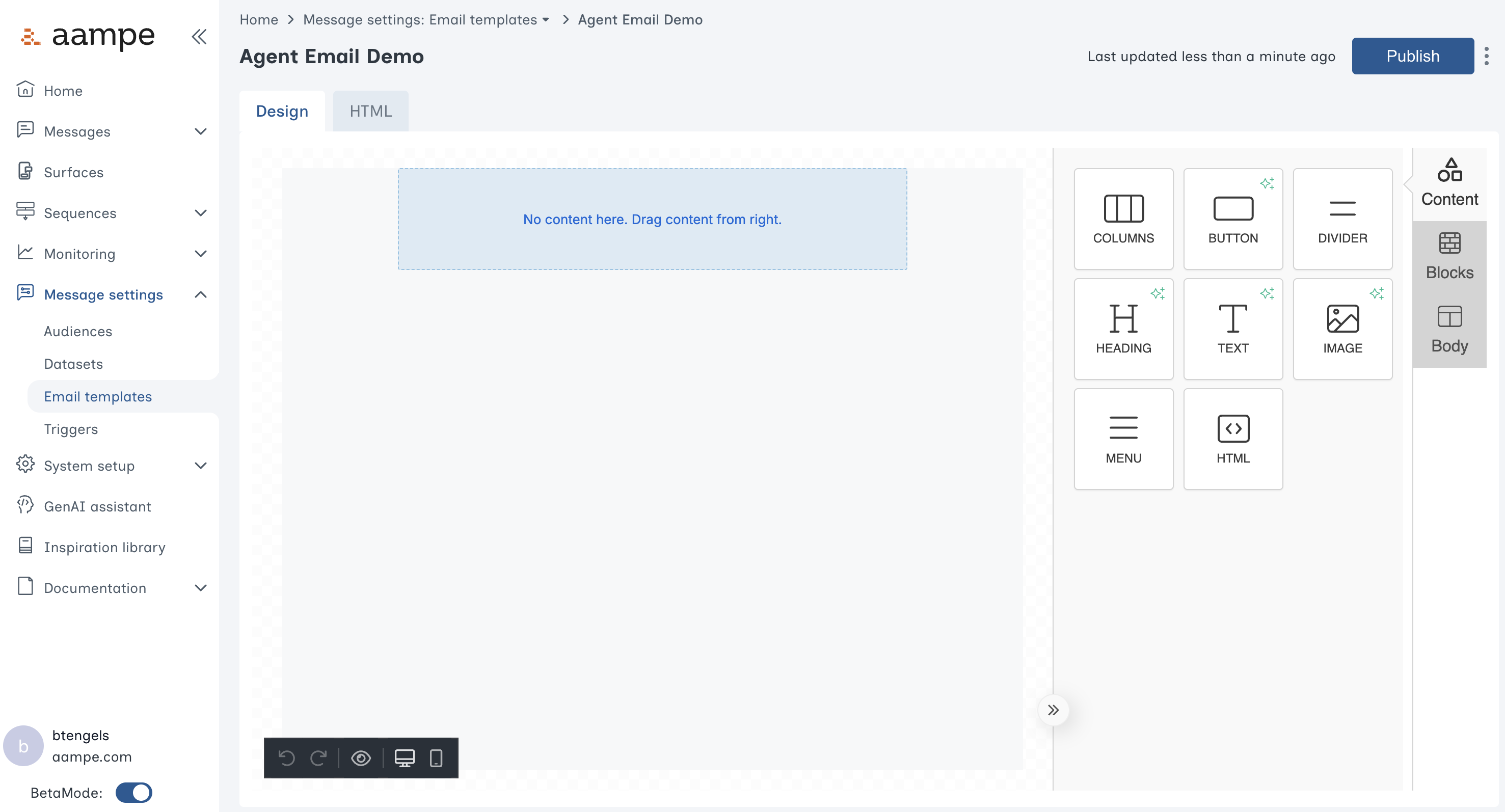
The email template builder is a no-code interface that allows you to construct visually appealing emails that immediately connect with Aampe's personalization features.
Simply drag the components onto the canvas and arrange them however you like.
### Aampe Email Template Builder
The email template builder is a no-code interface that allows you to construct visually appealing emails that immediately connect with Aampe's personalization features.
Simply drag the components onto the canvas and arrange them however you like.
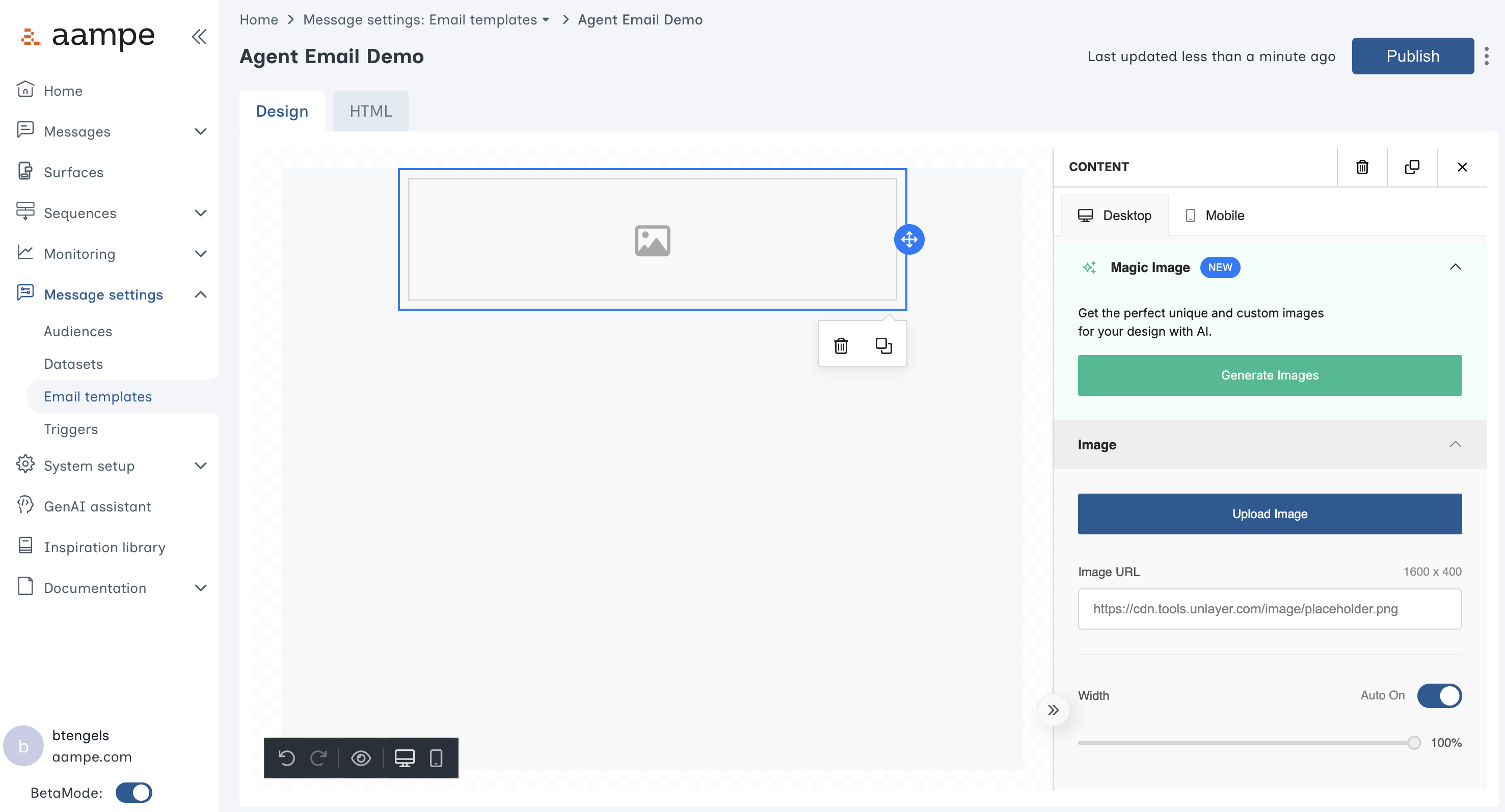
 Looking for a novel image? Use the **Magic Image** feature to create new images on the fly.
 ### Dynamic Fields
When building out the email template, use a `{{fieldname--field}}` placeholder to designate dynamic fields.
Refer to the following syntax to insert dynamic fields:
| **Element** | **Dynamic field format** |
| ------------------------------ | ------------------------ |
| Single line header | `{{headline--field}}` |
| Another Single line header | `{{headline_2--field}}` |
| Multi-line Body | `{{body--multiline}}` |
| Another Multi-line Body | `{{body_2--multiline}}` |
| Button labels | `{{button--field}}` |
| Another button label | `{{button_2--field}}` |
| Button URL | `{{button_url--link}}` |
| Image URL for image components | `{{image_url--image}}` |
| Image Link (on click of image) | `{{image_url--link}}` |
* If you're comfortable editing HTML, you can place the dynamic fields *anywhere*. Image URLs, font sizes, or text.
### Dynamic Fields
When building out the email template, use a `{{fieldname--field}}` placeholder to designate dynamic fields.
Refer to the following syntax to insert dynamic fields:
| **Element** | **Dynamic field format** |
| ------------------------------ | ------------------------ |
| Single line header | `{{headline--field}}` |
| Another Single line header | `{{headline_2--field}}` |
| Multi-line Body | `{{body--multiline}}` |
| Another Multi-line Body | `{{body_2--multiline}}` |
| Button labels | `{{button--field}}` |
| Another button label | `{{button_2--field}}` |
| Button URL | `{{button_url--link}}` |
| Image URL for image components | `{{image_url--image}}` |
| Image Link (on click of image) | `{{image_url--link}}` |
* If you're comfortable editing HTML, you can place the dynamic fields *anywhere*. Image URLs, font sizes, or text.
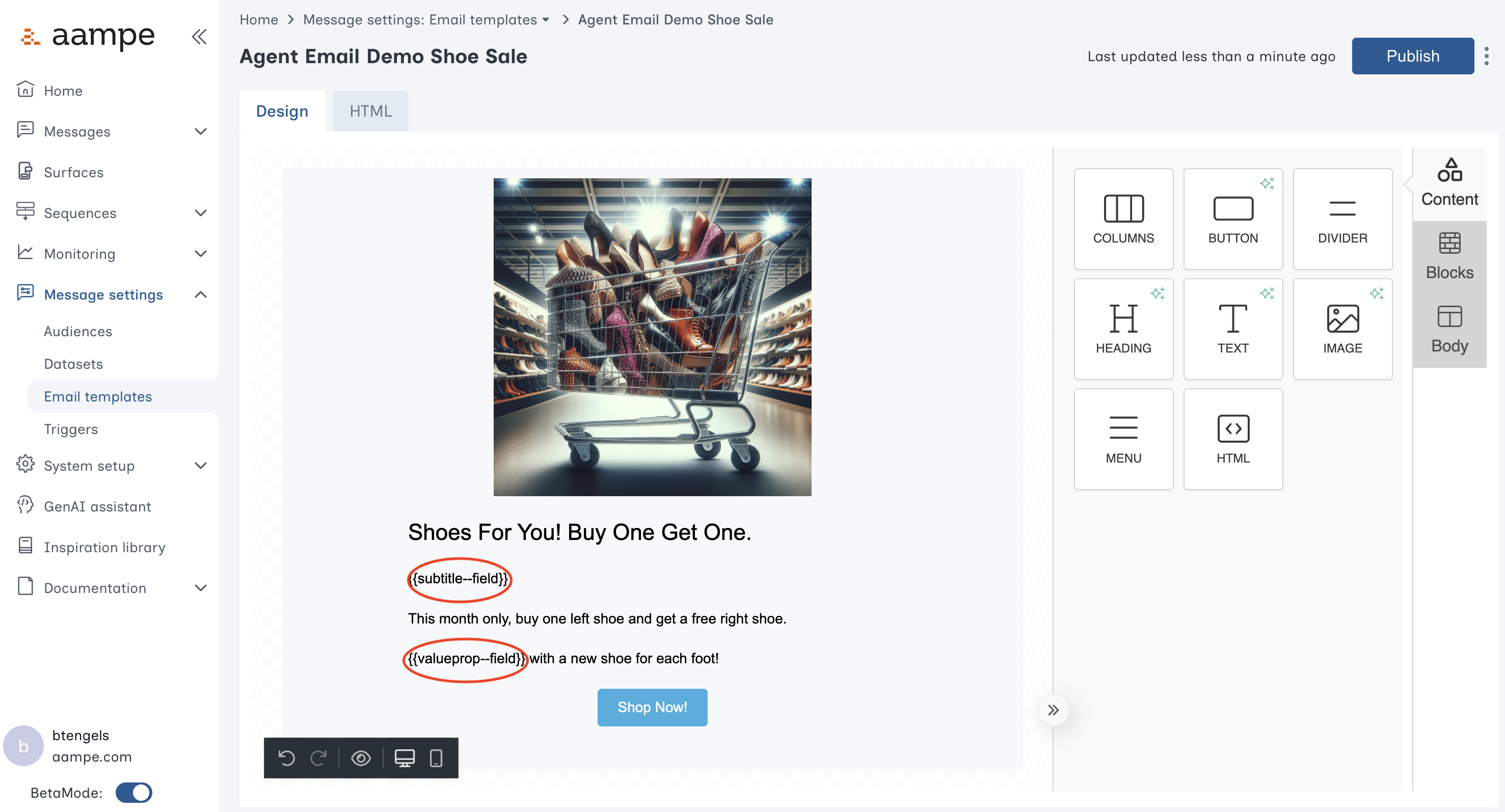 When your template is ready, press **Publish** to make the template visible to your content catalog.
## Step 2: Populate a Template with Content
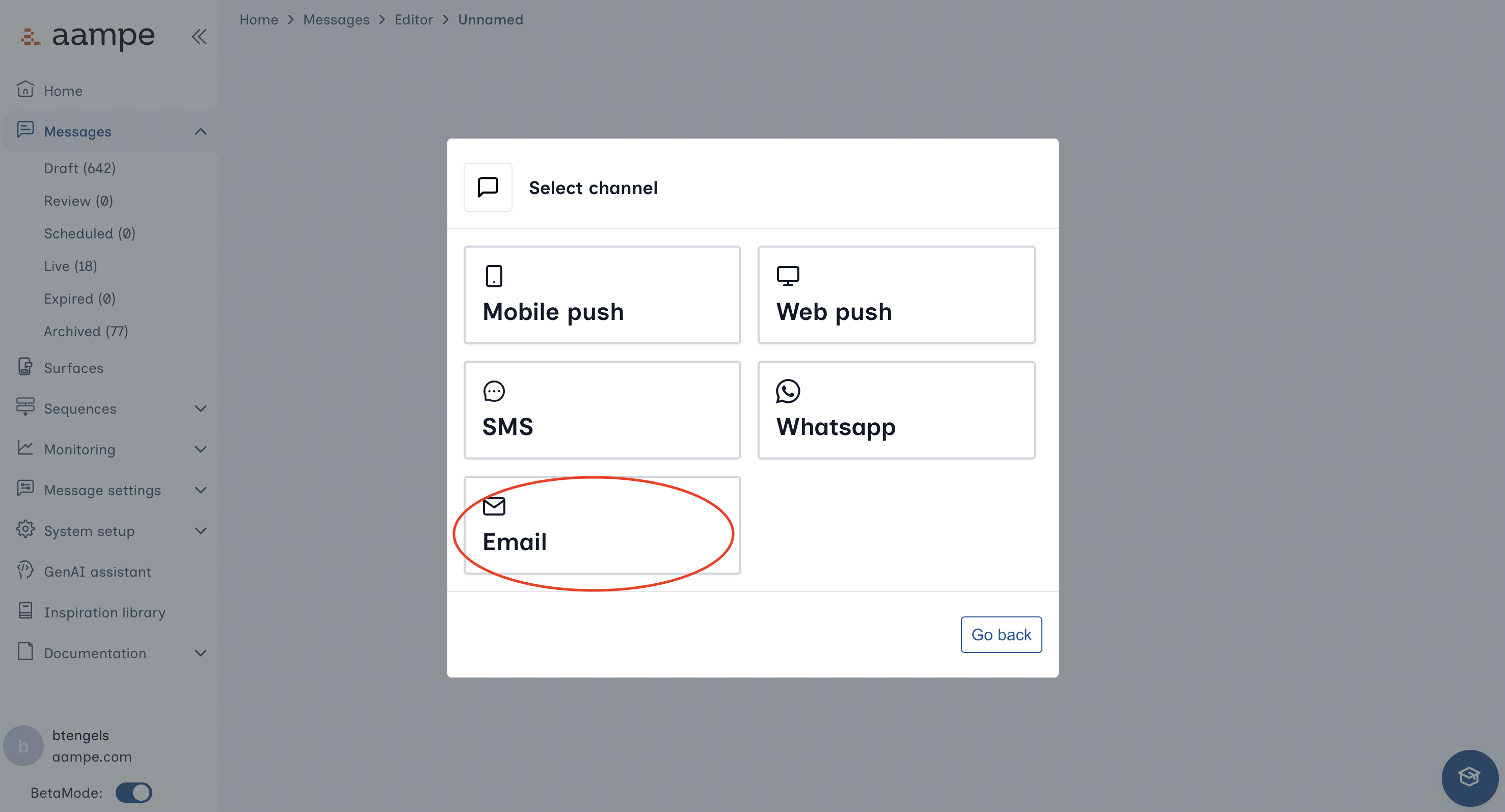
In the **Messages** panel, click **Create a New Message** to bring up the following menu. Click **Email**.
When your template is ready, press **Publish** to make the template visible to your content catalog.
## Step 2: Populate a Template with Content
In the **Messages** panel, click **Create a New Message** to bring up the following menu. Click **Email**.
 Fill out the Message Setup form
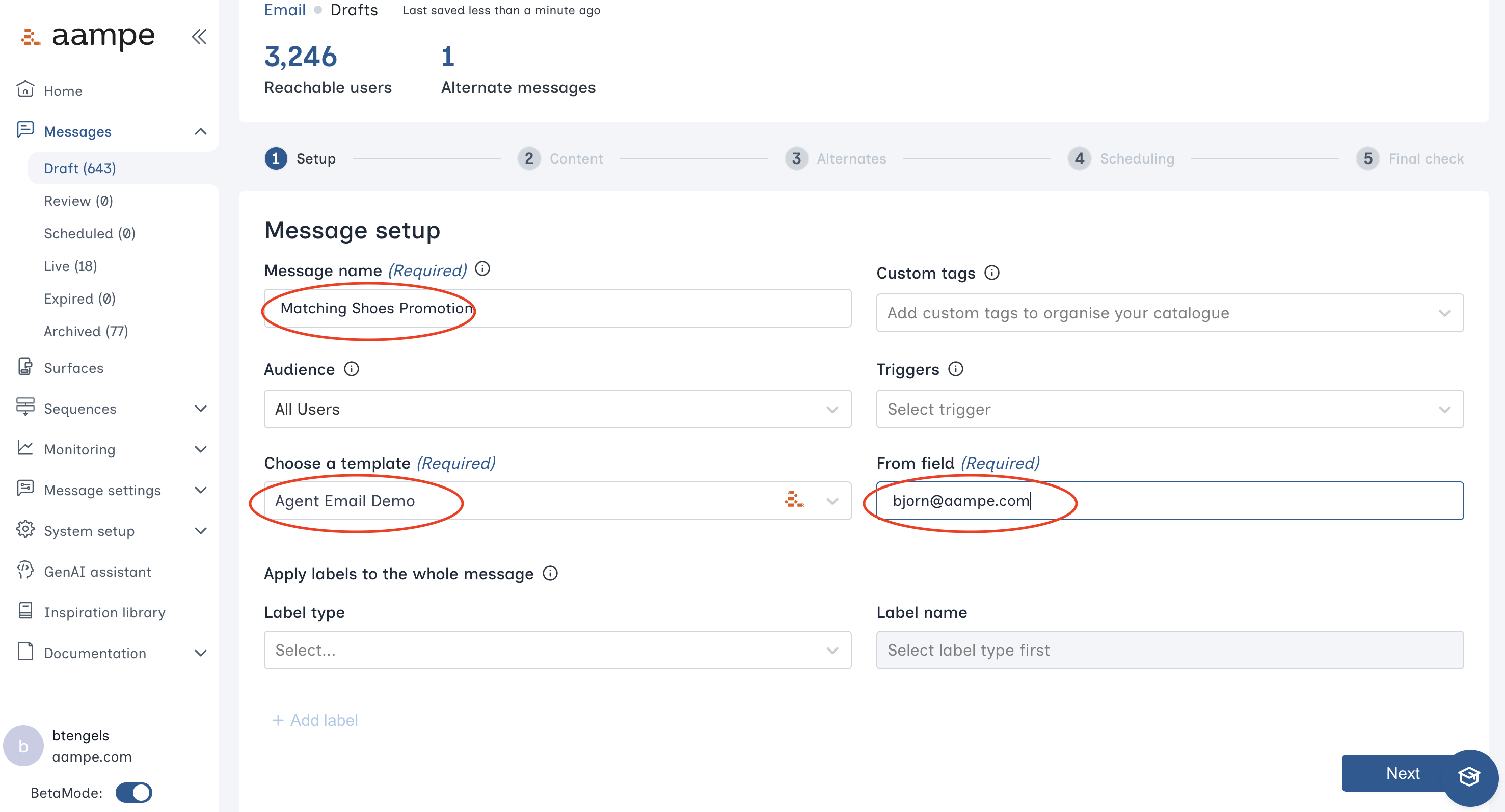
* Give your message a name
* Choose your template
* Select your [audience](/user-guide/using-aampe/audiences/audiences)
* Designate a sender (from field).
You can also add any tags, [triggers](/user-guide/using-aampe/audiences/triggers), or labels, as needed.
Fill out the Message Setup form
* Give your message a name
* Choose your template
* Select your [audience](/user-guide/using-aampe/audiences/audiences)
* Designate a sender (from field).
You can also add any tags, [triggers](/user-guide/using-aampe/audiences/triggers), or labels, as needed.
 Click **Next**.
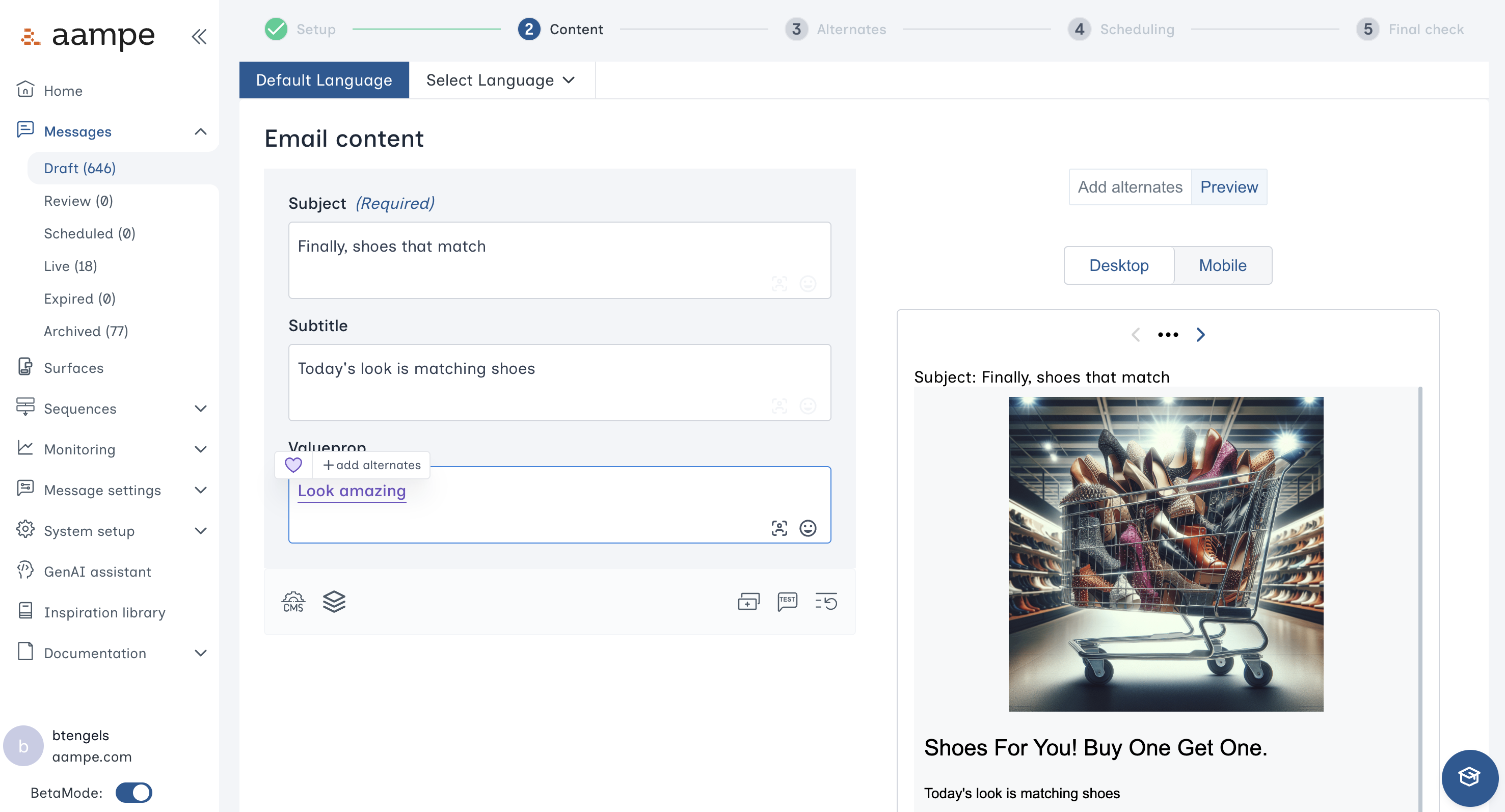
To build out the dynamic content for your email
* Enter text
* Highlight any text you would like to vary across users
* Create the specific variants
Click **Next**.
To build out the dynamic content for your email
* Enter text
* Highlight any text you would like to vary across users
* Create the specific variants
 Need a refresher on components and labels? See [here](/user-guide/using-aampe/messages-by-channel/component_and_labels) for a deep dive with examples for each of our label groups.
For best results make sure each variant has a label. You can have hundreds of variants but should only create new labels when necessary.
Need a refresher on components and labels? See [here](/user-guide/using-aampe/messages-by-channel/component_and_labels) for a deep dive with examples for each of our label groups.
For best results make sure each variant has a label. You can have hundreds of variants but should only create new labels when necessary.
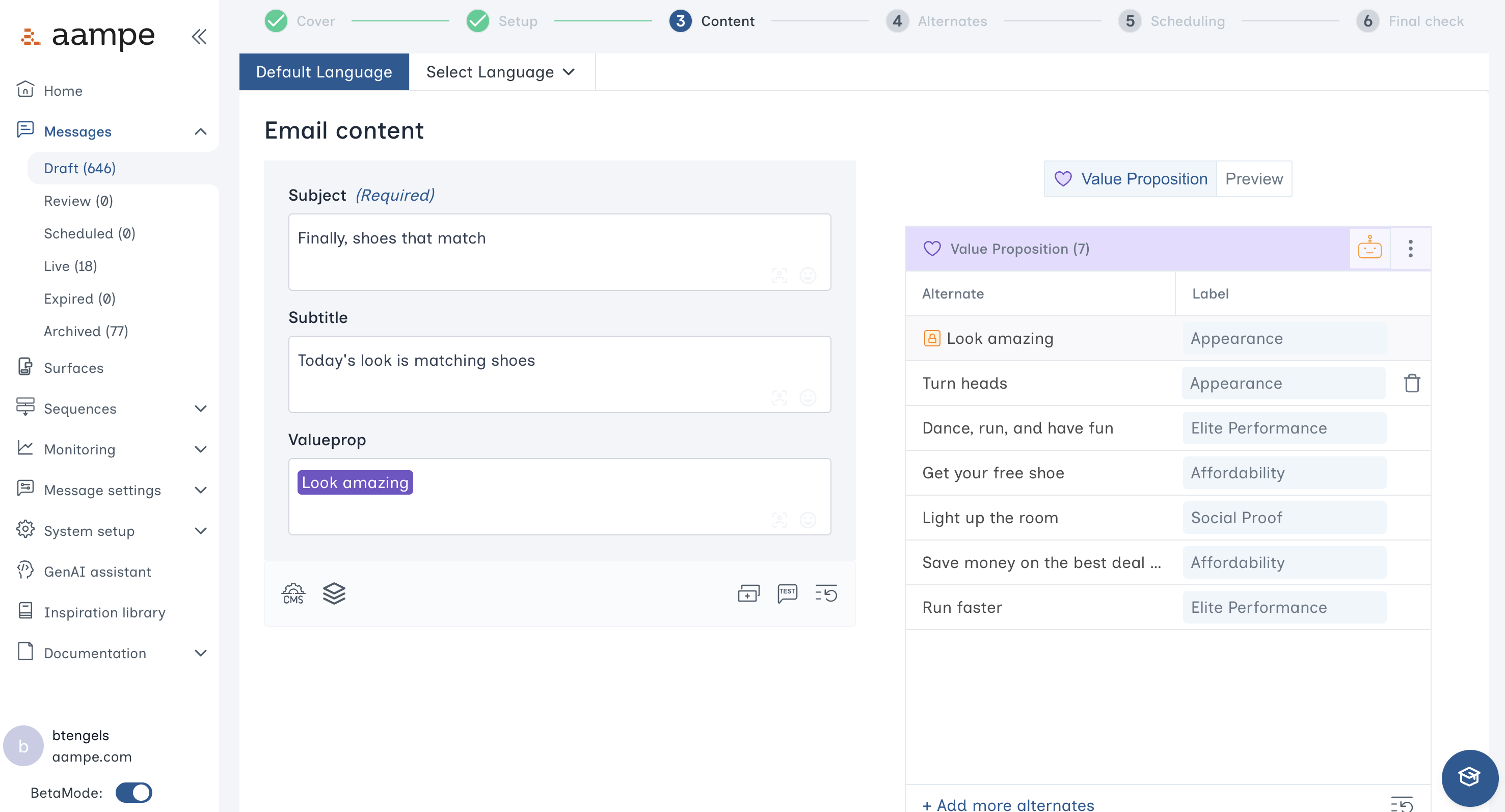 After creating all the variants, click **Next** and review all the alternates and labels for each field.
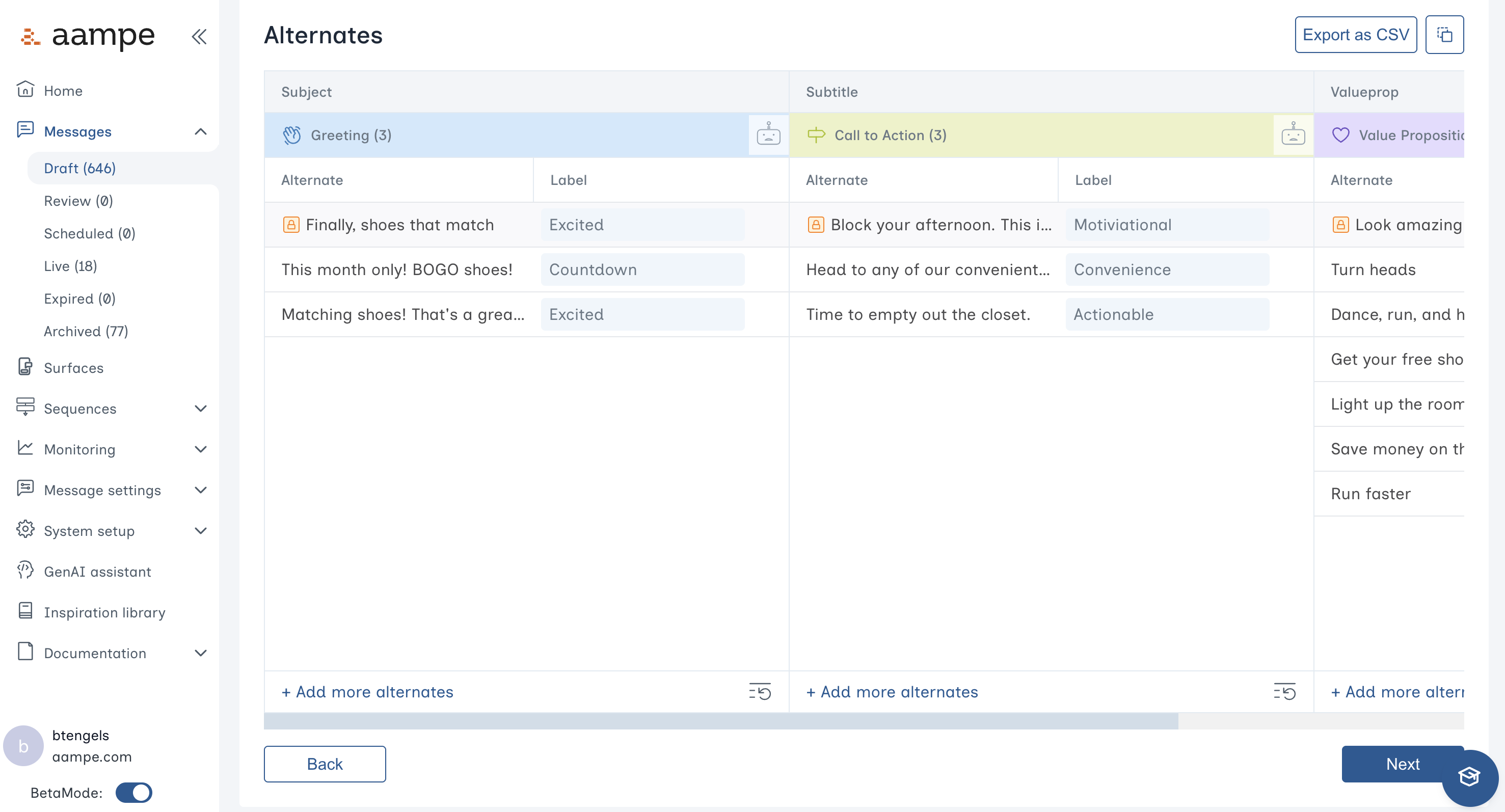 Make changes as needed and click **Next**.
### Scheduling
Choose your preferred scheduling heuristic.
* **Delegate to agents:** Your agents determine the ideal variant and time for each user.
* **Automated scheduling with guardrails:** Specify certain days of the week, specific calendar days, or hours of the day that agents can operate within.
* **One-at-a-time message scheduling:** Send to everyone at once, bypassing the agent.
Make changes as needed and click **Next**.
### Scheduling
Choose your preferred scheduling heuristic.
* **Delegate to agents:** Your agents determine the ideal variant and time for each user.
* **Automated scheduling with guardrails:** Specify certain days of the week, specific calendar days, or hours of the day that agents can operate within.
* **One-at-a-time message scheduling:** Send to everyone at once, bypassing the agent.
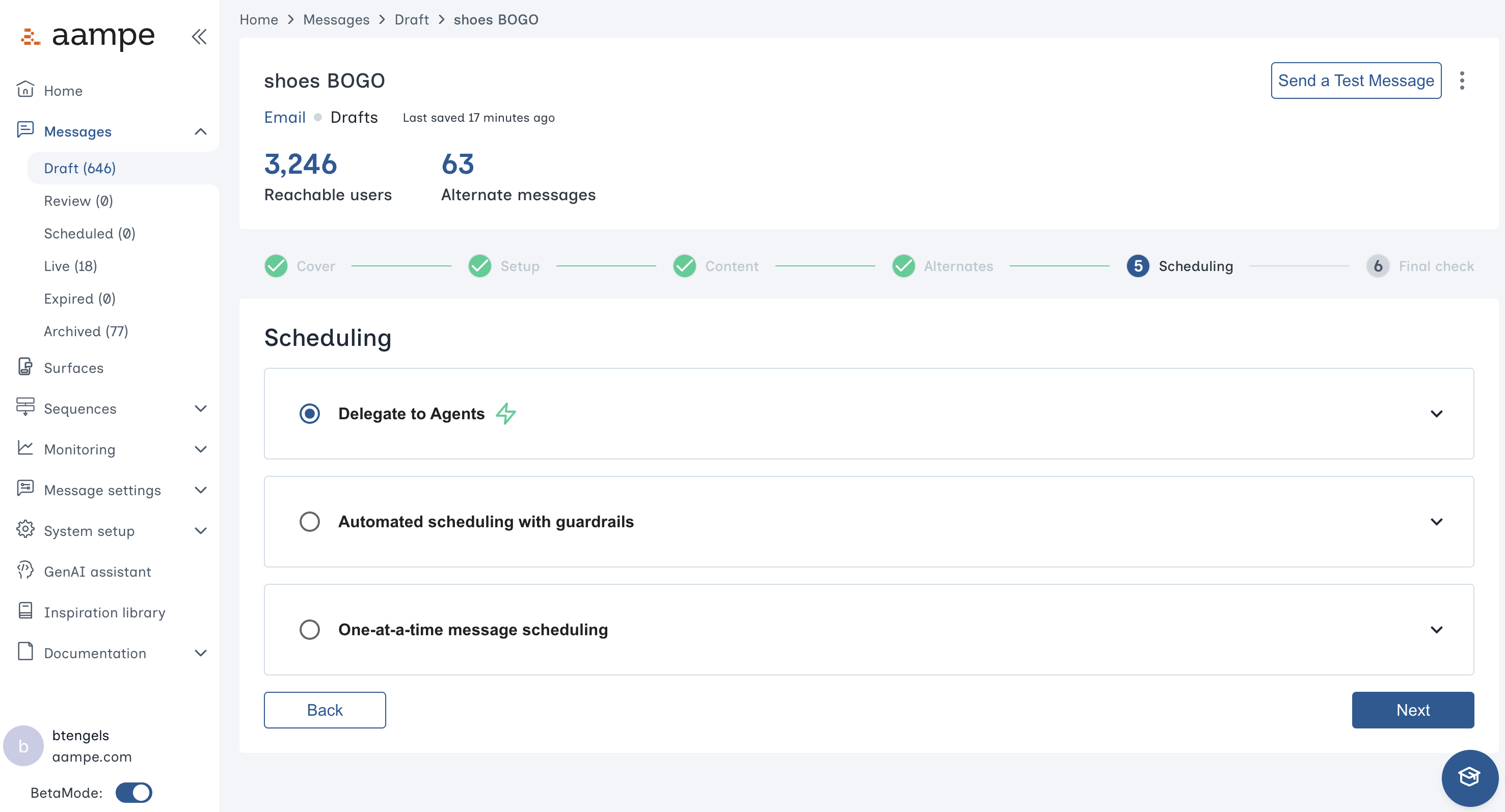 Click **Next** for a final review.
In the final panel you can click through alternates to inspect the final result. You can also send a test email to yourself or someone else for a high-fidelity test.
Click **Next** for a final review.
In the final panel you can click through alternates to inspect the final result. You can also send a test email to yourself or someone else for a high-fidelity test.
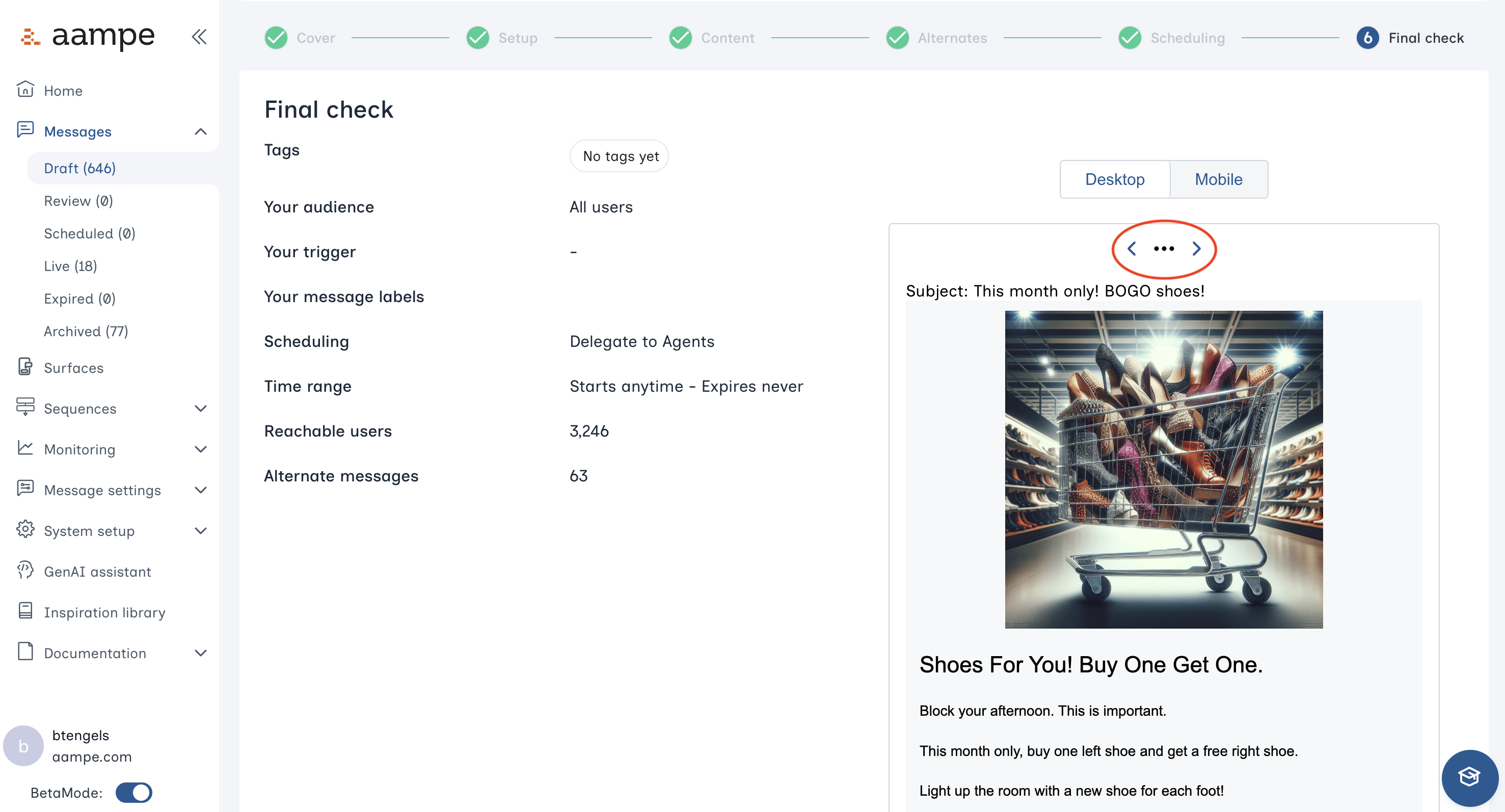 Click **Save**. Your email message is available for agents to send.