> ## Documentation Index
> Fetch the complete documentation index at: https://kb.aampe.com/llms.txt
> Use this file to discover all available pages before exploring further.
# Topics
> Stay organized while enjoying a strategic overview of your content
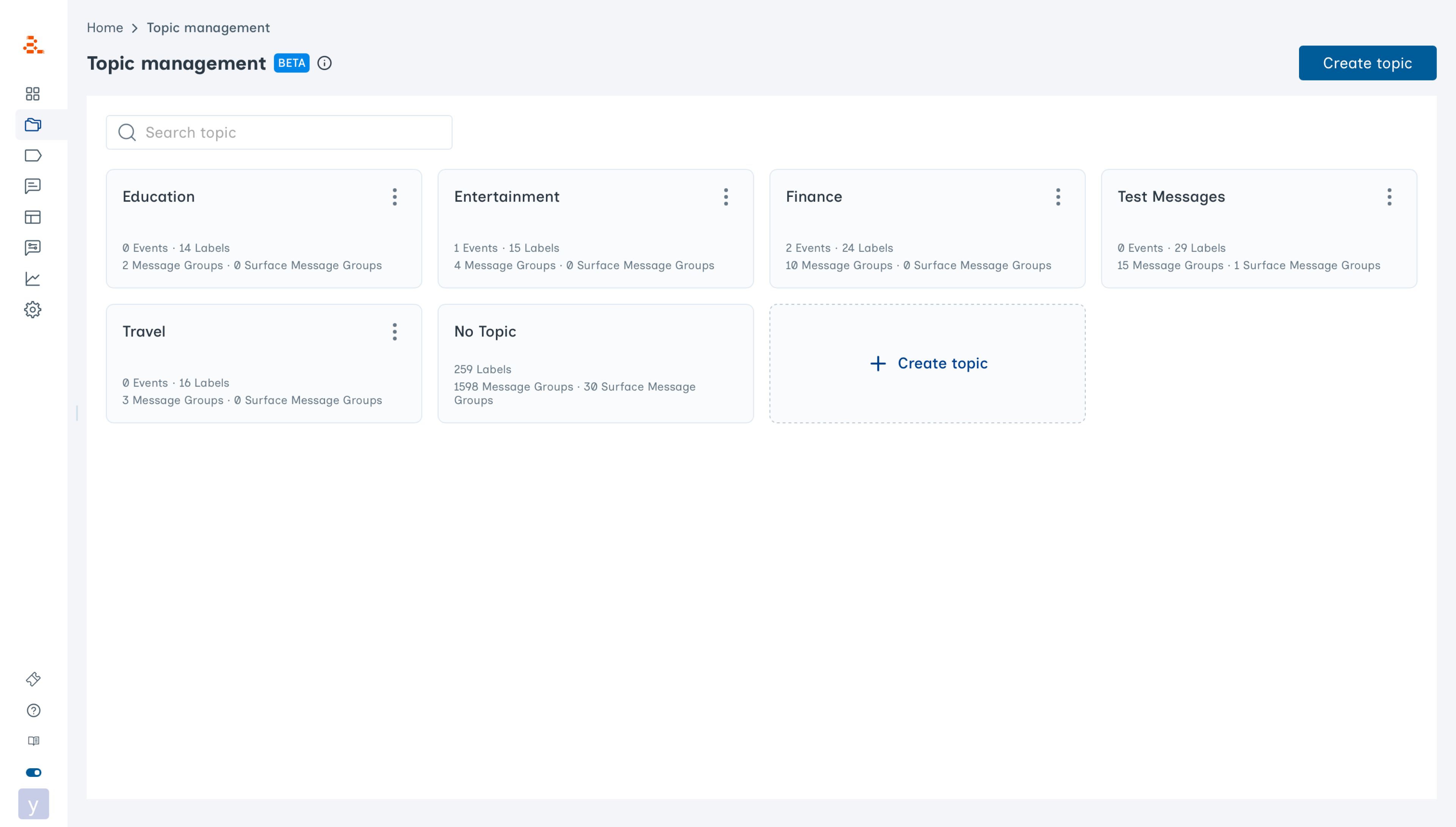
**Topics** help you organise your Message Groups according to a shared theme, user journey stage, or product feature. They give structure to your content and offer an overview of how well different features and contexts related to your business are covered.
Aampe customers use Topics to:
* Organise related Message Groups
* View how many Message Groups are allocated to a Topic
 Topics are not the same as Labels. Agents do not learn on Topics. Topics are only meant for internal organization of content.
## Why Use Topics?
Imagine you have several Message Groups about your product’s Premium Plan feature — and these Message Groups are spread across 5 languages, 3 channels, and various contexts (new-user nudges, abandon flows, awareness messages, etc.). All of these can be organized under a single Topic: **Music Premium**.
Topics are not the same as Labels. Agents do not learn on Topics. Topics are only meant for internal organization of content.
## Why Use Topics?
Imagine you have several Message Groups about your product’s Premium Plan feature — and these Message Groups are spread across 5 languages, 3 channels, and various contexts (new-user nudges, abandon flows, awareness messages, etc.). All of these can be organized under a single Topic: **Music Premium**.
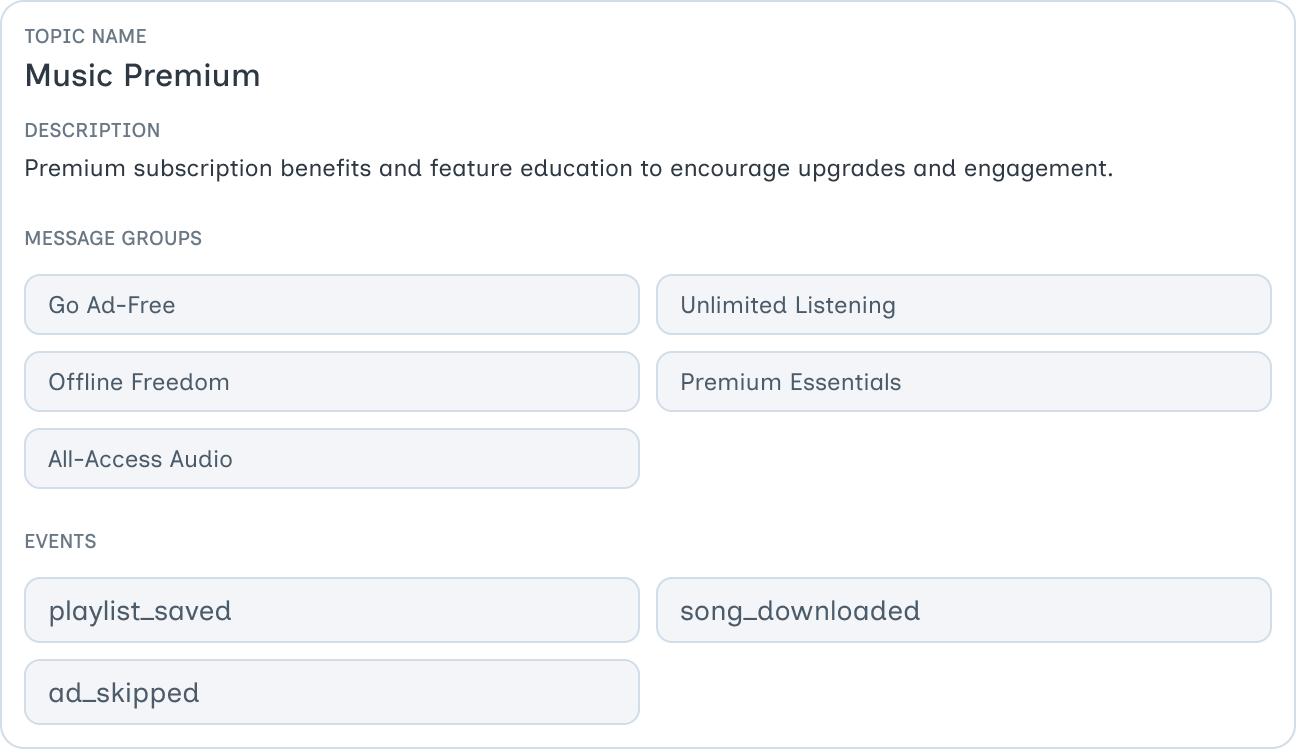 This makes it easy to see, at a glance, how many Message Groups relate to a specific feature or context. It also helps reveal imbalance: even if you have 50 Message Groups, they may all be about Feature A, with none covering Features B, C, or D.
Topics can follow any convention you like. Here are some popular concepts:
* New User Onboarding
* Educational Content
* Promos & Deals
* Abandon Cart
## Create a New Topic
This makes it easy to see, at a glance, how many Message Groups relate to a specific feature or context. It also helps reveal imbalance: even if you have 50 Message Groups, they may all be about Feature A, with none covering Features B, C, or D.
Topics can follow any convention you like. Here are some popular concepts:
* New User Onboarding
* Educational Content
* Promos & Deals
* Abandon Cart
## Create a New Topic
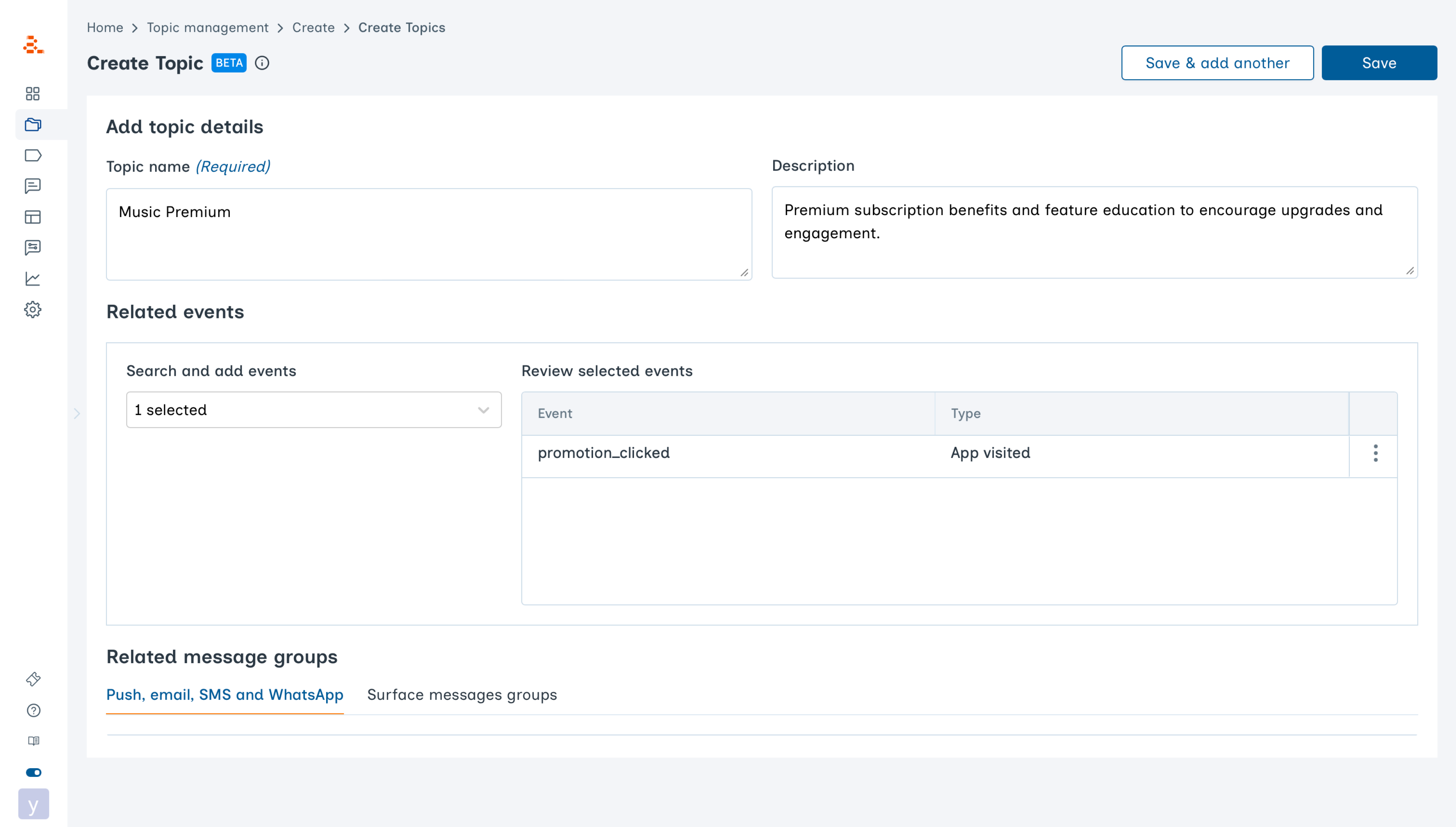 1. Go to **Monitoring → Topic Management**.
2. Click **Create Topic**.
3. Enter a **Topic name** and, optionally, a **description**.
4. Select any related **Message Groups** and **Events** (these can be edited later).
5. Click **Save** to create the Topic.
Your new Topic will now appear in the grid and can be edited at any time.
## **Add Message Groups to Topics**
1. Go to **Monitoring → Topic Management**.
2. Click **Create Topic**.
3. Enter a **Topic name** and, optionally, a **description**.
4. Select any related **Message Groups** and **Events** (these can be edited later).
5. Click **Save** to create the Topic.
Your new Topic will now appear in the grid and can be edited at any time.
## **Add Message Groups to Topics**
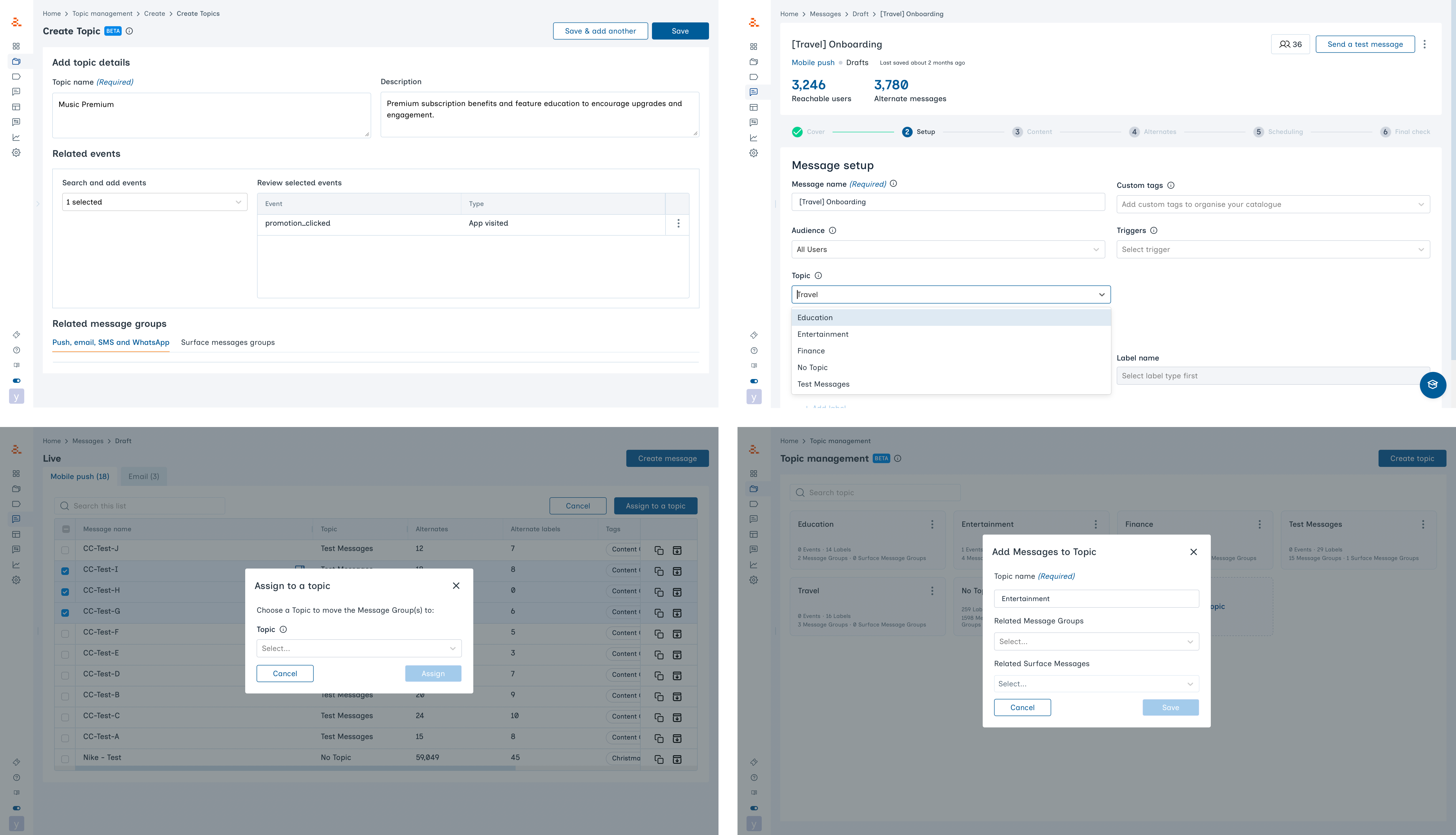 There are multiple ways to assign Message Groups to Topics:
* **During Message Group creation**: Select a Topic while setting up the new Message Group
* **When editing a Message Group**: Update the Topic selection from the Message Group setup view
* **Messages tables**: Select one or more Messages and the **Assign to a topic** option will appear
* **From Topic Management**: Add Message Groups directly from the Topic Management list or the Topic details page
You can change Topic assignments for a message at any time.
## **View Topic Details**
There are multiple ways to assign Message Groups to Topics:
* **During Message Group creation**: Select a Topic while setting up the new Message Group
* **When editing a Message Group**: Update the Topic selection from the Message Group setup view
* **Messages tables**: Select one or more Messages and the **Assign to a topic** option will appear
* **From Topic Management**: Add Message Groups directly from the Topic Management list or the Topic details page
You can change Topic assignments for a message at any time.
## **View Topic Details**
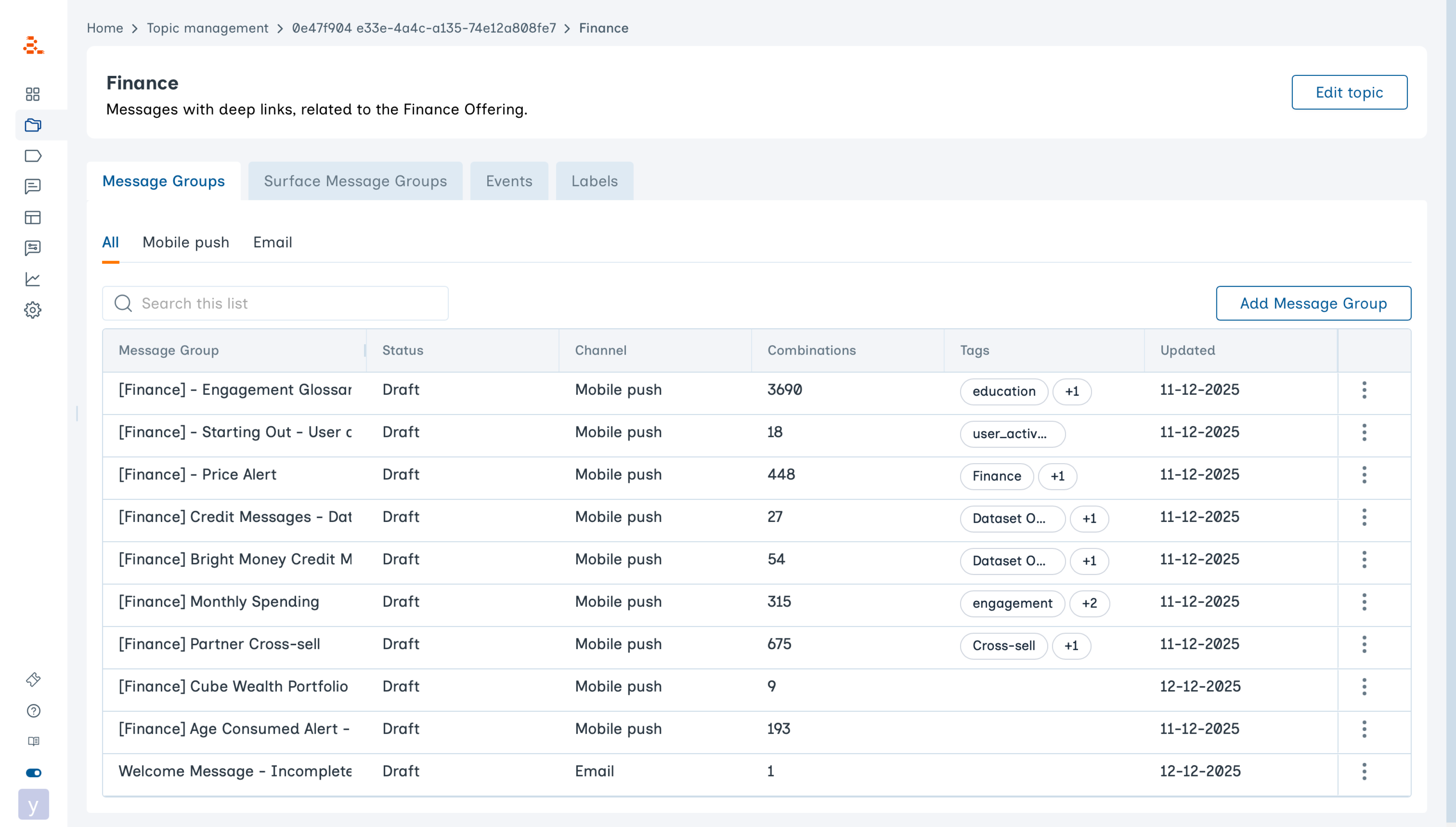 To view the details of a Topic:
1. Go to **Monitoring → Topic Management**.
2. Click on any Topic.
The Topic details page displays:
* **Related Message Groups**
* **Related Events**
* **Labels** that are being used in the related Message Groups
From this page, you can:
* Add or remove Message Groups
* Move Message Groups to another Topic
* Edit the Topic name or description
## **Grouping by Topic in Messages**
To view the details of a Topic:
1. Go to **Monitoring → Topic Management**.
2. Click on any Topic.
The Topic details page displays:
* **Related Message Groups**
* **Related Events**
* **Labels** that are being used in the related Message Groups
From this page, you can:
* Add or remove Message Groups
* Move Message Groups to another Topic
* Edit the Topic name or description
## **Grouping by Topic in Messages**
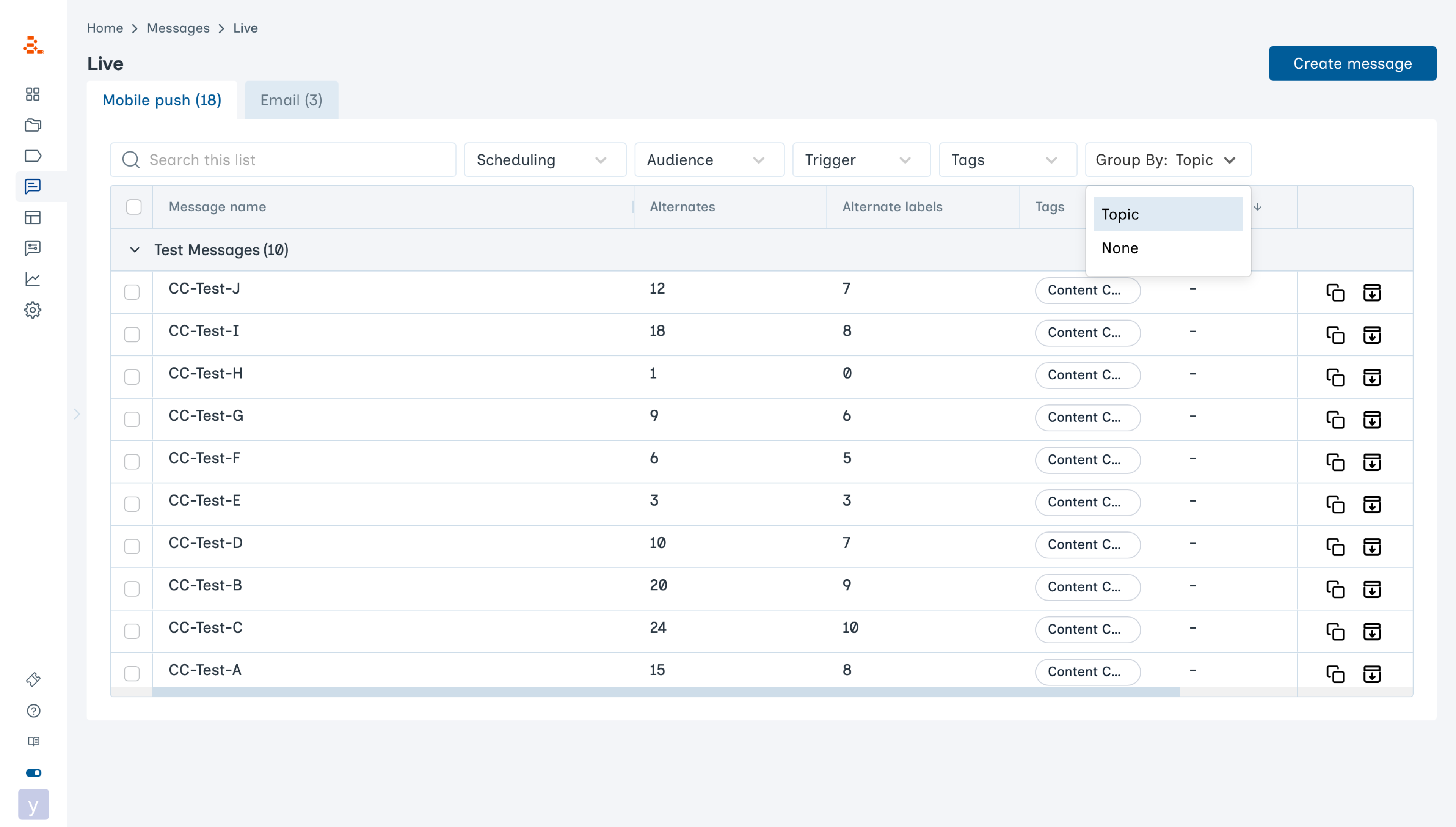 The **Messages** section allows you to view Message Groups grouped by Topic.
You can also apply filters, such as **Audience**, to refine how coverage is displayed and better understand which areas need more content.
This helps teams quickly identify where Message Groups cluster and where gaps may exist.
The **Messages** section allows you to view Message Groups grouped by Topic.
You can also apply filters, such as **Audience**, to refine how coverage is displayed and better understand which areas need more content.
This helps teams quickly identify where Message Groups cluster and where gaps may exist.