> ## Documentation Index
> Fetch the complete documentation index at: https://kb.aampe.com/llms.txt
> Use this file to discover all available pages before exploring further.
# Rippling SAML SSO
> Here we will show you how to set up your own custom SAML application for Rippling SAML
## Create application
1. You'll need to create a new Custom App from your Rippling account if the app is not already in the Rippling app directory.
2. Go to **IT Management > Custom App** from the left navigation menu.
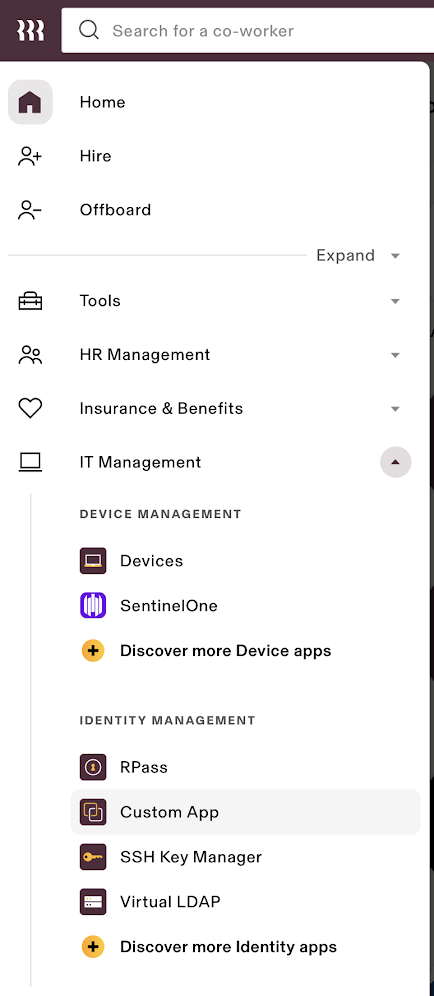 3. Click **Create New App** button to create a new application.
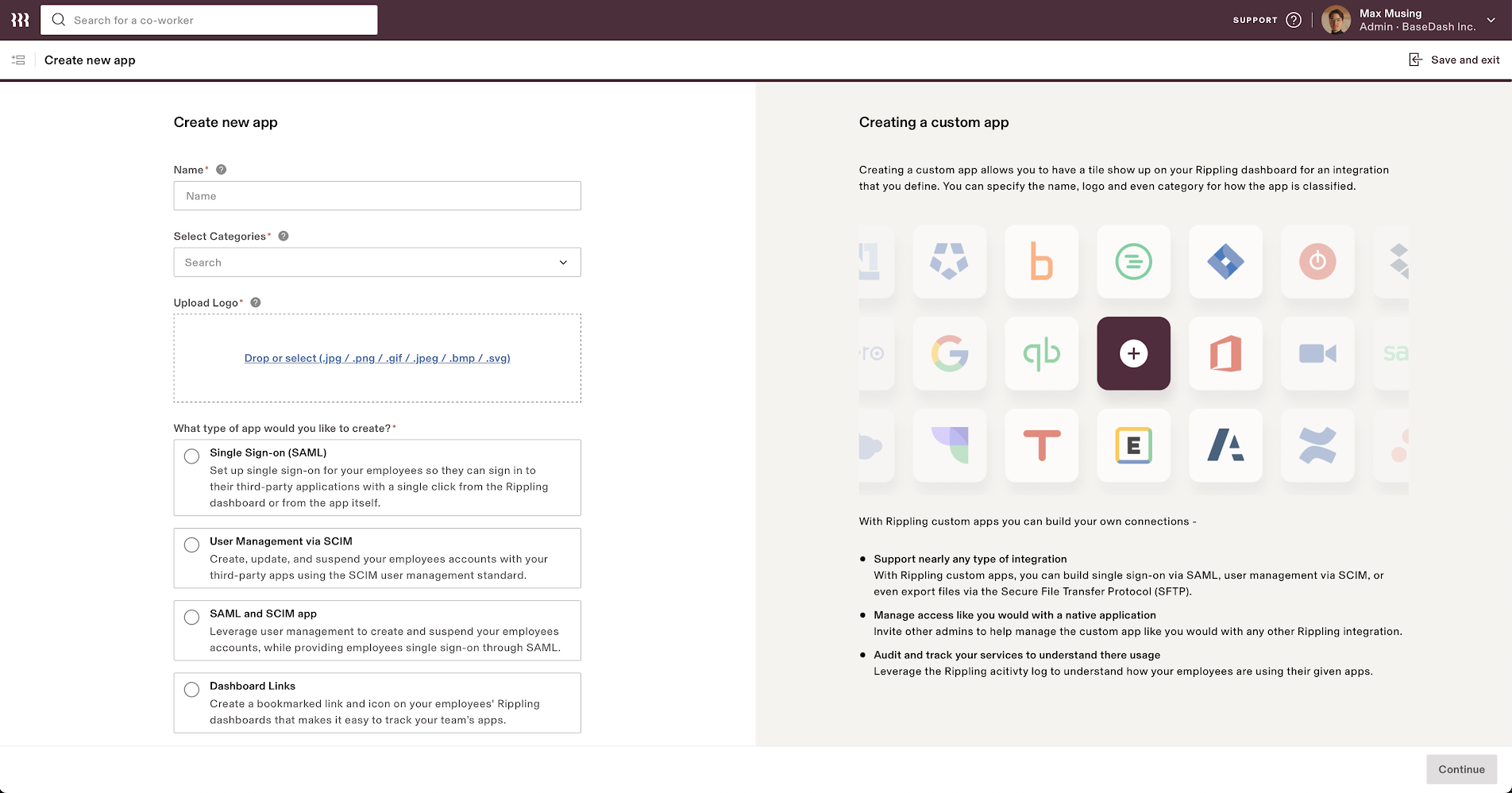
4. From the next screen, fill in the following fields:
* **App Name**
* **Select Categories**
* **Upload Logo**
* **What type of app would you like to create?** - Make sure you select **Single Sign-On (SAML)** from the list.
3. Click **Create New App** button to create a new application.
4. From the next screen, fill in the following fields:
* **App Name**
* **Select Categories**
* **Upload Logo**
* **What type of app would you like to create?** - Make sure you select **Single Sign-On (SAML)** from the list.
 ## Configure application
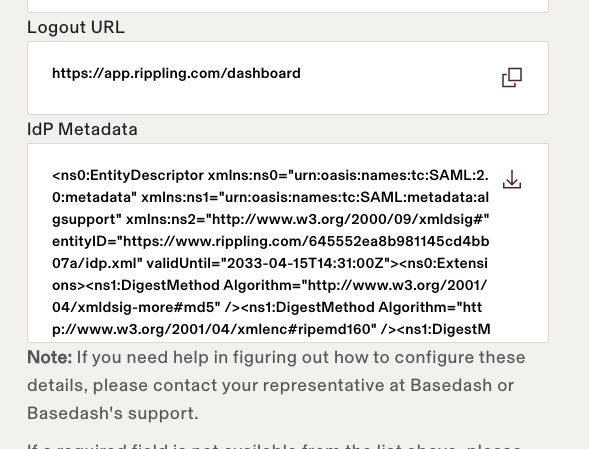
1. Copy the **IdP Metadata URL** or **IdP Metadata XML** from the next screen. You'll need this value to configure your SAML connection.
## Configure application
1. Copy the **IdP Metadata URL** or **IdP Metadata XML** from the next screen. You'll need this value to configure your SAML connection.
 2. You'll need to enter the **ACS URL** and **Entity ID**. You'll get these values from Aampe.
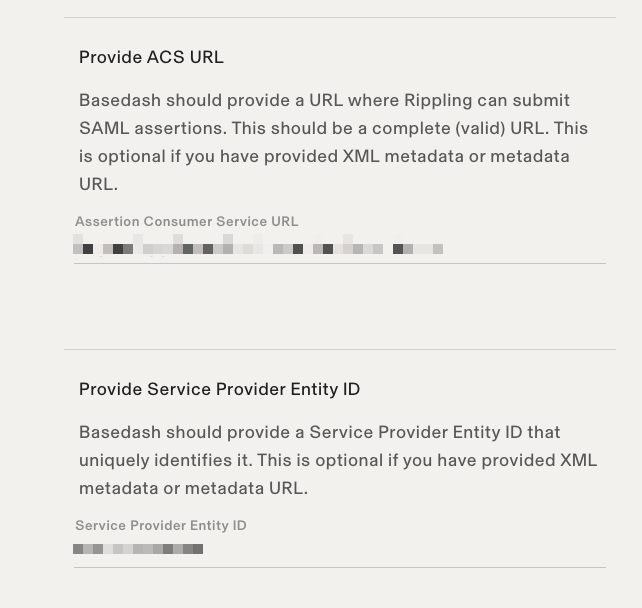 3. Make sure that **Service Provider Entity ID** matches the **SAML Audience (SP Entity ID)** value from Aampe.
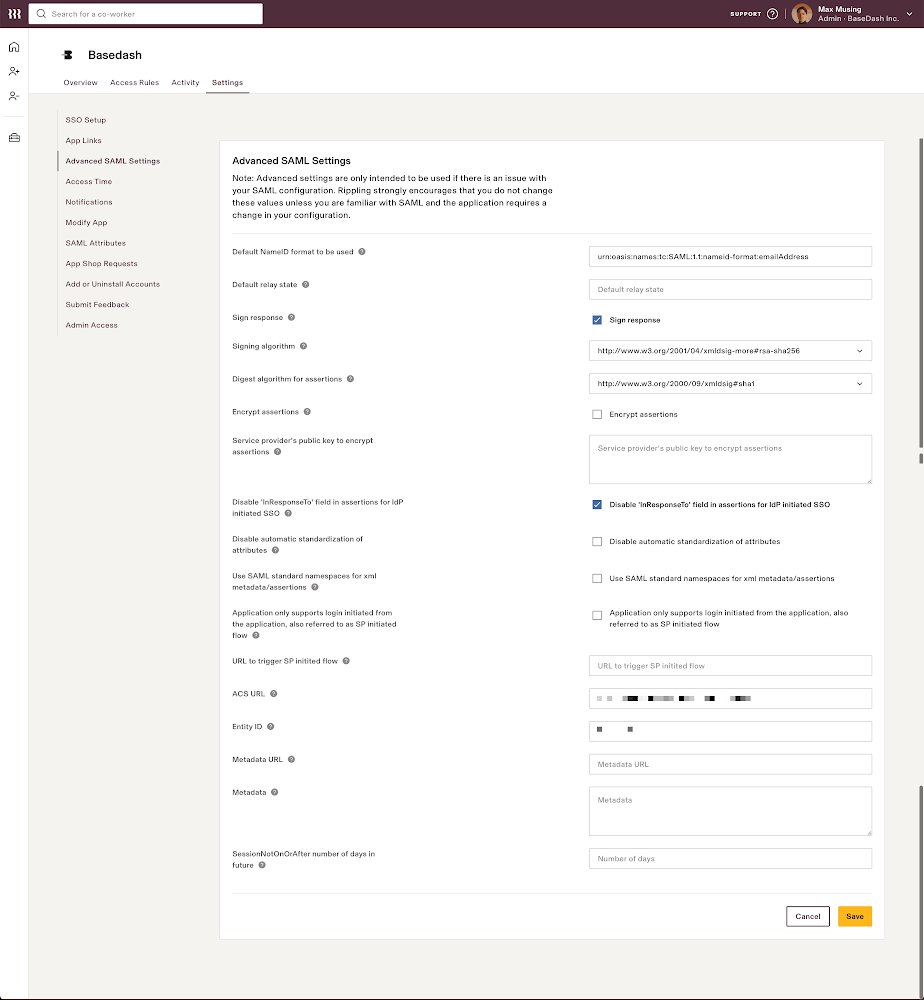
4. From the **Settings** tab of custom app you just created. Go to **Advanced SAML Settings** section and check the box for **Disable InResponseTo field in assertions for IdP initiated SSO**.
This is because Rippling sends dummy values for the InResponseTo field and Aampe will try to validate the InResponseTo field if it is present.
3. Make sure that **Service Provider Entity ID** matches the **SAML Audience (SP Entity ID)** value from Aampe.
4. From the **Settings** tab of custom app you just created. Go to **Advanced SAML Settings** section and check the box for **Disable InResponseTo field in assertions for IdP initiated SSO**.
This is because Rippling sends dummy values for the InResponseTo field and Aampe will try to validate the InResponseTo field if it is present.
 ## Next steps
You've successfully configured your custom SAML application for Rippling SAML. At this stage, you can assign users to your application and start using it.
## Next steps
You've successfully configured your custom SAML application for Rippling SAML. At this stage, you can assign users to your application and start using it.