> ## Documentation Index
> Fetch the complete documentation index at: https://kb.aampe.com/llms.txt
> Use this file to discover all available pages before exploring further.
# CleverTap
> Estimated setup time: 10 minutes
## Requirements
To perform the following steps, you need a CleverTap admin account for your project.
## Step 1: Create a User for Aampe
1. Login to your CleverTap dashboard as an admin user
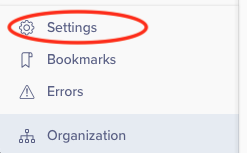
2. Go to **Settings** at the bottom left corner of the screen
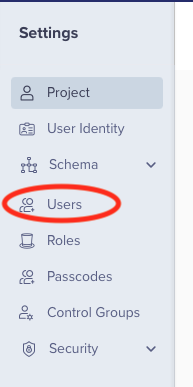
 3. Select **Users**
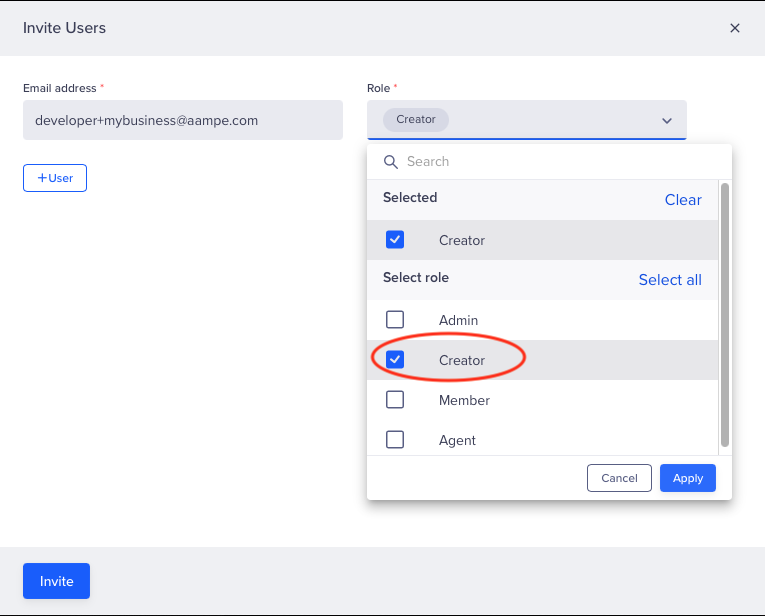
 4. Click on **+Users**
 5. Enter `developer+@aampe.com` in the Email address textbox
6. Check the **Creator** role from the dropdown list and click **Apply**
7. Click on **Invite**
5. Enter `developer+@aampe.com` in the Email address textbox
6. Check the **Creator** role from the dropdown list and click **Apply**
7. Click on **Invite**
 ## Step 2: Generate a User-Passcode for Aampe
1. Login to your CleverTap dashboard as an admin user
2. Go to **Settings** at the bottom left corner of the screen
3. Select **Users**
4. Type `aampe` in the search box to find the user you previously created for Aampe
5. Press the 3 dot icon at the right side of the table once the Aampe user is found
## Step 2: Generate a User-Passcode for Aampe
1. Login to your CleverTap dashboard as an admin user
2. Go to **Settings** at the bottom left corner of the screen
3. Select **Users**
4. Type `aampe` in the search box to find the user you previously created for Aampe
5. Press the 3 dot icon at the right side of the table once the Aampe user is found
 6. Select **Grant Passcode**
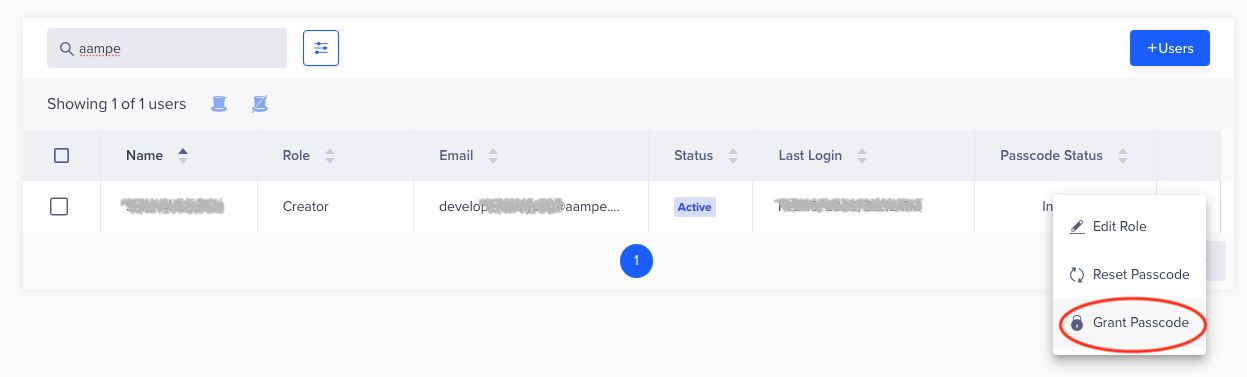 7. Select **Forever** and click on **Grant**
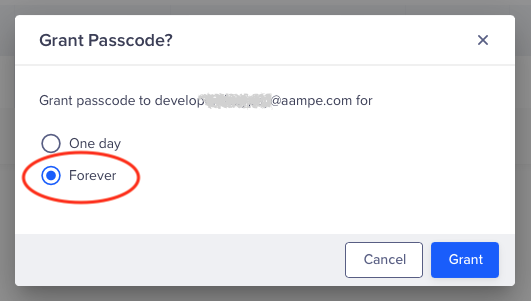 **Note:** The granted passcode can always be revoked by pressing the 3 dot icon and selecting **Revoke Passcode**.
## Step 3: Configure Your CleverTap Push Integration on Aampe
1. Go to [https://compose.aampe.com](https://compose.aampe.com/) and login using your Aampe credentials
2. Navigate to **System setup > Integrations**
3. The **Messaging Provider** tab will open
**Note:** The granted passcode can always be revoked by pressing the 3 dot icon and selecting **Revoke Passcode**.
## Step 3: Configure Your CleverTap Push Integration on Aampe
1. Go to [https://compose.aampe.com](https://compose.aampe.com/) and login using your Aampe credentials
2. Navigate to **System setup > Integrations**
3. The **Messaging Provider** tab will open
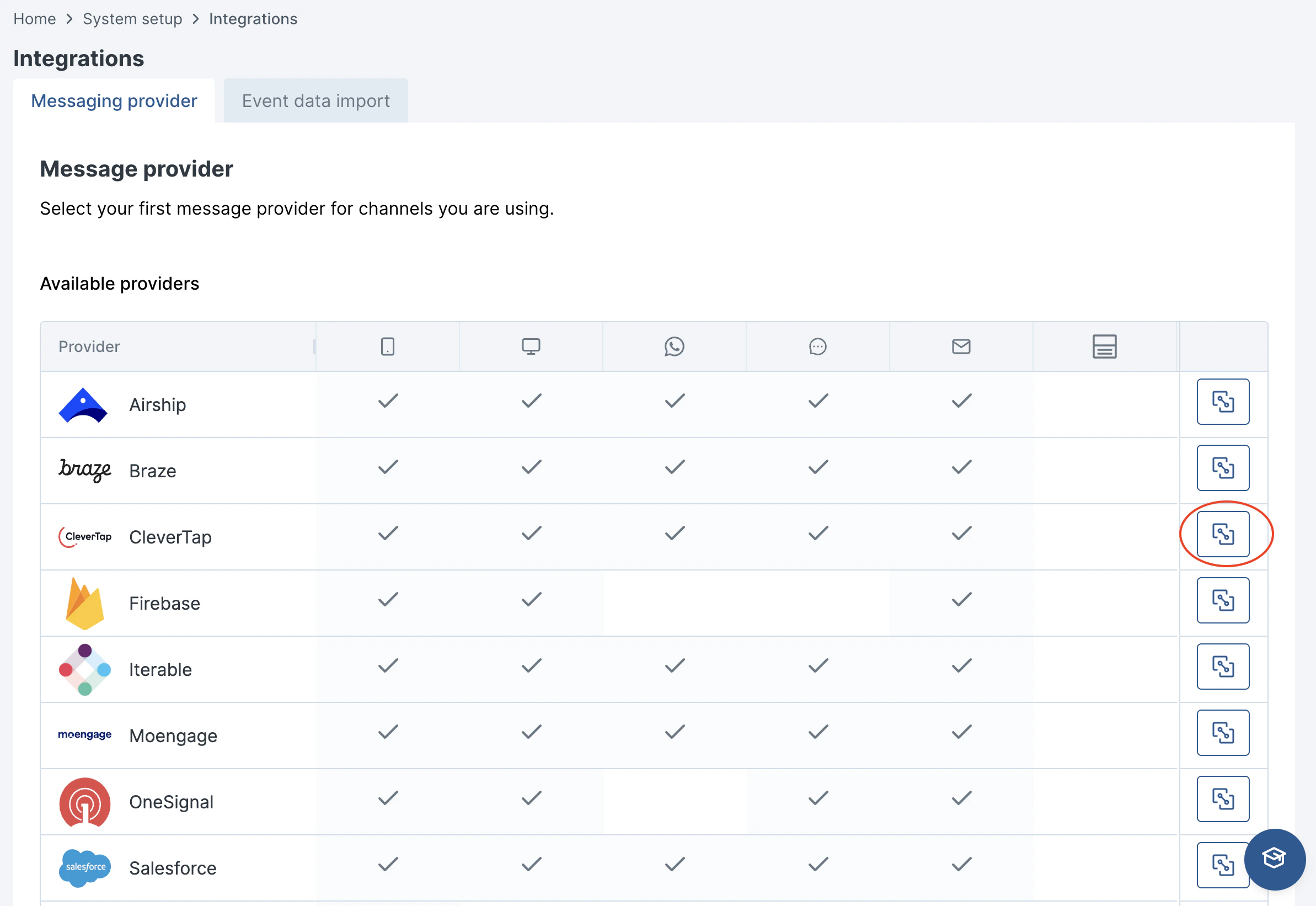 4. Click on **CleverTap**
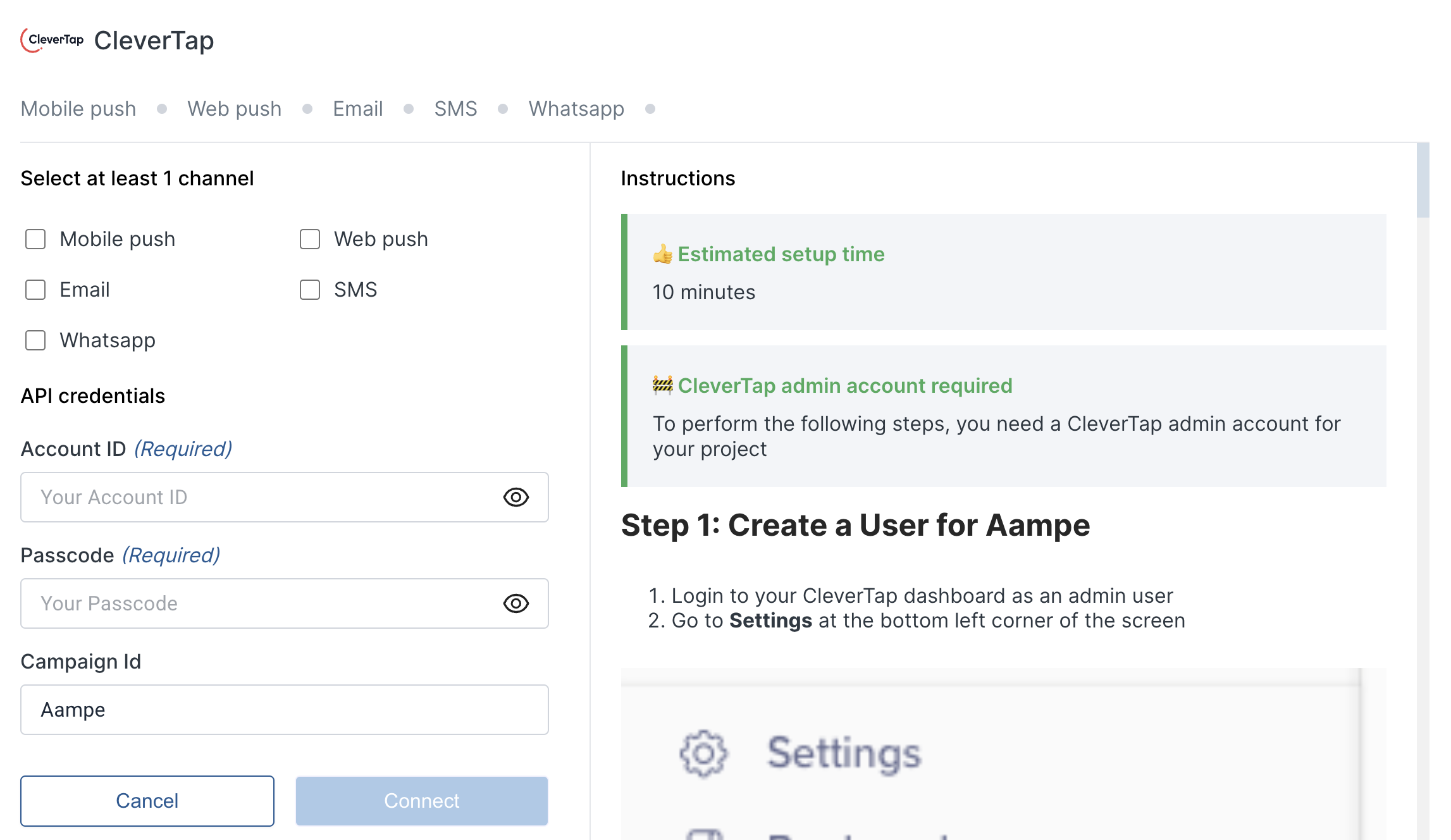 5. To get the account ID: Go to **Settings** (in Clevertap) and then **Project**. Copy the **Project ID**
 6. For the passcode input the user passcode you just generated for Aampe in the above steps.
7. Press **Activate**
**CleverTap - Aampe is all set up!**
***
6. For the passcode input the user passcode you just generated for Aampe in the above steps.
7. Press **Activate**
**CleverTap - Aampe is all set up!**
***