> ## Documentation Index
> Fetch the complete documentation index at: https://kb.aampe.com/llms.txt
> Use this file to discover all available pages before exploring further.
# Braze
> Estimated setup time: 30 minutes
## Requirements
* An API Key for your app group.
* Braze App Id
* The Braze [dashboard URL](https://www.braze.com/docs/api/basics/#api-definitions) that you use (dashboard-01 to 08 or [dashboard-01.braze.eu](http://dashboard-01.braze.eu))
**Note:** App Id setup is required only for email channel.
Aampe will call the [Braze API for sending messages](https://www.braze.com/docs/api/endpoints/messaging/send_messages/post_send_messages/) on your behalf.
## Create an API Key
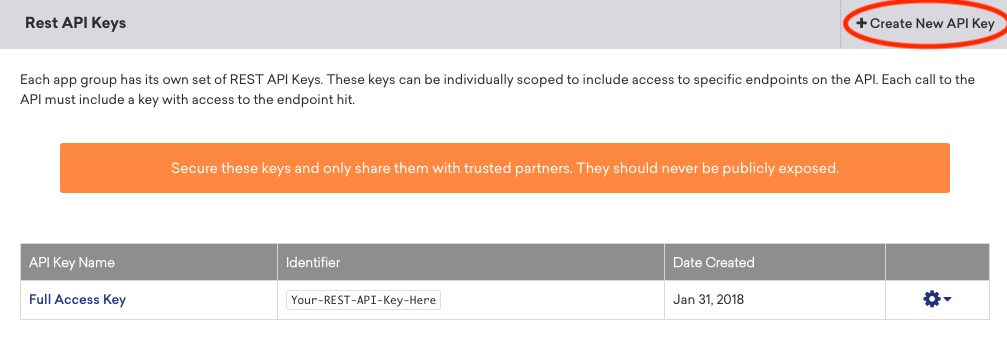
1. From the Braze dashboard go to **Settings > API Keys**
2. On this page you will find the **Rest API Keys** table
3. Click on **+ Create New API Key**
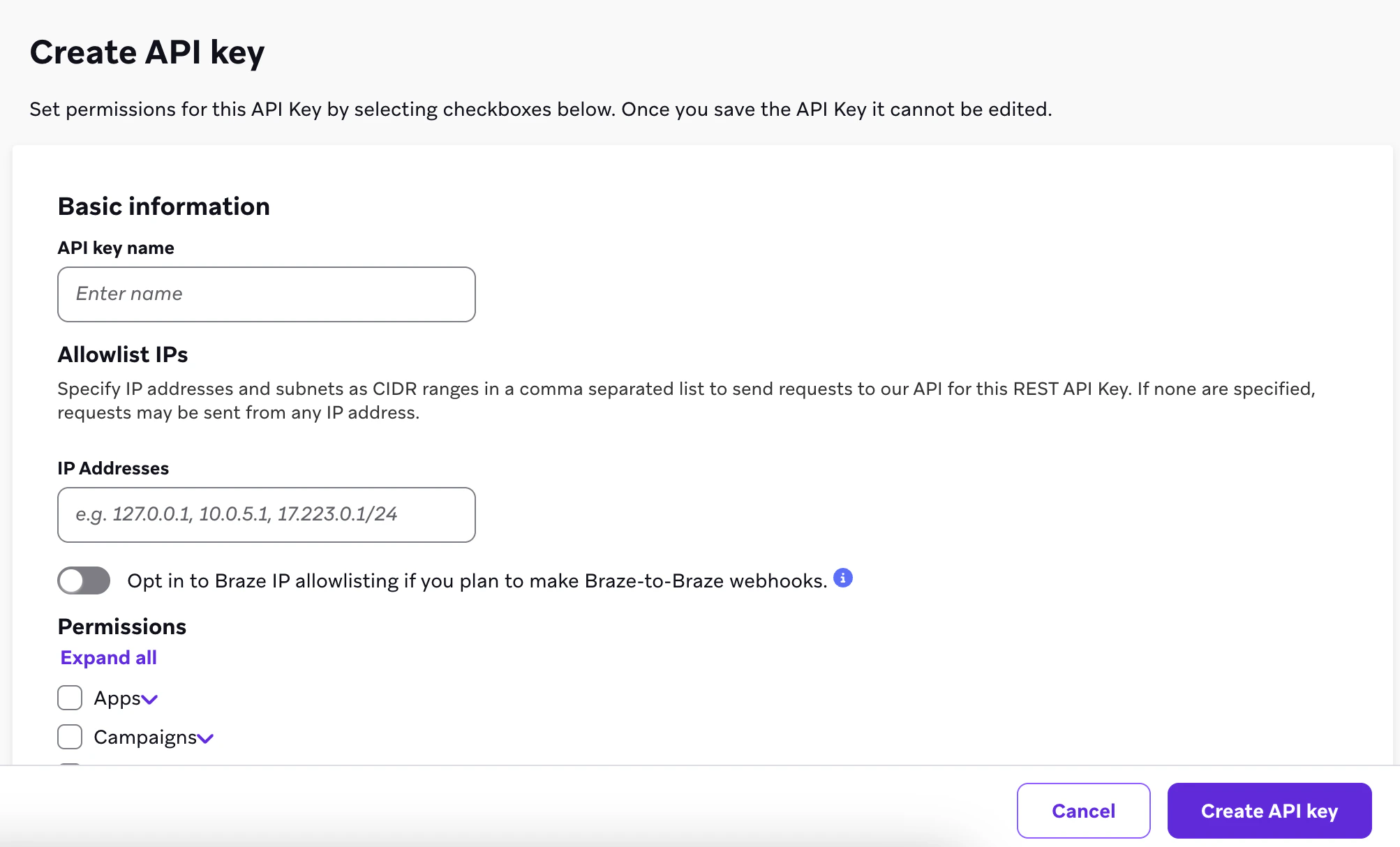
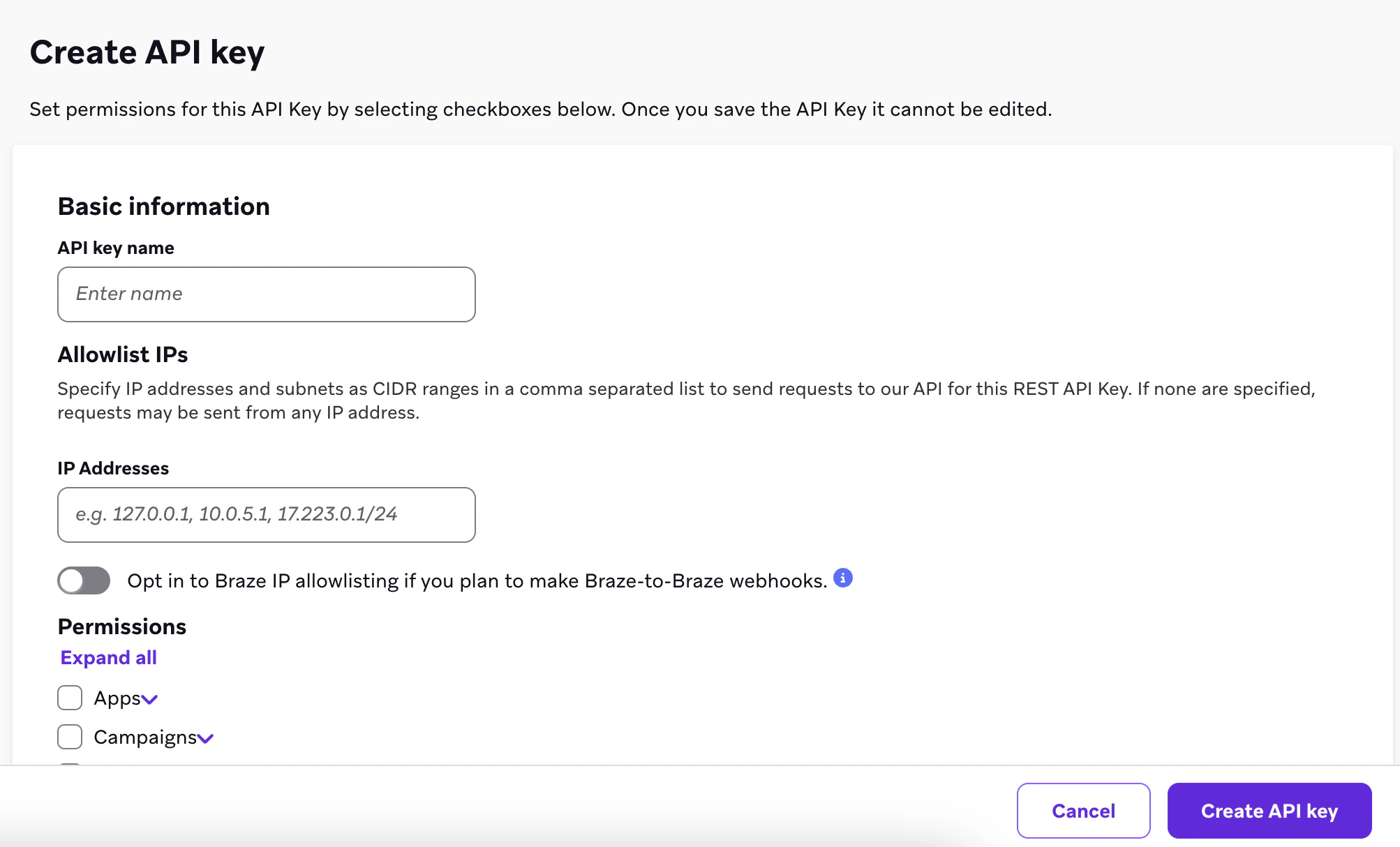 4. Choose a name for your new key, such as `aampe-personalization`. You'll see a list of checkboxes.\
\
📘 **Note 2:** If required, contact your Aampe customer success manager or onboarding representative for the IP access range to enable IP whitelisting on your API allow list.
4. Choose a name for your new key, such as `aampe-personalization`. You'll see a list of checkboxes.\
\
📘 **Note 2:** If required, contact your Aampe customer success manager or onboarding representative for the IP access range to enable IP whitelisting on your API allow list.
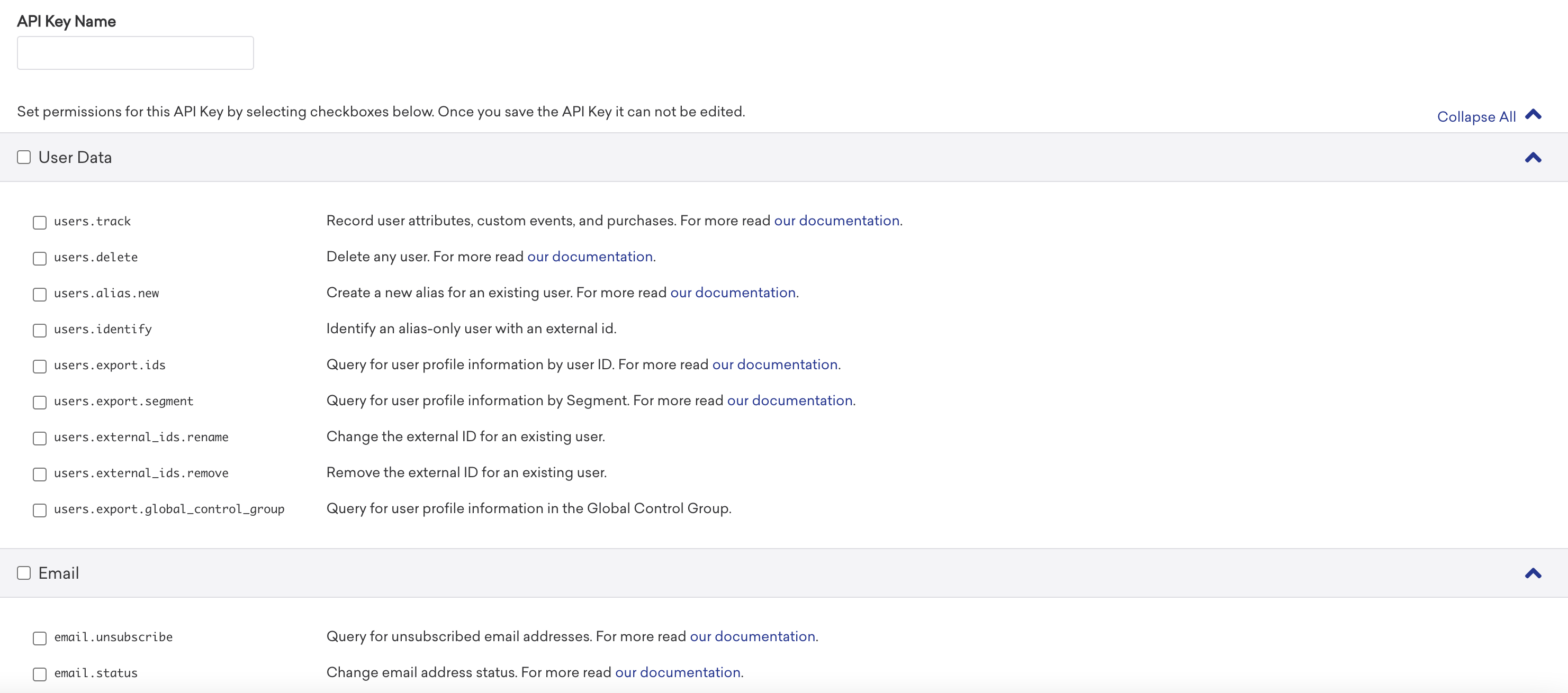
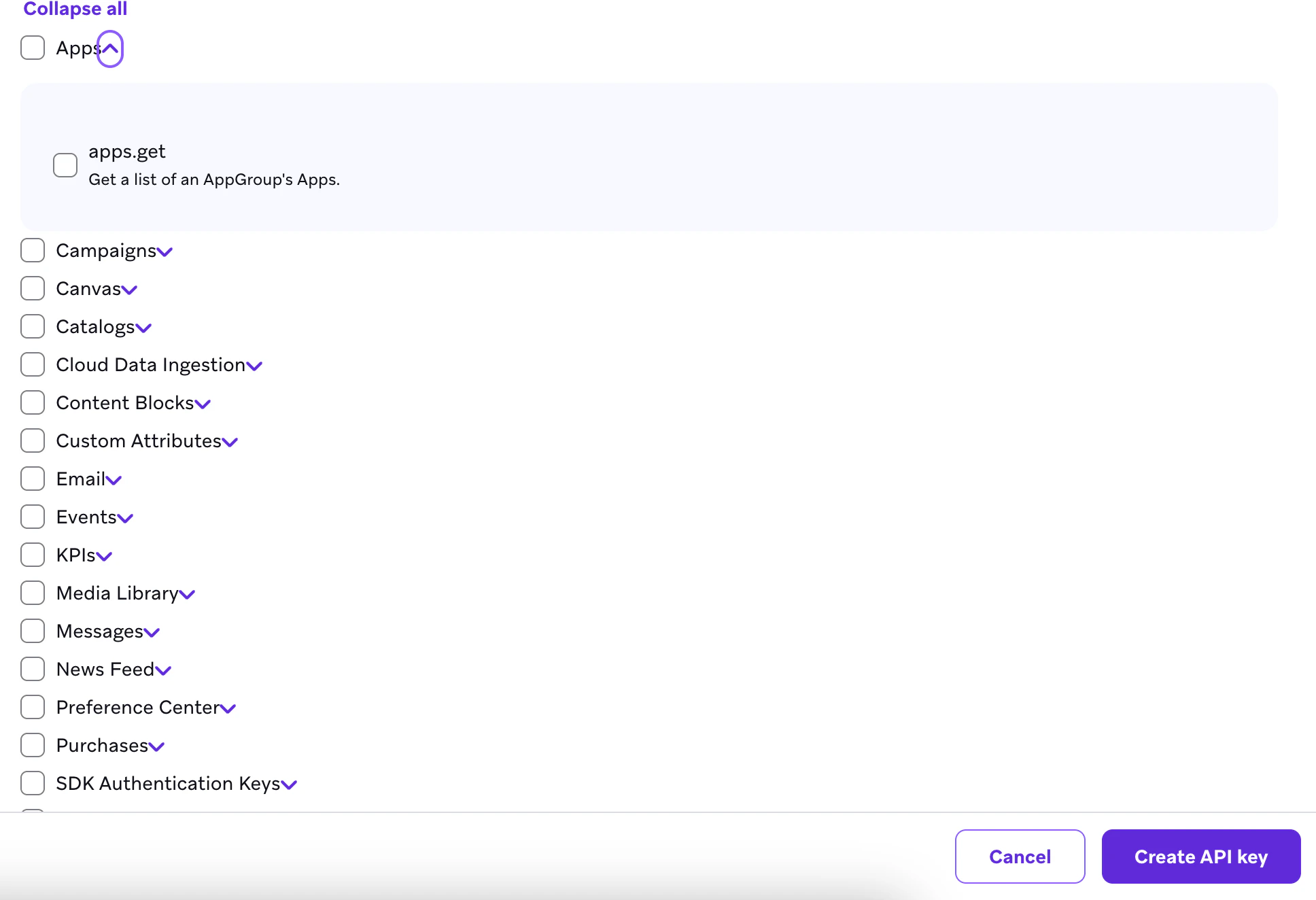 5. Tick the checkboxes to add following permissions:
| Braze Permission | Braze REST API endpoint | |
| :-------------------------------------- | :---------------------------------------------------------------------------------------------------------------------------------------------------------------------- | -------------------------------------------------------------------------------------------------------------------- |
| users.export.ids | [GET /users/export/ids](https://www.braze.com/docs/api/endpoints/export/user_data/post_users_identifier/#prerequisites) | For exporting current users |
| users.export.segment | [GET /users/export/segment](https://www.braze.com/docs/api/endpoints/export/user_data/post_users_segment/#prerequisites) | For exporting current user attributes |
| users.export.global\_control\_group | [POST/users/export/global\_control\_group](https://www.braze.com/docs/api/endpoints/export/user_data/post_users_global_control_group) | For exporting global control group membership |
| sends.id.create | [POST /sends/id/create](https://www.braze.com/docs/api/endpoints/messaging/send_messages/post_create_send_ids/#prerequisites) | For creating IDs for message performance tracking |
| messages.send | [POST /messages/send](https://www.braze.com/docs/api/endpoints/messaging/send_messages/post_send_messages) | Trigger an API Campaign in Braze. |
| campaigns.trigger.send | [POST /campaigns/trigger/send](https://www.braze.com/docs/api/endpoints/messaging/send_messages/post_send_triggered_campaigns) | Trigger a send for a campaign that is configured for API-triggered delivery. |
| campaigns.trigger.schedule.create | [POST /campaigns/trigger/schedule/create](https://www.braze.com/docs/api/endpoints/messaging/schedule_messages/post_schedule_triggered_campaigns/#prerequisites) | Trigger a send for a campaign that is configured for scheduled API-triggered delivery. |
| campaigns.list | [GET /campaigns/list](https://www.braze.com/docs/api/endpoints/export/campaigns/get_campaigns) | Retrieve the list of all the campaigns configured in Braze and their associated metadata. |
| campaigns.data\_series | [GET /campaigns/data\_series](https://www.braze.com/docs/api/endpoints/export/campaigns/get_campaign_analytics) | Retrieve the analytics data of a specific Braze campaign. |
| campaigns.details | [GET /campaigns/details](https://www.braze.com/docs/api/endpoints/export/campaigns/get_campaign_details) | Retrieve the details of a specific Braze campaign. |
| segments.list | [GET /segments/list](https://www.braze.com/docs/api/endpoints/export/segments/get_segment) | Retrieve the list of all the segments configured in Braze and their associated metadata. |
| segments.data\_series | [GET /segments/data\_series](https://www.braze.com/docs/api/endpoints/export/segments/get_segment_analytics) | Retrieve the size of the Braze segment. |
| segments.details | [GET /segments/details](https://www.braze.com/docs/api/endpoints/export/segments/get_segment_details) | Retrieve the details of a specific Braze segment. |
| email.unsubscribe | | For retrieving email unsubscribe information |
| email.hard\_bounces | [GET /email/hard\_bounce](https://www.braze.com/docs/api/endpoints/email/get_list_hard_bounces#query-or-list-hard-bounced-emails) | To retrieve email bounce information |
| [templates.info](http://templates.info) | [GET /templates/email/info](https://www.braze.com/docs/api/endpoints/templates/email_templates/get_see_email_template_information) | Retrieve the details of a specific Braze HTML email template. |
| templates.list | [GET /templates/email/list](https://www.braze.com/docs/api/endpoints/templates/email_templates/get_list_email_templates) | Retrieve the list of all the Braze HTML email templates configured in Braze and their subject line and HTML content. |
| subscription.status.get | [GET /subscription/user/status](https://www.braze.com/docs/api/endpoints/subscription_groups/get_list_user_subscription_groups) | To get subscription status |
| subscription.groups.get | [GET/ subscription.groups.get](https://www.braze.com/docs/api/endpoints/subscription_groups/get_list_user_subscription_groups/#prequisites) | To get subscription groups |
6. Finalize the key creation.
7. You can then view the newly created key by clicking on the gear icon at the right
8. Copy the API key value.
9. Login into the [Aampe](https://compose.aampe.com/auth/login) composer using your Aampe credentials.
10. Enter **System setup -> Integrations -> Braze**. Activate Braze
5. Tick the checkboxes to add following permissions:
| Braze Permission | Braze REST API endpoint | |
| :-------------------------------------- | :---------------------------------------------------------------------------------------------------------------------------------------------------------------------- | -------------------------------------------------------------------------------------------------------------------- |
| users.export.ids | [GET /users/export/ids](https://www.braze.com/docs/api/endpoints/export/user_data/post_users_identifier/#prerequisites) | For exporting current users |
| users.export.segment | [GET /users/export/segment](https://www.braze.com/docs/api/endpoints/export/user_data/post_users_segment/#prerequisites) | For exporting current user attributes |
| users.export.global\_control\_group | [POST/users/export/global\_control\_group](https://www.braze.com/docs/api/endpoints/export/user_data/post_users_global_control_group) | For exporting global control group membership |
| sends.id.create | [POST /sends/id/create](https://www.braze.com/docs/api/endpoints/messaging/send_messages/post_create_send_ids/#prerequisites) | For creating IDs for message performance tracking |
| messages.send | [POST /messages/send](https://www.braze.com/docs/api/endpoints/messaging/send_messages/post_send_messages) | Trigger an API Campaign in Braze. |
| campaigns.trigger.send | [POST /campaigns/trigger/send](https://www.braze.com/docs/api/endpoints/messaging/send_messages/post_send_triggered_campaigns) | Trigger a send for a campaign that is configured for API-triggered delivery. |
| campaigns.trigger.schedule.create | [POST /campaigns/trigger/schedule/create](https://www.braze.com/docs/api/endpoints/messaging/schedule_messages/post_schedule_triggered_campaigns/#prerequisites) | Trigger a send for a campaign that is configured for scheduled API-triggered delivery. |
| campaigns.list | [GET /campaigns/list](https://www.braze.com/docs/api/endpoints/export/campaigns/get_campaigns) | Retrieve the list of all the campaigns configured in Braze and their associated metadata. |
| campaigns.data\_series | [GET /campaigns/data\_series](https://www.braze.com/docs/api/endpoints/export/campaigns/get_campaign_analytics) | Retrieve the analytics data of a specific Braze campaign. |
| campaigns.details | [GET /campaigns/details](https://www.braze.com/docs/api/endpoints/export/campaigns/get_campaign_details) | Retrieve the details of a specific Braze campaign. |
| segments.list | [GET /segments/list](https://www.braze.com/docs/api/endpoints/export/segments/get_segment) | Retrieve the list of all the segments configured in Braze and their associated metadata. |
| segments.data\_series | [GET /segments/data\_series](https://www.braze.com/docs/api/endpoints/export/segments/get_segment_analytics) | Retrieve the size of the Braze segment. |
| segments.details | [GET /segments/details](https://www.braze.com/docs/api/endpoints/export/segments/get_segment_details) | Retrieve the details of a specific Braze segment. |
| email.unsubscribe | | For retrieving email unsubscribe information |
| email.hard\_bounces | [GET /email/hard\_bounce](https://www.braze.com/docs/api/endpoints/email/get_list_hard_bounces#query-or-list-hard-bounced-emails) | To retrieve email bounce information |
| [templates.info](http://templates.info) | [GET /templates/email/info](https://www.braze.com/docs/api/endpoints/templates/email_templates/get_see_email_template_information) | Retrieve the details of a specific Braze HTML email template. |
| templates.list | [GET /templates/email/list](https://www.braze.com/docs/api/endpoints/templates/email_templates/get_list_email_templates) | Retrieve the list of all the Braze HTML email templates configured in Braze and their subject line and HTML content. |
| subscription.status.get | [GET /subscription/user/status](https://www.braze.com/docs/api/endpoints/subscription_groups/get_list_user_subscription_groups) | To get subscription status |
| subscription.groups.get | [GET/ subscription.groups.get](https://www.braze.com/docs/api/endpoints/subscription_groups/get_list_user_subscription_groups/#prequisites) | To get subscription groups |
6. Finalize the key creation.
7. You can then view the newly created key by clicking on the gear icon at the right
8. Copy the API key value.
9. Login into the [Aampe](https://compose.aampe.com/auth/login) composer using your Aampe credentials.
10. Enter **System setup -> Integrations -> Braze**. Activate Braze
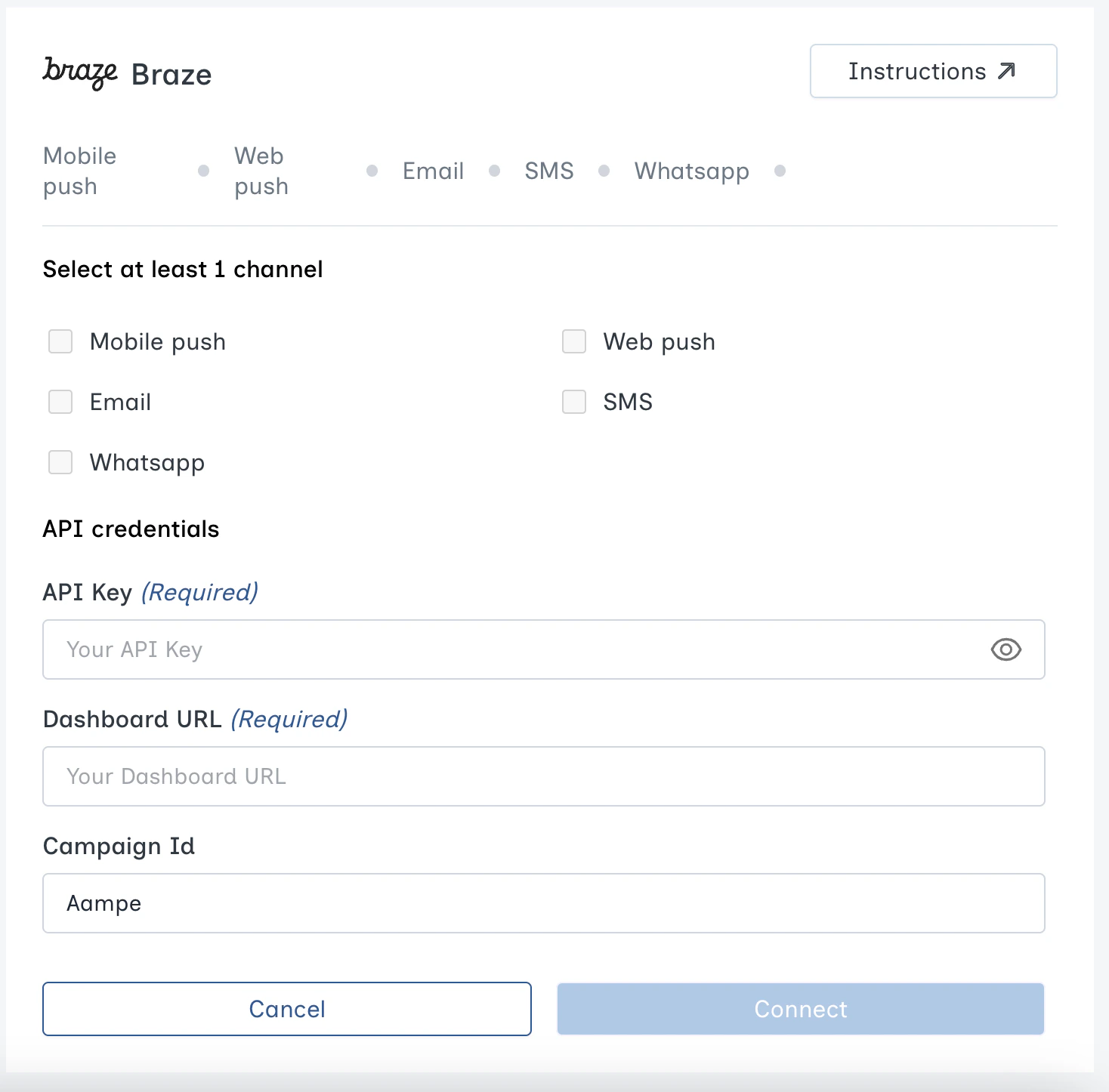 11. Enter the API key and dashboard URL copied from the earlier steps. Your connection is now ready to deliver messages
## App Id Setup
1. To find your app\_id go to your Braze account and navigate to **Settings > API and Identifiers > App Identifiers**
2. Copy your app\_id and navigate back to Aampe Braze integration page select the email channel and add your app\_id
11. Enter the API key and dashboard URL copied from the earlier steps. Your connection is now ready to deliver messages
## App Id Setup
1. To find your app\_id go to your Braze account and navigate to **Settings > API and Identifiers > App Identifiers**
2. Copy your app\_id and navigate back to Aampe Braze integration page select the email channel and add your app\_id
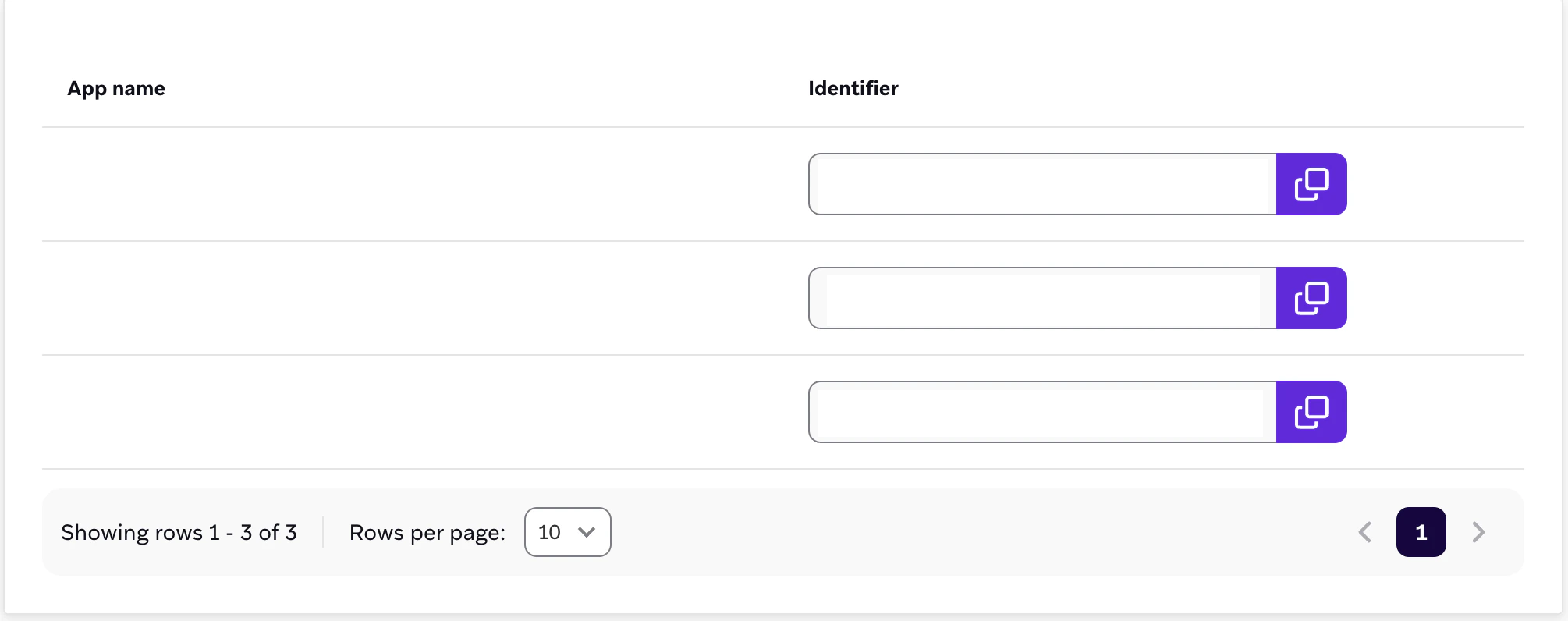 📘 **Note:** App Id is not required if you do not intend to use the email channel through Braze.
## API Campaign Setup
Setting up an API Campaign in Braze allows you to send transactional messages by generating a campaign\_id for use in your API calls. This process involves creating the campaign in the Braze dashboard and then using the campaign\_id in your API requests to send messages. Here's a step-by-step guide to setting up an API Campaign:
### Access the Braze Dashboard:
1. Log in to your Braze account. Navigate to the **Messaging** section and select **Campaigns**.
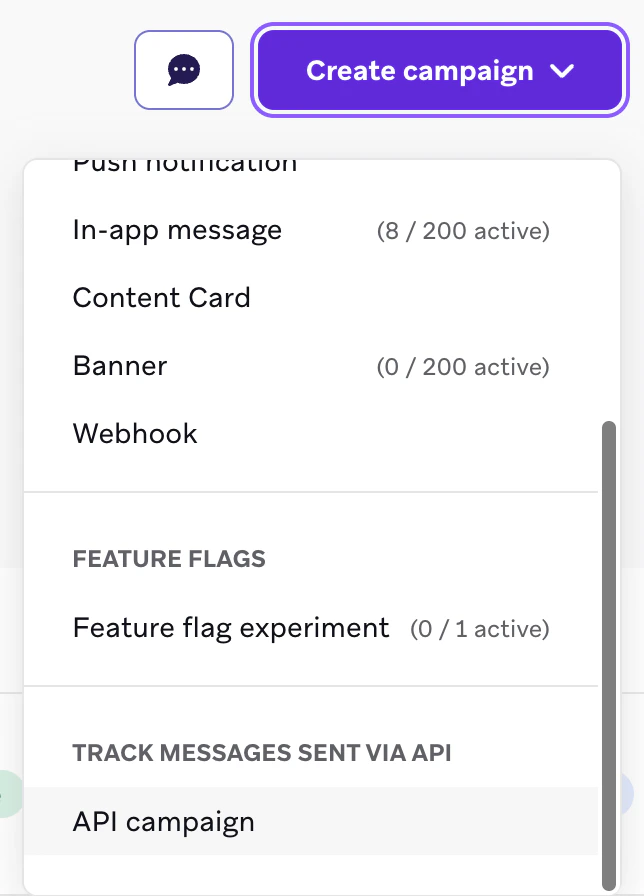
2. **Create a New Campaign:** Click on **Create Campaign**. Choose **API Campaigns** as the campaign type.
📘 **Note:** App Id is not required if you do not intend to use the email channel through Braze.
## API Campaign Setup
Setting up an API Campaign in Braze allows you to send transactional messages by generating a campaign\_id for use in your API calls. This process involves creating the campaign in the Braze dashboard and then using the campaign\_id in your API requests to send messages. Here's a step-by-step guide to setting up an API Campaign:
### Access the Braze Dashboard:
1. Log in to your Braze account. Navigate to the **Messaging** section and select **Campaigns**.
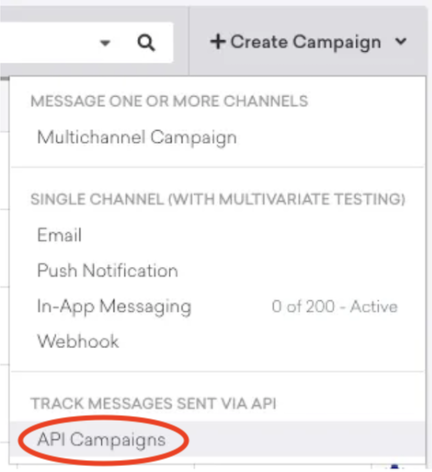
2. **Create a New Campaign:** Click on **Create Campaign**. Choose **API Campaigns** as the campaign type.
 ### Configure the Campaign:
1. **Name the Campaign:** Provide a descriptive title to easily identify the campaign later.
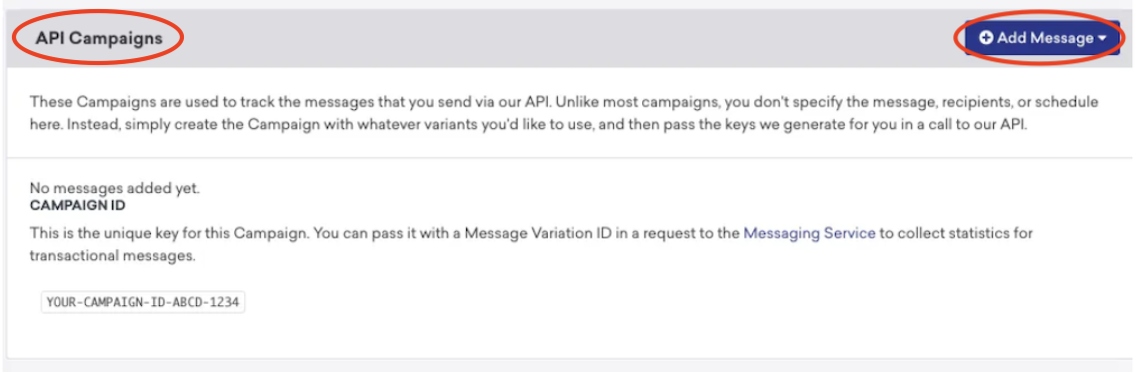
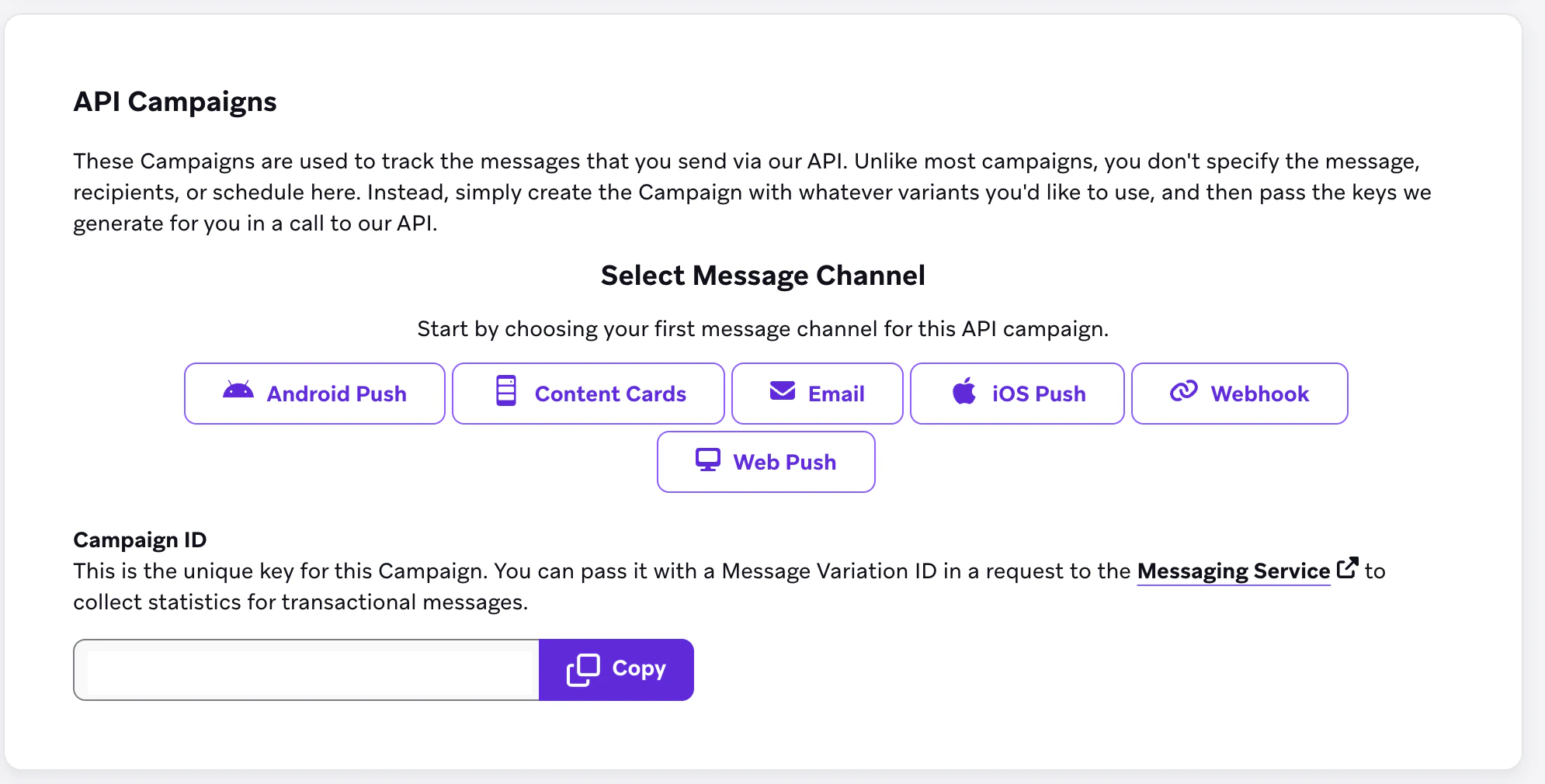
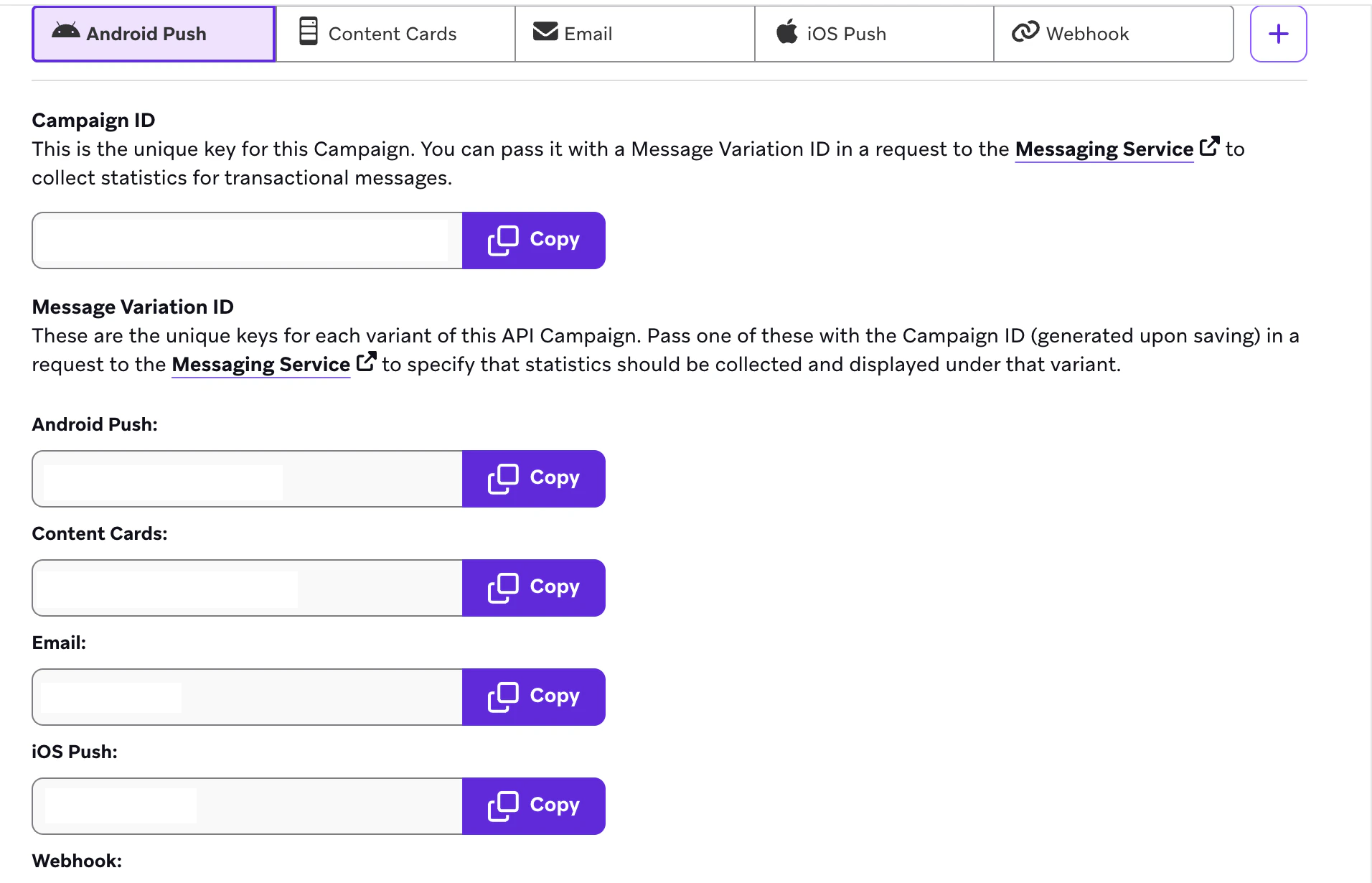
2. **Add Message:** Click on **Select Message**. Select the message types (channels) you intend to use (e.g., Email, SMS, Push Notifications). This action will generate a campaign\_id and a message variation ID for each channel.
### Configure the Campaign:
1. **Name the Campaign:** Provide a descriptive title to easily identify the campaign later.
2. **Add Message:** Click on **Select Message**. Select the message types (channels) you intend to use (e.g., Email, SMS, Push Notifications). This action will generate a campaign\_id and a message variation ID for each channel.
 3. **Optional - Add Conversion Events:** If you wish to track specific user actions as conversions, you can add a conversion event to the campaign.
### In the Campaign Limits:
* **User re-eligible for messages:** Check this box and select 0 minutes as we would like Aampe agents to be re-eligible based on user's best time.
* Select **Don't Count this towards intelligent Frequency limits** as we don't want Aampe to be affected by Braze limits
### Save the Campaign:
1. After configuring the necessary settings, click on **Save Campaign**.
### **Configure in Aampe:**
1. **Campaign ID:** After saving your campaign, retrieve the campaign\_id and add to the Braze Integration Settings in Composer.
2. **Variation IDs:** If you added messages to your campaign for each channel, note down the variation\_id for each and send it to your onboarding representative at Aampe.
3. **Optional - Add Conversion Events:** If you wish to track specific user actions as conversions, you can add a conversion event to the campaign.
### In the Campaign Limits:
* **User re-eligible for messages:** Check this box and select 0 minutes as we would like Aampe agents to be re-eligible based on user's best time.
* Select **Don't Count this towards intelligent Frequency limits** as we don't want Aampe to be affected by Braze limits
### Save the Campaign:
1. After configuring the necessary settings, click on **Save Campaign**.
### **Configure in Aampe:**
1. **Campaign ID:** After saving your campaign, retrieve the campaign\_id and add to the Braze Integration Settings in Composer.
2. **Variation IDs:** If you added messages to your campaign for each channel, note down the variation\_id for each and send it to your onboarding representative at Aampe.
 **You are all set with Braze!**