> ## Documentation Index
> Fetch the complete documentation index at: https://kb.aampe.com/llms.txt
> Use this file to discover all available pages before exploring further.
# CleverTap
> Estimated setup time: 15 minutes
## Requirements
* CleverTap admin permissions
* A GCP bucket (provided by Aampe)
* Service account key (provided by Aampe)
If you would prefer to provision your own cloud storage, you can follow the guide using your own bucket and key. To complete the sync, simply provide Aampe with the bucket details.
## Step 1: Integrate Google Cloud as a Partner
1. Navigate to **Settings > Partners** from the CleverTap dashboard
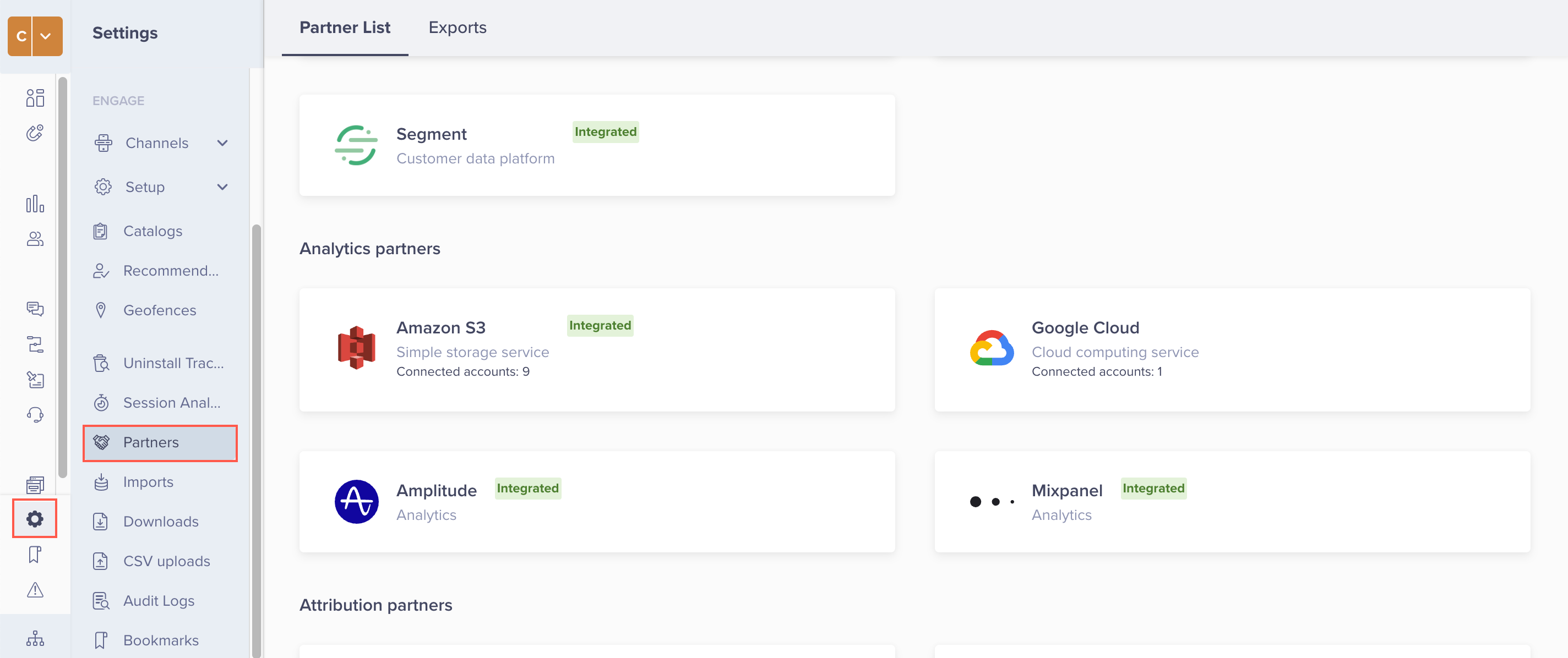 2. Hover on the **Google Cloud** icon and click **Integrate**
3. Click **+ Google Cloud Bucket** to add a bucket. You can also add multiple buckets from this popup
4. Enter the following details and click **Save Credentials**:
* **Bucket nickname:** Enter a nickname for this bucket integration
* **Service Account Key:** Copy/paste the JSON string provided by Aampe (or the contents of the service account key JSON file if you decided to set up your own bucket)
* **Bucket name:** Enter the name of the storage bucket provided by Aampe (or that you created if you decided to set up your own bucket)
2. Hover on the **Google Cloud** icon and click **Integrate**
3. Click **+ Google Cloud Bucket** to add a bucket. You can also add multiple buckets from this popup
4. Enter the following details and click **Save Credentials**:
* **Bucket nickname:** Enter a nickname for this bucket integration
* **Service Account Key:** Copy/paste the JSON string provided by Aampe (or the contents of the service account key JSON file if you decided to set up your own bucket)
* **Bucket name:** Enter the name of the storage bucket provided by Aampe (or that you created if you decided to set up your own bucket)
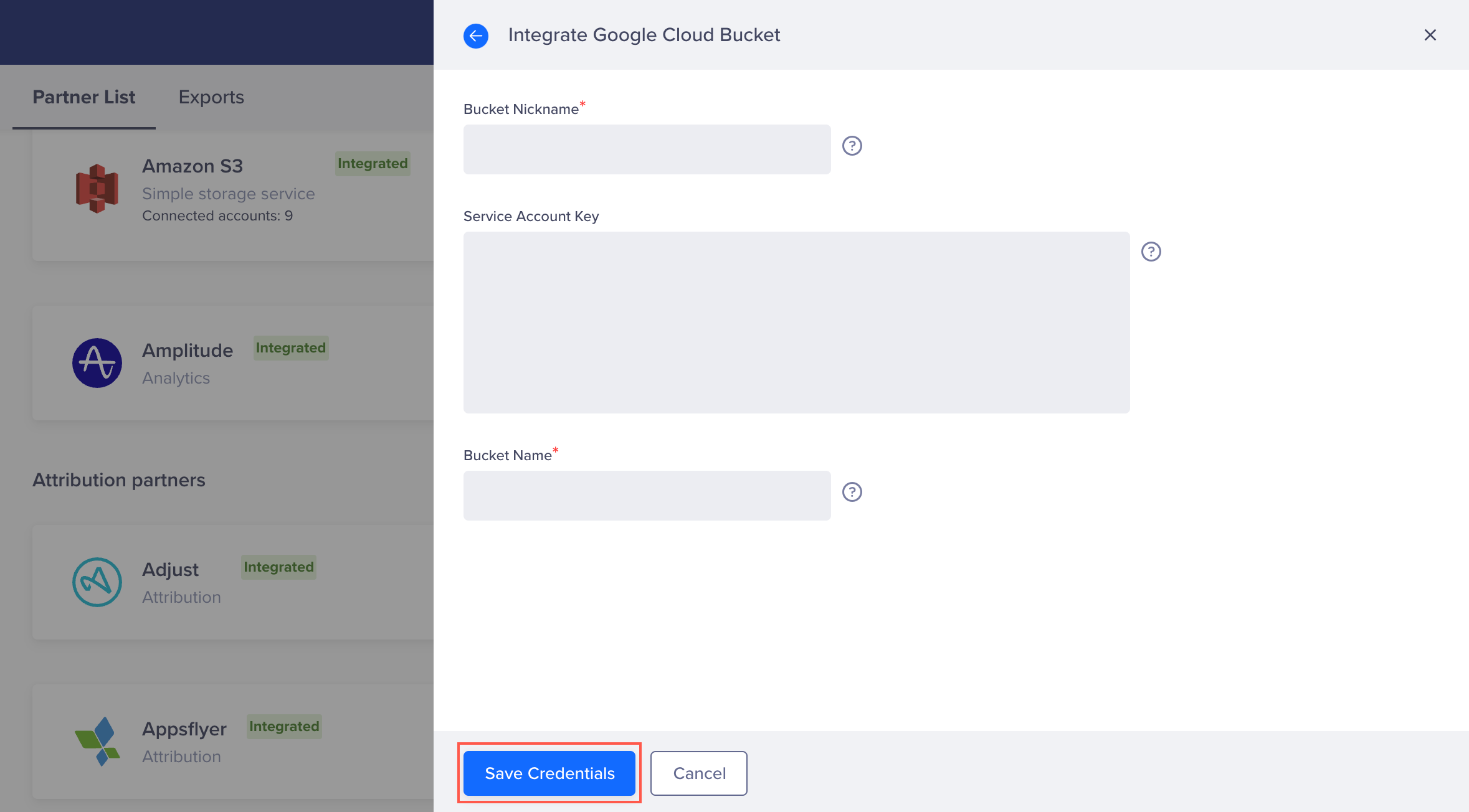 The new integration will appear on the list of Google Cloud integrations.
5. Press on **Done** to continue
## Step 2: Create Data Export
Aampe uses both event and profile data, and this guide walks you through setting up an export for both CleverTap User Events and User Profiles.
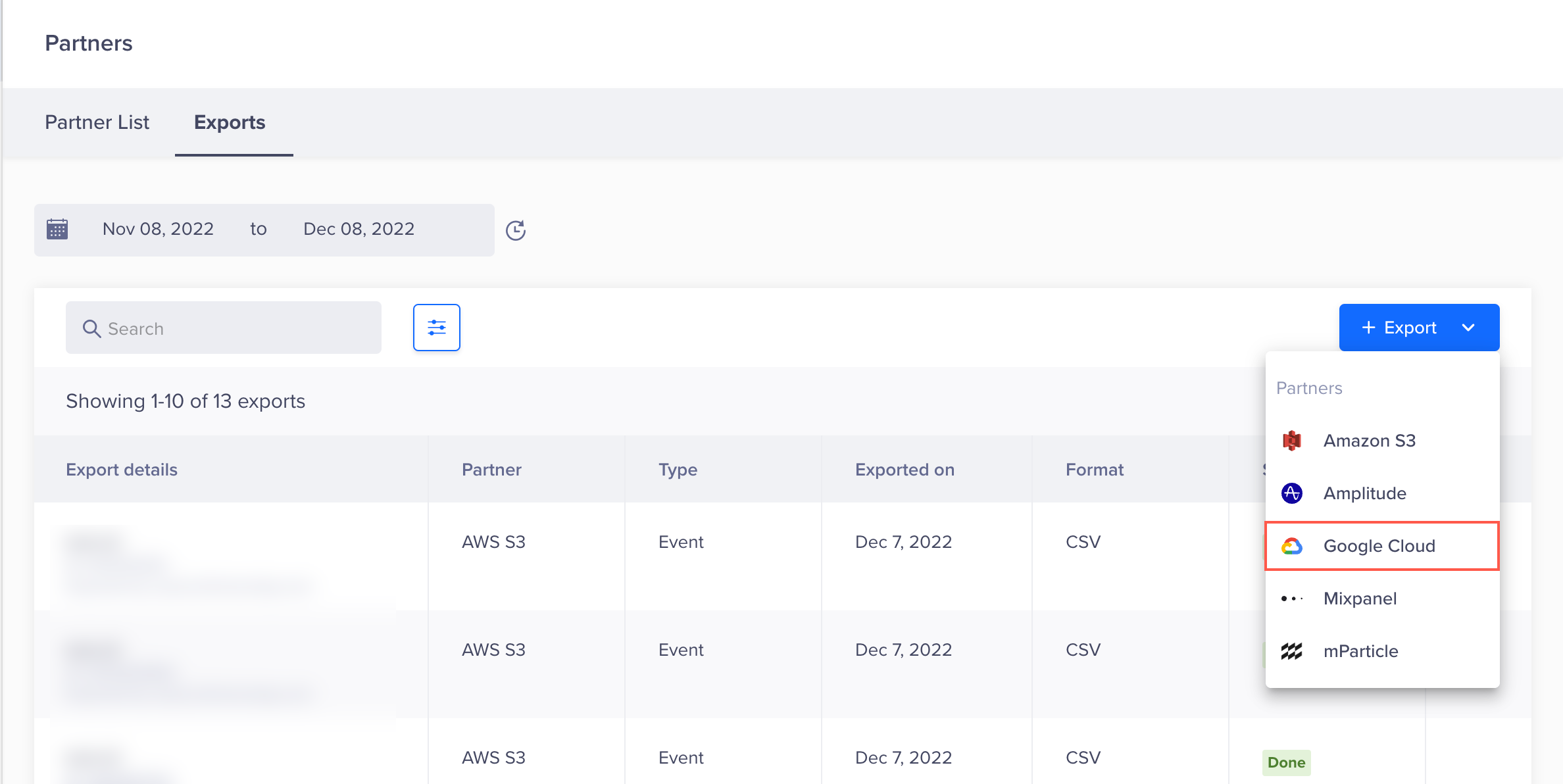
1. Navigate to **Settings > Partners** from the CleverTap dashboard
2. Click on the **Exports** tab
3. Click **+ Export** and select **Google Cloud** from the partners dropdown
The new integration will appear on the list of Google Cloud integrations.
5. Press on **Done** to continue
## Step 2: Create Data Export
Aampe uses both event and profile data, and this guide walks you through setting up an export for both CleverTap User Events and User Profiles.
1. Navigate to **Settings > Partners** from the CleverTap dashboard
2. Click on the **Exports** tab
3. Click **+ Export** and select **Google Cloud** from the partners dropdown
 ### Create Export for Events
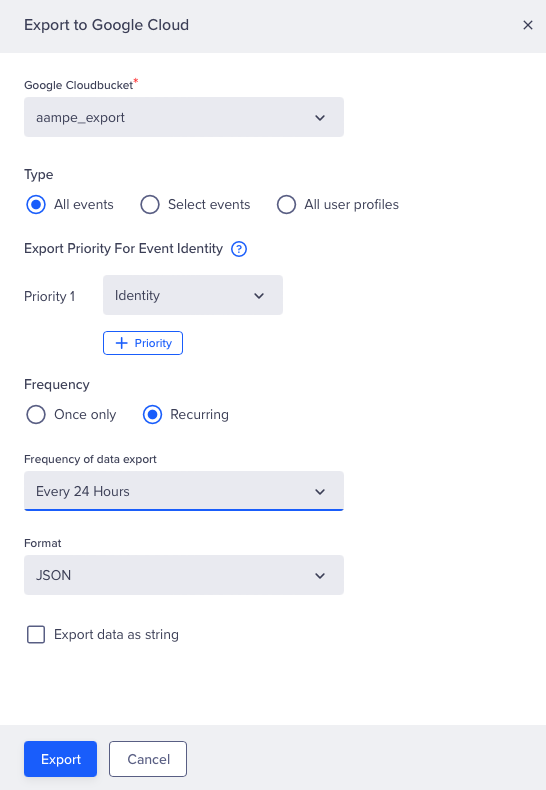
1. The **Export to Google Cloud** modal will show up on the right side of the screen.
2. Select the bucket defined in the previous step
3. Configure the following settings:
* **Type:** All events
* **Frequency:** Recurring
* **Frequency of data export:** Every 24 Hours
* **Format:** JSON
### Create Export for Events
1. The **Export to Google Cloud** modal will show up on the right side of the screen.
2. Select the bucket defined in the previous step
3. Configure the following settings:
* **Type:** All events
* **Frequency:** Recurring
* **Frequency of data export:** Every 24 Hours
* **Format:** JSON
 4. Click **Export**
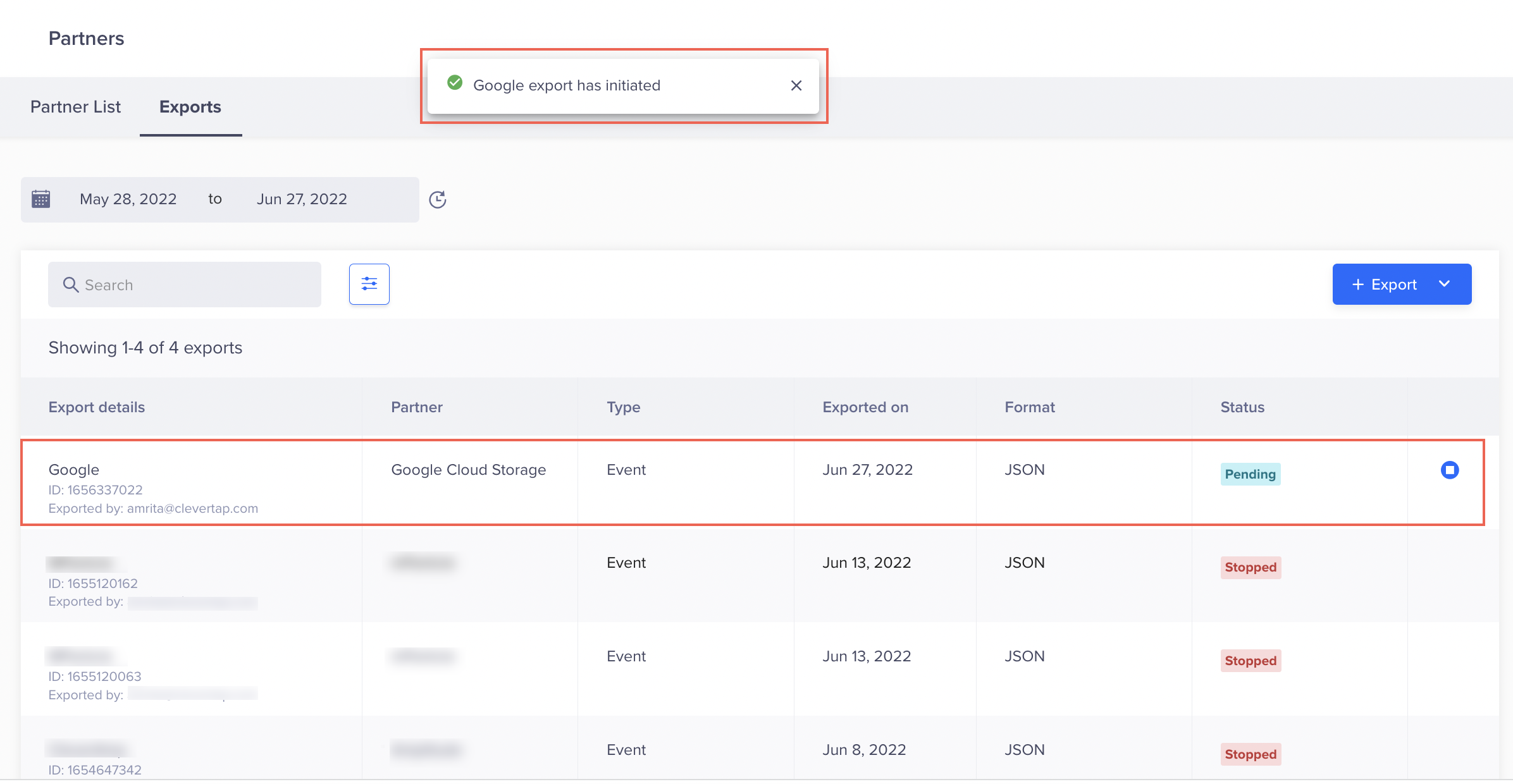
On clicking, the popup closes, and the "Google export has initiated" message displays at the top of the Exports page. You will now be able to see the newly-created export for Google Cloud.
4. Click **Export**
On clicking, the popup closes, and the "Google export has initiated" message displays at the top of the Exports page. You will now be able to see the newly-created export for Google Cloud.
 ### Create Export for User Profiles
We will now repeat steps 2 through 5 to create an export for User Profiles:
1. Click **+ Export** and select **Google Cloud** from the partners dropdown
2. The **Export to Google Cloud** window displays on the right side of the screen. Please select the bucket defined in integration earlier
3. Configure the following settings:
* **Type:** All user profiles
* **Frequency:** Recurring (Every 24 Hours)
* **Format:** JSON
4. Click **Export**
Congrats. Your CleverTap data integration is all set!
***
### Create Export for User Profiles
We will now repeat steps 2 through 5 to create an export for User Profiles:
1. Click **+ Export** and select **Google Cloud** from the partners dropdown
2. The **Export to Google Cloud** window displays on the right side of the screen. Please select the bucket defined in integration earlier
3. Configure the following settings:
* **Type:** All user profiles
* **Frequency:** Recurring (Every 24 Hours)
* **Format:** JSON
4. Click **Export**
Congrats. Your CleverTap data integration is all set!
***