> ## Documentation Index
> Fetch the complete documentation index at: https://kb.aampe.com/llms.txt
> Use this file to discover all available pages before exploring further.
# Amplitude (Streaming)
> Estimated setup time: 30 minutes
## Requirements
* Your Aampe API Key
To get your Aampe API Key
* Go to [https://compose.aampe.com/system-setup/integrations/events](https://compose.aampe.com/system-setup/integrations/events)
* Login using your org credentials
* Select **Connect** next to the **Aampe** endpoint
* Copy the API key
## **Amplitude's Destination Catalog**
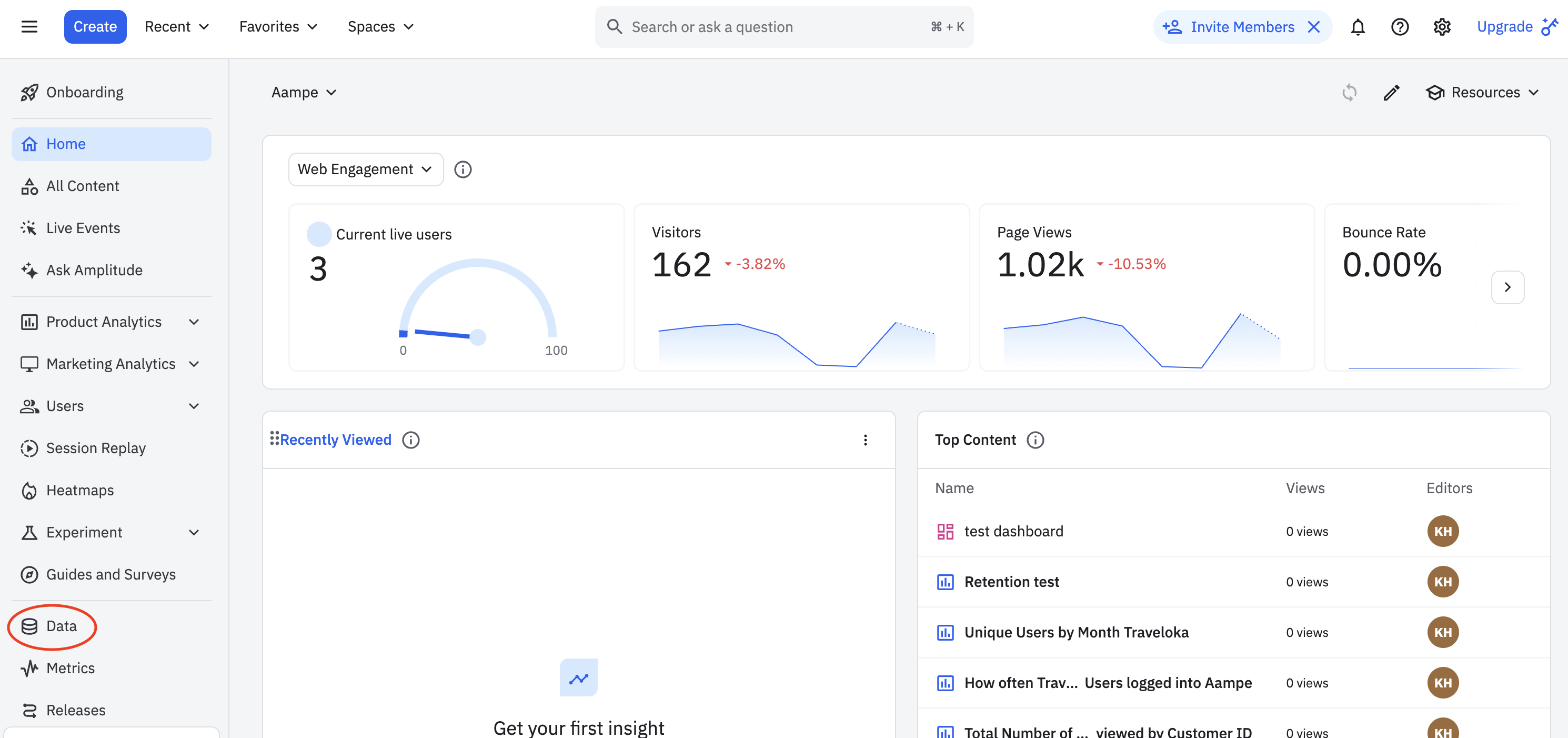
1. Go to **Menu -> Data**
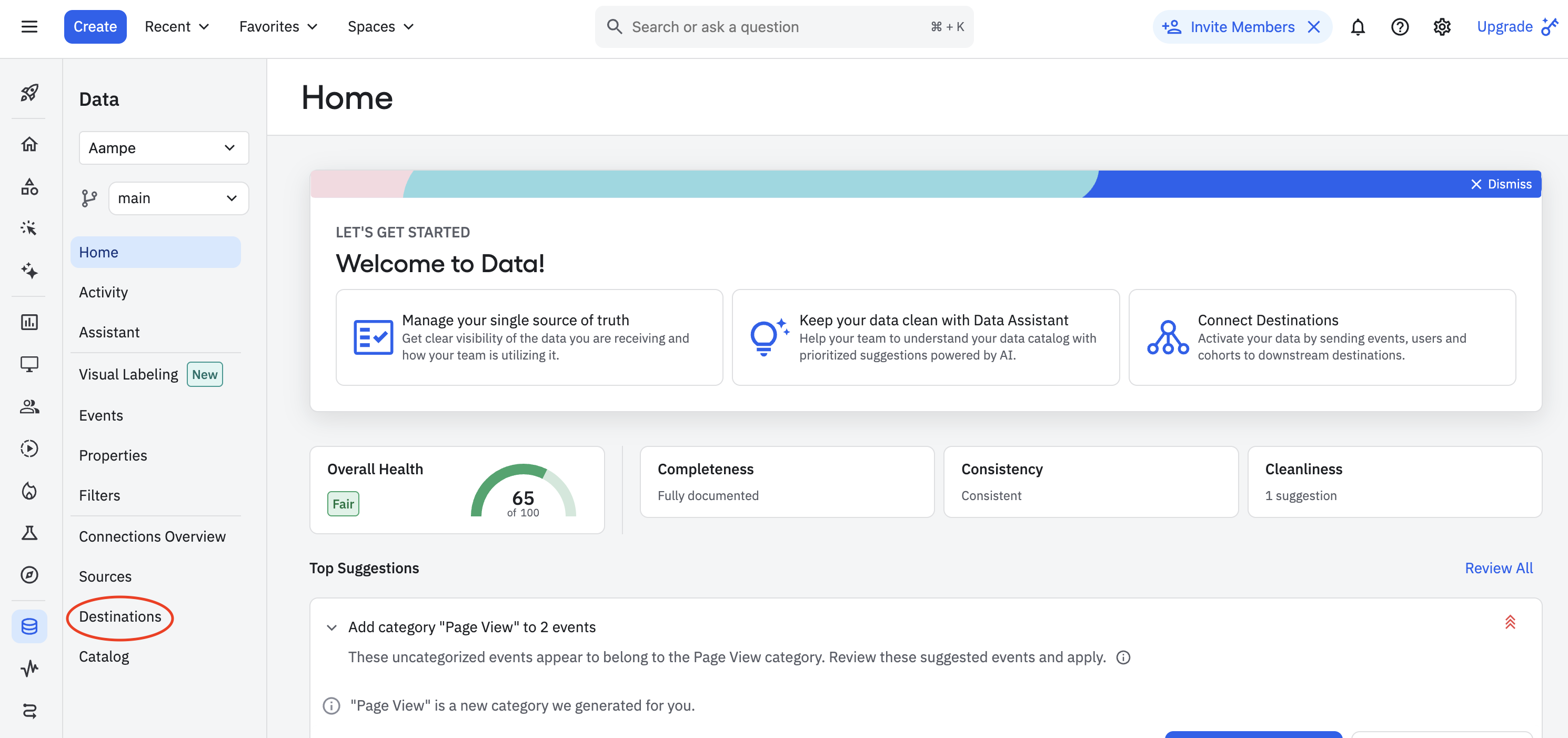
 2. Click on **Destinations**
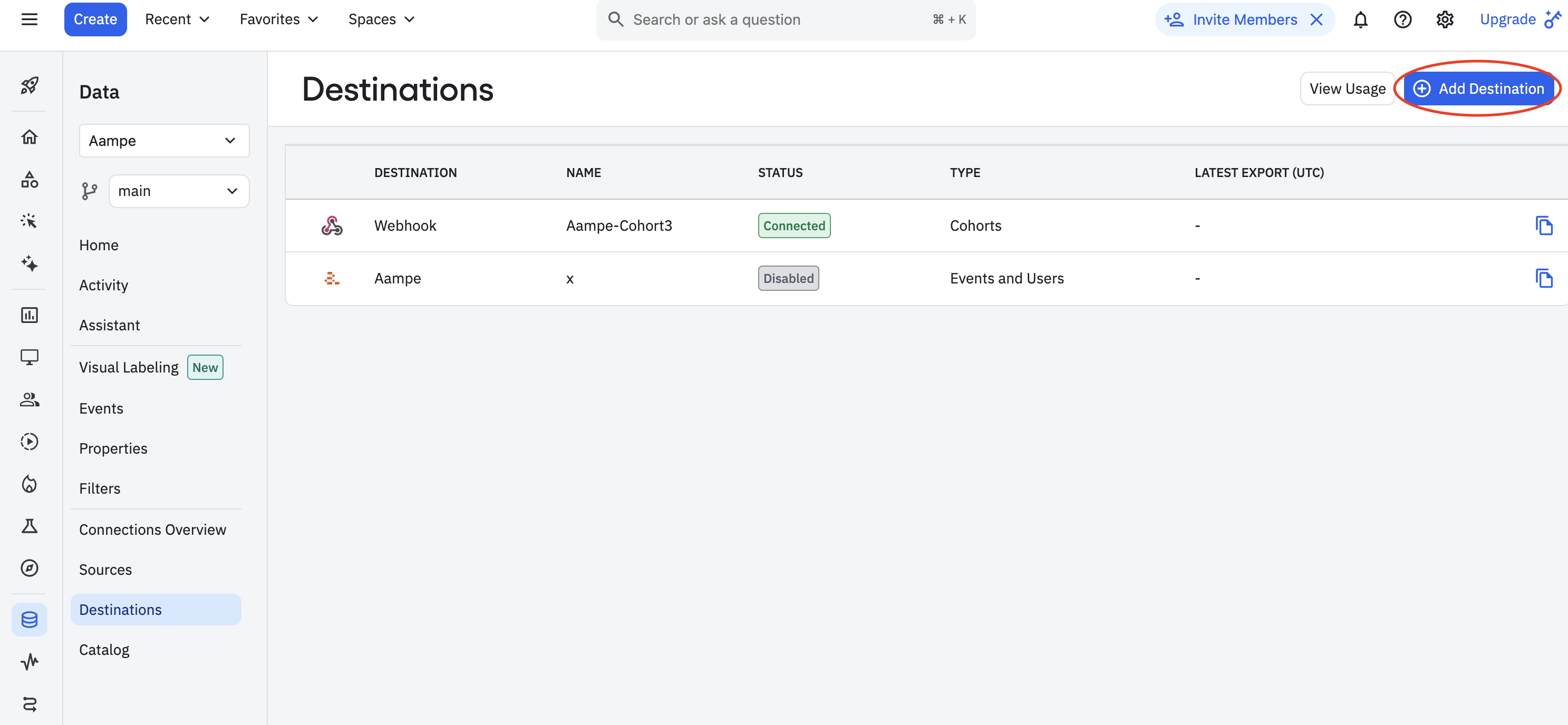
 3. Click Add a new destination.
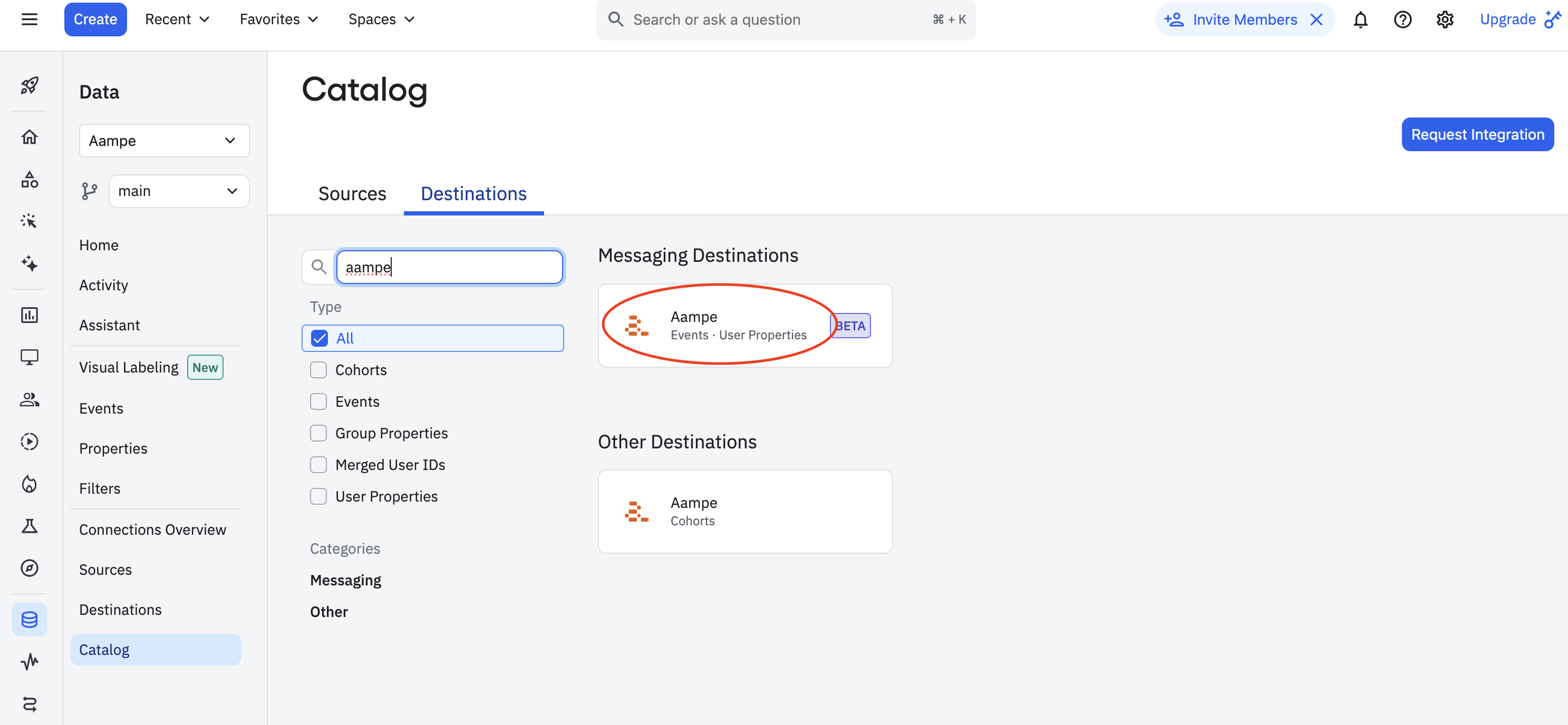
 4. Search for **Aampe** and select **Events and User Properties**
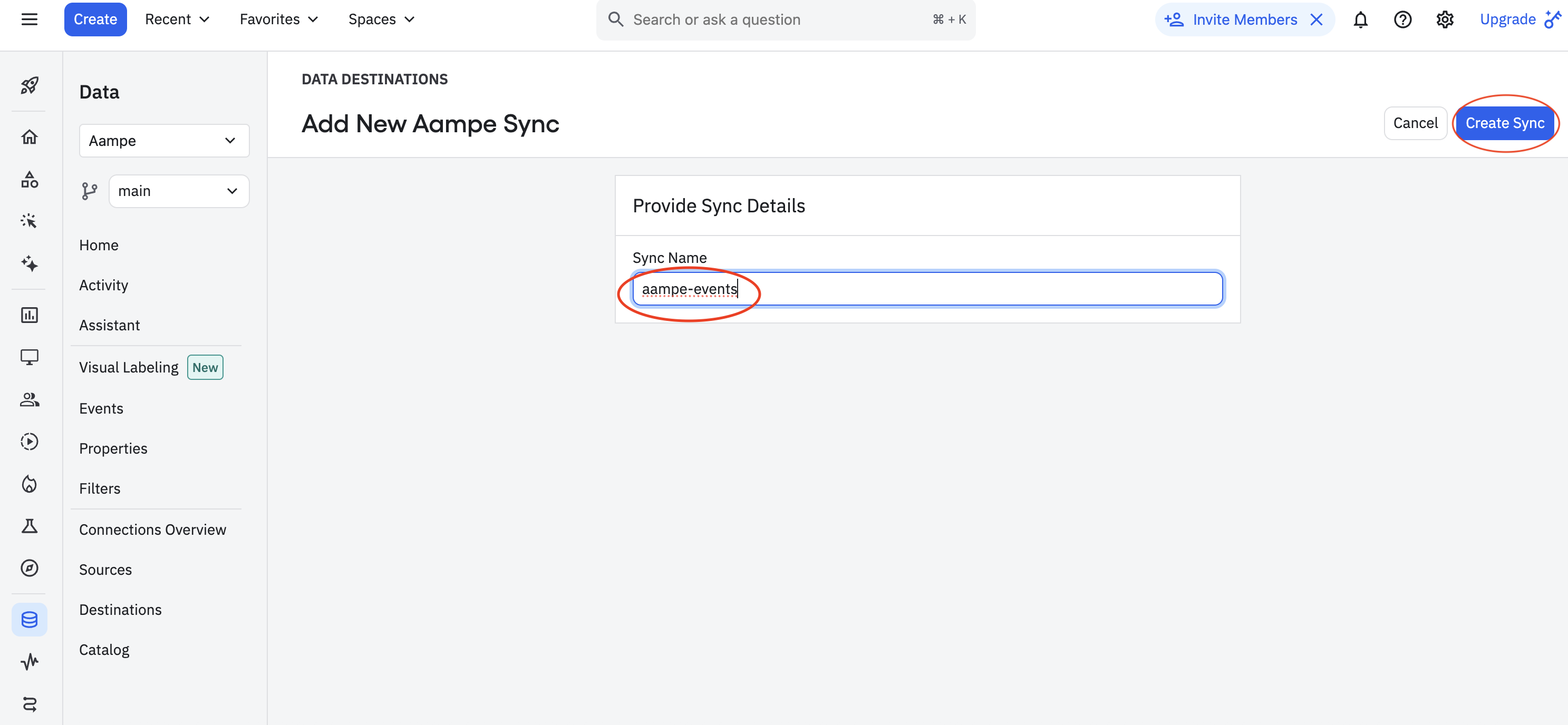
 5. Enter the following details
1. Sync Name: Aampe - Data Integration
5. Enter the following details
1. Sync Name: Aampe - Data Integration
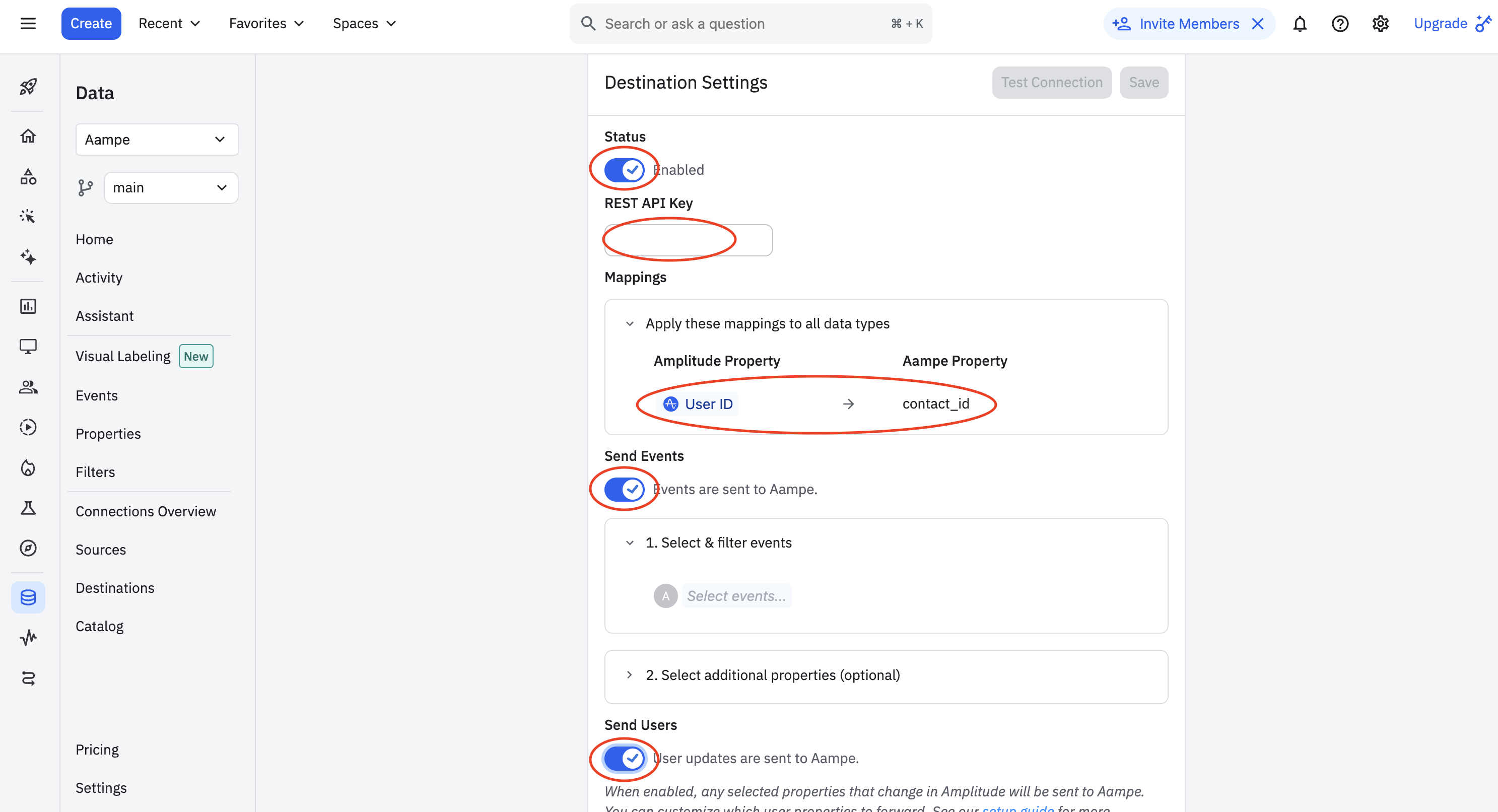
 2. Set the following destination settings
* Status: Enabled
* Aampe API Key
* User identifier: Select the User ID mapping. Here you want to select user ID which connects to your other Aampe data. Aim for a non-PII identifier if available.
* Check that both **Send Users** and **Send Events** are selected
2. Set the following destination settings
* Status: Enabled
* Aampe API Key
* User identifier: Select the User ID mapping. Here you want to select user ID which connects to your other Aampe data. Aim for a non-PII identifier if available.
* Check that both **Send Users** and **Send Events** are selected
 6. Select the events and properties you want to send.
Unsure what events to send? See [here](/developer-guide/data-ingest/what-events-should-i-send-to-aampe) for guidance on what a "good" event stream looks like.
7. Hit **Save**
Congrats. Your Amplitude-Aampe data integration is live!
6. Select the events and properties you want to send.
Unsure what events to send? See [here](/developer-guide/data-ingest/what-events-should-i-send-to-aampe) for guidance on what a "good" event stream looks like.
7. Hit **Save**
Congrats. Your Amplitude-Aampe data integration is live!