> ## Documentation Index
> Fetch the complete documentation index at: https://kb.aampe.com/llms.txt
> Use this file to discover all available pages before exploring further.
# Amplitude (Batch)
> Estimated setup time: 30 minutes
## Requirements
* Amplitude Project with your Aampe datasets defined (users, events)
* Service Account Key (optional)
## Batch Sync
Amplitude and Aampe will sync data at a regular cadence (e.g. daily, hourly).
You have several options for syncing an Amplitude dataset with Aampe.
* Option 1: Amplitude pushes to Aampe-provisioned Google Cloud Storage
* Option 2: Amplitude pushes to Aampe's BigQuery
* Option 3: Aampe pulls data using the Amplitude API
## Option 1: Google Cloud Storage
1. In Amplitude, navigate to the **Data** tab
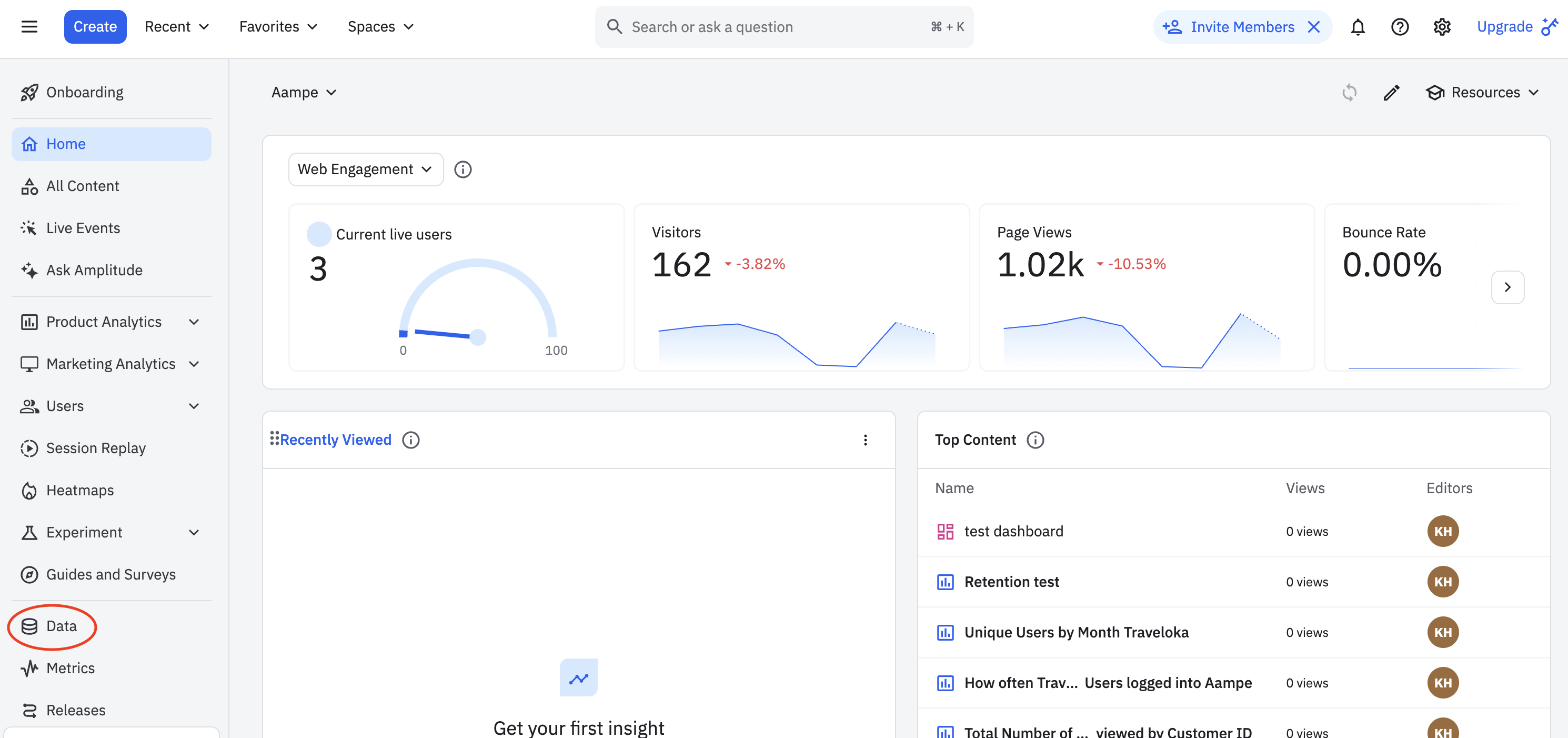 2. Find **Destinations** on the Data menu. Be sure you're using an Amplitude project with comprehensive data for all the users and events you wish to send to Aampe.
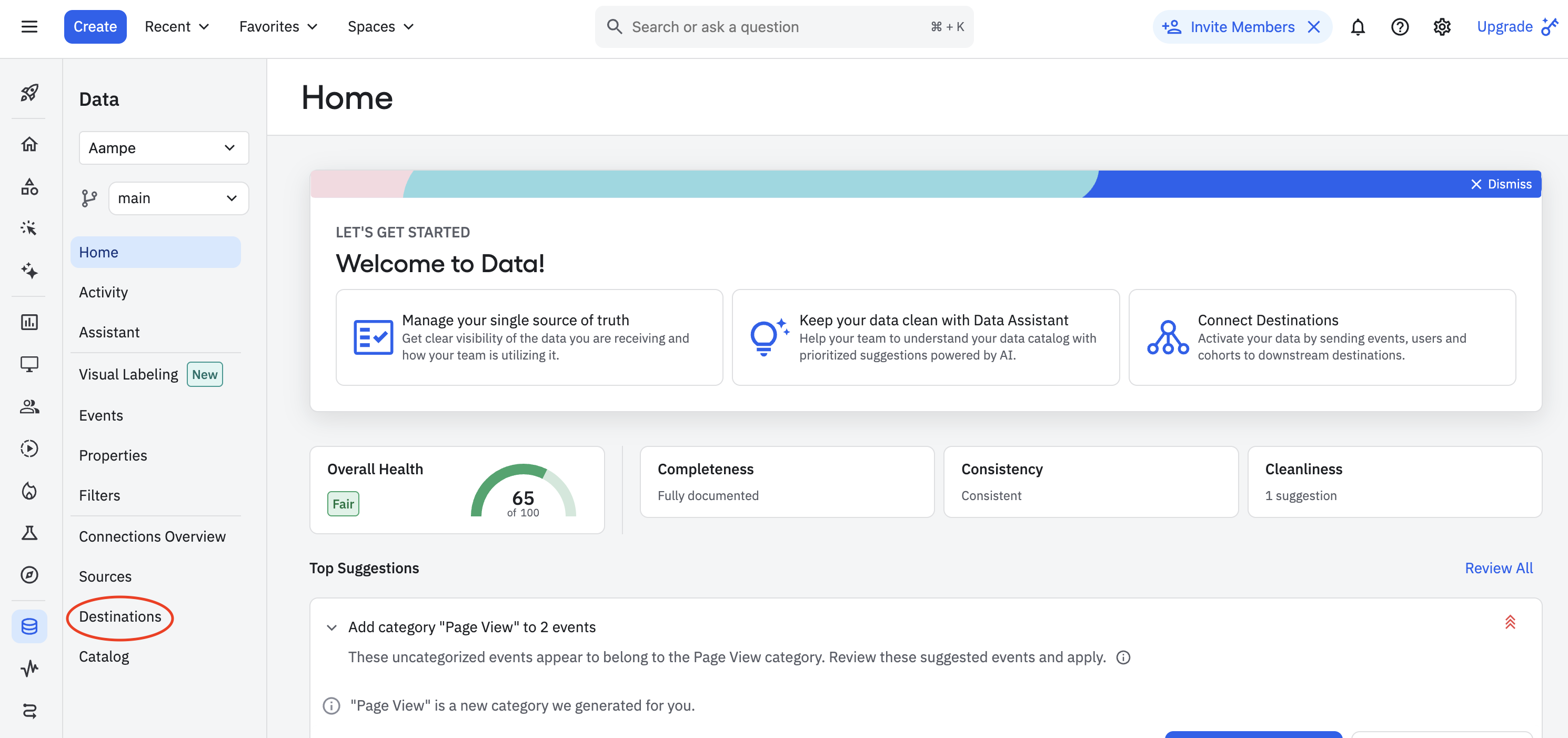 3. Find **Google Cloud Storage** in the catalog of available destinations.
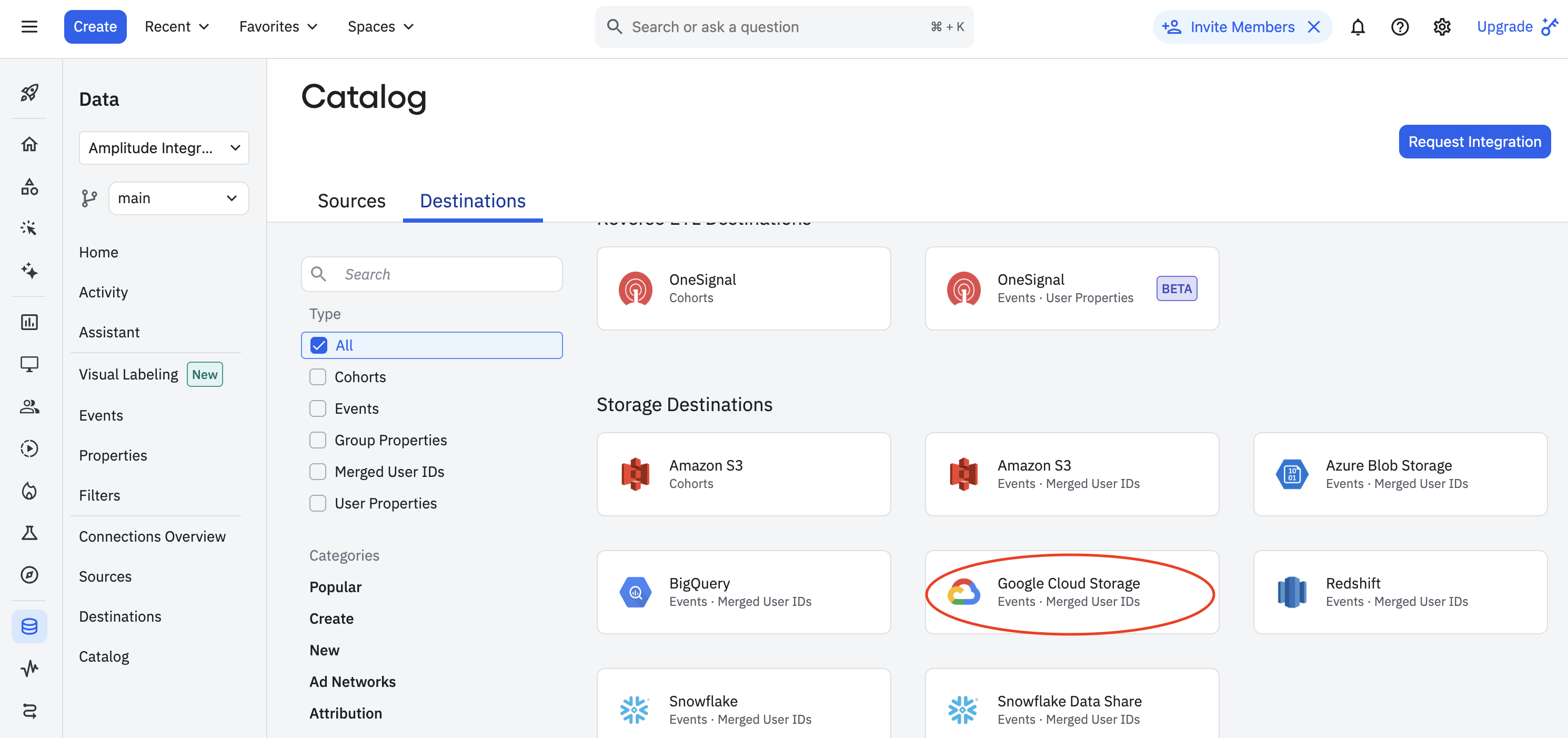 4. Select the following options from the `Export Data to Google Cloud` menu
* Export events ingested today and moving forward
* Export all merged Amplitude IDs
* Select all events (or apply filters if needed)
5. Review the tables and click **Next**.
4. Select the following options from the `Export Data to Google Cloud` menu
* Export events ingested today and moving forward
* Export all merged Amplitude IDs
* Select all events (or apply filters if needed)
5. Review the tables and click **Next**.
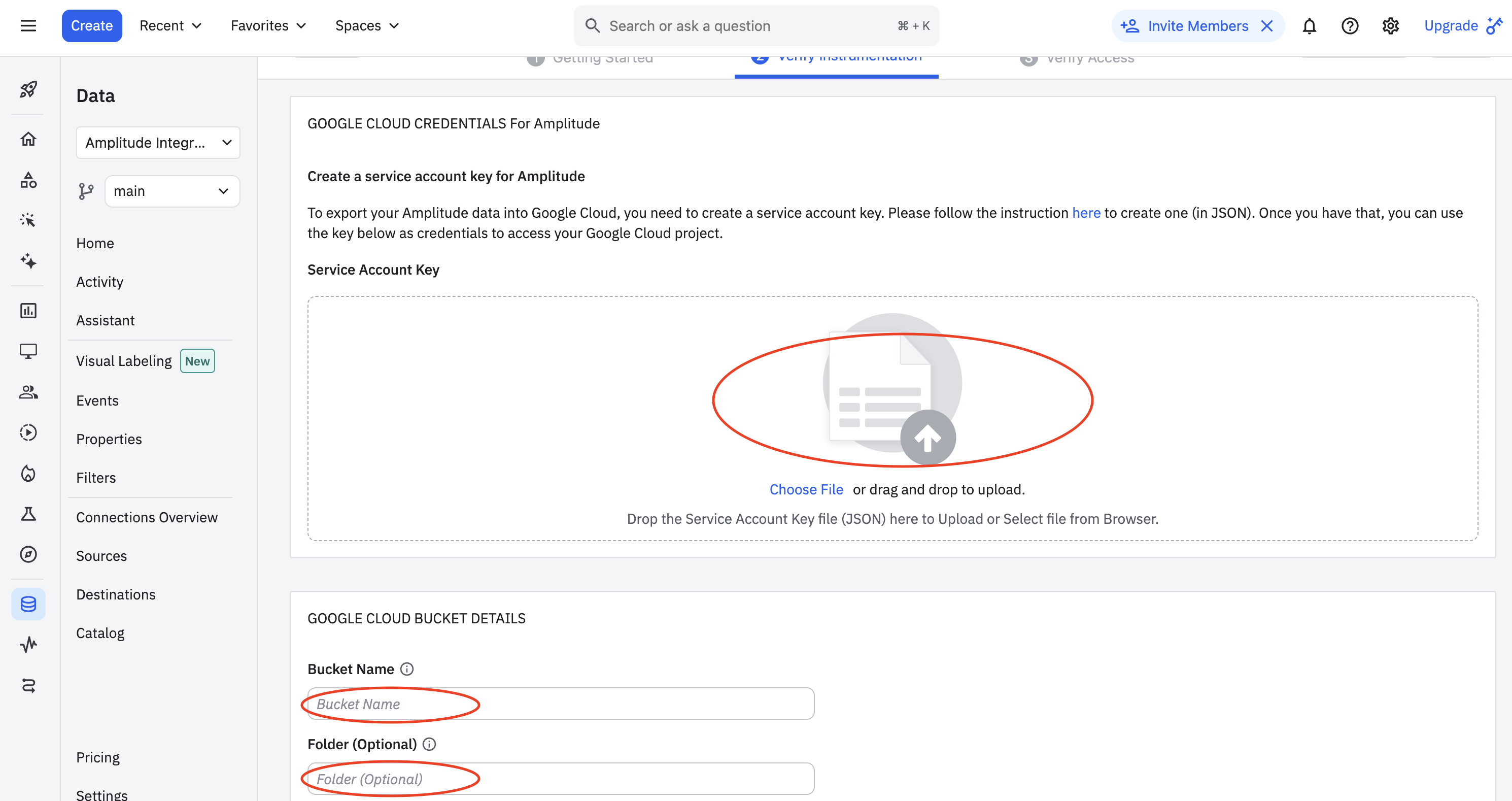
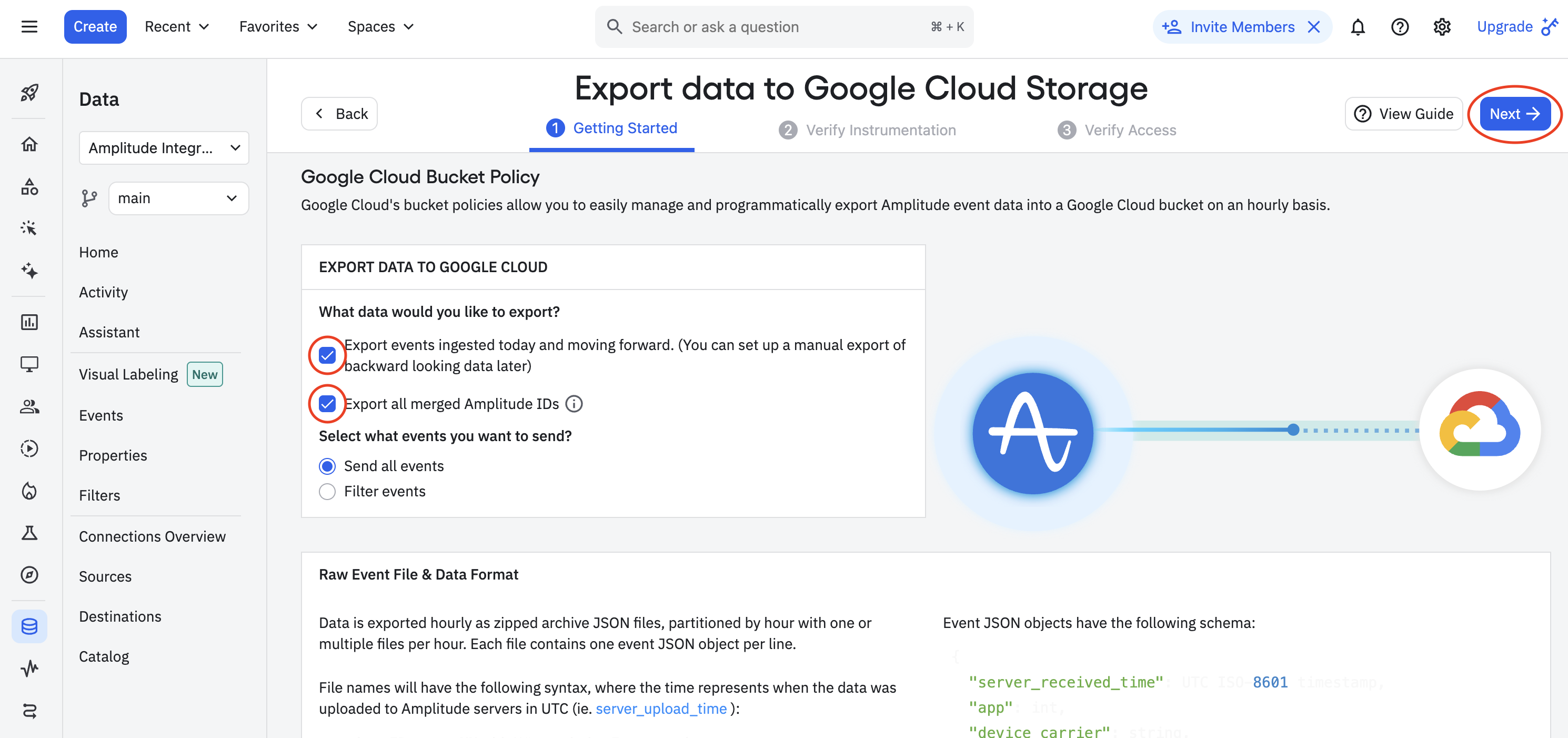 6. Aampe will provide you with a Service Account Key file. If you have your key file ready, upload it to Amplitude along with the corresponding bucket information. Click **Next**.
 7. Amplitude will attempt a test upload to check that the entered credentials work. If the upload is successful, click **Finish** to complete the GCS destination configuration and activation.
## Option 2: Google BigQuery
1. Amplitude will directly write data to the Aampe BigQuery instance
2. In Amplitude Data, click **Catalog** and select the **Destinations** tab.
3. In Amplitude Data, click **Catalog** and select the **Destinations** tab.
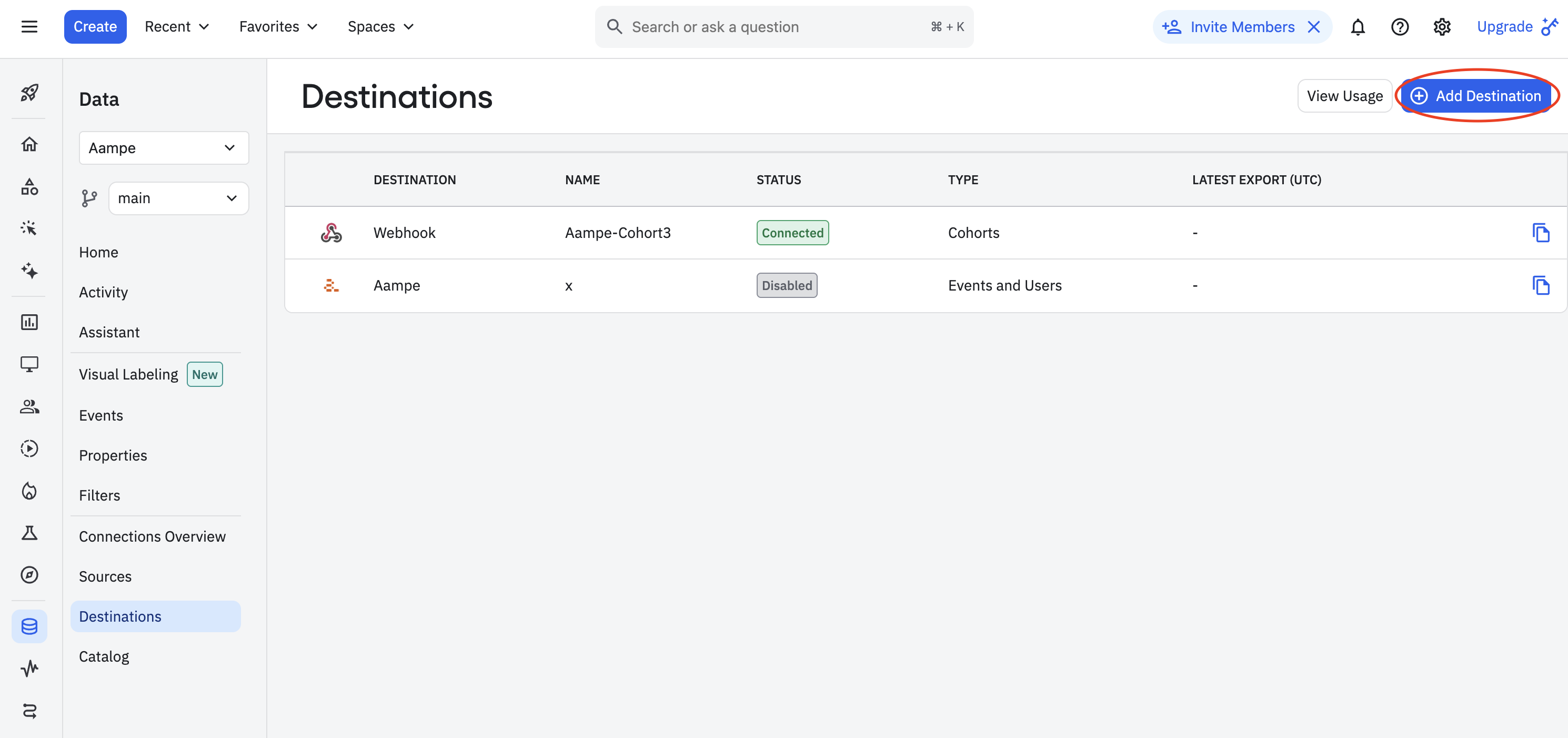
4. Add destination
7. Amplitude will attempt a test upload to check that the entered credentials work. If the upload is successful, click **Finish** to complete the GCS destination configuration and activation.
## Option 2: Google BigQuery
1. Amplitude will directly write data to the Aampe BigQuery instance
2. In Amplitude Data, click **Catalog** and select the **Destinations** tab.
3. In Amplitude Data, click **Catalog** and select the **Destinations** tab.
4. Add destination
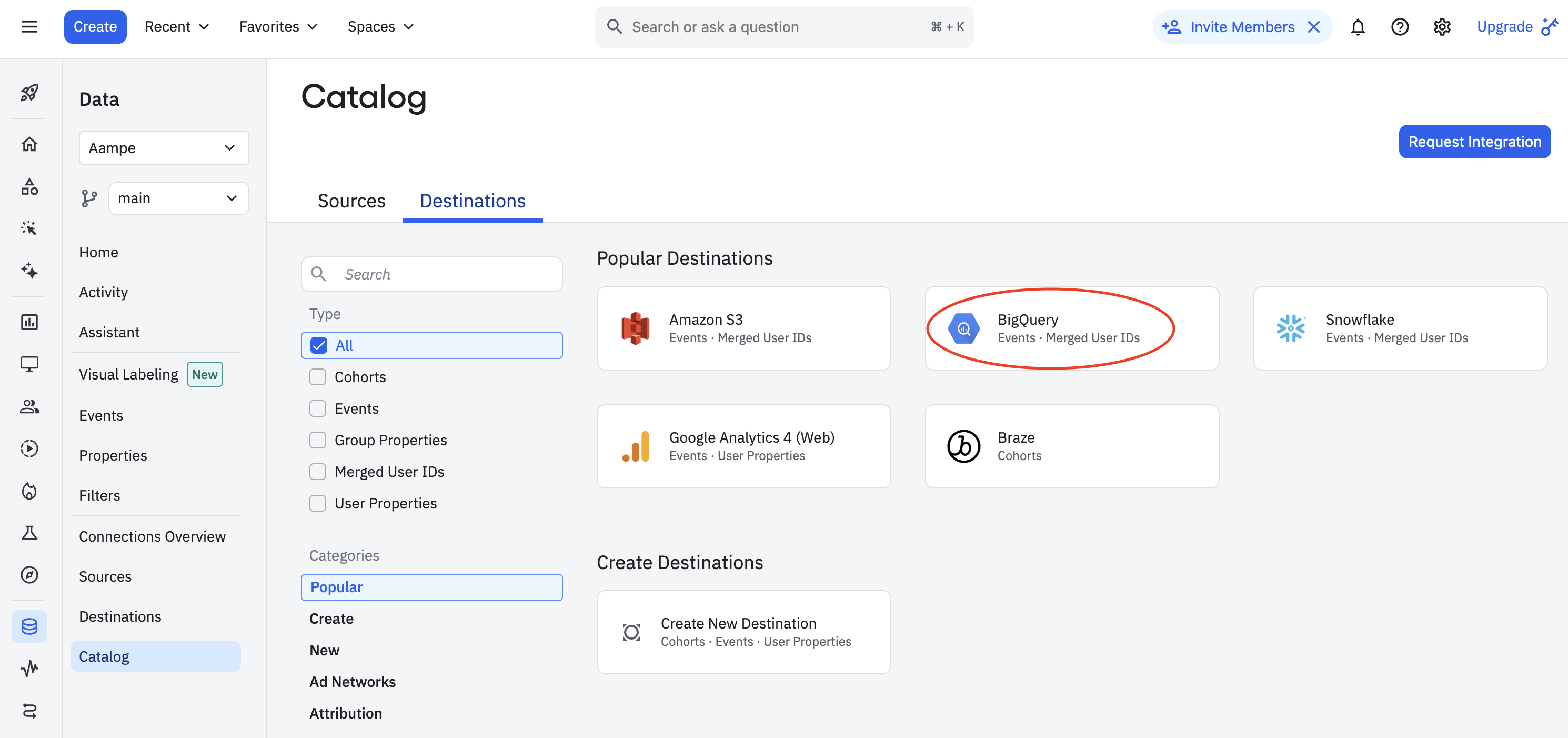
 5. In the **Warehouse Destination** section, click **BigQuery**.
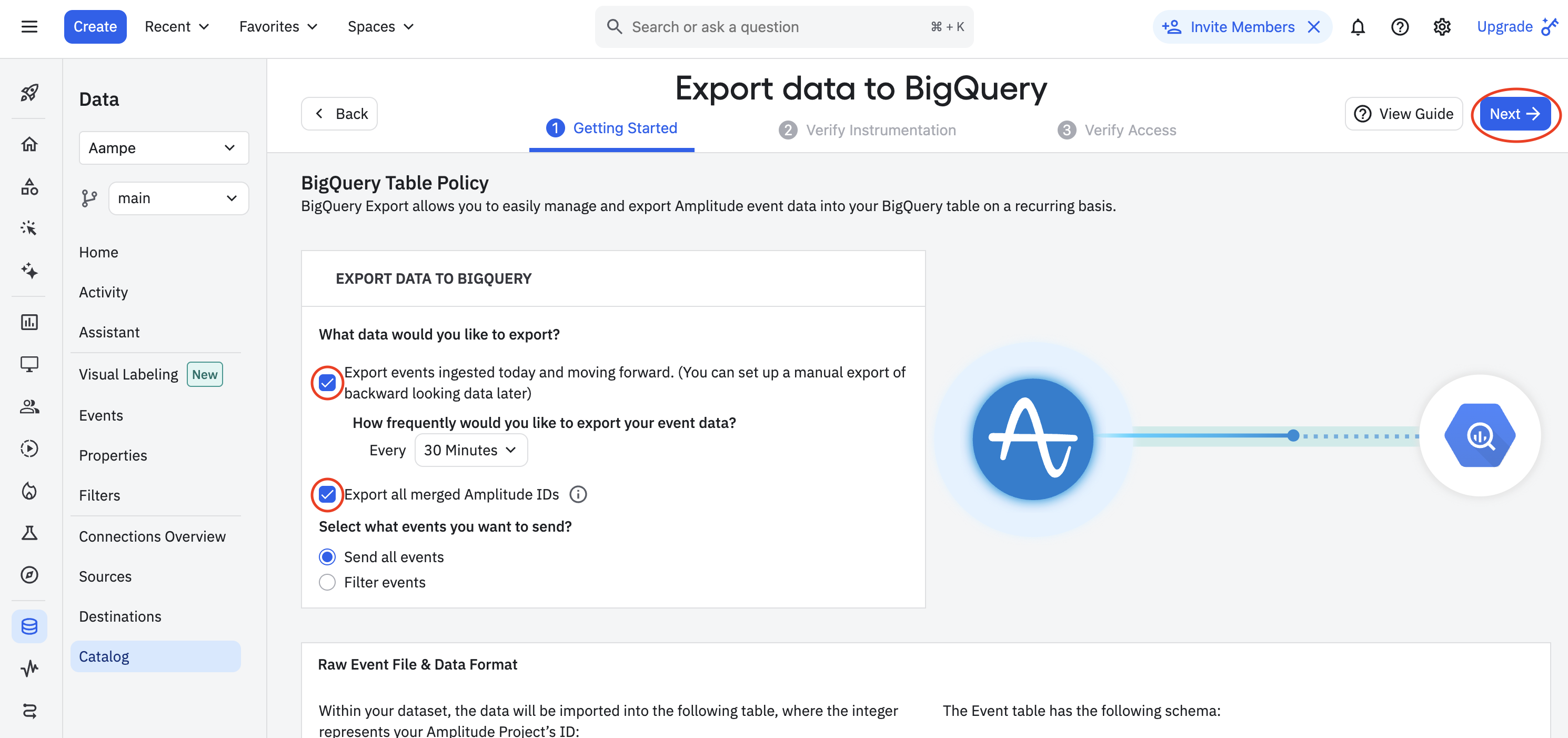
 6. On the **Getting Started** tab, select the data you'd like to export and the export's cadence. You can Export events ingested today and moving forward, Export all merged Amplitude IDs, or both. For events, you can also specify filtering conditions to only export events that meet certain criteria.
7. Review the schemas for the Event table and the Merge IDs table and click **Next**.
6. On the **Getting Started** tab, select the data you'd like to export and the export's cadence. You can Export events ingested today and moving forward, Export all merged Amplitude IDs, or both. For events, you can also specify filtering conditions to only export events that meet certain criteria.
7. Review the schemas for the Event table and the Merge IDs table and click **Next**.
 8. Specify the BigQuery dataset to receive your Amplitude data, and upload the service account key file. This file must be in JSON format and will be provided by Aampe.
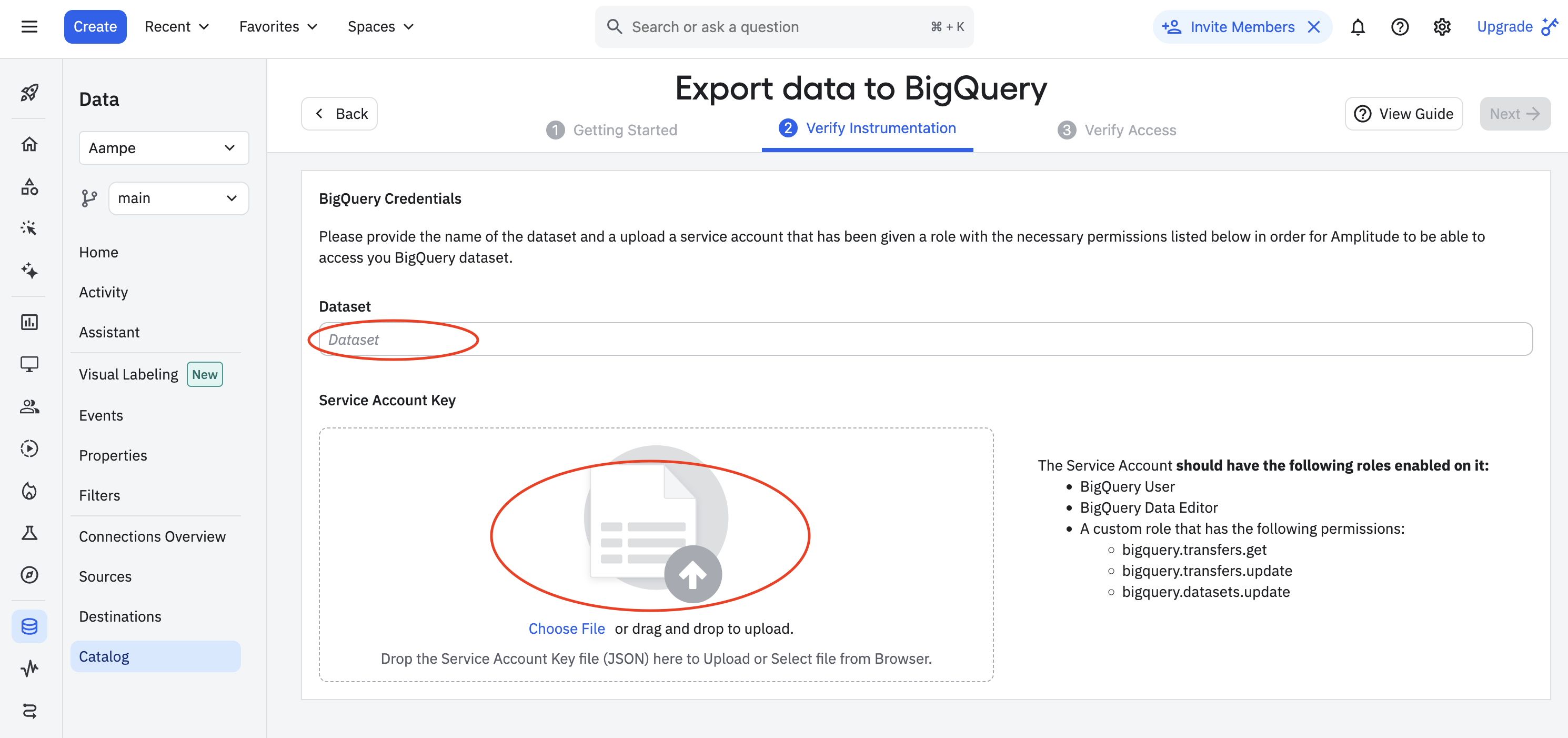 9. Click **Next**. Amplitude attempts a test upload to test the credentials. If the upload is successful, click **Finish** to complete the BigQuery destination configuration and activation.
## Option 3: Amplitude Export API
Aampe will pull data from the [Amplitude Export API](https://www.docs.developers.amplitude.com/analytics/apis/export-api/).
The Amplitude Export API is only best for small datasets. For large data sets, please consider exporting to Google Cloud Storage or Google BigQuery.
To send Aampe the necessary credentials
1. In your Amplitude workspace, click on **Settings** at the bottom left of your screen
9. Click **Next**. Amplitude attempts a test upload to test the credentials. If the upload is successful, click **Finish** to complete the BigQuery destination configuration and activation.
## Option 3: Amplitude Export API
Aampe will pull data from the [Amplitude Export API](https://www.docs.developers.amplitude.com/analytics/apis/export-api/).
The Amplitude Export API is only best for small datasets. For large data sets, please consider exporting to Google Cloud Storage or Google BigQuery.
To send Aampe the necessary credentials
1. In your Amplitude workspace, click on **Settings** at the bottom left of your screen
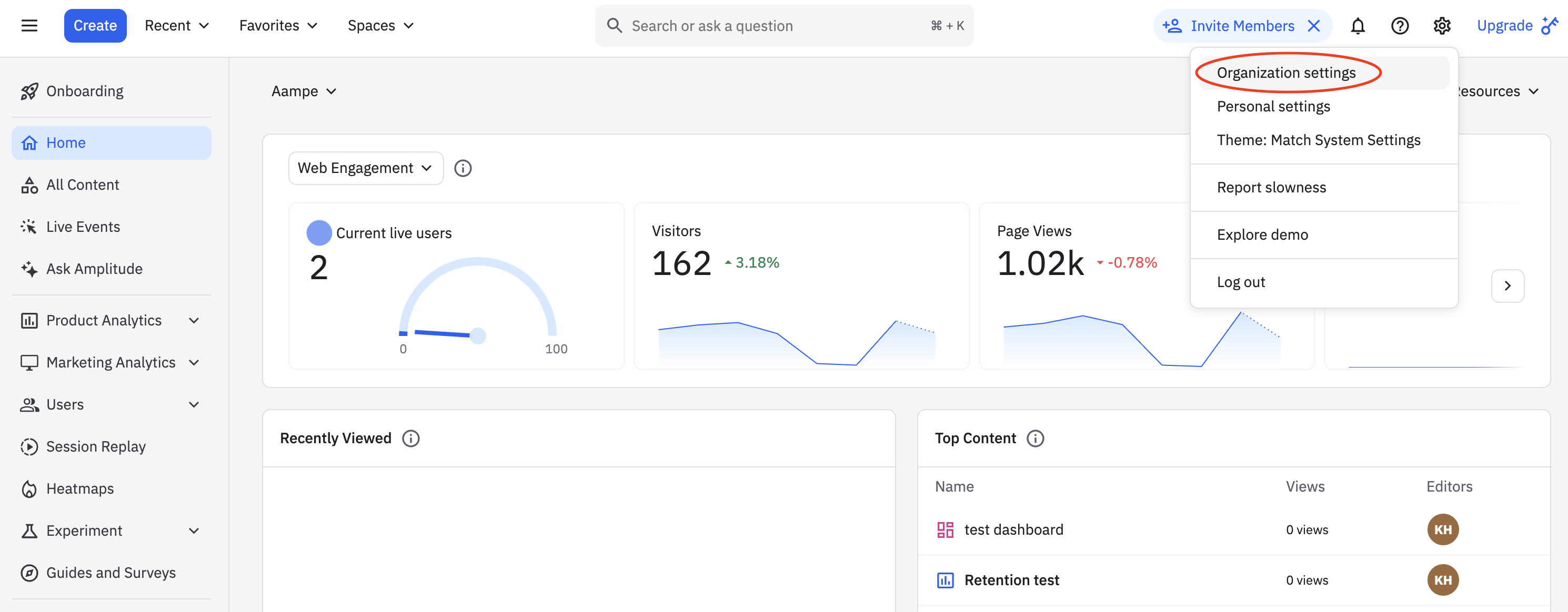 2. Select **Projects** from the navigation bar that opens.
3. Select the project with the events you would like Aampe to ingest.
2. Select **Projects** from the navigation bar that opens.
3. Select the project with the events you would like Aampe to ingest.
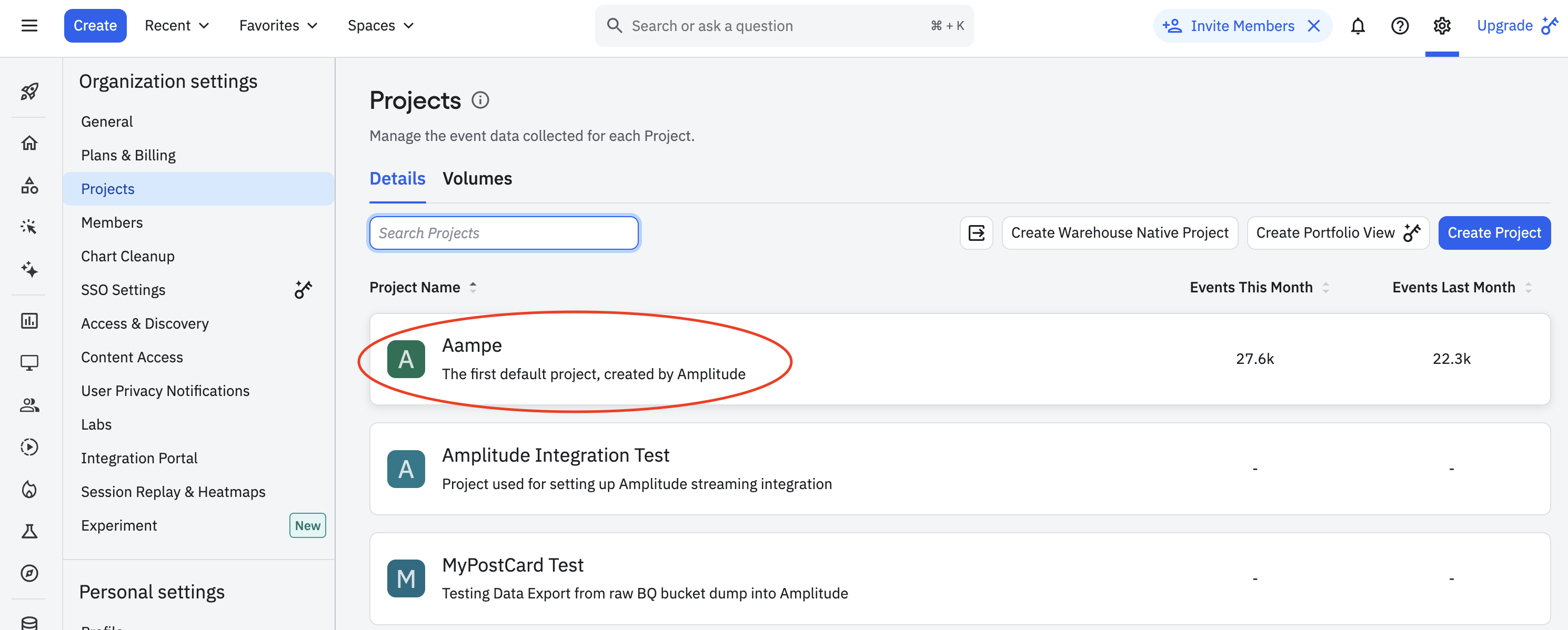 4. Copy your **API Key** and **Secret Key**
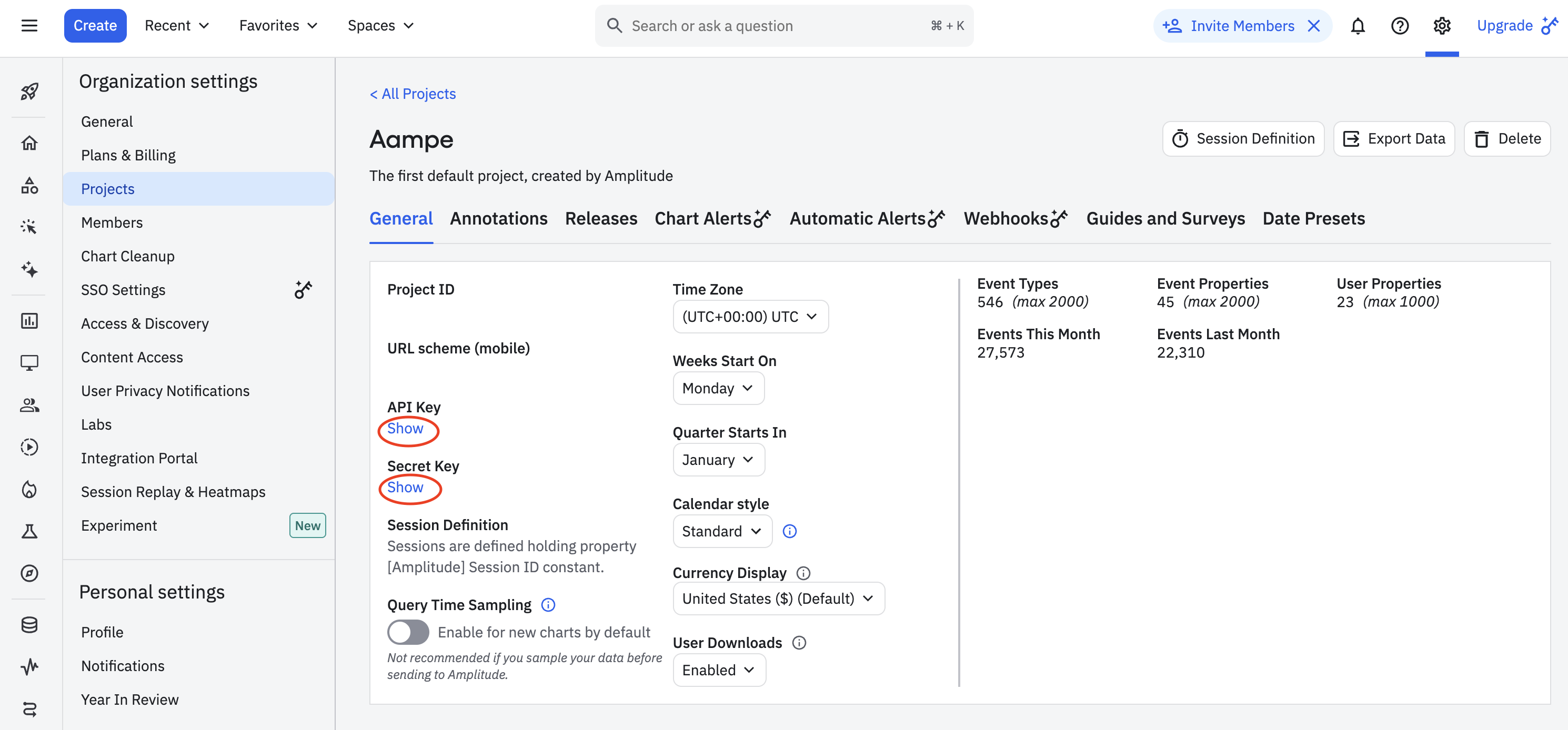 5. Navigate to **System Settings > Integrations** and select the **Data Import** tab
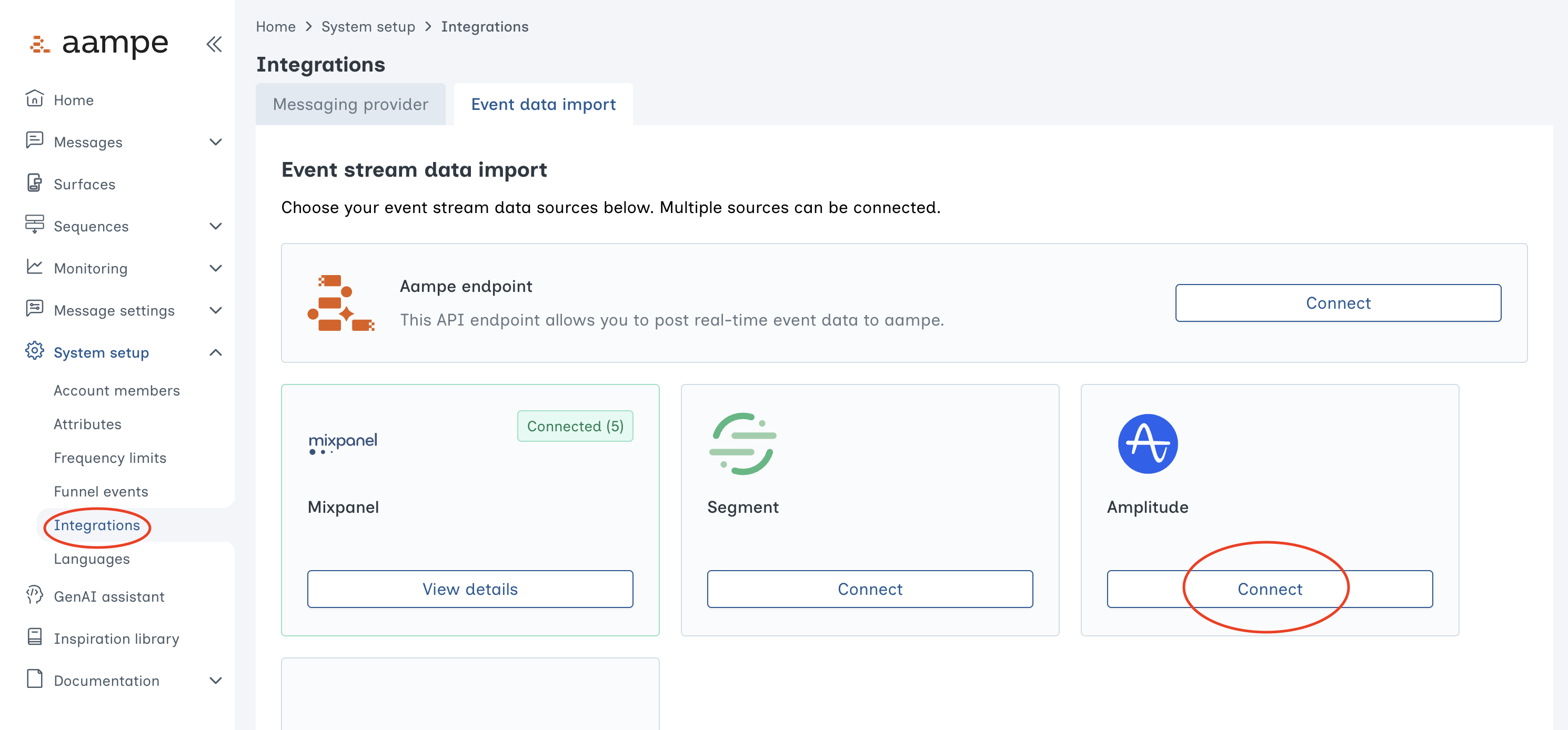 6. Select **Amplitude** and add your credentials
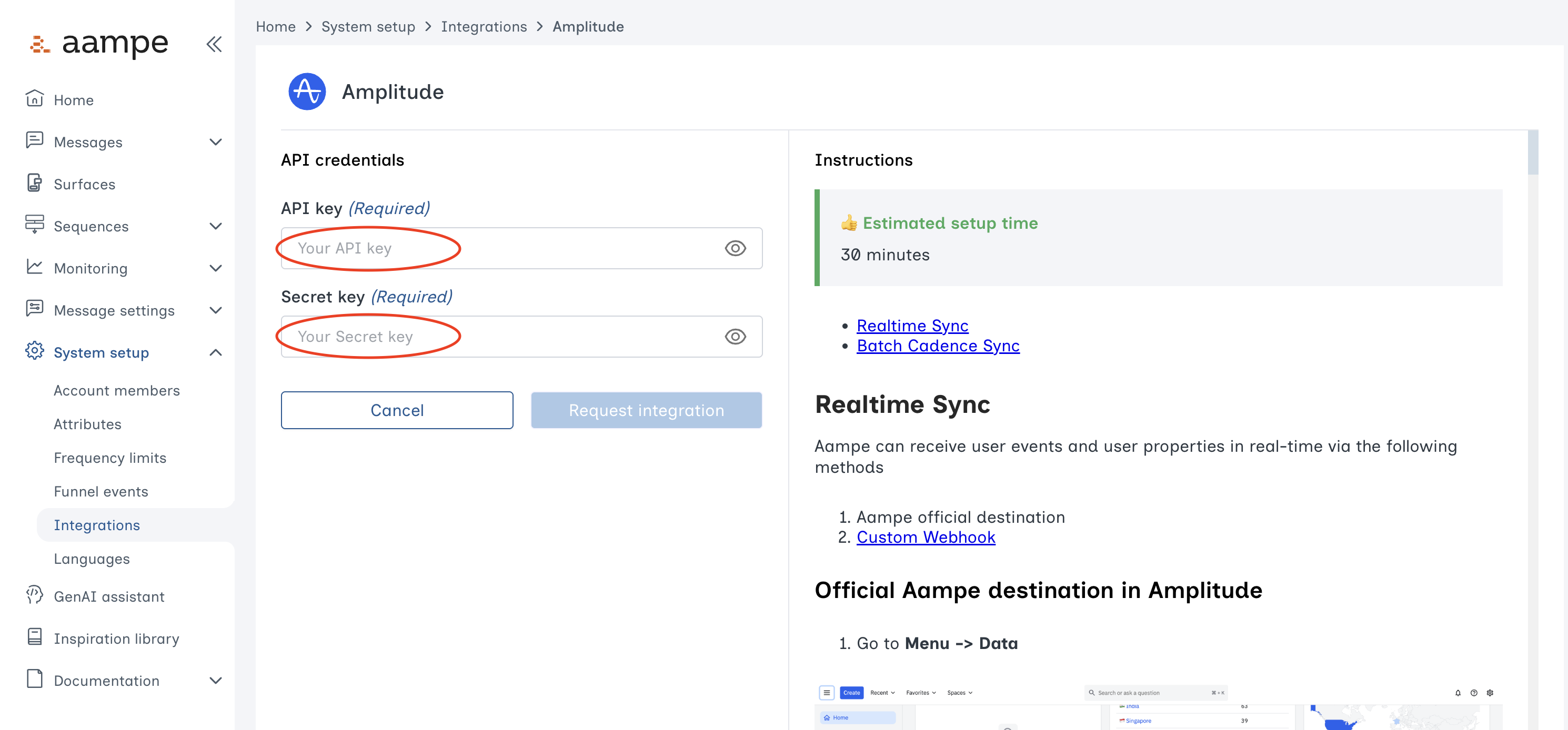 7. Click **Request Integration** to complete the integration between Aampe and Amplitude.
Unsure what events to send to Aampe? See [here](/developer-guide/data-ingest/what-events-should-i-send-to-aampe) for what a "good" event feed looks like.
7. Click **Request Integration** to complete the integration between Aampe and Amplitude.
Unsure what events to send to Aampe? See [here](/developer-guide/data-ingest/what-events-should-i-send-to-aampe) for what a "good" event feed looks like.