> ## Documentation Index
> Fetch the complete documentation index at: https://kb.aampe.com/llms.txt
> Use this file to discover all available pages before exploring further.
# Authentication
Aampe has two APIs with **different authentication methods**. Use the correct method for the API you're calling.
***
## Quick Reference
| API | Header | Example | Base URL |
| -------------------------- | ----------------------- | ---------------------------------------------- | ------------------------------------------ |
| **Content API** (Surfaces) | `X-API-Key` | `X-API-Key: your_surfaces_api_key` | `https://content.api.aampe.com` |
| **Ingestion API** (Data) | `Authorization: Bearer` | `Authorization: Bearer your_ingestion_api_key` | `https://ingestion.{region}.api.aampe.com` |
***
## Content API Authentication
Use the **Surfaces API key** when calling the Content API (e.g., Get Surface Content, Health).
Your Surfaces API key for the Content API
**Base URL:** `https://content.api.aampe.com`
```bash cURL theme={null}
curl -X GET \
'https://content.api.aampe.com/health' \
-H 'X-API-Key: YOUR_SURFACES_API_KEY'
```
```python Python theme={null}
import requests
response = requests.get(
"https://content.api.aampe.com/health",
headers={"X-API-Key": "YOUR_SURFACES_API_KEY"}
)
print(response.json())
```
```javascript JavaScript theme={null}
const response = await fetch('https://content.api.aampe.com/health', {
headers: {
'X-API-Key': 'YOUR_SURFACES_API_KEY'
}
});
const data = await response.json();
console.log(data);
```
***
## Ingestion API Authentication
Use the **Ingestion API key** when sending events or property updates to Aampe.
Bearer token with your Ingestion API key. Format: `Authorization: Bearer YOUR_INGESTION_API_KEY`
**Base URL:** `https://ingestion.{region}.api.aampe.com` (e.g., `us-east1`, `europe-west3`, `asia-southeast1`)
```bash cURL theme={null}
curl -X POST \
'https://ingestion.us-east1.api.aampe.com/v1/events' \
-H 'Authorization: Bearer YOUR_INGESTION_API_KEY' \
-H 'Content-Type: application/json' \
-d '{
"contact_id": "user123",
"event_name": "button_click",
"timestamp": 1638360000
}'
```
```python Python theme={null}
import requests
response = requests.post(
"https://ingestion.us-east1.api.aampe.com/v1/events",
headers={
"Authorization": "Bearer YOUR_INGESTION_API_KEY",
"Content-Type": "application/json"
},
json={
"contact_id": "user123",
"event_name": "button_click",
"timestamp": 1638360000
}
)
print(response.status_code) # 202 = Accepted
```
```javascript JavaScript theme={null}
const response = await fetch('https://ingestion.us-east1.api.aampe.com/v1/events', {
method: 'POST',
headers: {
'Authorization': 'Bearer YOUR_INGESTION_API_KEY',
'Content-Type': 'application/json'
},
body: JSON.stringify({
contact_id: 'user123',
event_name: 'button_click',
timestamp: 1638360000
})
});
console.log(response.status); // 202 = Accepted
```
***
## Obtaining an API Key
To find your API keys, navigate to **Integrations > API keys**
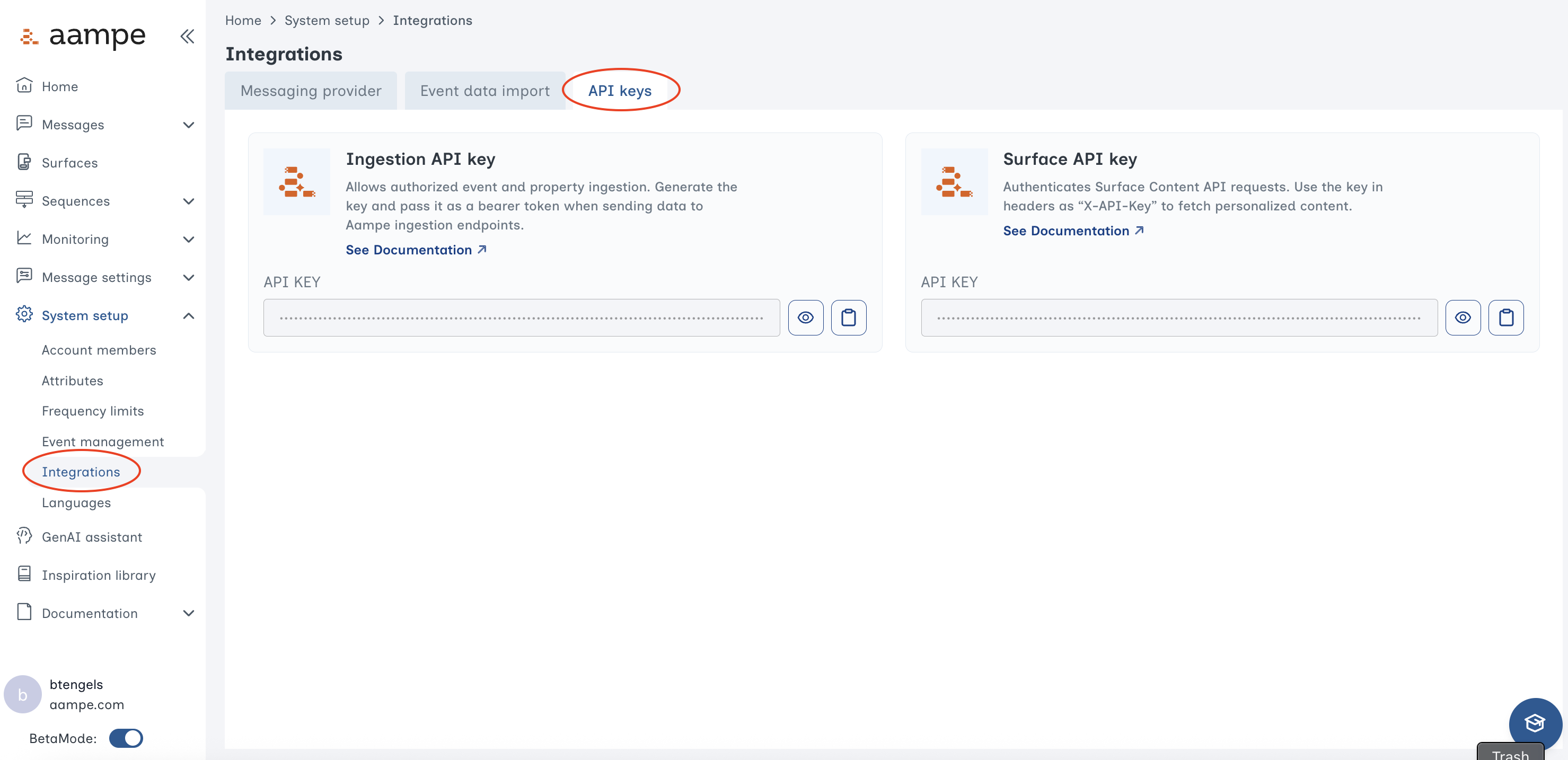 You'll find two API keys:
* **Surfaces API key:** For pulling personalized content from Aampe for [Surfaces](/developer-guide/surfaces/surfaces-embed)
* **Ingestion API key:** For sending data to Aampe via the [Aampe Streaming API](/developer-guide/data-ingest/data-sources/streaming-aampe-api)
### Key Generation Steps
1. Log into your Aampe Dashboard
2. Navigate to System settings → Integrations → Aampe Endpoint
3. Copy the API Key (hidden)
***
## Configure API Playground
To test endpoints interactively:
1. Click the "Configure" button on any API endpoint page
2. Enter your API key in the appropriate field:
* **Content API endpoints:** Use `X-API-Key` field
* **Ingestion API endpoints:** Use Bearer token field
3. Your key will be saved locally in your browser for this session
4. Try making requests directly from the documentation
Your API key is stored locally in your browser and never sent to our documentation servers. It's only used for direct API calls to the Aampe API.
***
## Security Best Practices
Never expose your API key in client-side code or public repositories. Use environment variables or secure secret management for your keys. Rotate keys if you suspect they've been compromised.
***
## Next Steps
Verify your Content API connection is working
Retrieve personalized content for users
Stream events to Aampe
Update user properties
You'll find two API keys:
* **Surfaces API key:** For pulling personalized content from Aampe for [Surfaces](/developer-guide/surfaces/surfaces-embed)
* **Ingestion API key:** For sending data to Aampe via the [Aampe Streaming API](/developer-guide/data-ingest/data-sources/streaming-aampe-api)
### Key Generation Steps
1. Log into your Aampe Dashboard
2. Navigate to System settings → Integrations → Aampe Endpoint
3. Copy the API Key (hidden)
***
## Configure API Playground
To test endpoints interactively:
1. Click the "Configure" button on any API endpoint page
2. Enter your API key in the appropriate field:
* **Content API endpoints:** Use `X-API-Key` field
* **Ingestion API endpoints:** Use Bearer token field
3. Your key will be saved locally in your browser for this session
4. Try making requests directly from the documentation
Your API key is stored locally in your browser and never sent to our documentation servers. It's only used for direct API calls to the Aampe API.
***
## Security Best Practices
Never expose your API key in client-side code or public repositories. Use environment variables or secure secret management for your keys. Rotate keys if you suspect they've been compromised.
***
## Next Steps
Verify your Content API connection is working
Retrieve personalized content for users
Stream events to Aampe
Update user properties